Welcome to Board.Vision Tutorials!
In this tutorial, we will walk you through the steps to change the EA assigned to a Business User.
Important Note: The Board.Vision web app is optimised and supported for desktop use on Google Chrome (version 65.0 and later) and Microsoft Edge (version 87.0 and later).
To change the EA assigned to a Business User:
1) Log in to Board.Vision using your registered email address and password.
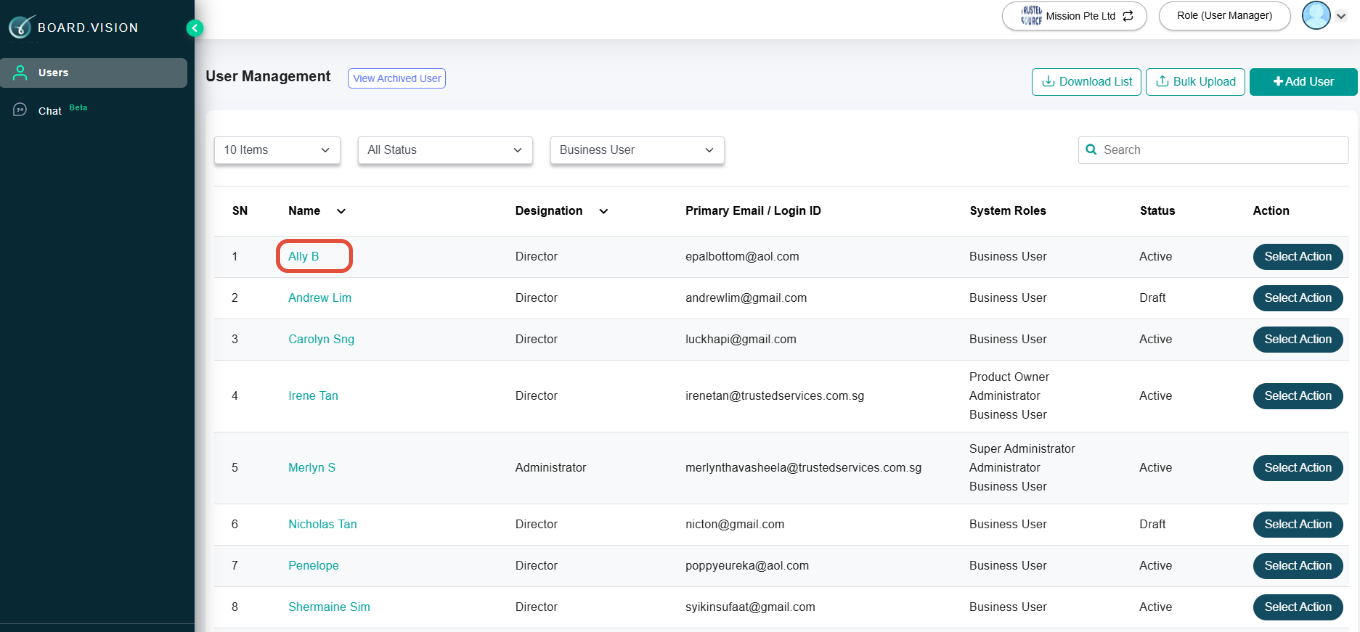
2) Click on the Business User's name.
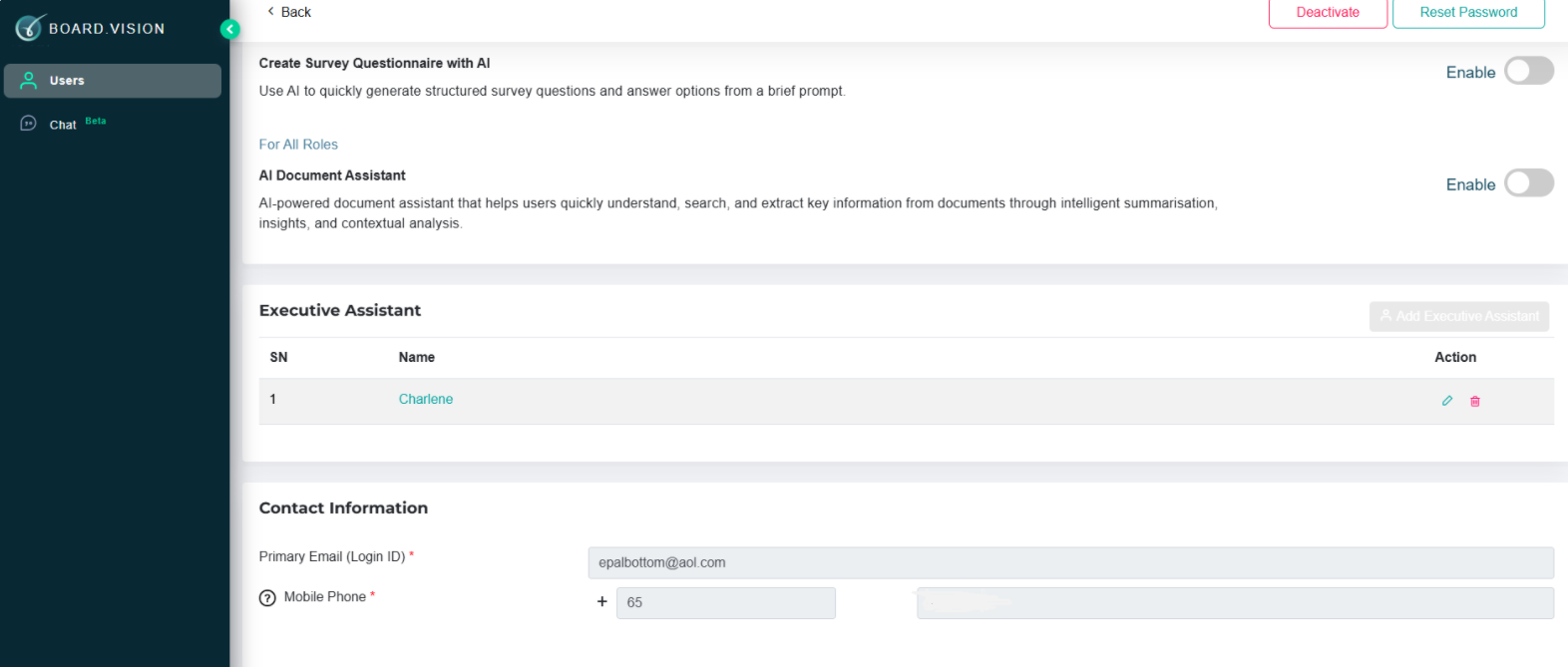
3) Scroll down to the Executive Assistant section and click on the Pen icon.
Note: If you would like to remove the EA, click on the delete icon.
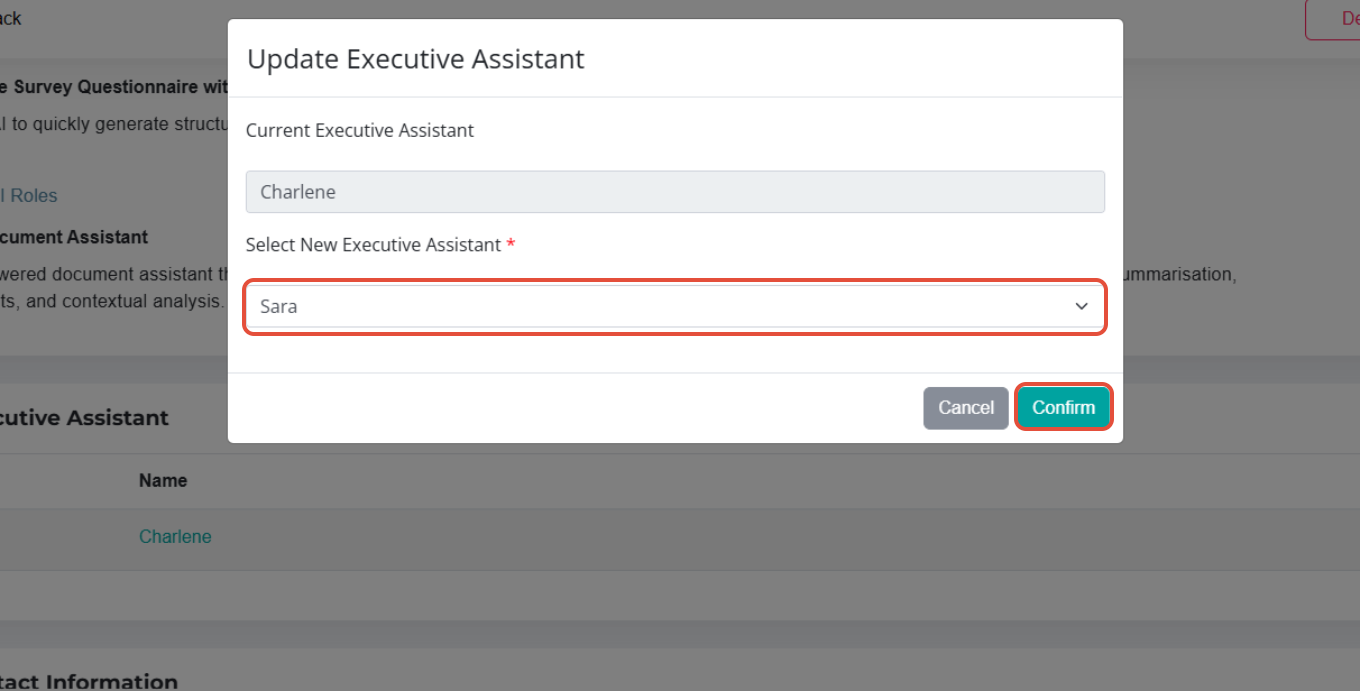
4) On the Update Executive Assistant pop-up window, select a replacement and click on Confirm.
If you face any issues in completing the steps shown in this tutorial, please reach out to our Board.Vision Customer Success Team at support@board.vision or +65 6909 7100 and we will be happy to help.
Our hotline operating hours are from Mondays to Fridays 9:00 AM to 6:00 PM SGT (excluding public holidays).
Was this article helpful?
That’s Great!
Thank you for your feedback
Sorry! We couldn't be helpful
Thank you for your feedback
Feedback sent
We appreciate your effort and will try to fix the article