Welcome to Board.Vision Tutorials!
In this tutorial, we will walk you through the steps to access the Record Management System (RMS) on iPhone.
To access the RMS:
1) Log in to the Board.Vision App with your registered email address and password.
2) Once you have logged in, you will be directed to your Upcoming Items.
Tap on the Record Management icon from the bottom navigation bar. 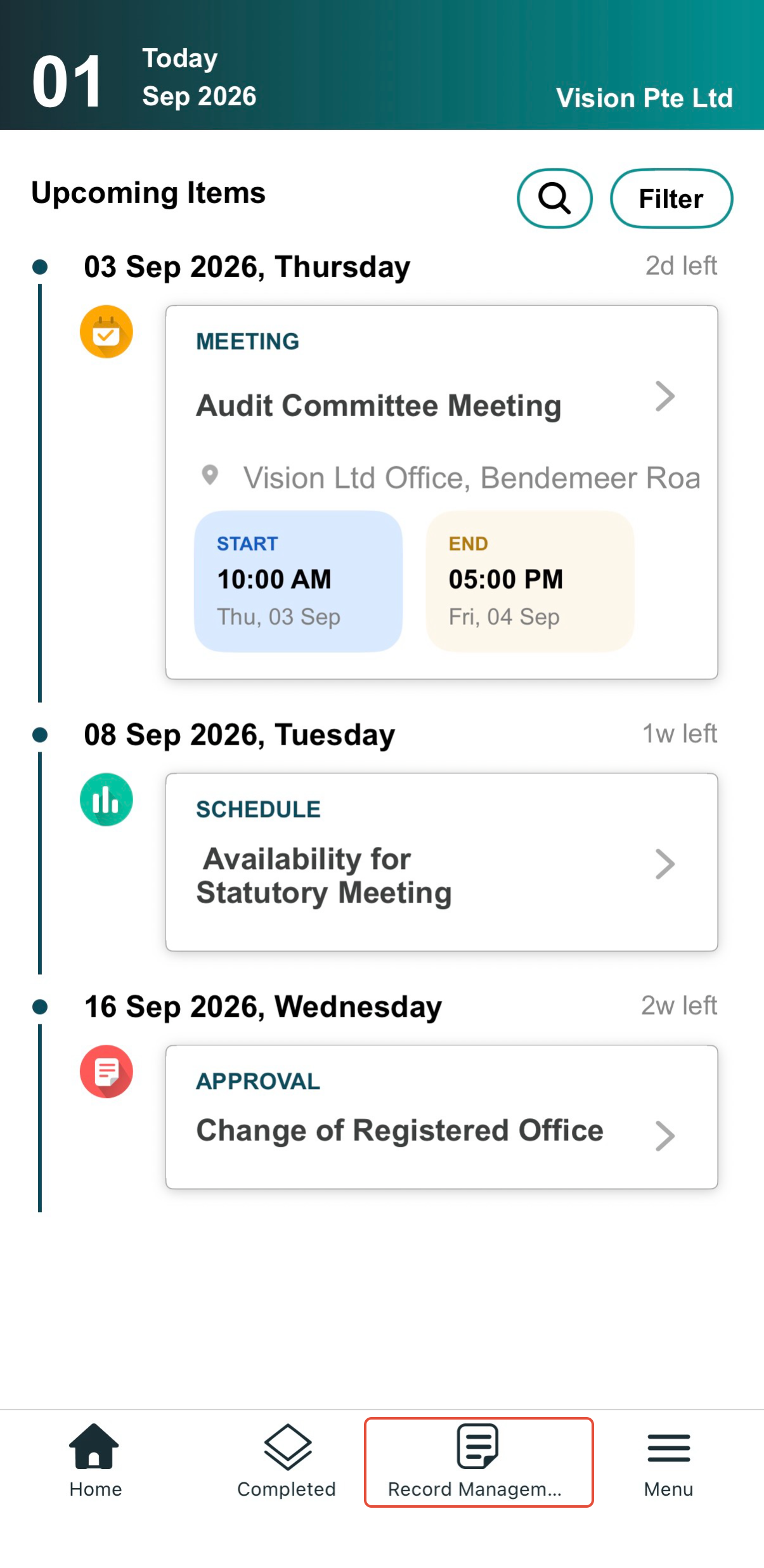
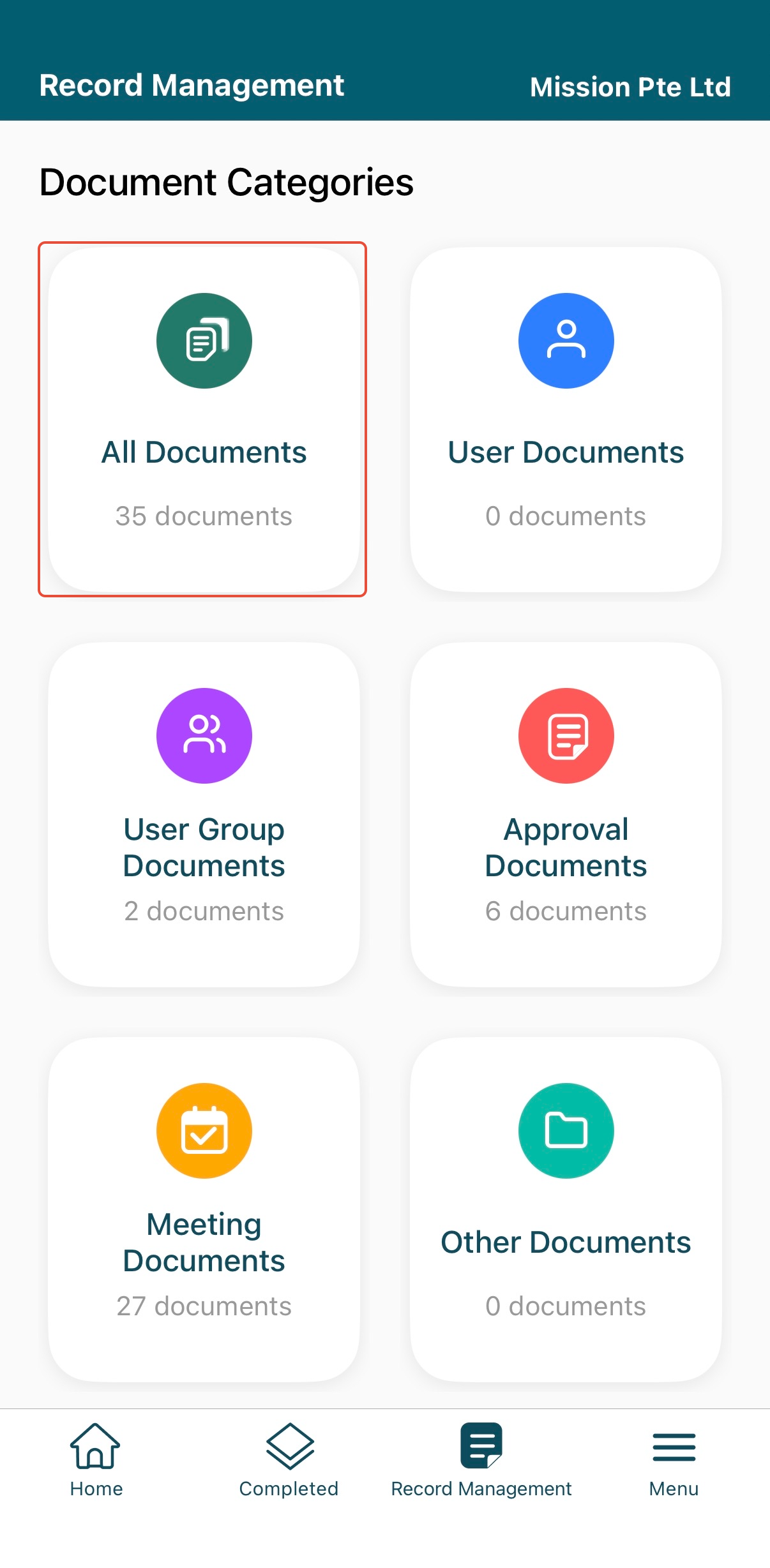
3) The next screen displays the different document categories, including:
- User Documents
- User Group Documents
- Approval Documents
- Meeting Documents
- Other Documents (User Upload Documents)
Tap on the category to view the related documents. For example, if you would like to view all documents, tap on the All Documents category.
4) You can filter your search by tapping on the Filters button.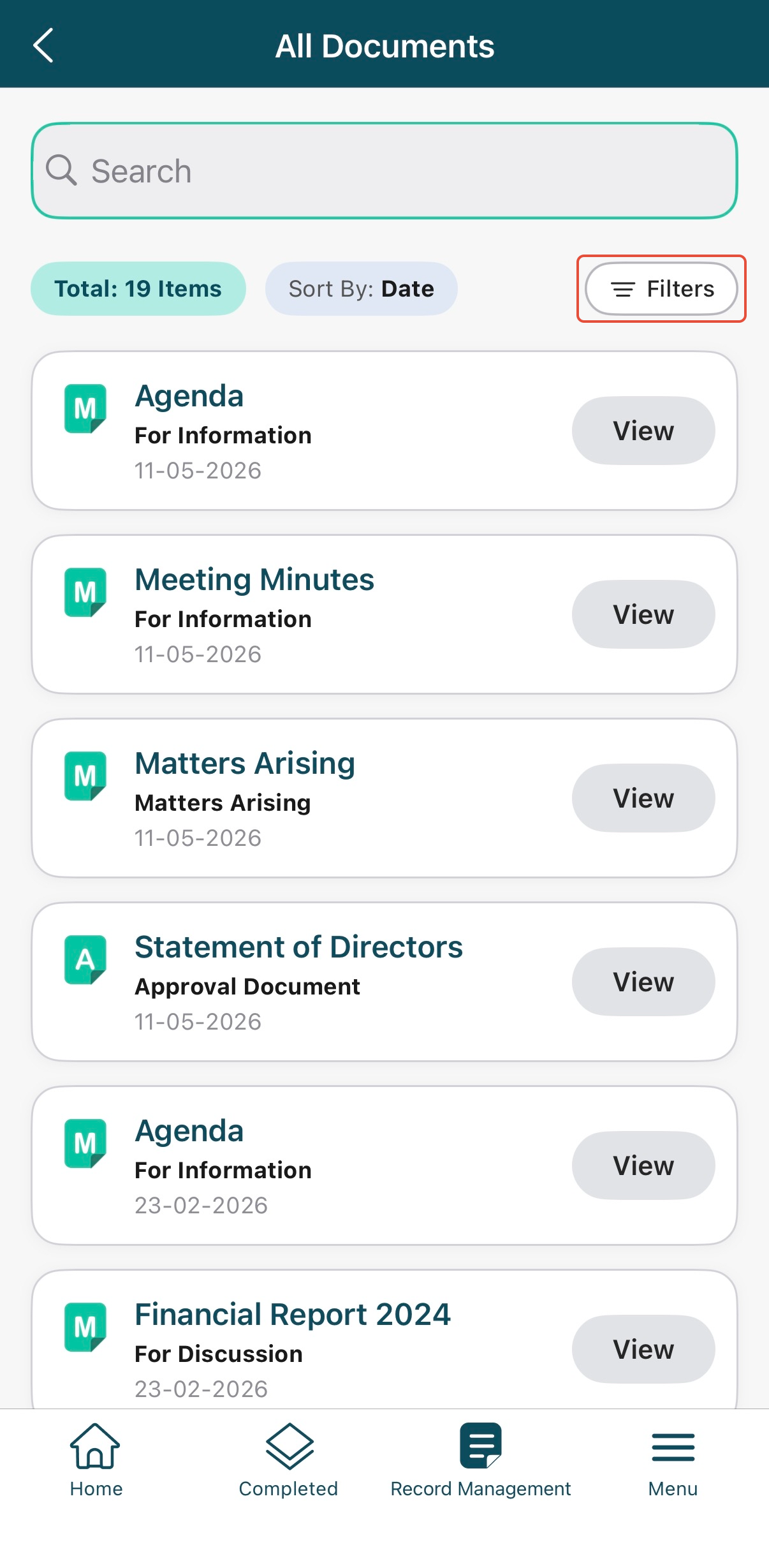
5) Enter filters such as:
- Document Title: The name given to the document when it was uploaded.
- Associate To: Indicates which user, user group, meeting, or approval the document belongs to (eg, an approval or meeting name)
- Date: Specify the date range for the documents when they were uploaded to the system.
- Tag: Shows the tags you added when uploading documents via RMS, Approvals, Meetings, or User/User Groups.
- Document Type: Categorises the file, for example: User Document, User Group Document, Approval Document, Meeting Document, Agreements, Financial Statements, etc.
- Creator Name: Indicates the user who uploaded the document into RMS.
Then tap the Apply Filter button. The system will display matching documents based on your keywords. 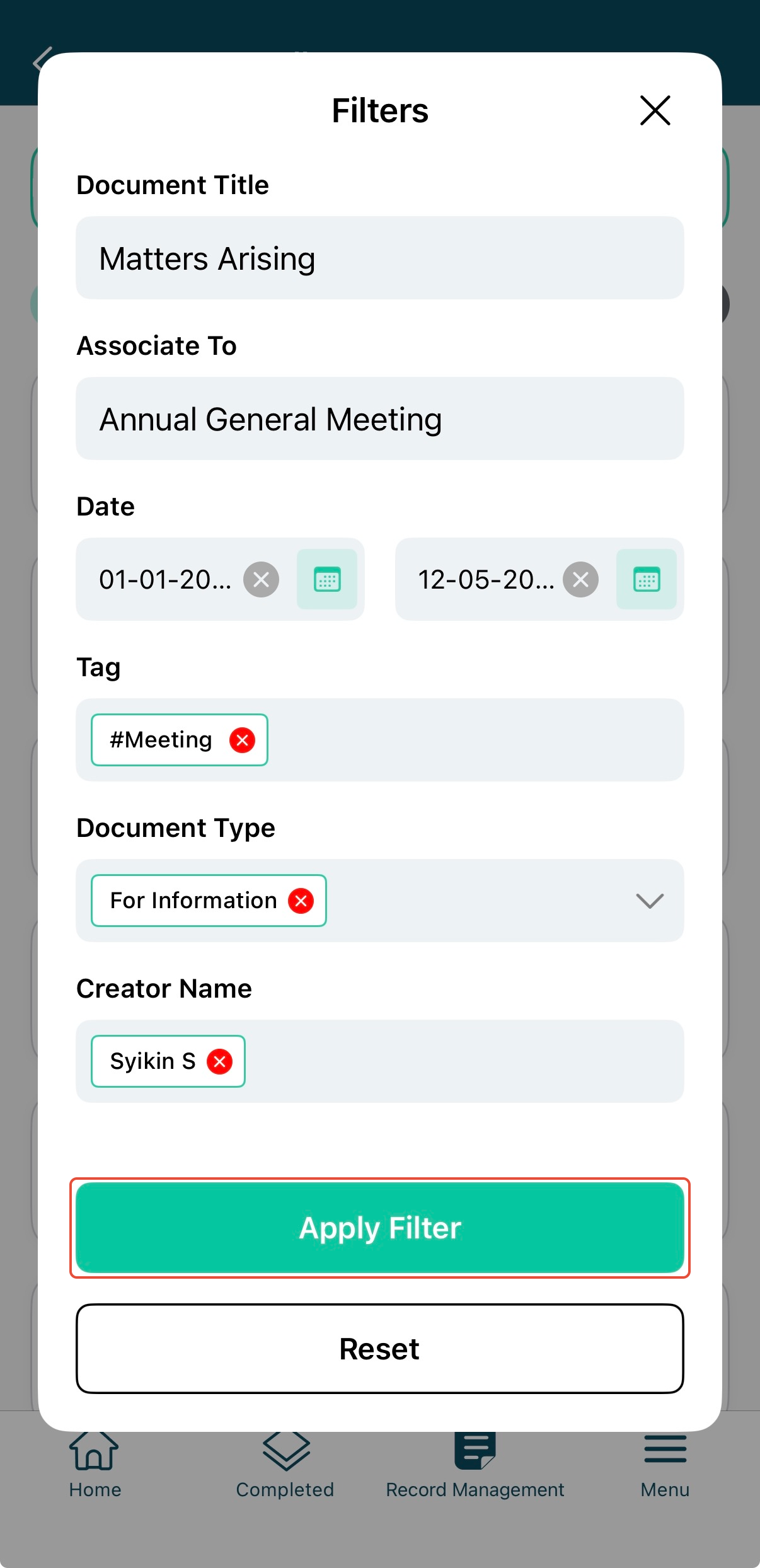
You have completed the tutorial on how to access the Record Management System on iPhone.
If you face any issues, please reach out to our Board.Vision Customer Success Team at support@board.vision or +65 6909 7100 and we will be happy to help.
Our hotline operating hours are from Mondays to Fridays 9:00 AM to 6:00 PM SGT (excluding public holidays).
Was this article helpful?
That’s Great!
Thank you for your feedback
Sorry! We couldn't be helpful
Thank you for your feedback
Feedback sent
We appreciate your effort and will try to fix the article