Welcome to Board.Vision Tutorials!
In this tutorial, we will walk you through the steps to annotate on a shared copy of a document with other users.
Please note that you can annotate on a shared copy of User Group documents, Meeting Agenda documents / additional documents/minutes, and Approval documents / supporting documents.
To annotate on a shared copy of a document with other users:
1) Log in to your Board.Vision account using your registered email address and password.
2) Tap on the meeting name under Upcoming Items.
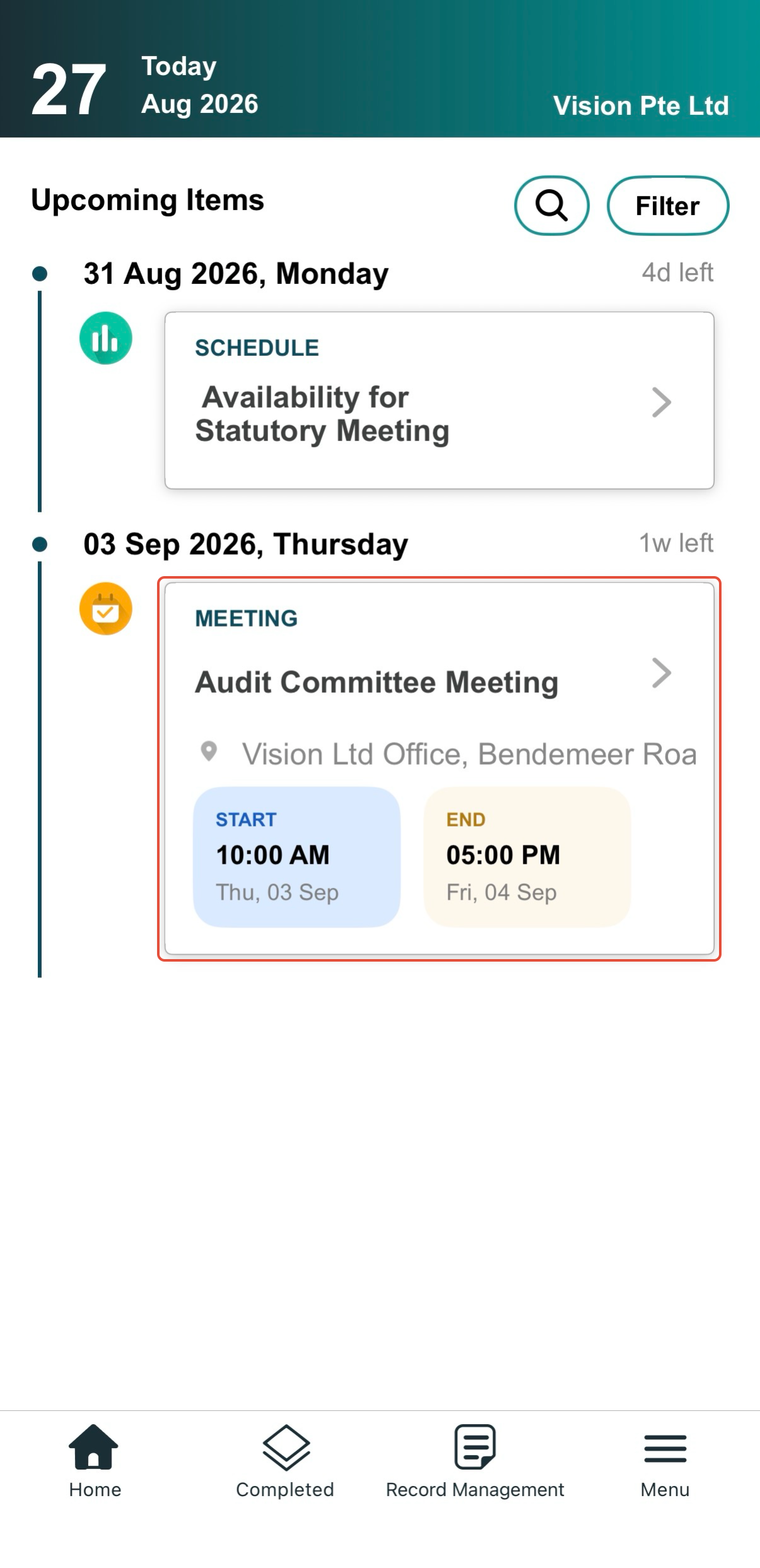
3) Open the document and tap on the Action button located at the bottom right.
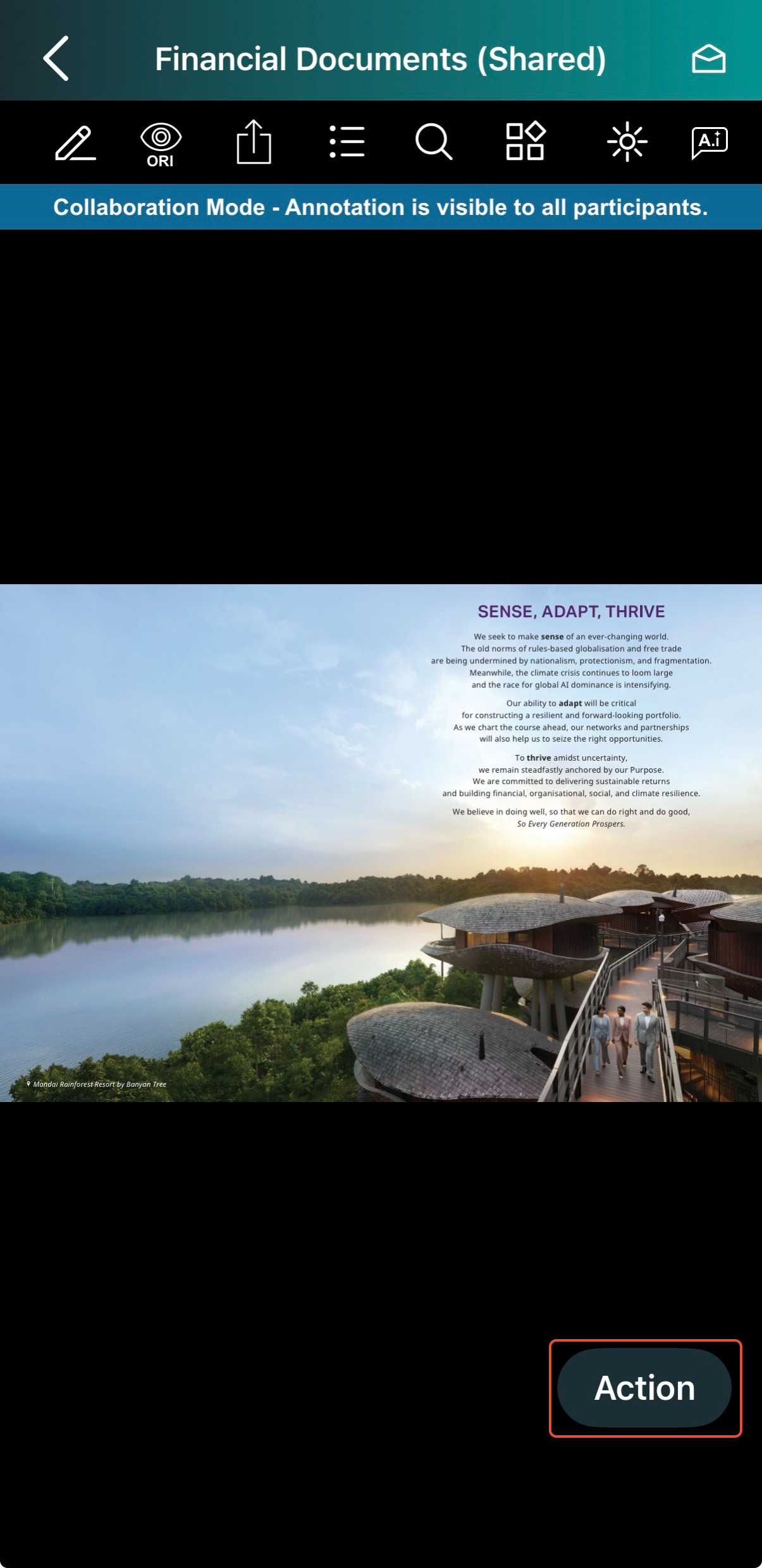
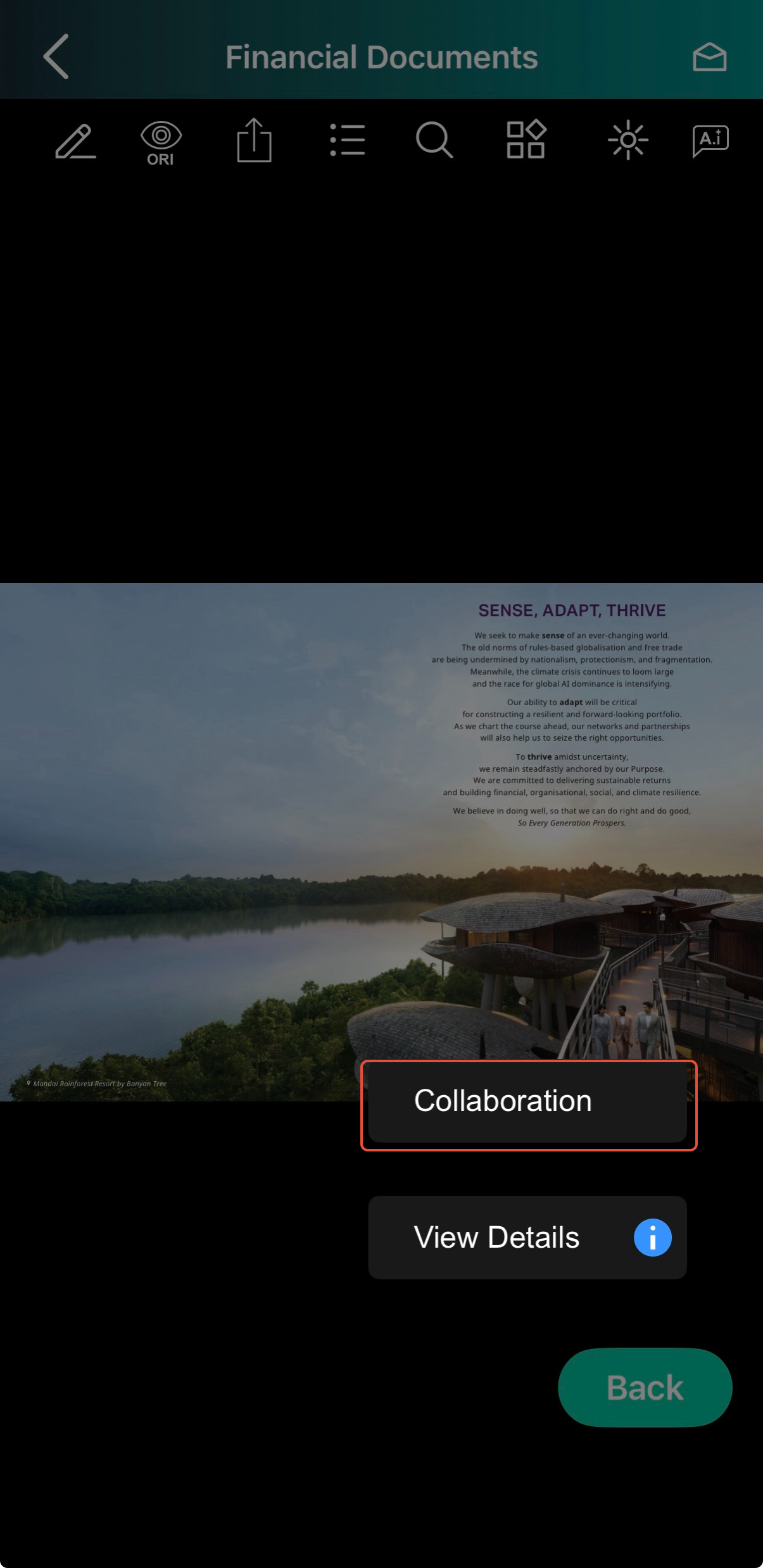
4) Tap on Collaboration.
Note: Once Collaboration is enabled, you will be annotating a shared copy of the document. Your annotations will be visible to other Business Users and Administrators, and multiple users can annotate simultaneously.
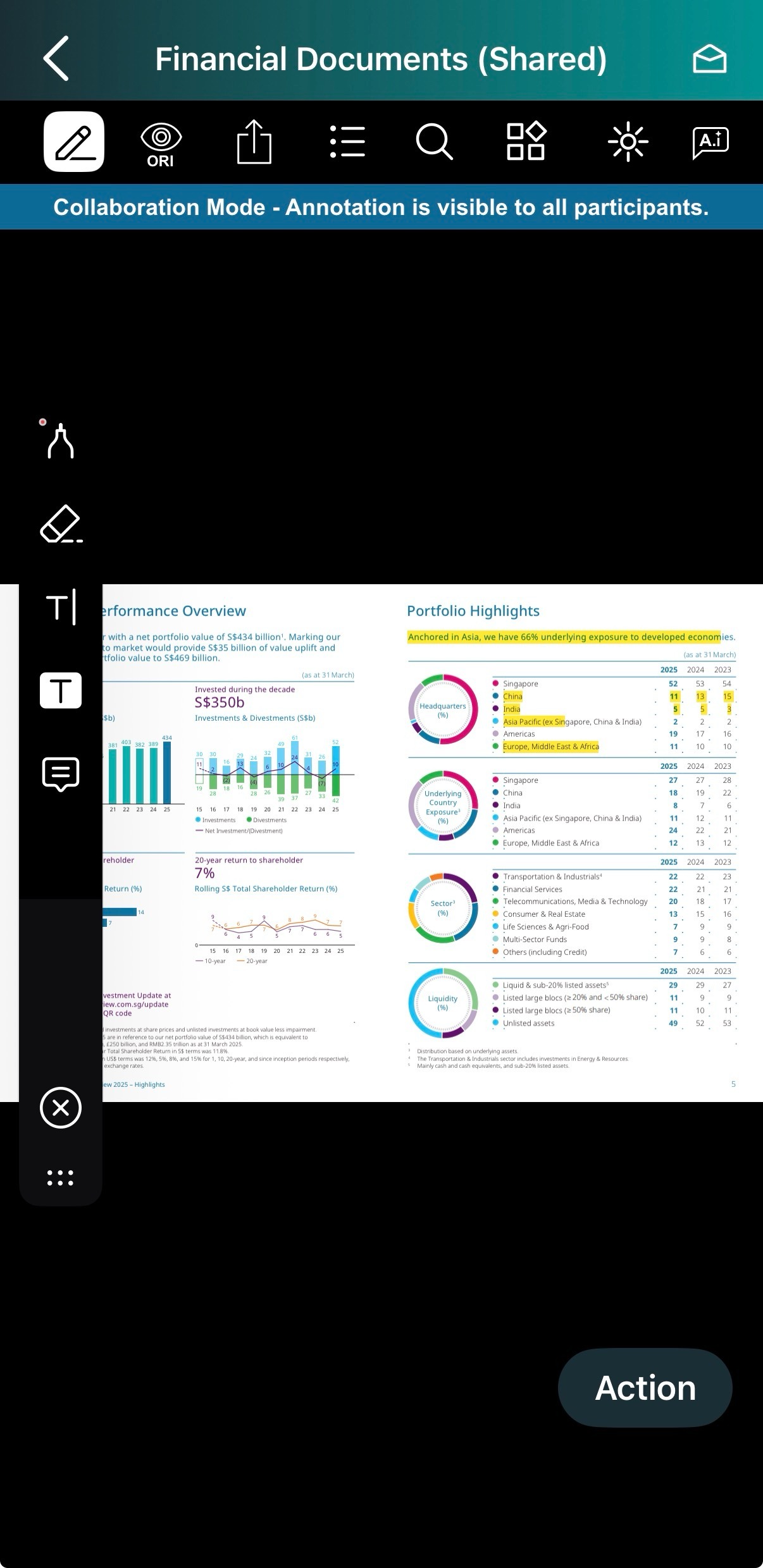
4) To start annotating, tap on the Pen icon located at the top of the screen.
Select from tools such as Pen, Insert Text, Highlighter, or Notes.
5) Removing annotations:
a) To remove drawing annotations, select Eraser.
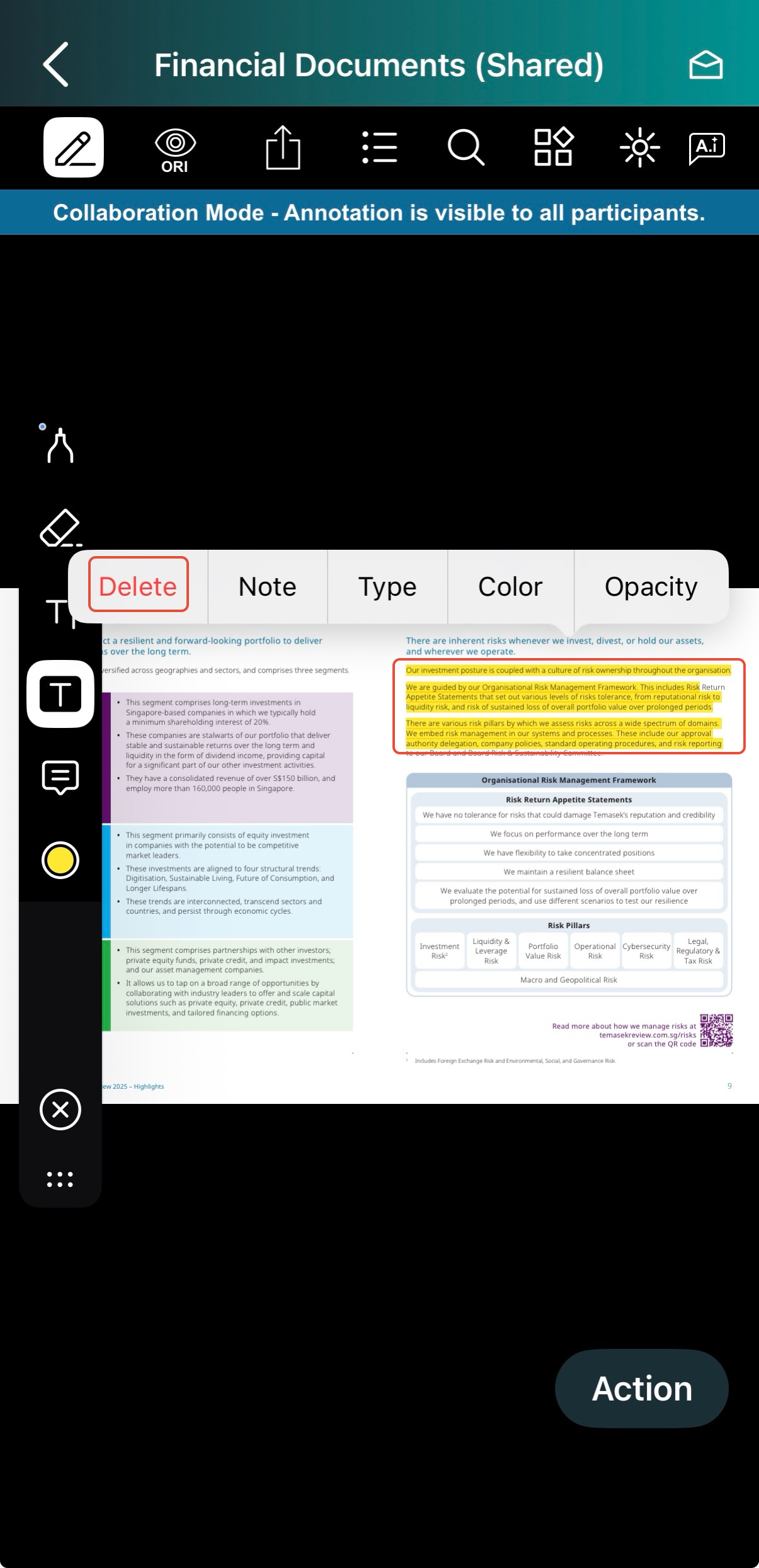
b) To remove Highlights, Texts or Notes, start by deselecting any annotation icons from the side annotation toolbar.
Then, choose the specific annotation you want to delete and tap on the Delete icon.
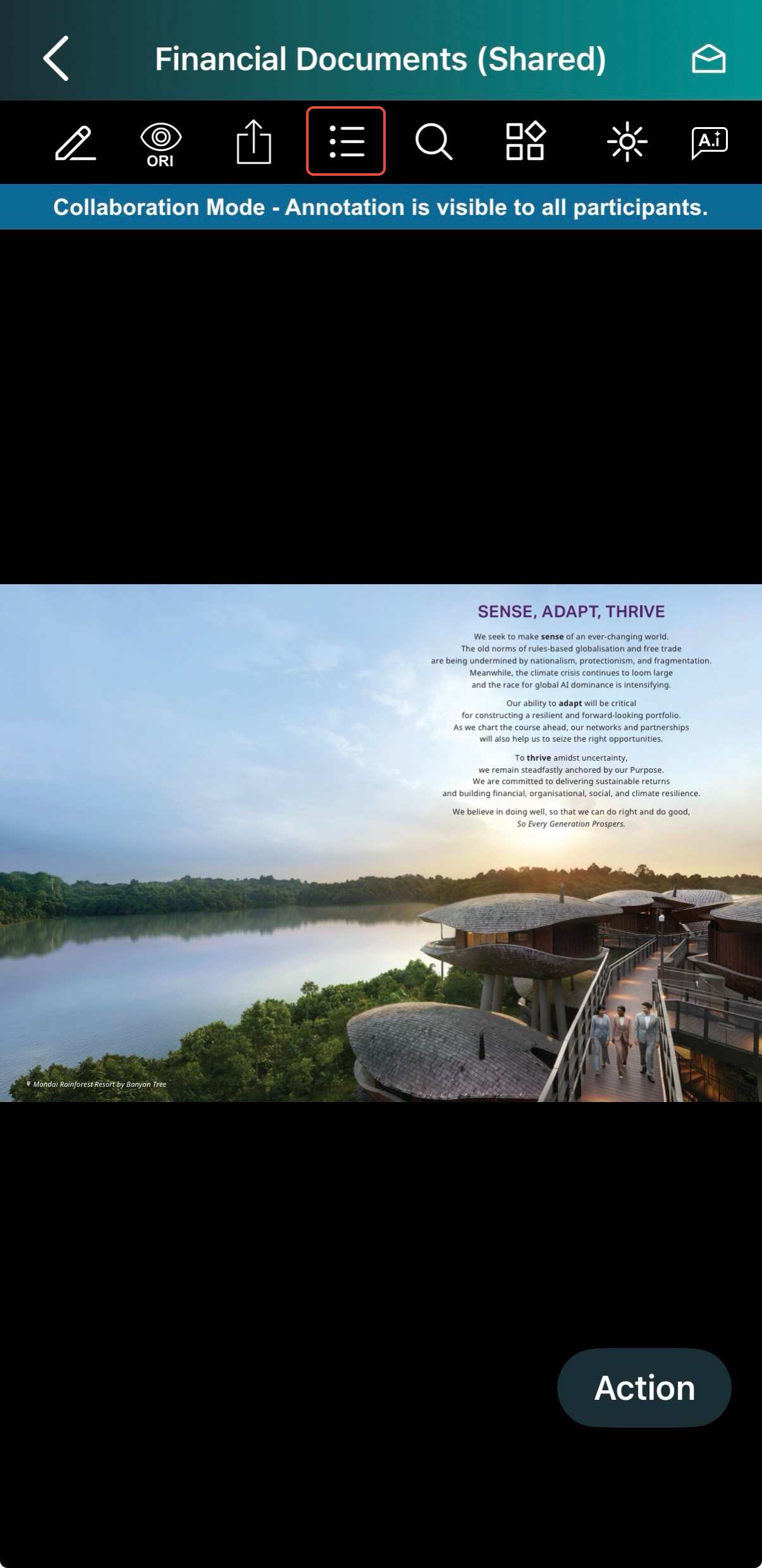
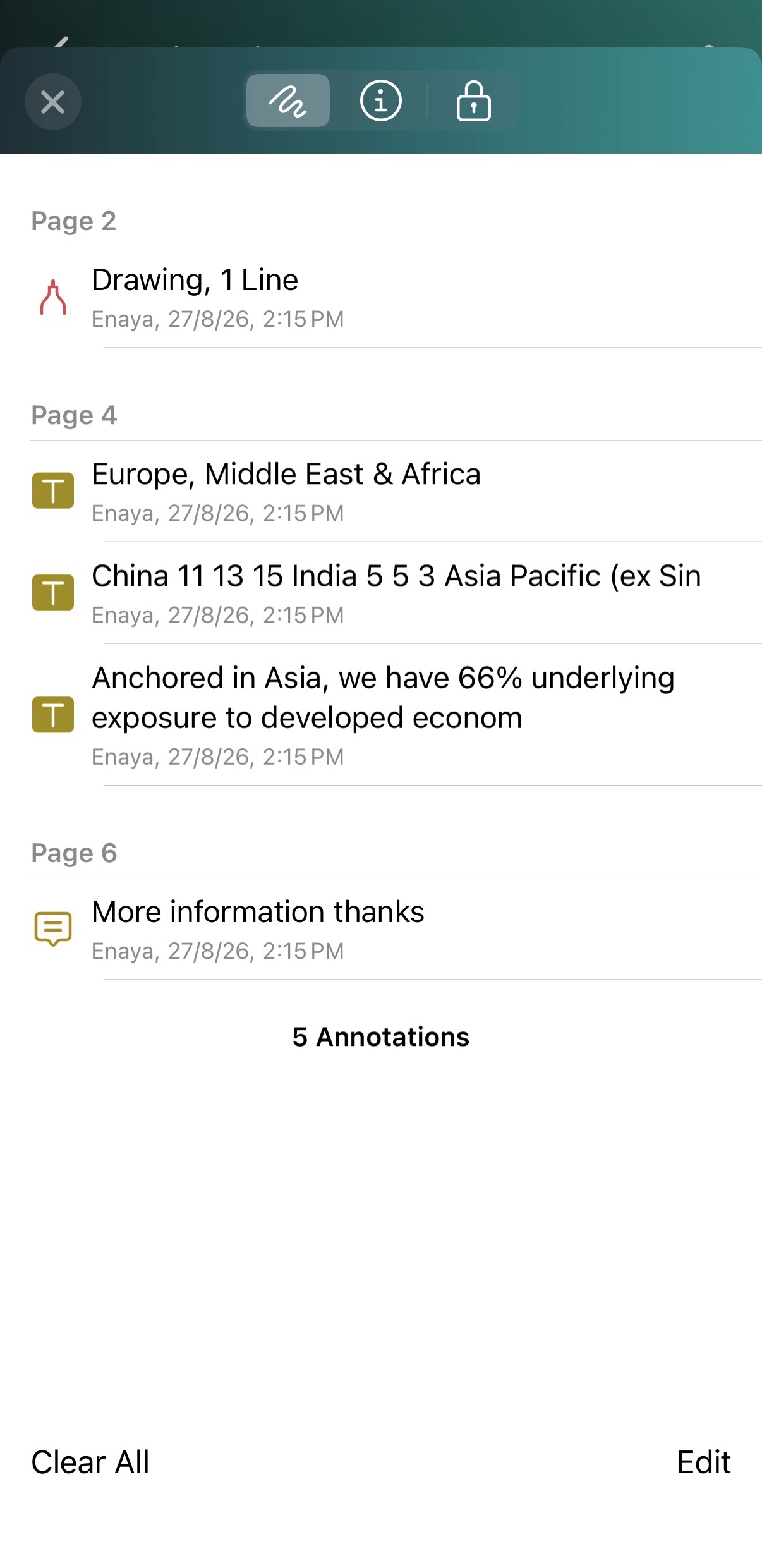
6) To view annotation records, tap the Document icon and select Annotations.
 |  |
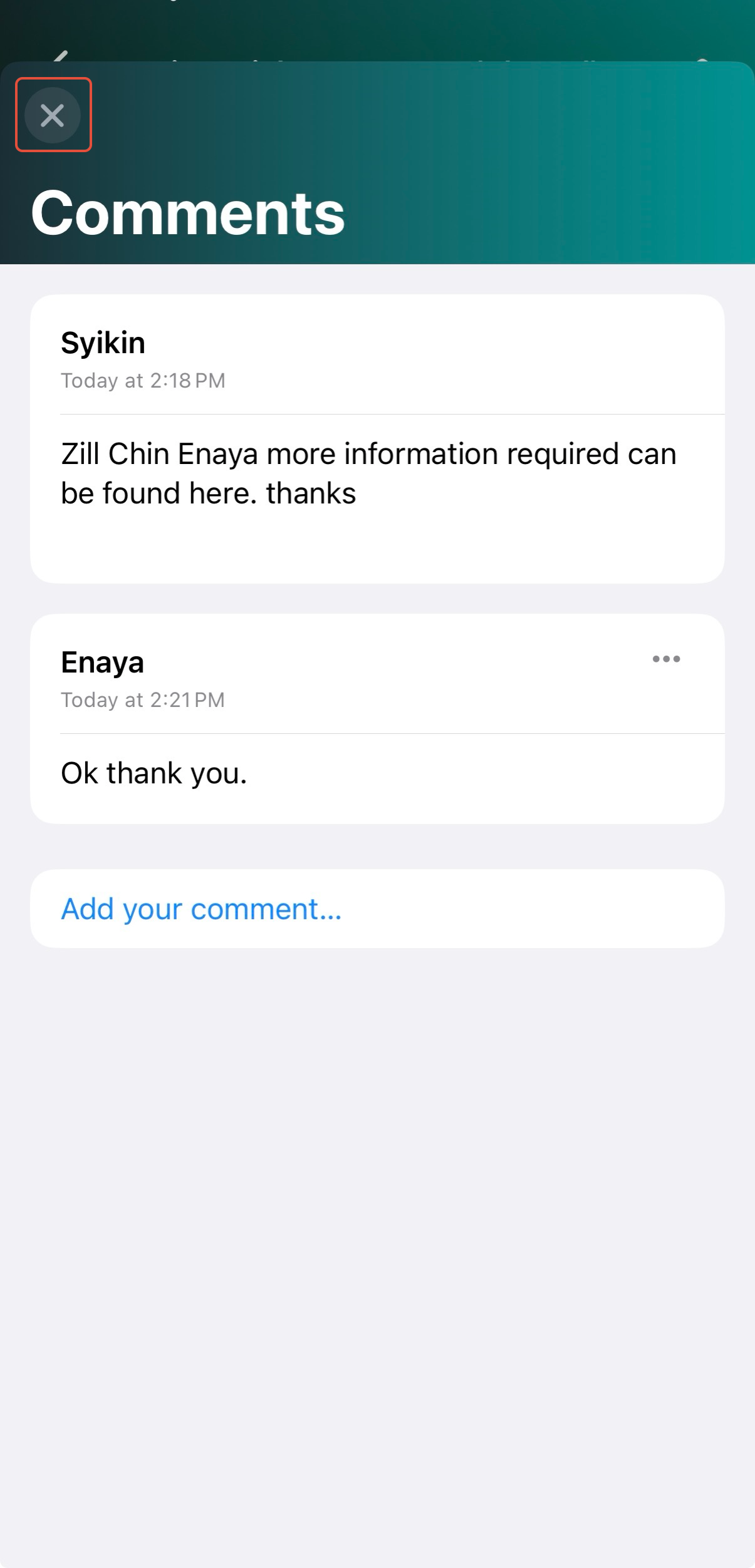
7) If other users mentioned you in their comments, you may reply. First, tap on the Note icon and tap Note.
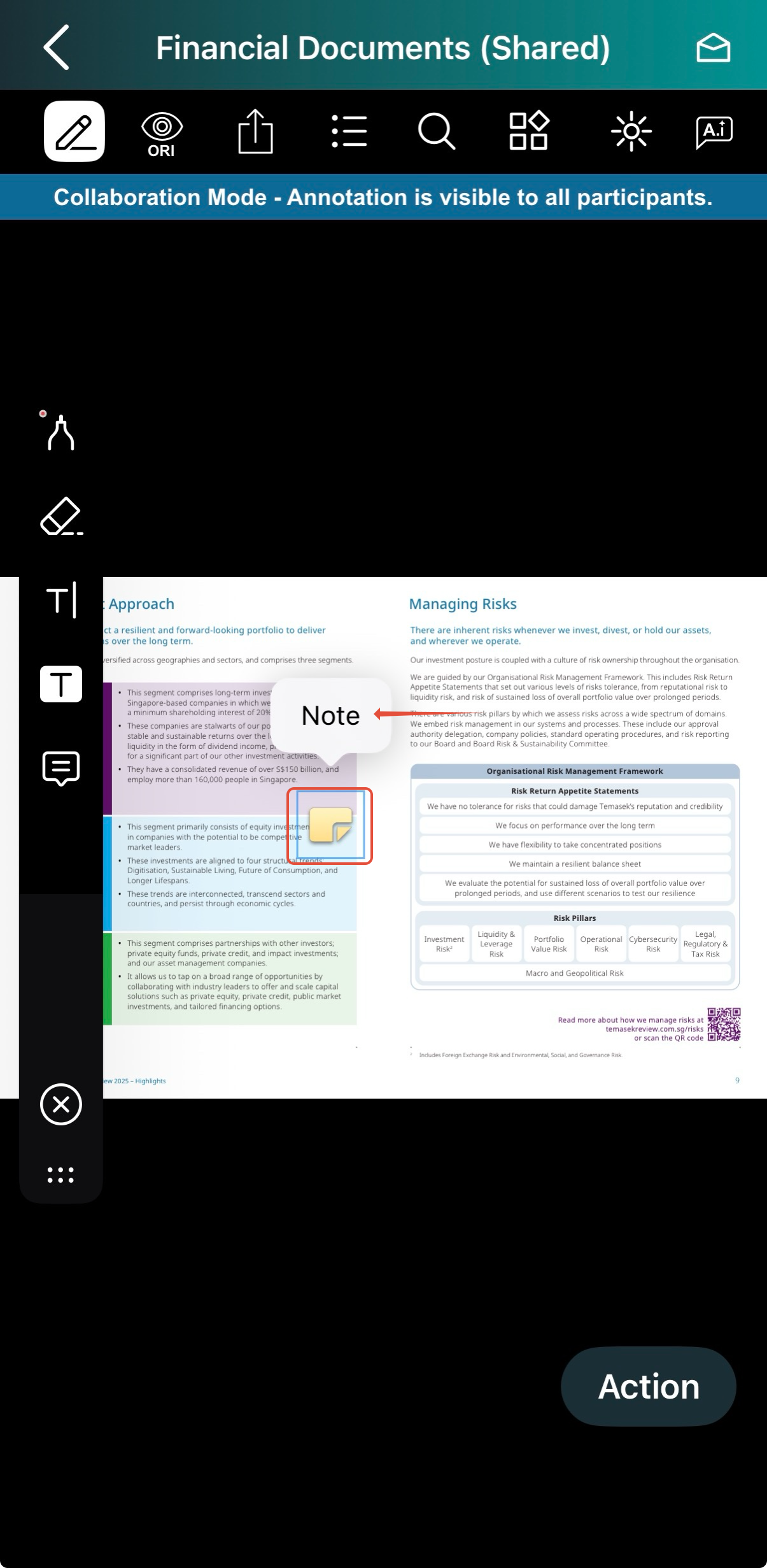
8) Then, add your comments. Tap on "x" to close the pop-up.
9) To return to your personal copy, tap Action and select Personal. 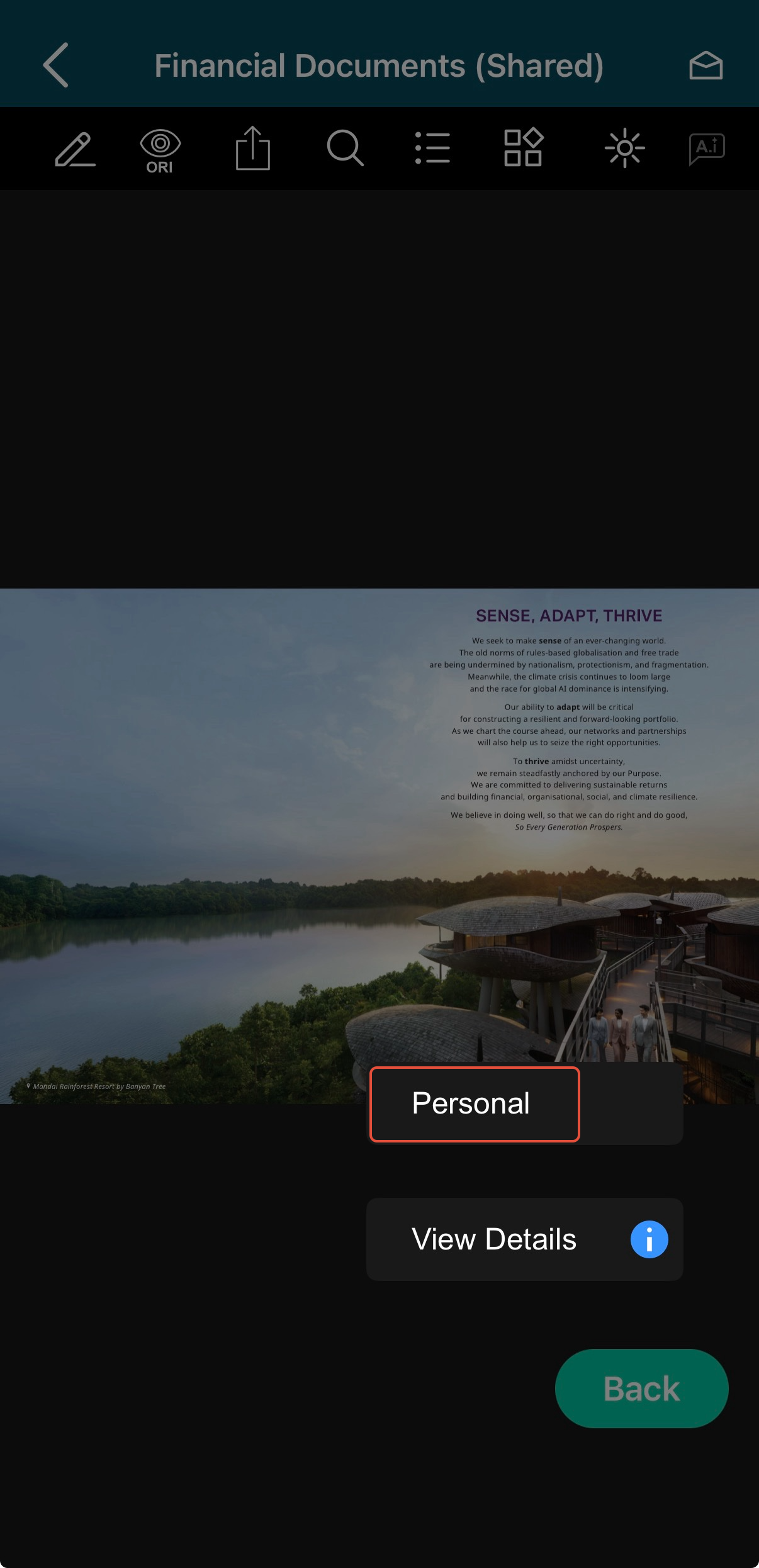
Important Note:
• In Personal mode, your annotations are private and cannot be seen by other users.
• In Collaboration mode, your annotations are shared and visible to other Business Users and Administrators.
You have completed the tutorial on how to annotate with other Business Users and Administrators simultaneously.
Was this article helpful?
That’s Great!
Thank you for your feedback
Sorry! We couldn't be helpful
Thank you for your feedback
Feedback sent
We appreciate your effort and will try to fix the article