Welcome to Board.Vision Tutorials!
In this tutorial, we will walk you through the steps to vote and propose Meeting dates.
Important Note: The Board.Vision web app is optimised and supported for desktop use on Google Chrome (version 65.0 and later) and Microsoft Edge (version 87.0 and later).
To vote and propose Meeting dates:
1) Log in to your Board.Vision account using your registered email address and password.
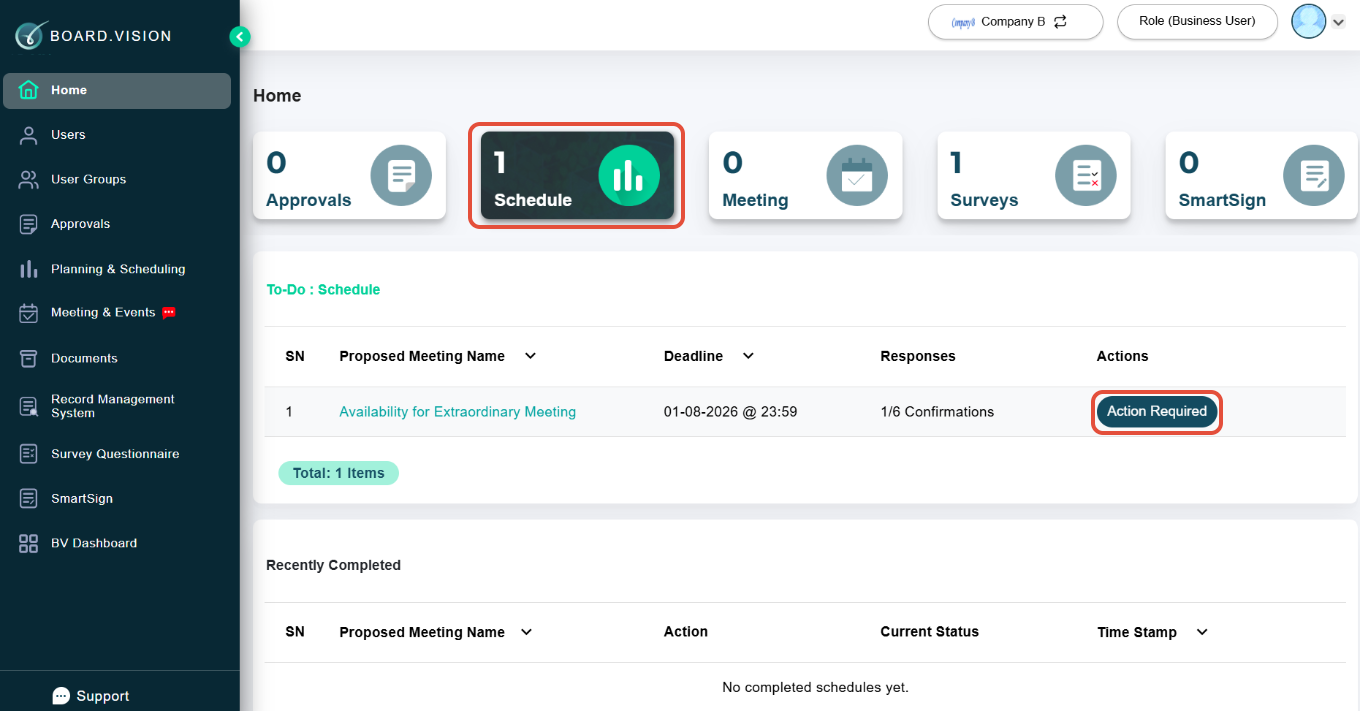
2) From your Home screen, apply the Schedules filter and click on Action Required.
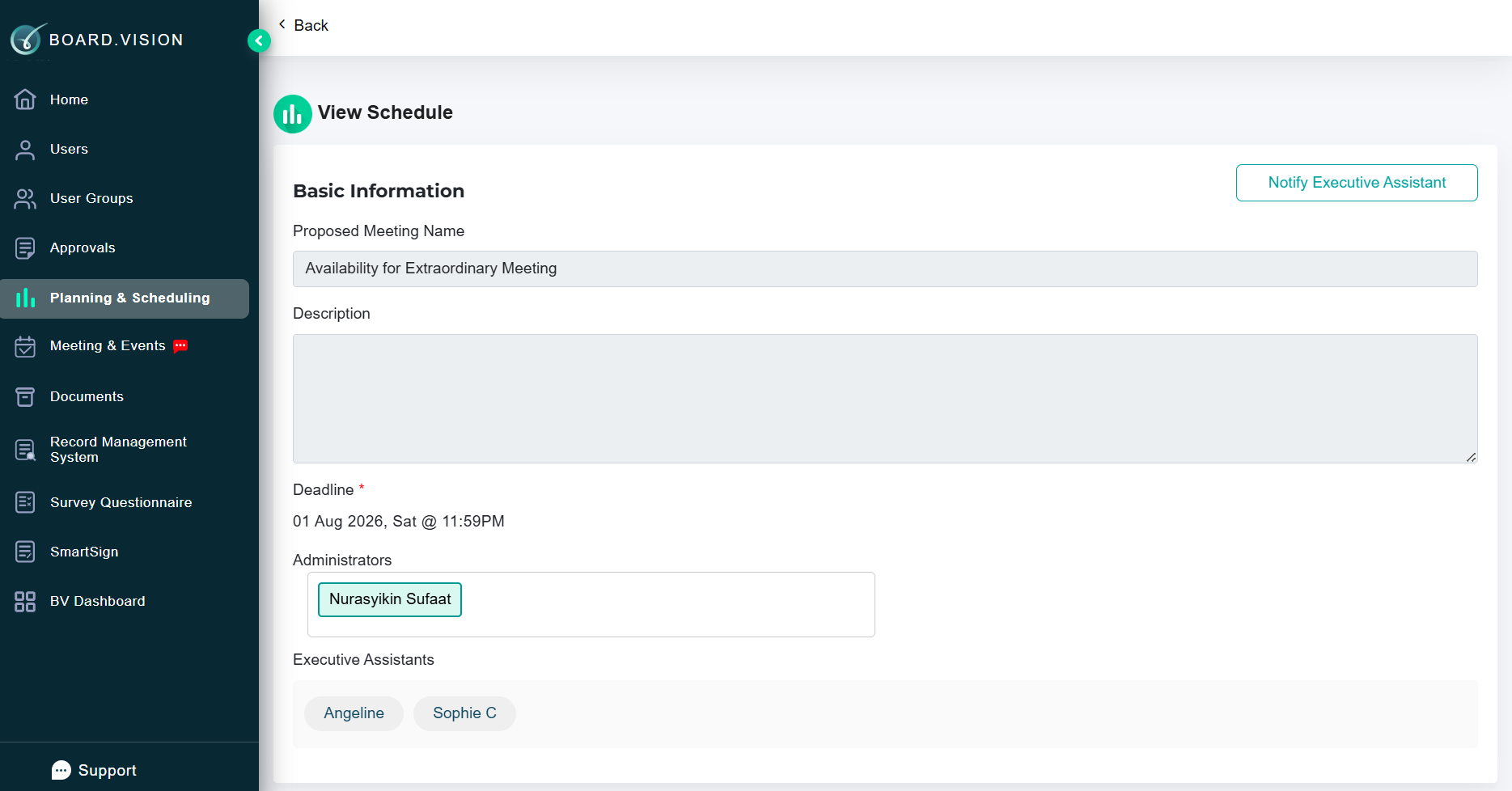
3) On the View Schedule Basic Information page, you can view information such as the deadline and participants.
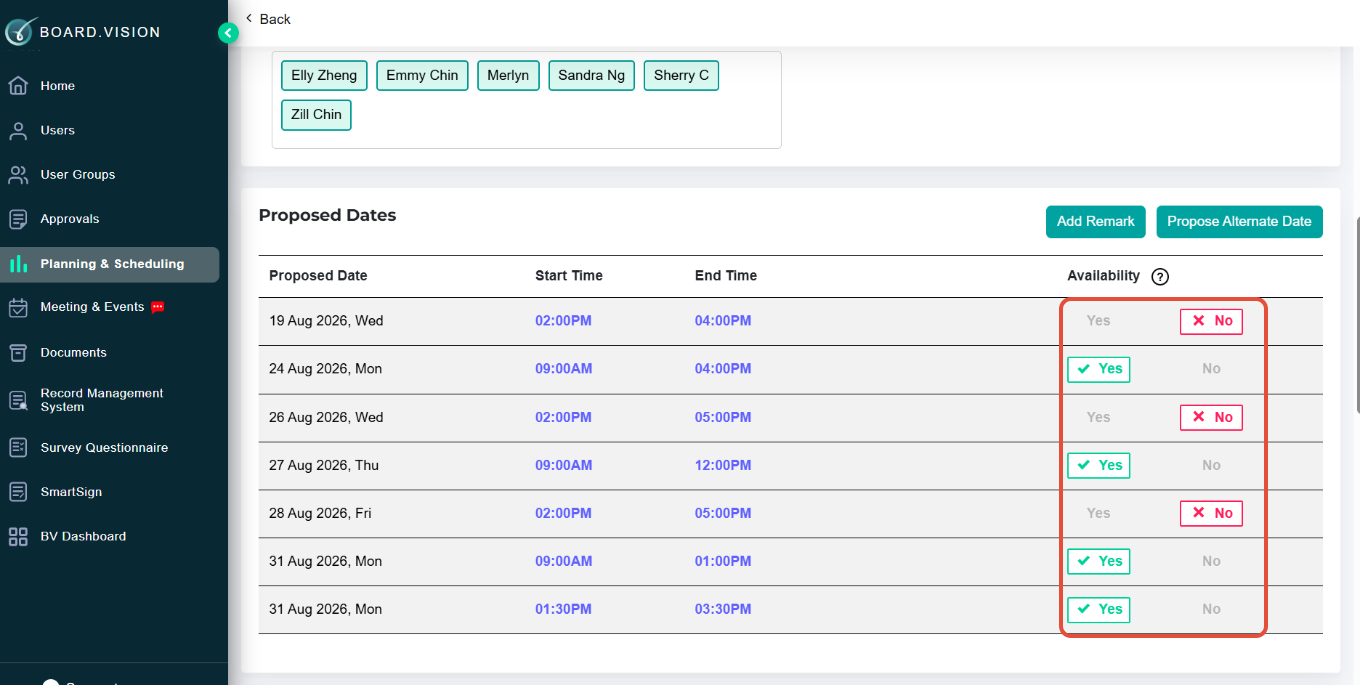
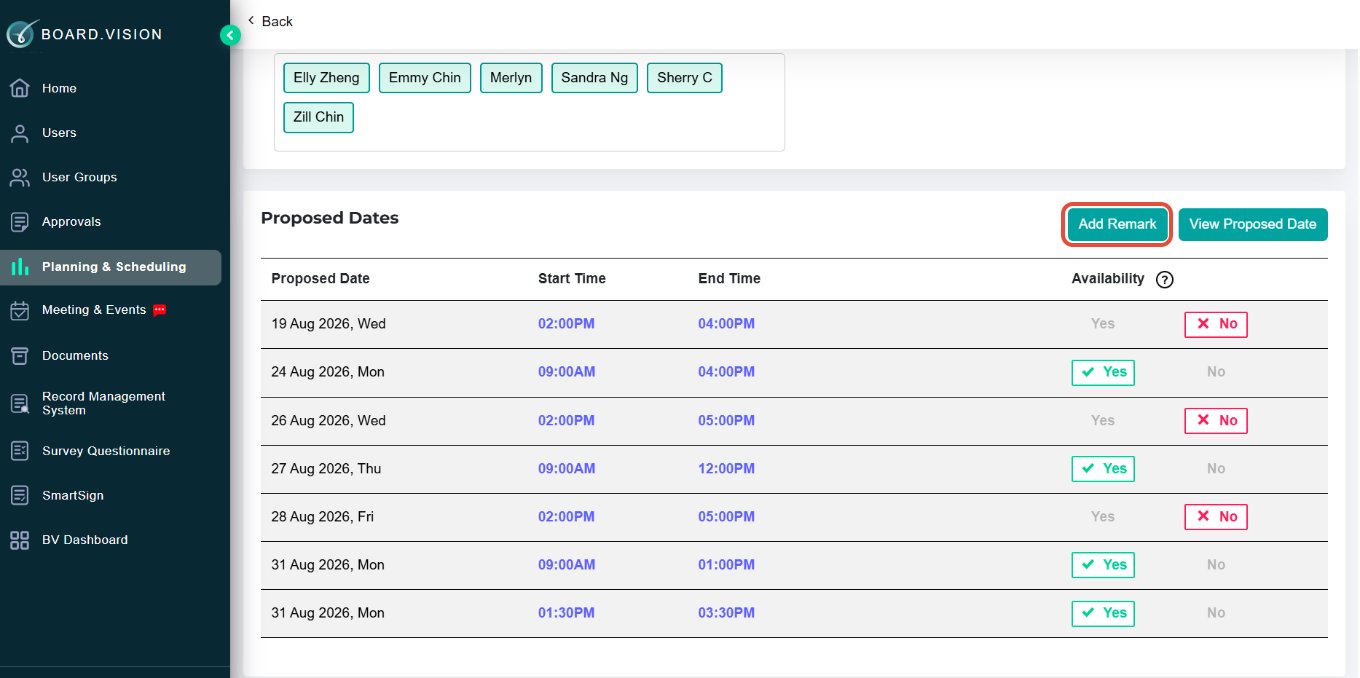
4) Scroll down to the Proposed Dates section and vote on the dates proposed by the Administrator by selecting 'Yes' or 'No' to indicate your availability.
You may amend your votes at any time before the deadline.
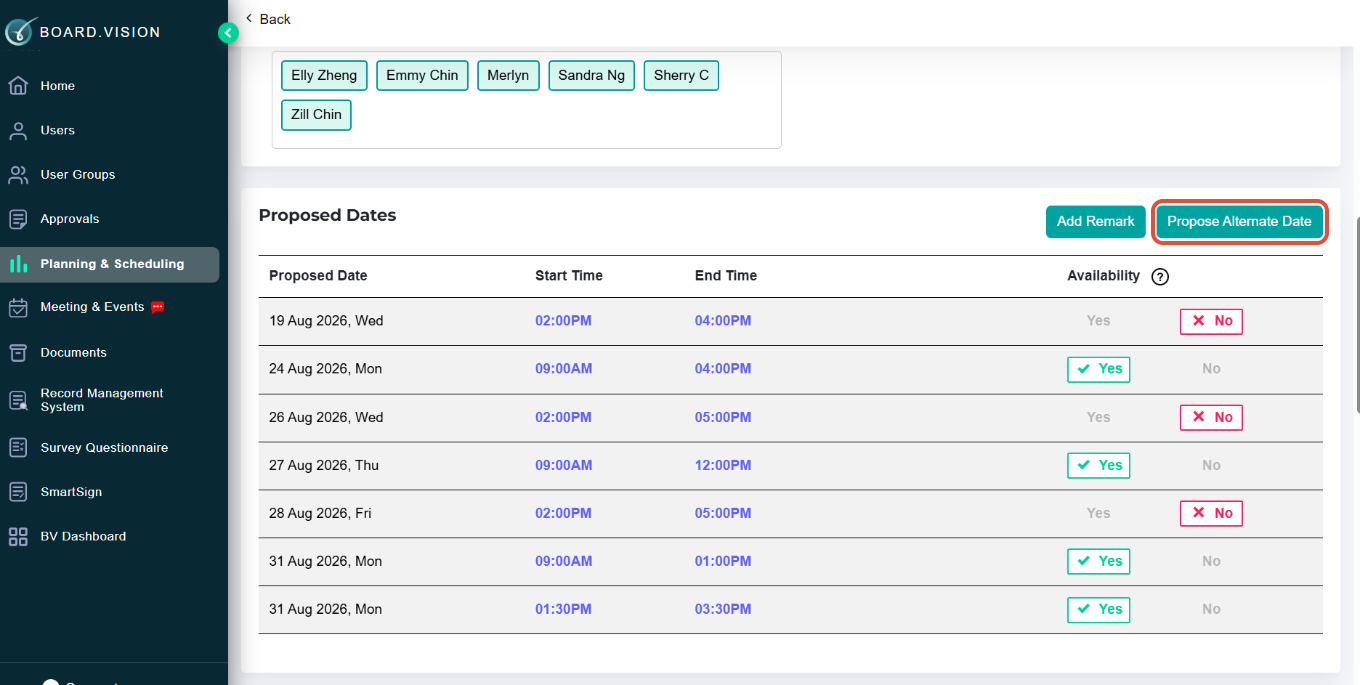
5) If none of the Administrator's proposed dates work for your calendar, you may propose alternative dates. Click the Propose Alternate Date button.
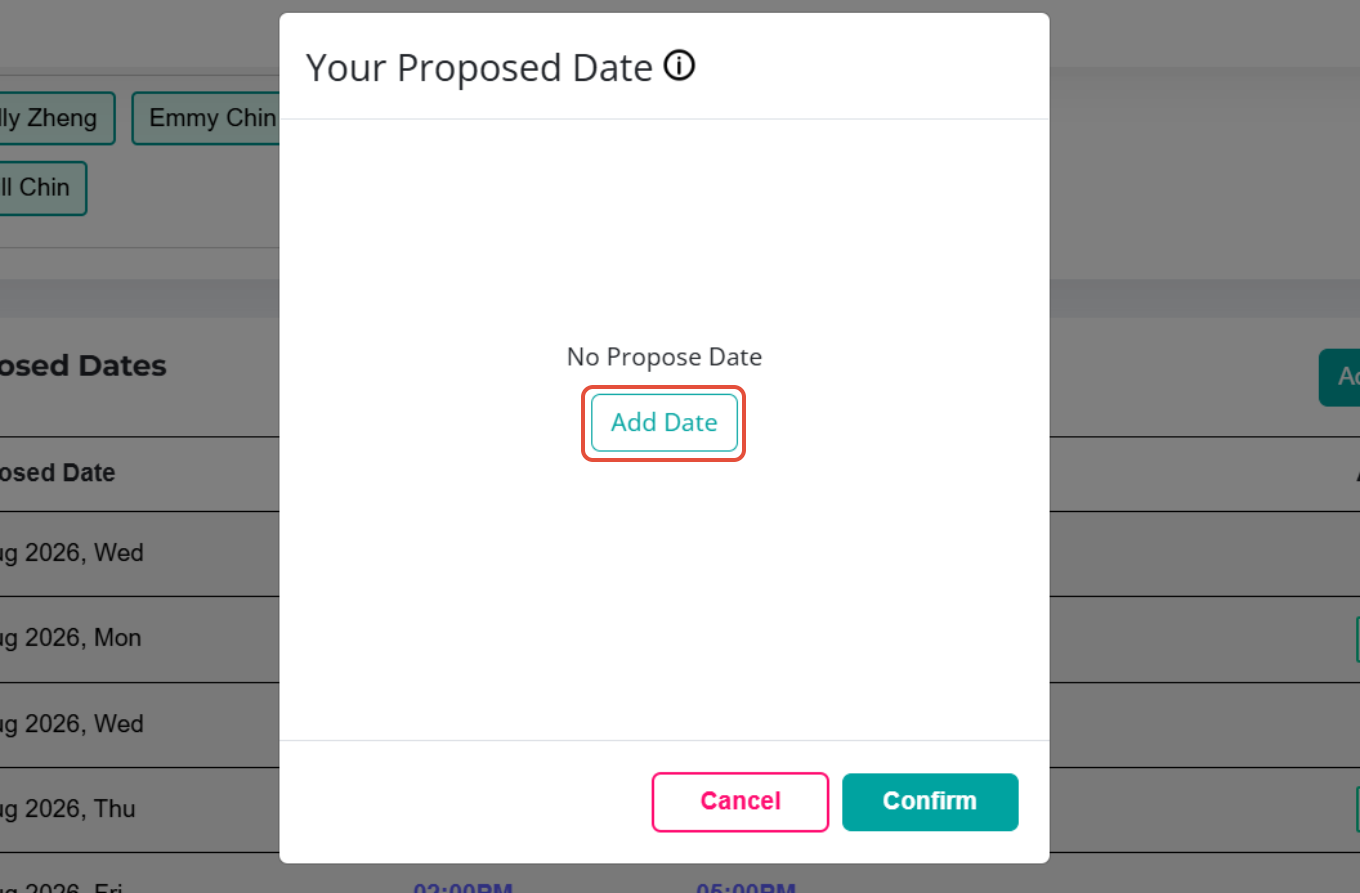
6) On the 'Your Proposed Date' pop-up window, click the Add Date button.
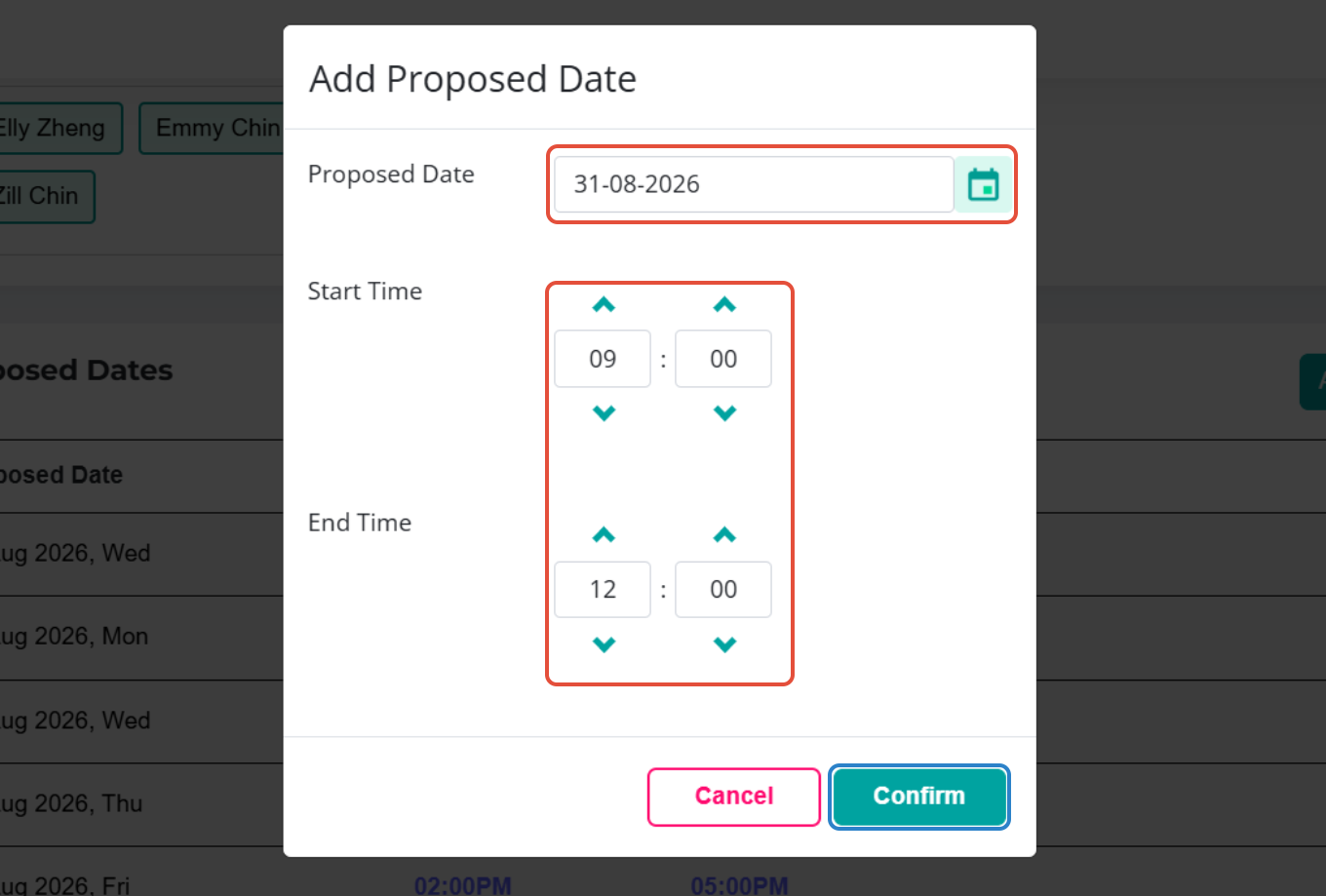
7) Enter a Proposed Date, Start Time and End Time. Then, click on Confirm.
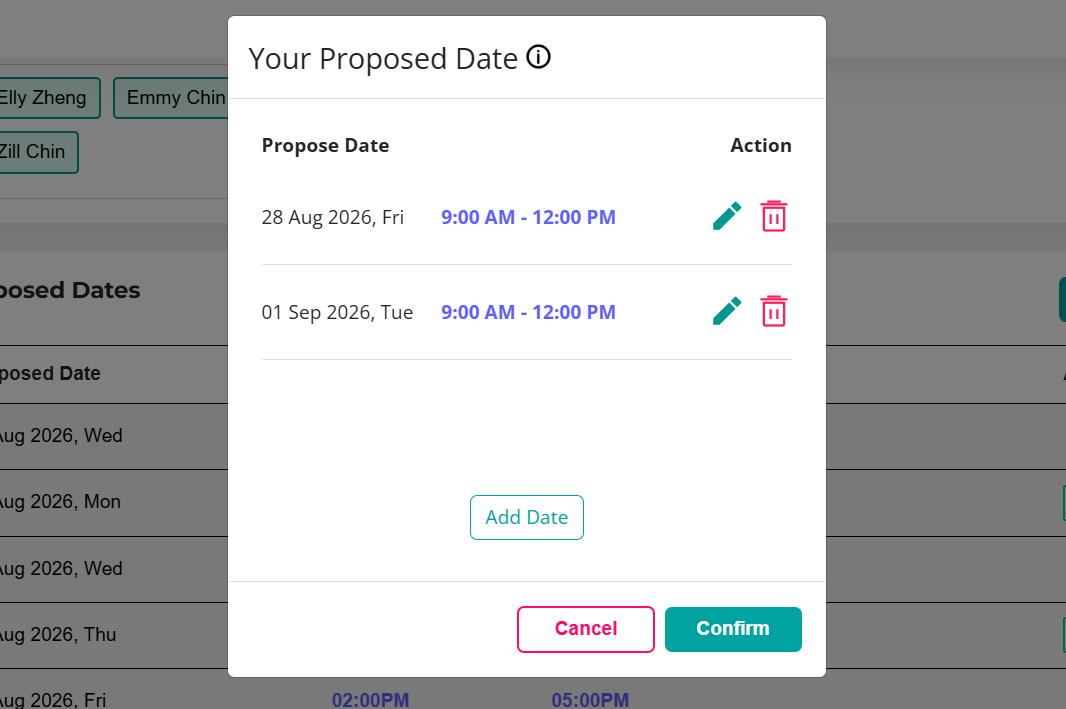
8) You may enter more than 10 proposed dates. Once done, click on Confirm.
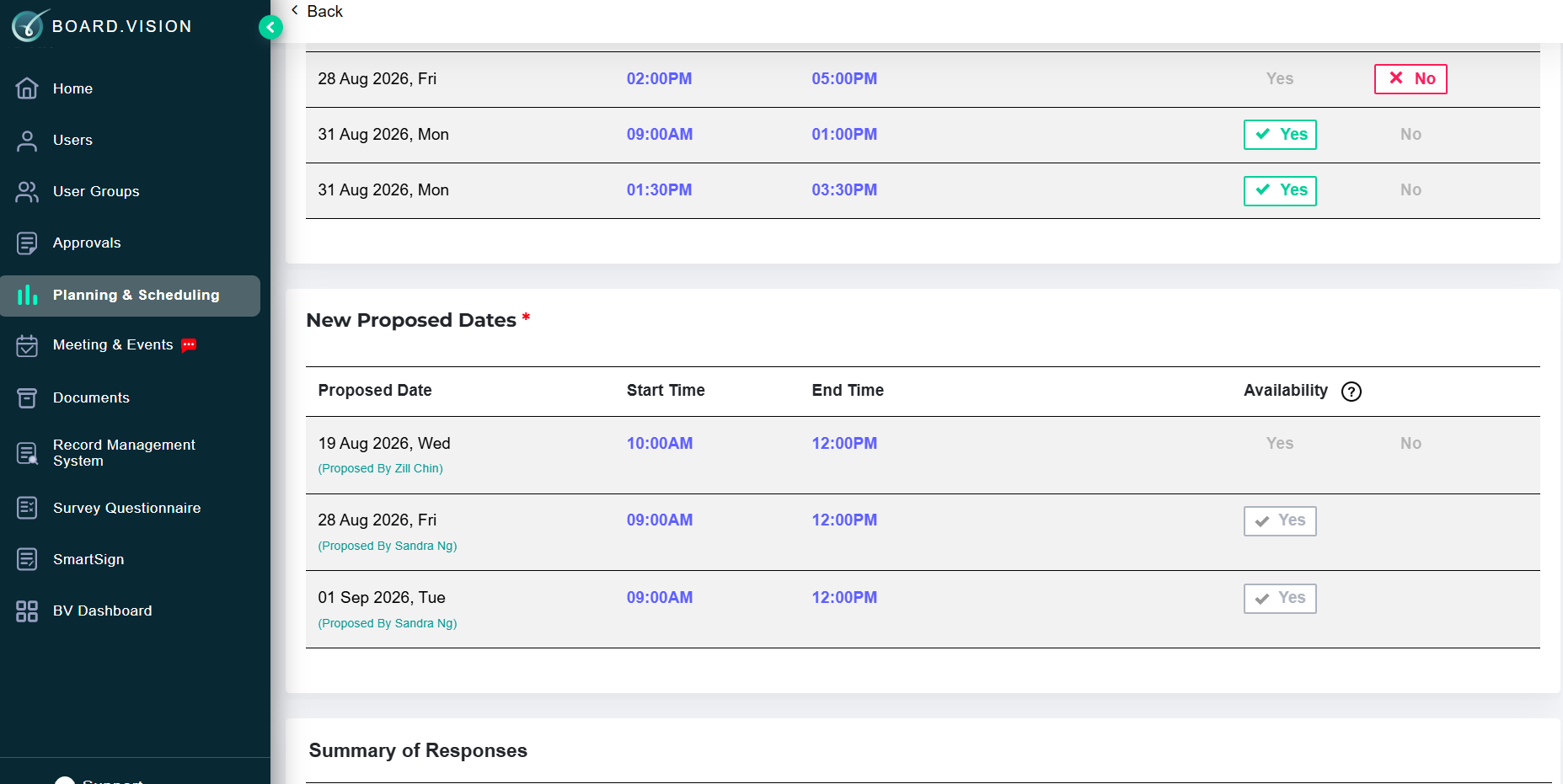
9) You will be able to see the dates you have proposed under the New Proposed Date section.
Note:
- Any dates proposed by other Business Users or added by Administrators will also be displayed in this section.
- Other Business Users will be able to vote on your proposed dates if Administrators enabled the setting.
10) You will also find the Add Remark option if you wish to include any comments or remarks
You have completed the tutorial on how to vote and propose Meeting.
If you face any issues, please reach out to our Board.Vision Customer Success Team at support@board.vision or +65 6909 7100 and we will be happy to help.
Was this article helpful?
That’s Great!
Thank you for your feedback
Sorry! We couldn't be helpful
Thank you for your feedback
Feedback sent
We appreciate your effort and will try to fix the article