Welcome to Board.Vision Tutorials!
In this tutorial, we will walk you through the steps to act on an Approval as an Alternate Director.
Important Note: The Board.Vision web app is optimised and supported for desktop use on Google Chrome (version 65.0 and later) and Microsoft Edge (version 87.0 and later).
To act on Approval as an Alternate Director:
1) Log in to your Board.Vision account using your registered email address and password.
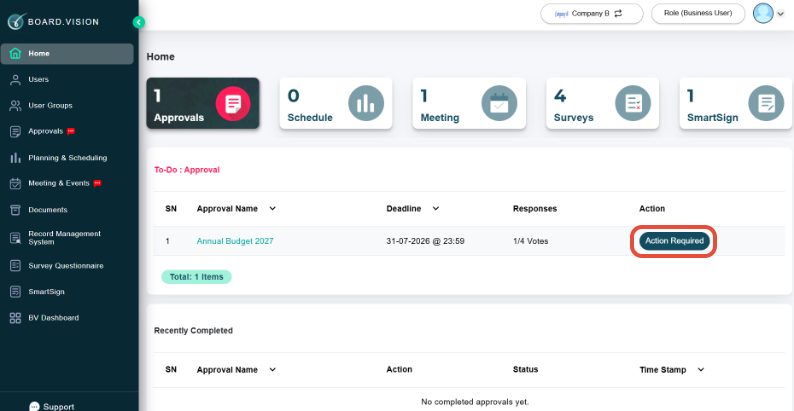
2) From your Home screen, apply the Approvals filter and click Action Required.
3) The Approval Information panel displays the deadline, the Approval document, any Supporting documents (if available), and the list of Voters. On the right side, you can view the document.
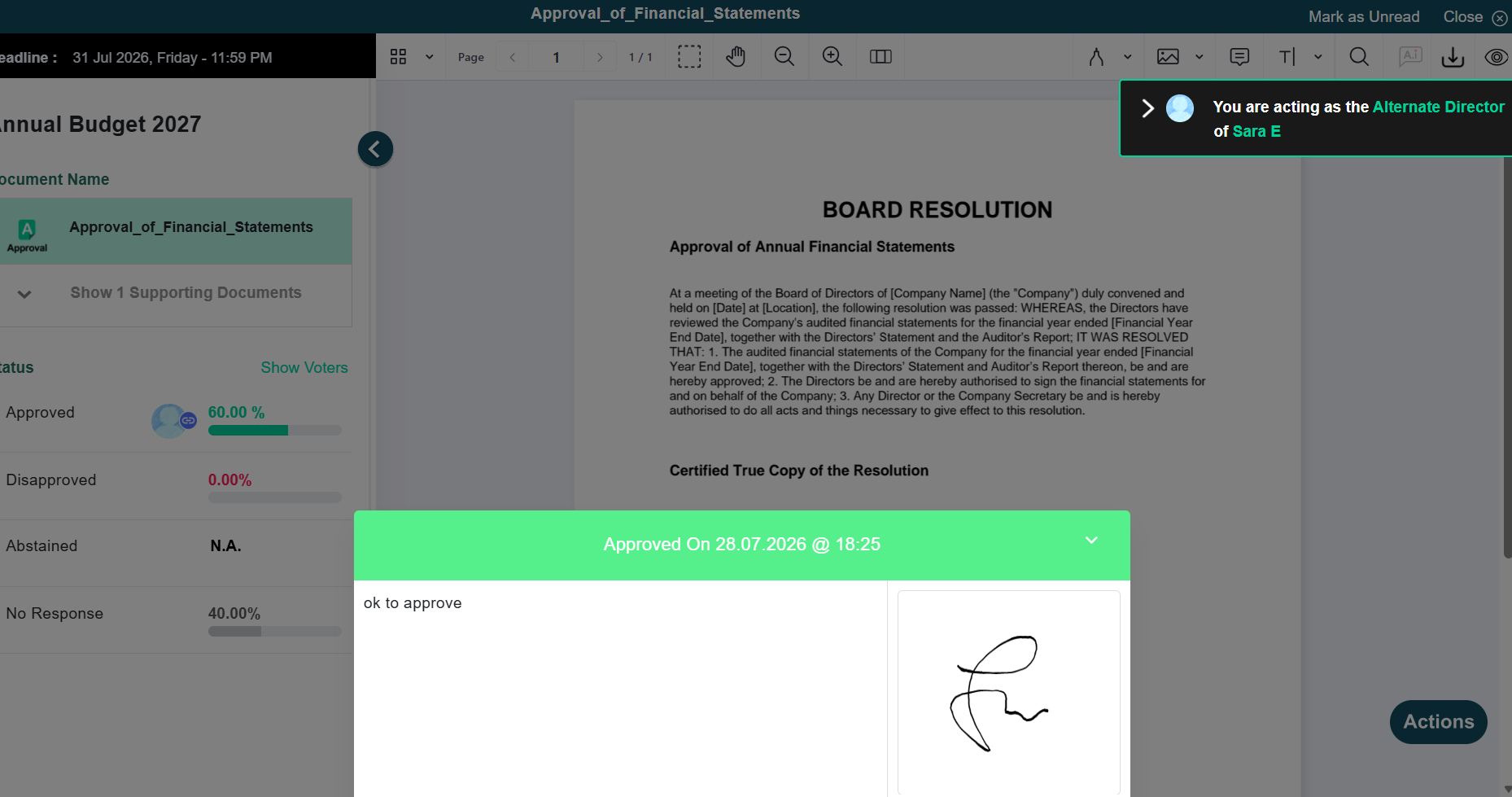
You will be able to see a black label that shows you are acting as an Alternate Director.
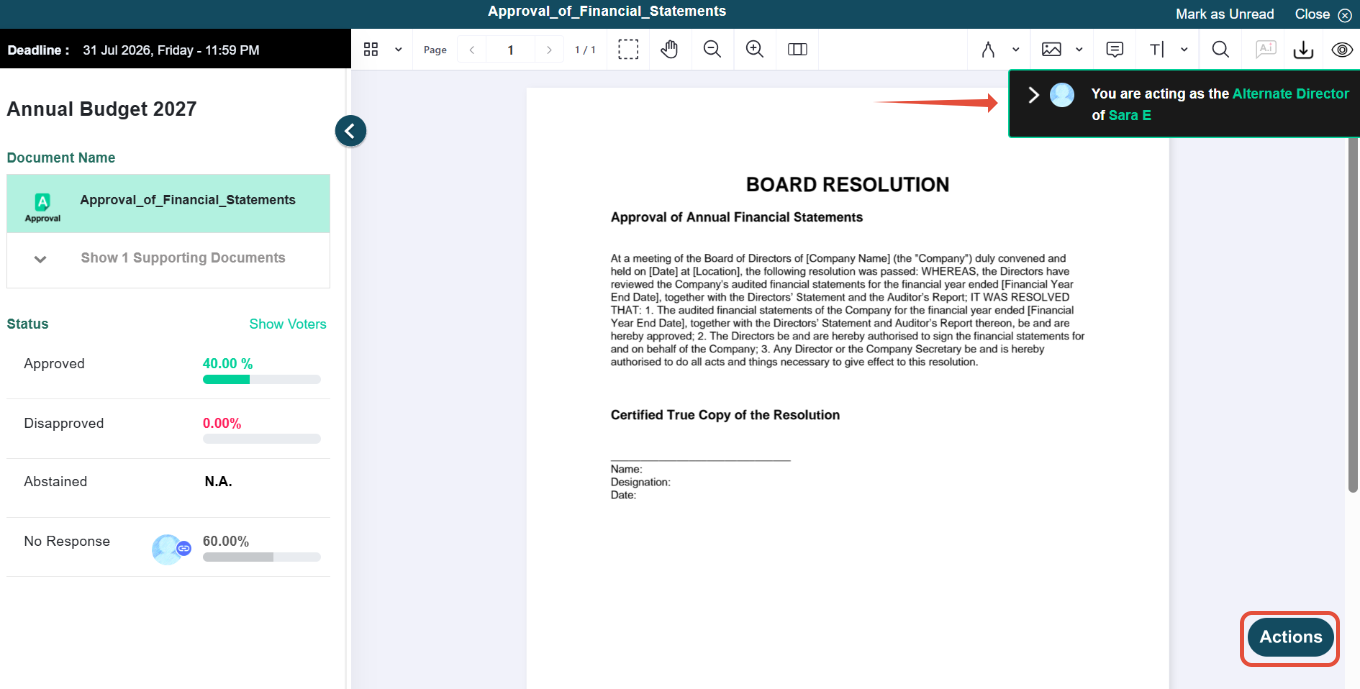
4) Click Actions to view the available options.
To leave a comment, select Add Remarks.
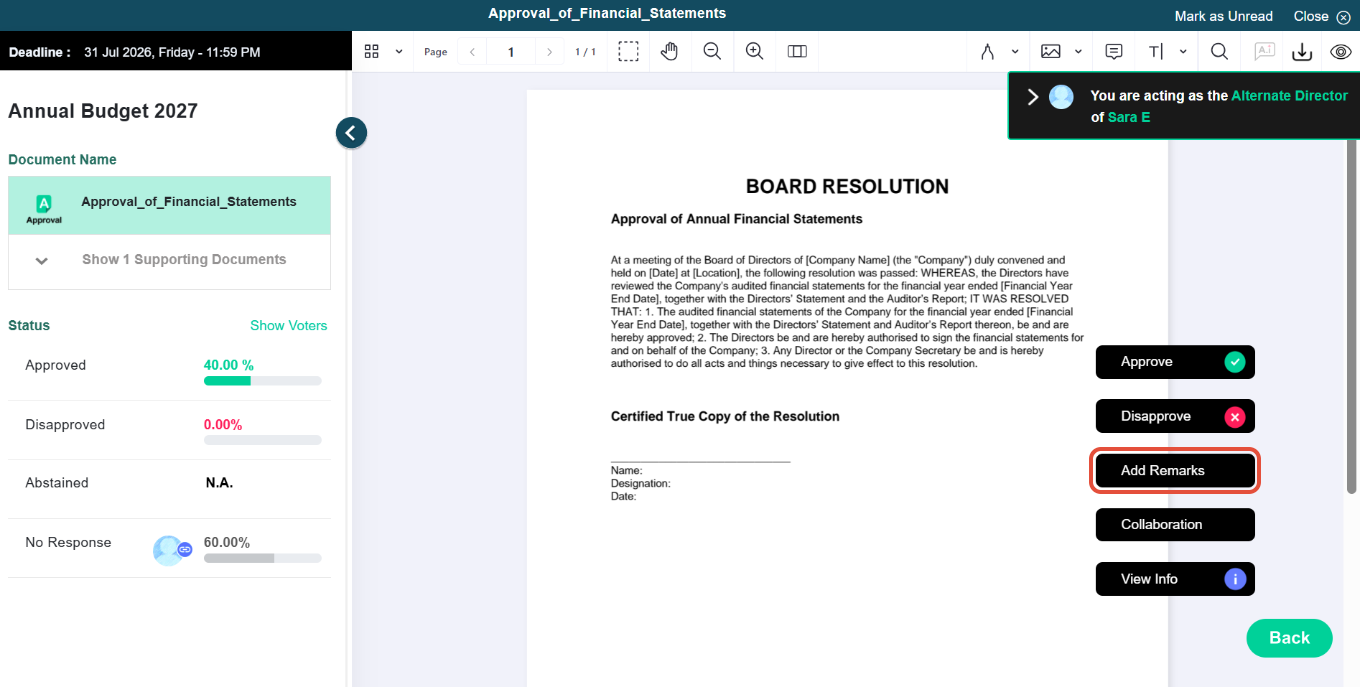
Note: Remarks are visible to Administrators and Participants and cannot be added after submitting your response.
5) Select Approve, Disapprove, or Abstain (if enabled).
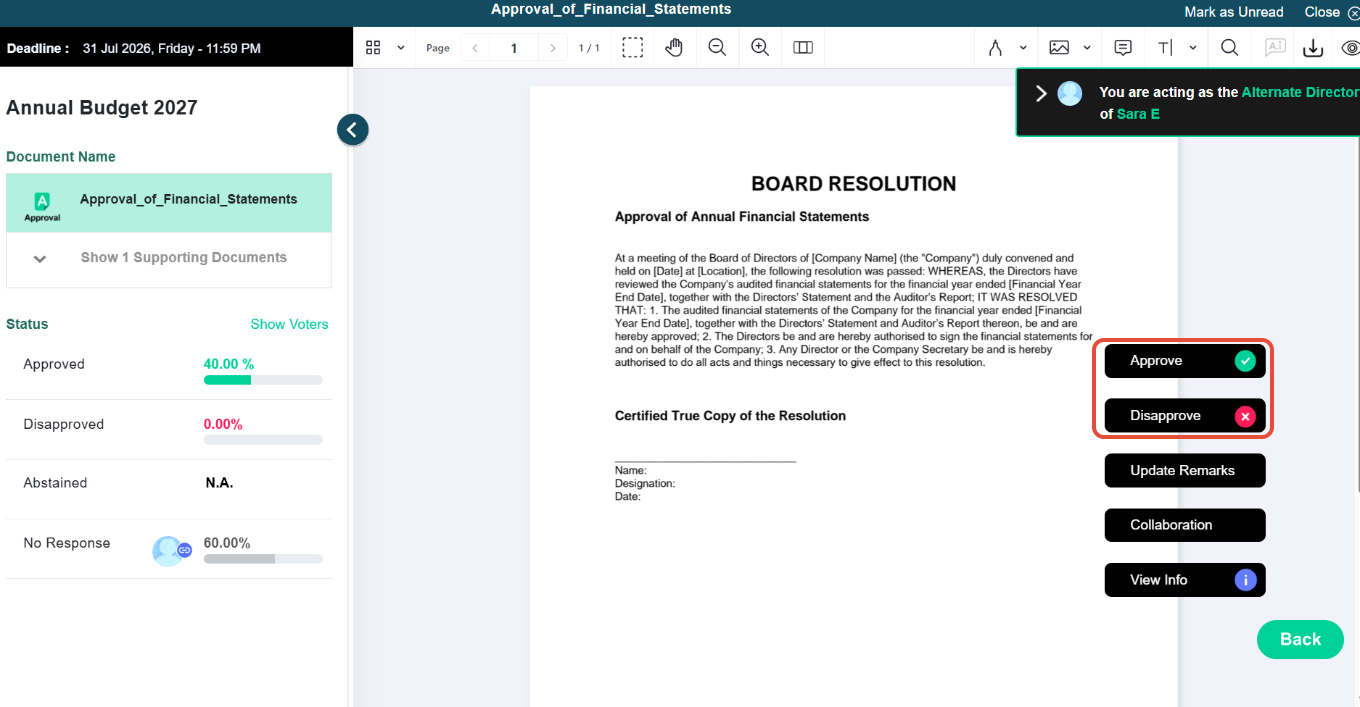
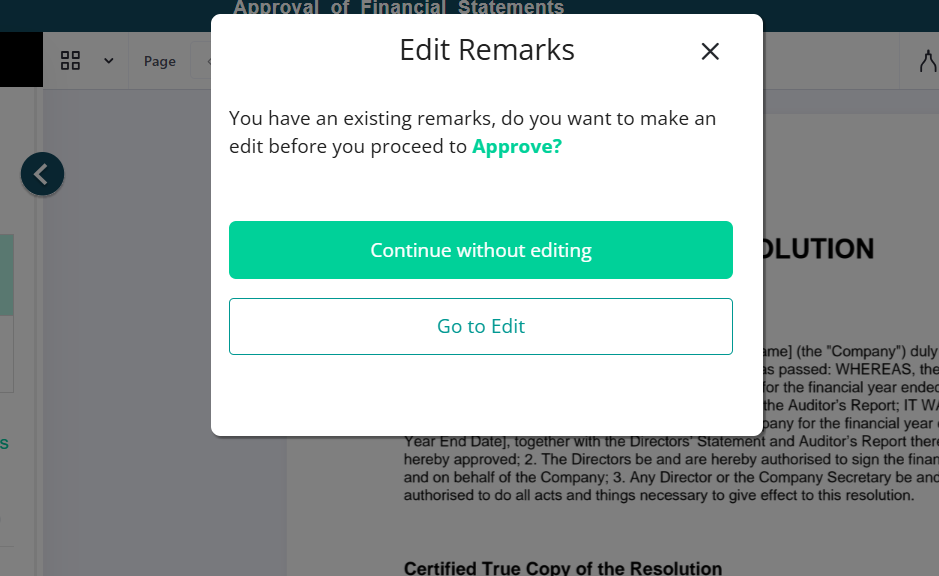
6) If remarks were added, you may edit them before continuing. Otherwise, select Continue without editing.
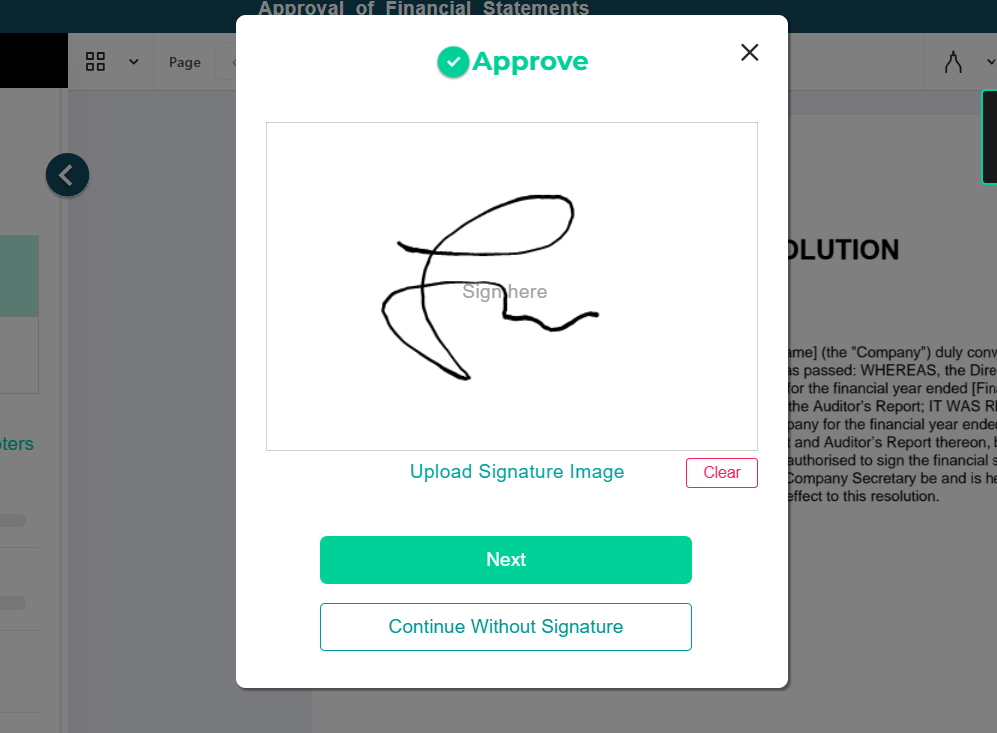
7) On the signature screen, click Next.
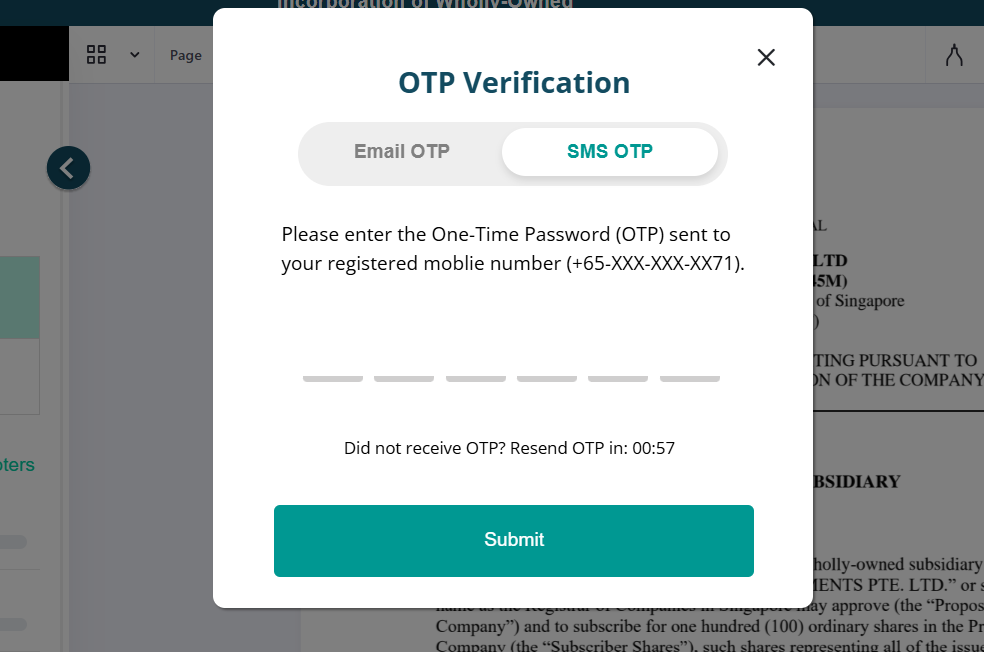
8) If OTP verification is required, enter the 6-digit OTP sent via email or SMS.
9) Once authentication is successful, your response will be recorded and visible on the document. Administrators will be notified immediately.
Important Rules for Alternate Directors
Unresponded Principal Director: If you vote as an Alternate Director while the Principal Director has not yet voted, the Principal Director's name will remain listed under the 'No Response' section.
Overwriting Votes: If the Principal Director responds after you have voted, their response will overwrite yours, and your response will be hidden from the Approval.
Prior Response: If the Principal Director votes before you, no action is required on your part.
Viewing Principal Director’s Vote: Go to Approvals, then tap "Show Voters" to view their status under Approved, Disapproved, or Abstained.
You have completed the tutorial on how to act on an Approval as an Alternate Director.
If you face any issues, please reach out to our Board.Vision Customer Success Team at support@board.vision or +65 6909 7100 and we will be happy to help.
Our hotline operating hours are from Mondays to Fridays 9:00 AM to 6:00 PM SGT (excluding public holidays).
Was this article helpful?
That’s Great!
Thank you for your feedback
Sorry! We couldn't be helpful
Thank you for your feedback
Feedback sent
We appreciate your effort and will try to fix the article