Welcome to Board.Vision Tutorials!
In this tutorial, we will walk you through the steps to add your Board.Vision account to the Google Authenticator.
To add your Board.Vision account to the Google Authenticator:
1) After your administrator has enabled Multi-Factor Authentication (MFA) for your Board.Vision account, you will be prompted to scan a QR code the first time you log in.
If you are using the same device for both Board.Vision and Google Authenticator, tap Trouble Scanning? instead.

2) A one-time setup code will be displayed. Tap Copy Code. 
3) Open the Microsoft Authenticator app on your iPhone or Android phone, and tap on + at the top right side of the screen. 
4) Next, select Other (Google, Facebook, etc.)
5) Then, tap on Or enter code manually. 
6) Enter the Account Name and paste the one-time code into the Secret key field. Then, click on the Finish button. 
6) Your Board.Vision account will now appear on the Microsoft Authenticator app and you will see the 6-digit one-time password (OTP) generated on the screen. 
7) On the Board.Vision login page, enter the OTP into the white box and click on >. 
8) Once the verification has been verified successfully, you will be logged into your Board.Vision account. 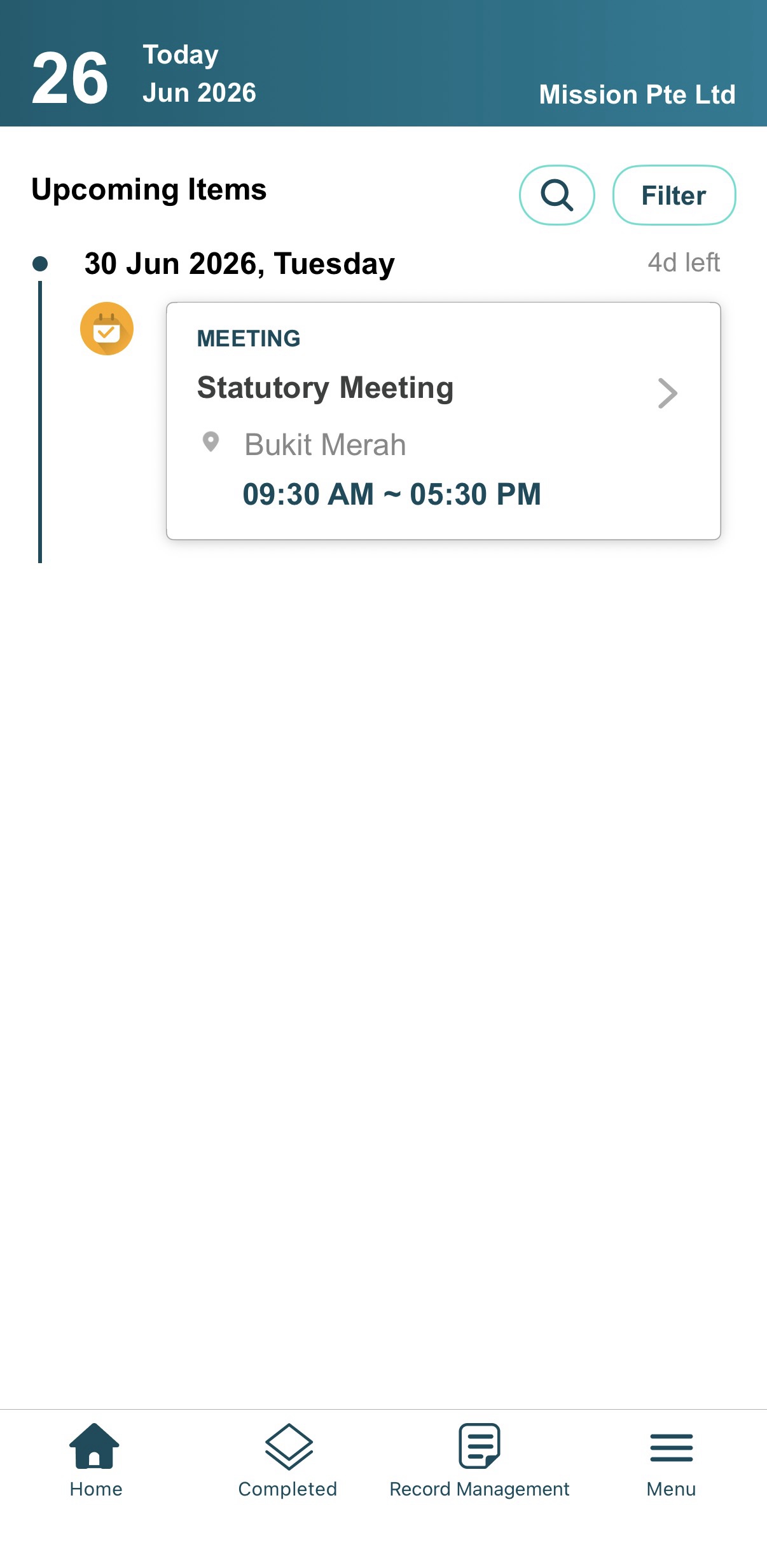
Important: You only need to enter an OTP when signing in after logging out of your Board.Vision account. Otherwise, you can access the app using Face ID, Touch ID, or your 4-digit PIN.
If you face any issues, please reach out to our Board.Vision Customer Success Team at support@board.vision or +65 6909 7100 and we will be happy to help.
Our hotline operating hours are from Mondays to Fridays 9:00 AM to 6:00 PM SGT (excluding public holidays).
Was this article helpful?
That’s Great!
Thank you for your feedback
Sorry! We couldn't be helpful
Thank you for your feedback
Feedback sent
We appreciate your effort and will try to fix the article