Welcome to Board.Vision Tutorials!
In this tutorial, we will walk you through the steps to delete a user from multiple companies.
Important Note: The Board.Vision web app is optimised and supported for desktop use on Google Chrome (version 65.0 and later) and Microsoft Edge (version 87.0 and later).
To delete a user from multiple companies:
1) Log in to your Board.Vision account using your registered email address and password.
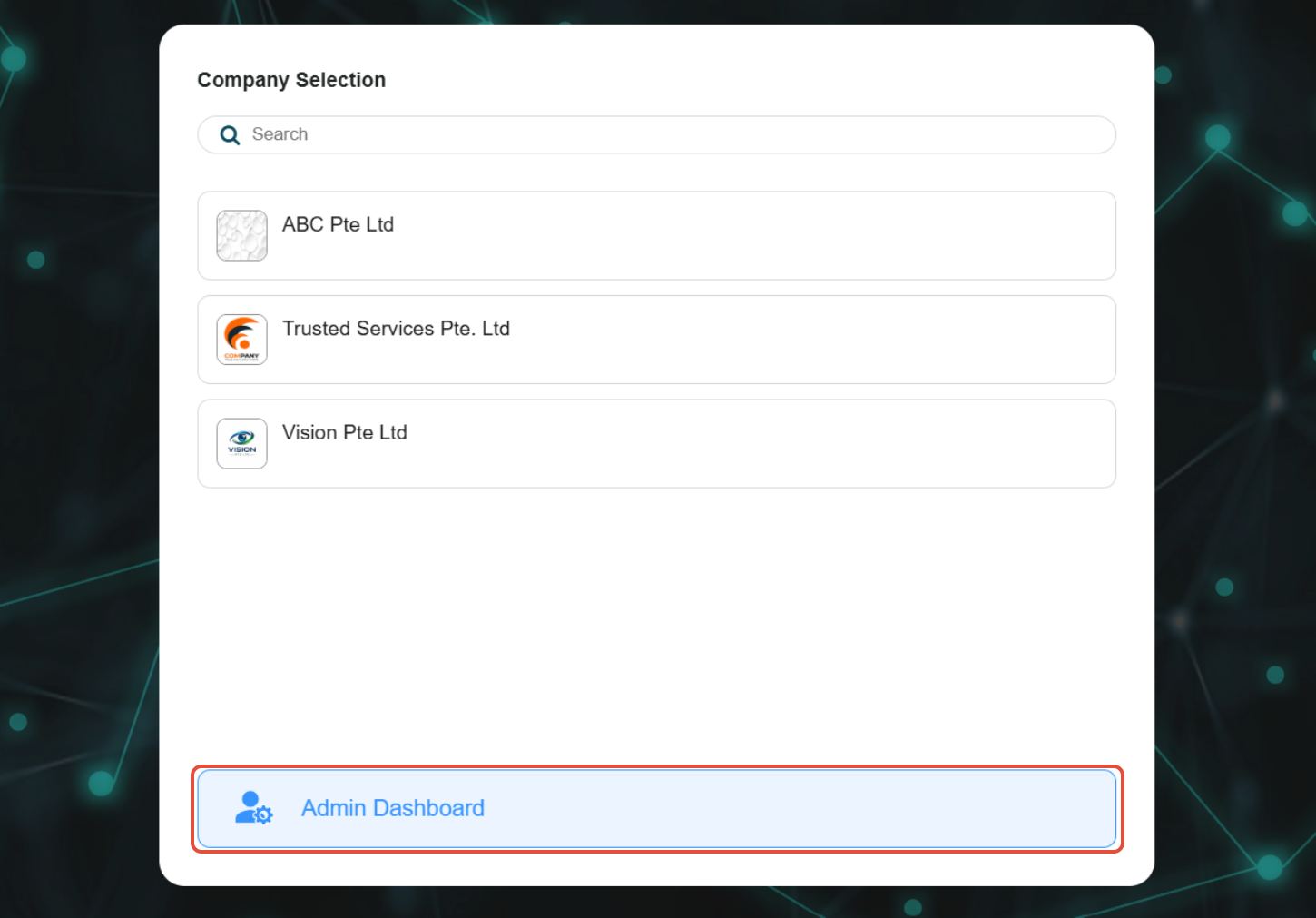
2) Click on the Go To Admin Dashboard on the 'Company Selection' screen.
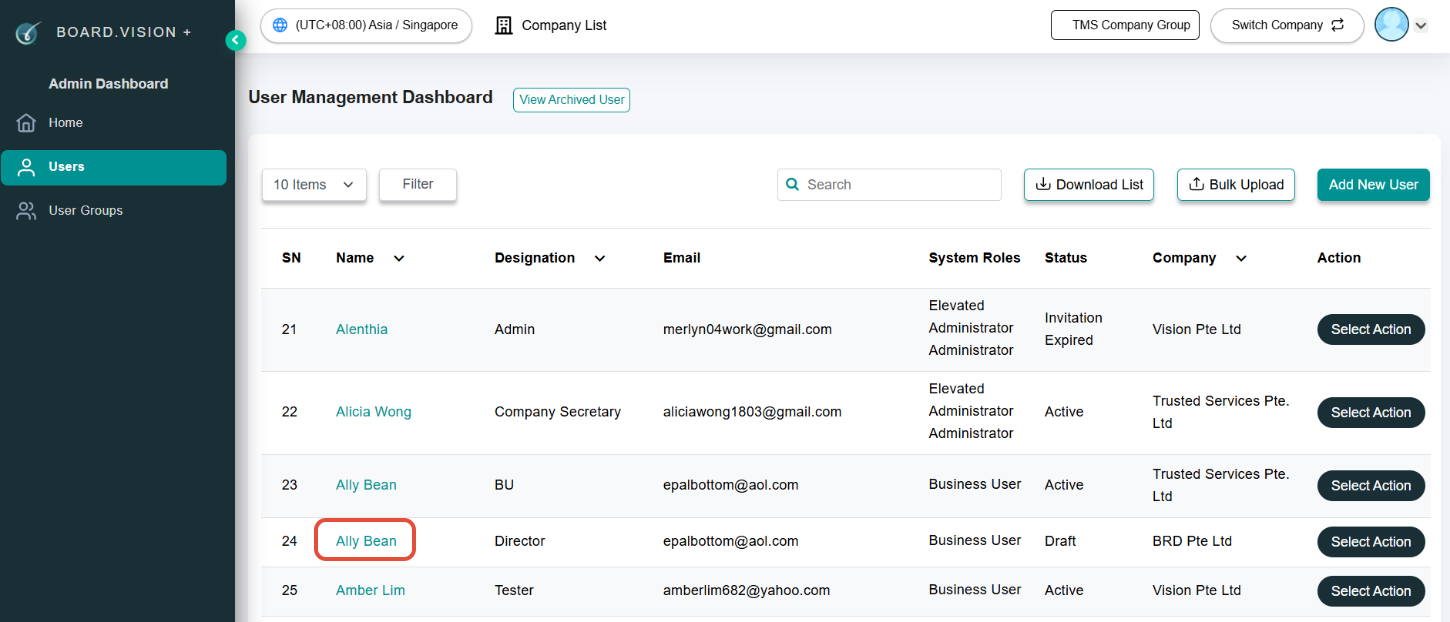
3) Go to Users from the left menu and click on a user with a draft status.
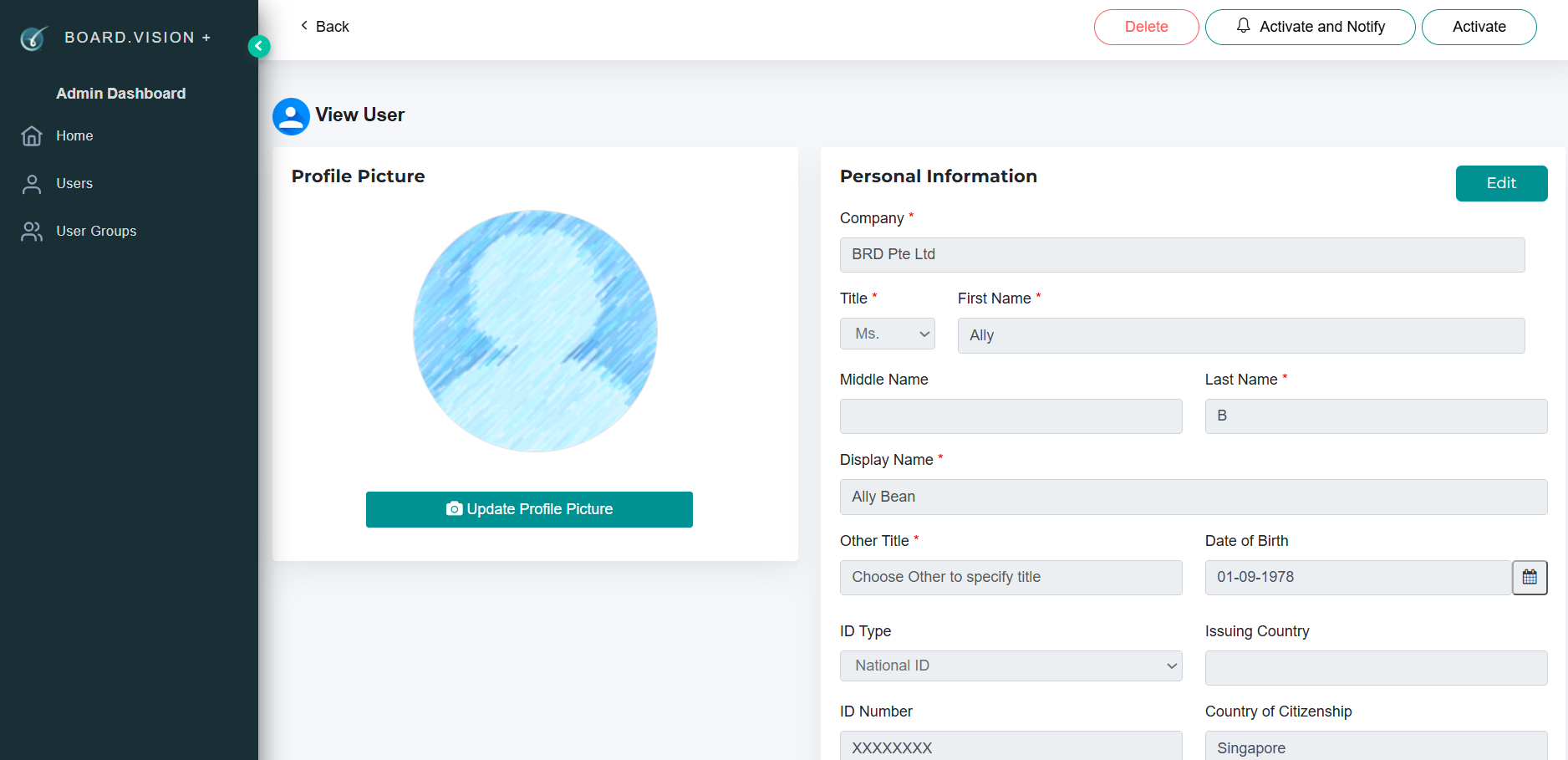
4) On the 'View User Personal Information' page, click on the Delete button at the top right of the screen.
7) On the 'Delete User' pop-up screen, you will have the option to delete the user from other companies too.
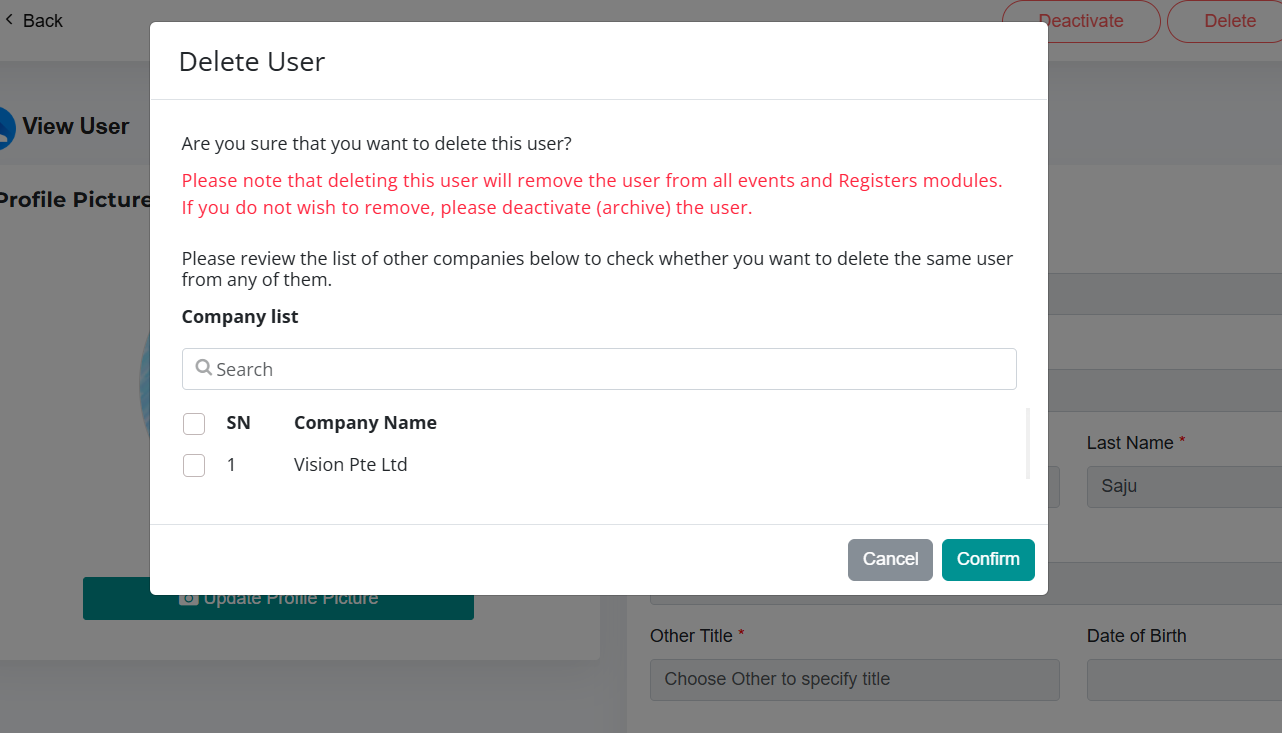
Important Note: You can delete a user with a Draft, Invitation Sent, or Invitation Expired status. If the user has been added to any events or the Registers module, they will be automatically removed from those as well. If you prefer not to remove the user entirely, you can deactivate them to archive their record.
You have completed the tutorial on how to delete a user from multiple companies.
If you face any issues in completing the steps shown in this tutorial, please reach out to our Board.Vision Customer Success Team at support@board.vision or +65 6909 7100 and we will be happy to help.
Our hotline operating hours are from Mondays to Fridays 9:00 AM to 6:00 PM SGT (excluding public holidays).
Was this article helpful?
That’s Great!
Thank you for your feedback
Sorry! We couldn't be helpful
Thank you for your feedback
Feedback sent
We appreciate your effort and will try to fix the article