This guide shows you how to save your signature for the e-signing of Approvals.
Before you start
Please ensure you are using one of the supported browsers:
Google Chrome (v65 and above)
Microsoft Edge (v87 and above)
Steps:
1) Log in to your Board.Vision account using your registered email address and password.
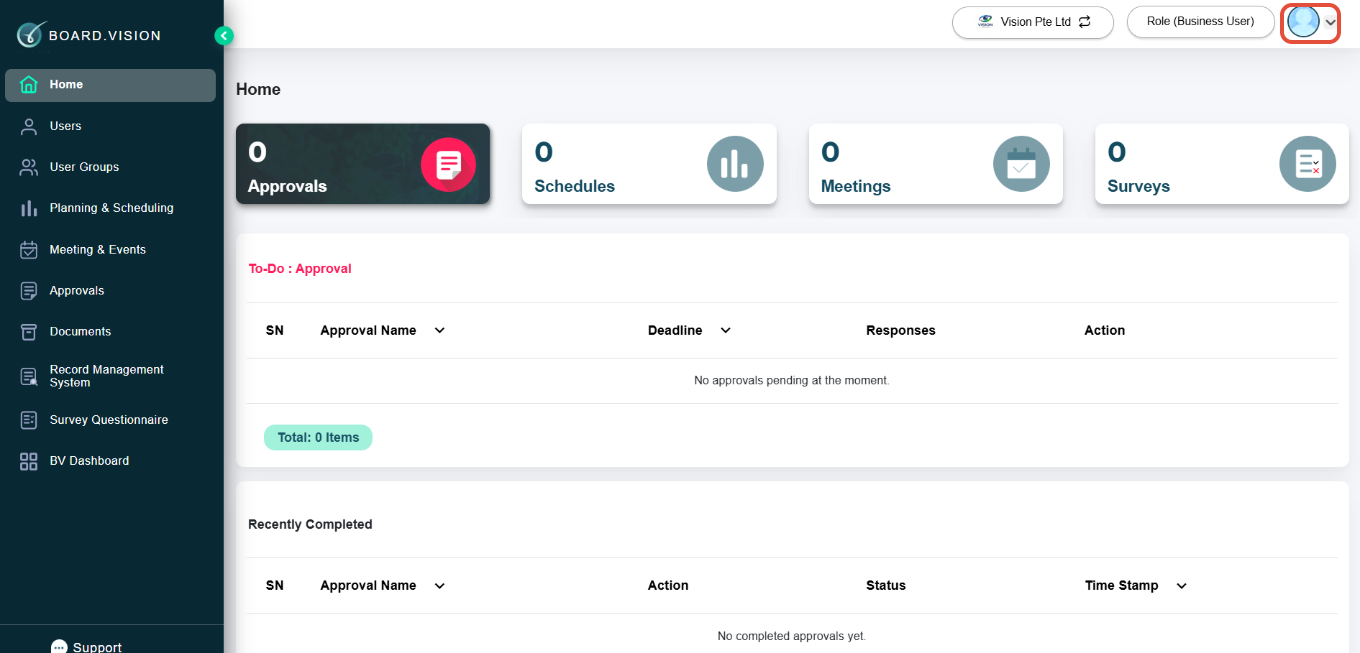
2) Click on Your Profile Picture at the top right of your screen.
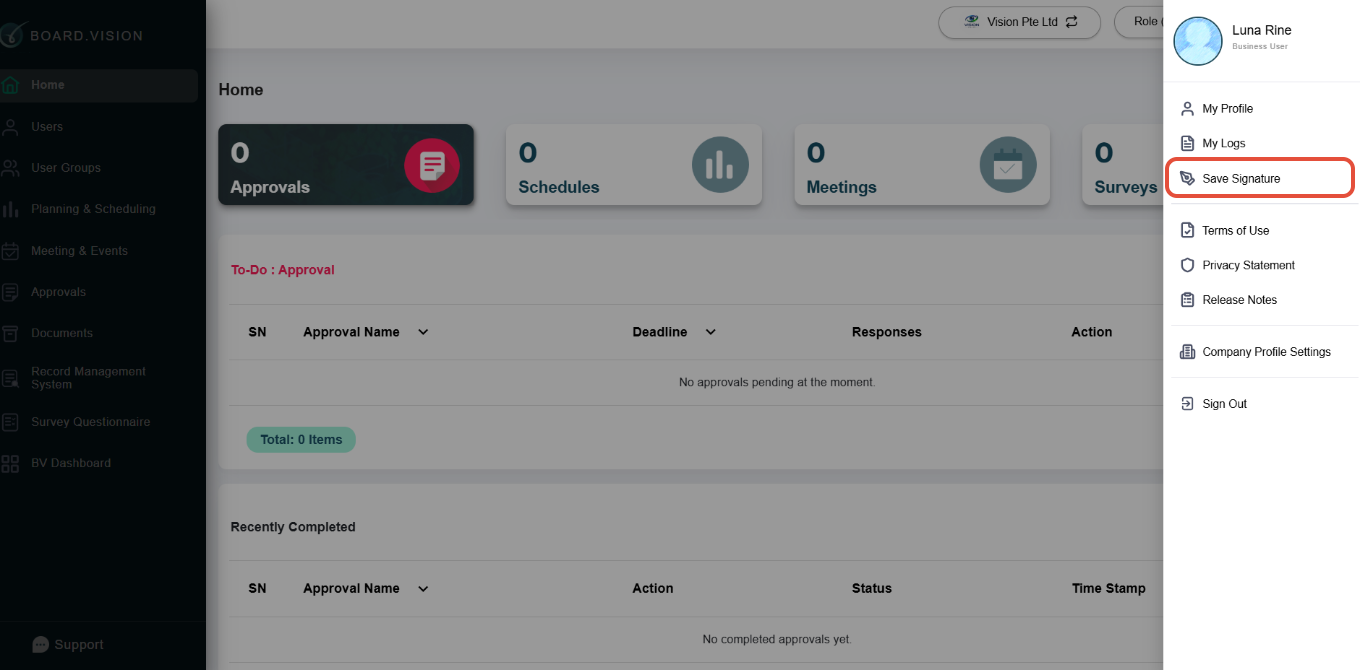
3) Click Save Signature from the dropdown menu.
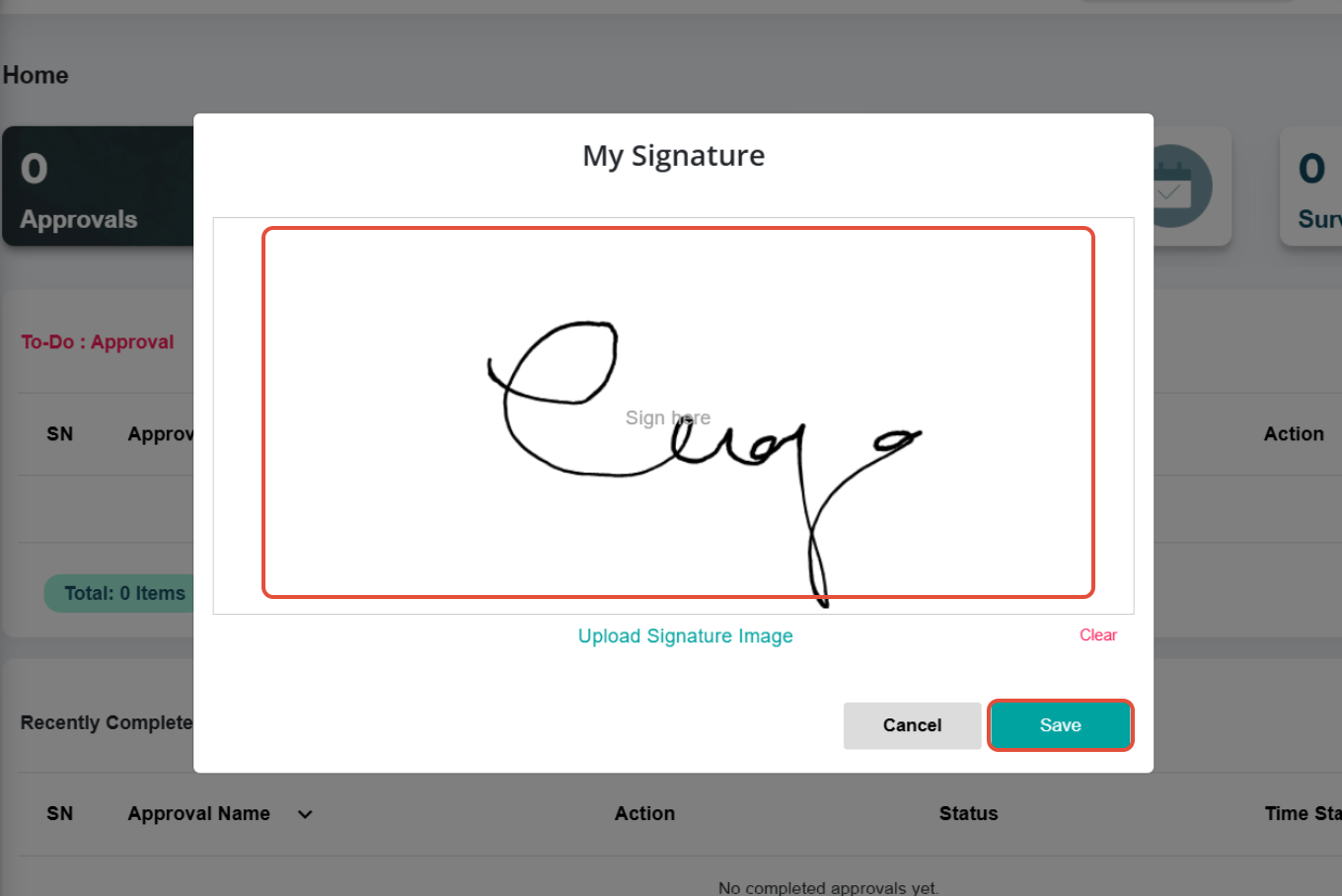
4) You may choose to upload a signature image that you have saved on your desktop/laptop, or sign within the white box.
Then, click on Save.
If you face any issues, please reach out to our Board.Vision Customer Success Team at support@board.vision or +65 6909 7100 and we will be happy to help.
Was this article helpful?
That’s Great!
Thank you for your feedback
Sorry! We couldn't be helpful
Thank you for your feedback
Feedback sent
We appreciate your effort and will try to fix the article