Welcome to Board.Vision Tutorials!
In this tutorial, we will walk you through the steps to automatically set the 'Allow Download' option for documents.
Important Note: The Board.Vision web app is optimised and supported for desktop use on Google Chrome (version 65.0 and later) and Microsoft Edge (version 87.0 and later).
To automatically set the allow download option for documents:
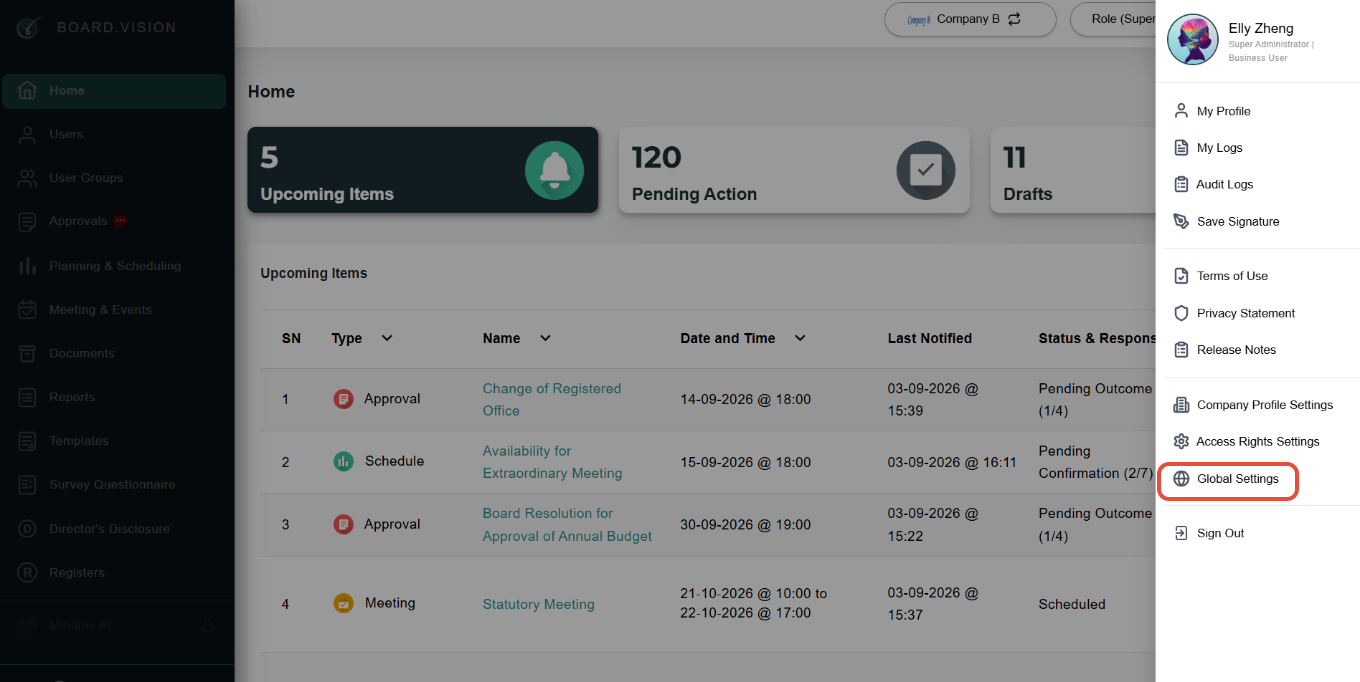
1) Go to Your Profile Picture at the top right of your screen and click on Global Settings from the dropdown menu.
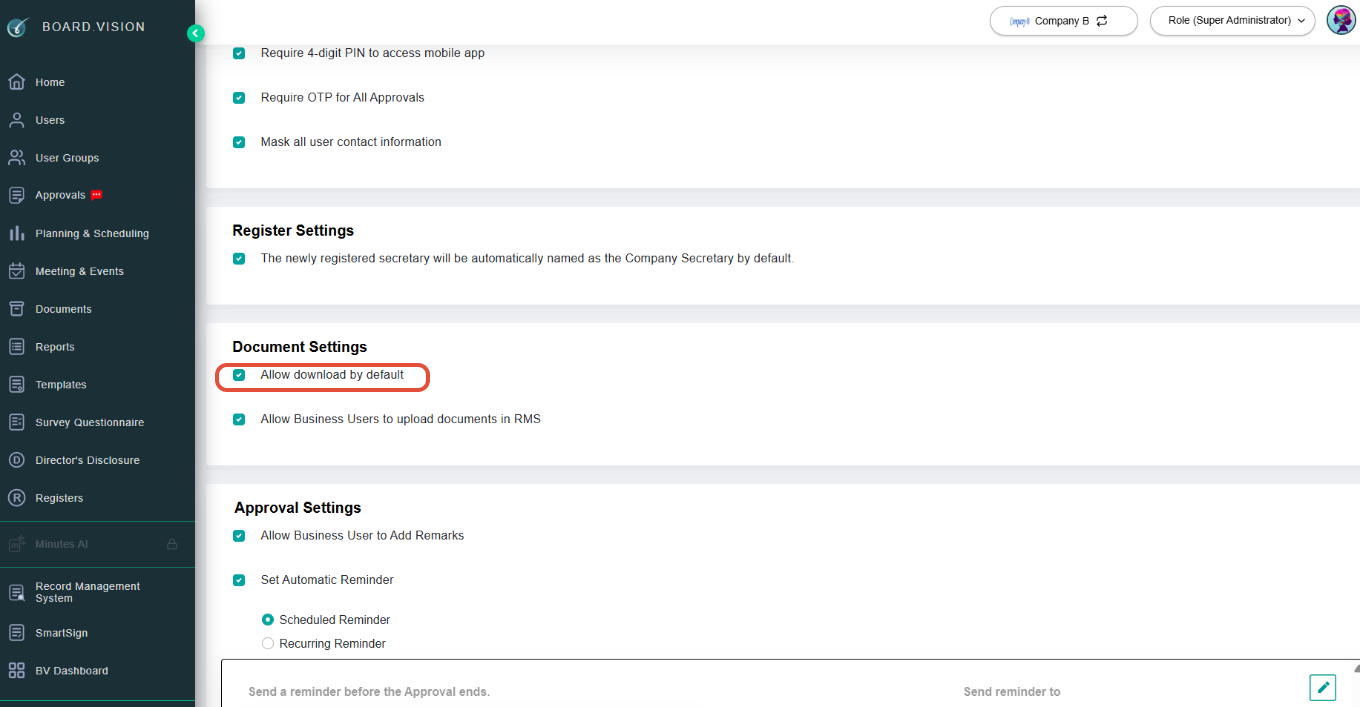
2) Scroll down to the Document Settings section and click on the 'Allow download by default' checkbox to enable.
You have completed the tutorial on how to automatically set the 'Allow Download' option for documents.
If you face any issues in completing the steps shown in this tutorial, please reach out to our Board.Vision Customer Success Team at support@board.vision or +65 6909 7100 and we will be happy to help.
Our hotline operating hours are from Mondays to Fridays 9:00 AM to 6:00 PM SGT (excluding public holidays).
Was this article helpful?
That’s Great!
Thank you for your feedback
Sorry! We couldn't be helpful
Thank you for your feedback
Feedback sent
We appreciate your effort and will try to fix the article