Welcome to Board.Vision Tutorials!
In this tutorial, we will walk you through the steps to change your vote on your availability.
Note: This article applies to Board.Vision iPad app version 3.5.1 (Legacy UI). To experience the new iPad UI, we encourage users to update their iPadOS to 17.0 or later to ensure continued access to future Board.Vision app updates, new features, and enhancements.
To change your vote on your availability:
1) Log in to your Board.Vision account using your registered email address and password.
2) Tap on the proposed schedule from the Current Schedule.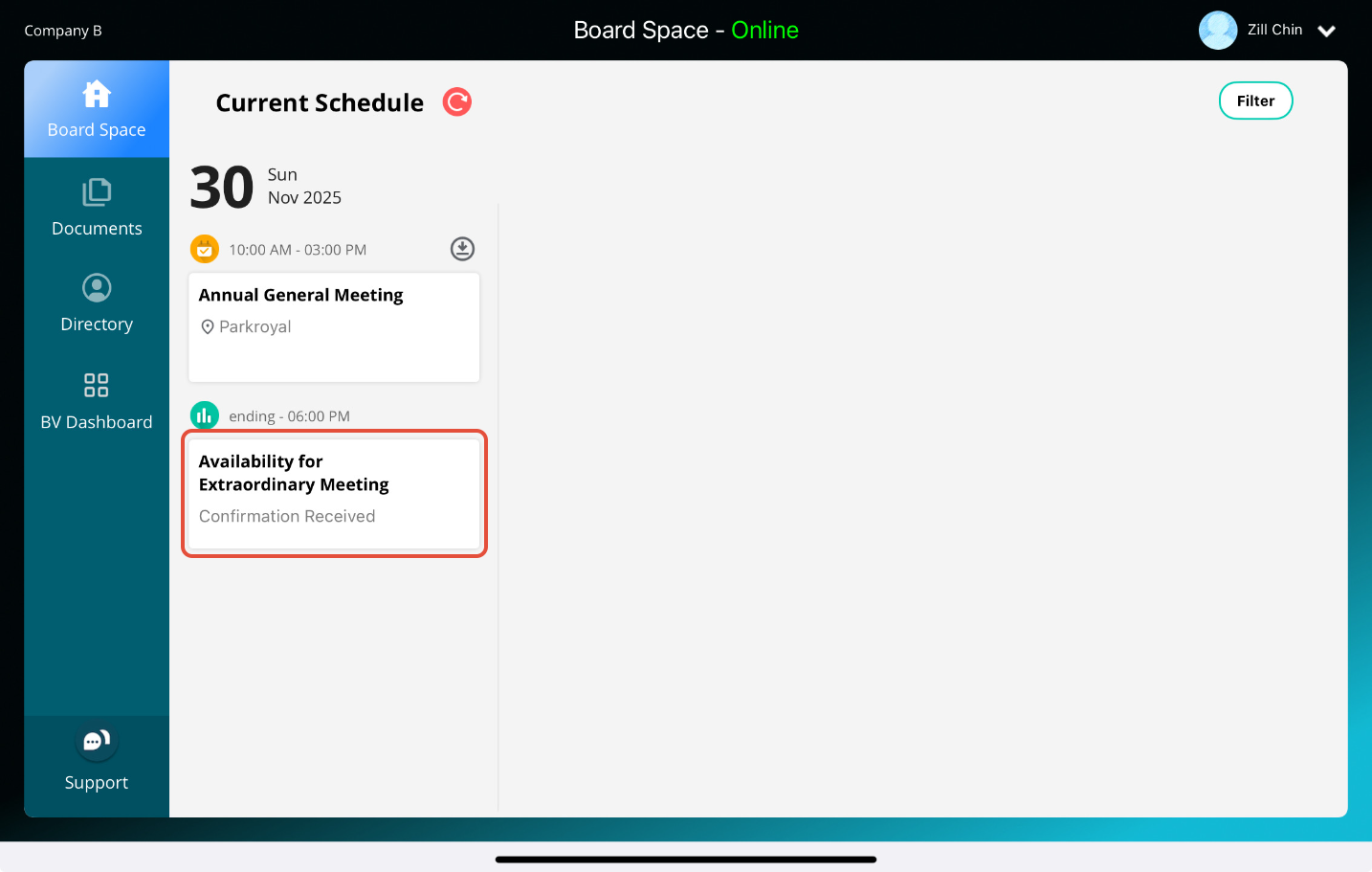
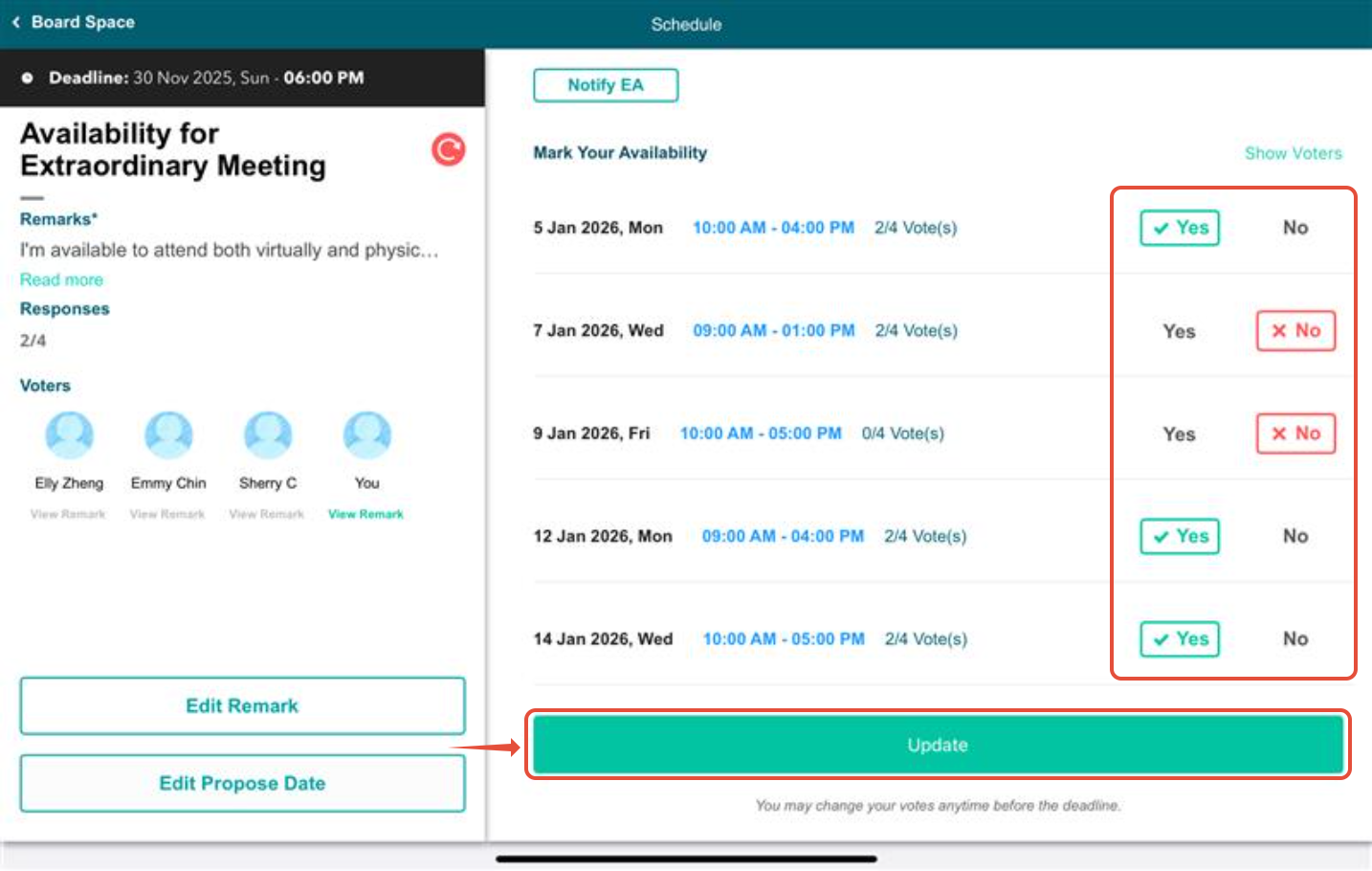
4) On the Schedule page, change your vote as required and tap on Update.
Important Note:
You are unable to change your vote after the deadline.
You are unable to change your vote after it has been finalised by the Administrator.
You have completed the tutorial on how to change your vote on your availability.
Was this article helpful?
That’s Great!
Thank you for your feedback
Sorry! We couldn't be helpful
Thank you for your feedback
Feedback sent
We appreciate your effort and will try to fix the article