Welcome to Board.Vision Tutorials!
In this tutorial, we will walk you through the steps to annotate on a shared copy of a document with other users.
Note:
- This article applies to Board.Vision iPad app version 3.5.1 (Legacy UI). To experience the new iPad UI, we encourage users to update their iPadOS to 17.0 or later to ensure continued access to future Board.Vision app updates, new features, and enhancements.
- You can annotate on a shared copy of User Group documents, Meeting Agenda documents / additional documents/minutes, and Approval documents / supporting documents.
To annotate on a shared copy of a document with other users:
1) Log in to your Board.Vision account using your registered email address and password.
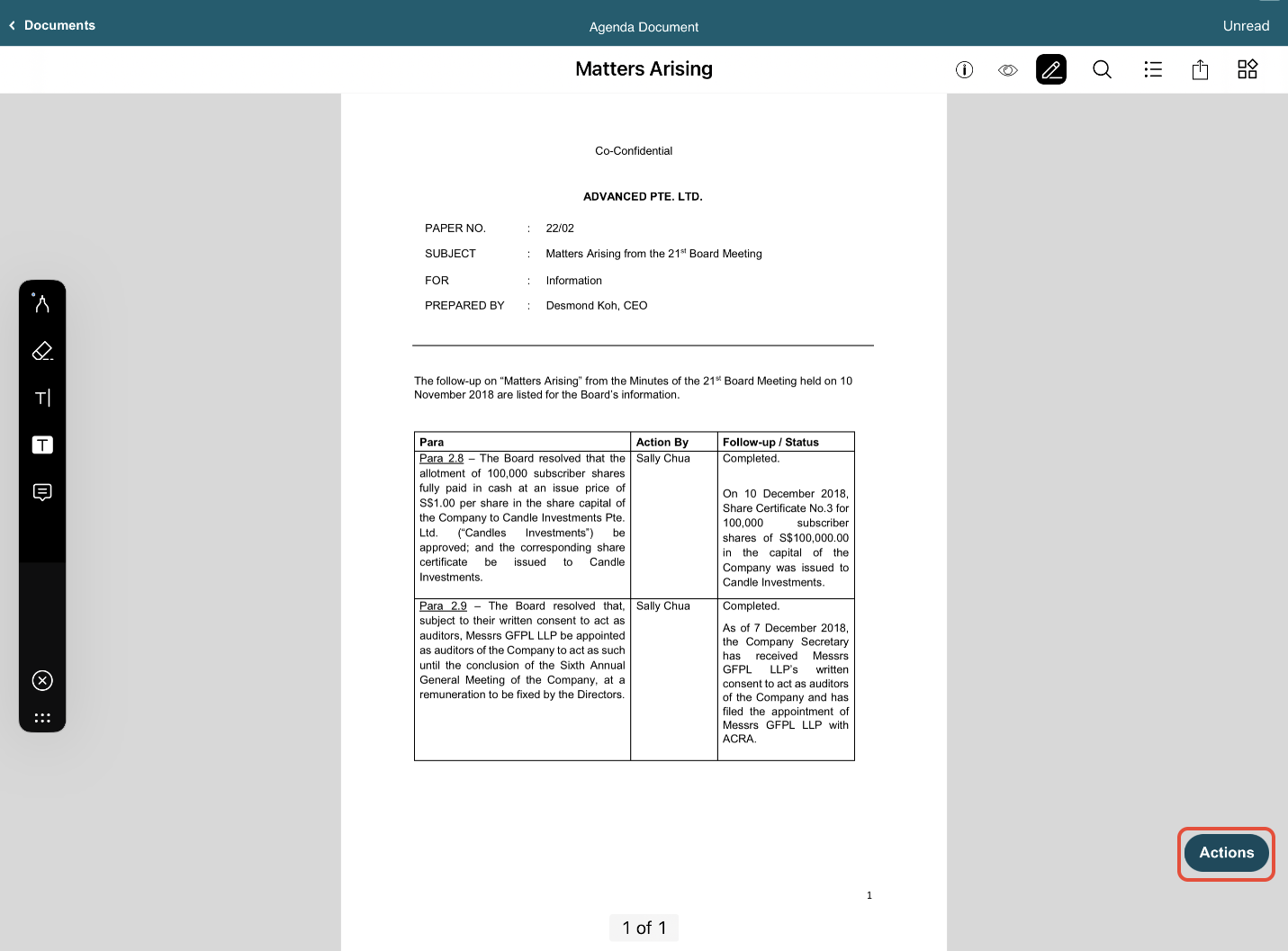
2) Open the document in which you would like to share your annotations with other Business Users and Administrators. Then, tap on the Actions button at the bottom right.
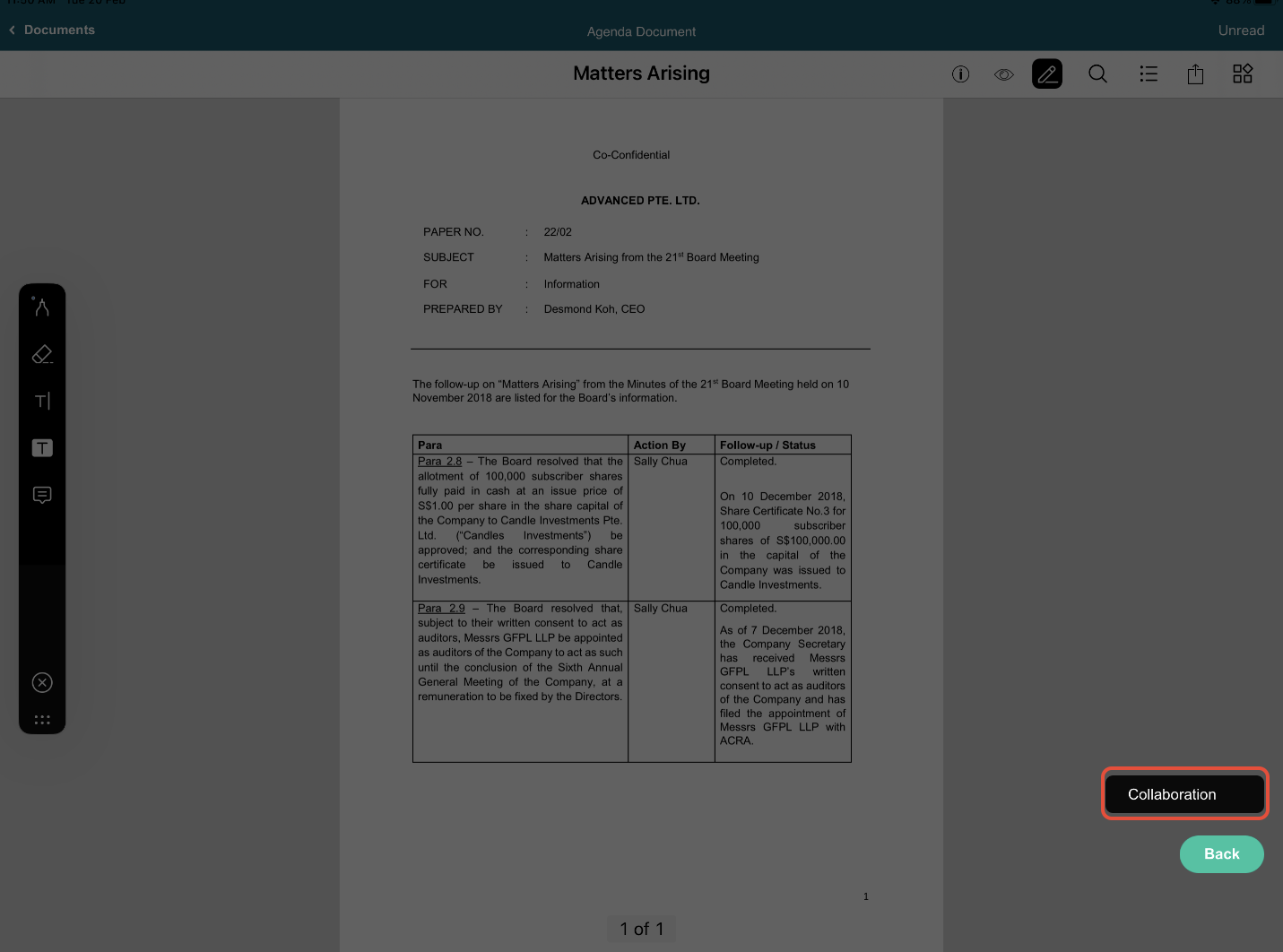
3) Then, tap on Collaboration.
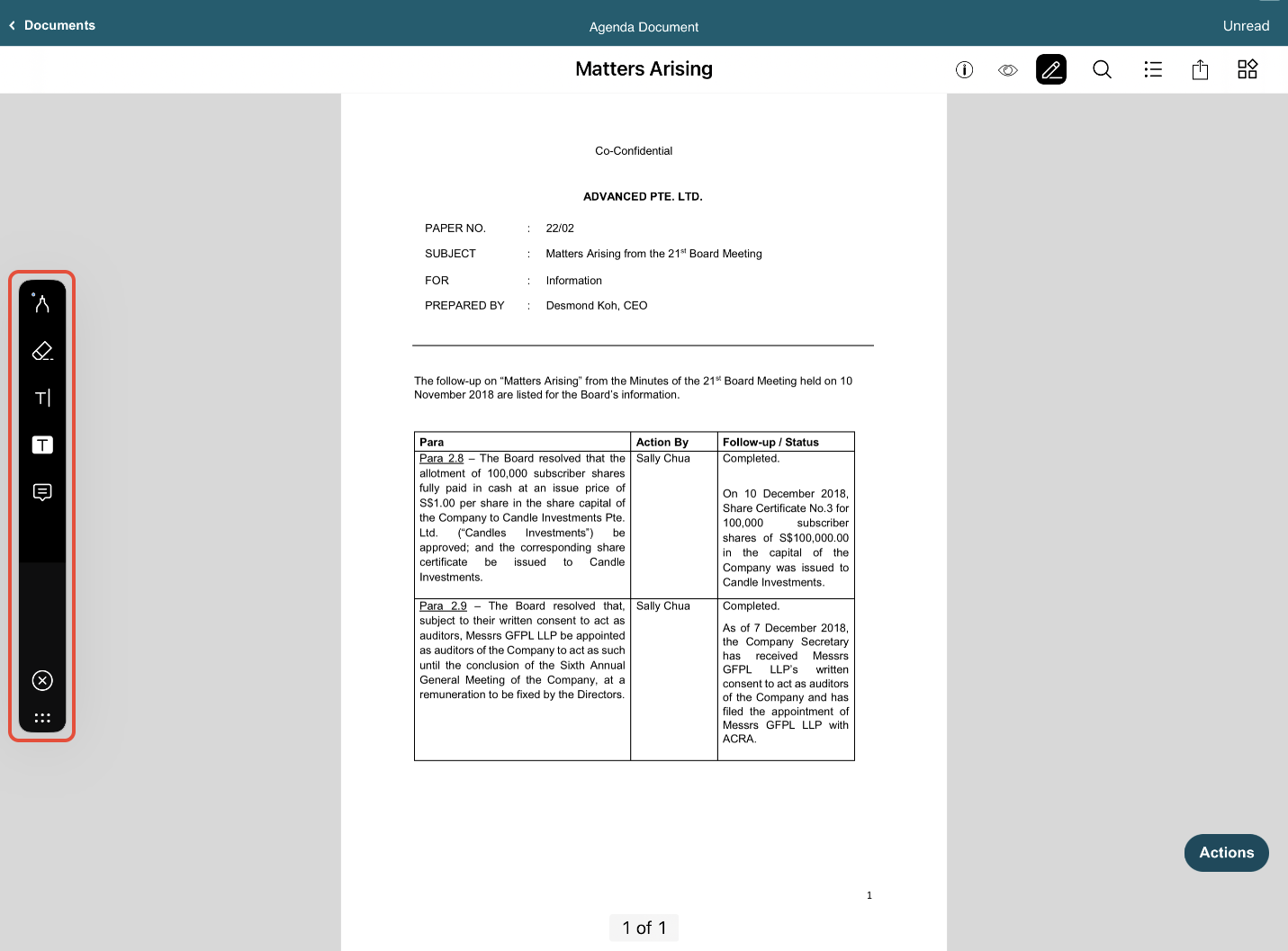
4) Once you have tapped on the Collaboration button, you will be annotating the shared document. All your annotations will be seen by other Business Users and Administrators. Additionally, other Business Users and Administrators will be able to annotate the document simultaneously.
The annotation toolbar will be shown on the left side of your screen. Choose the tool - Pen, Eraser, Insert Text, Highlighter, or Add Notes to start annotating the document.
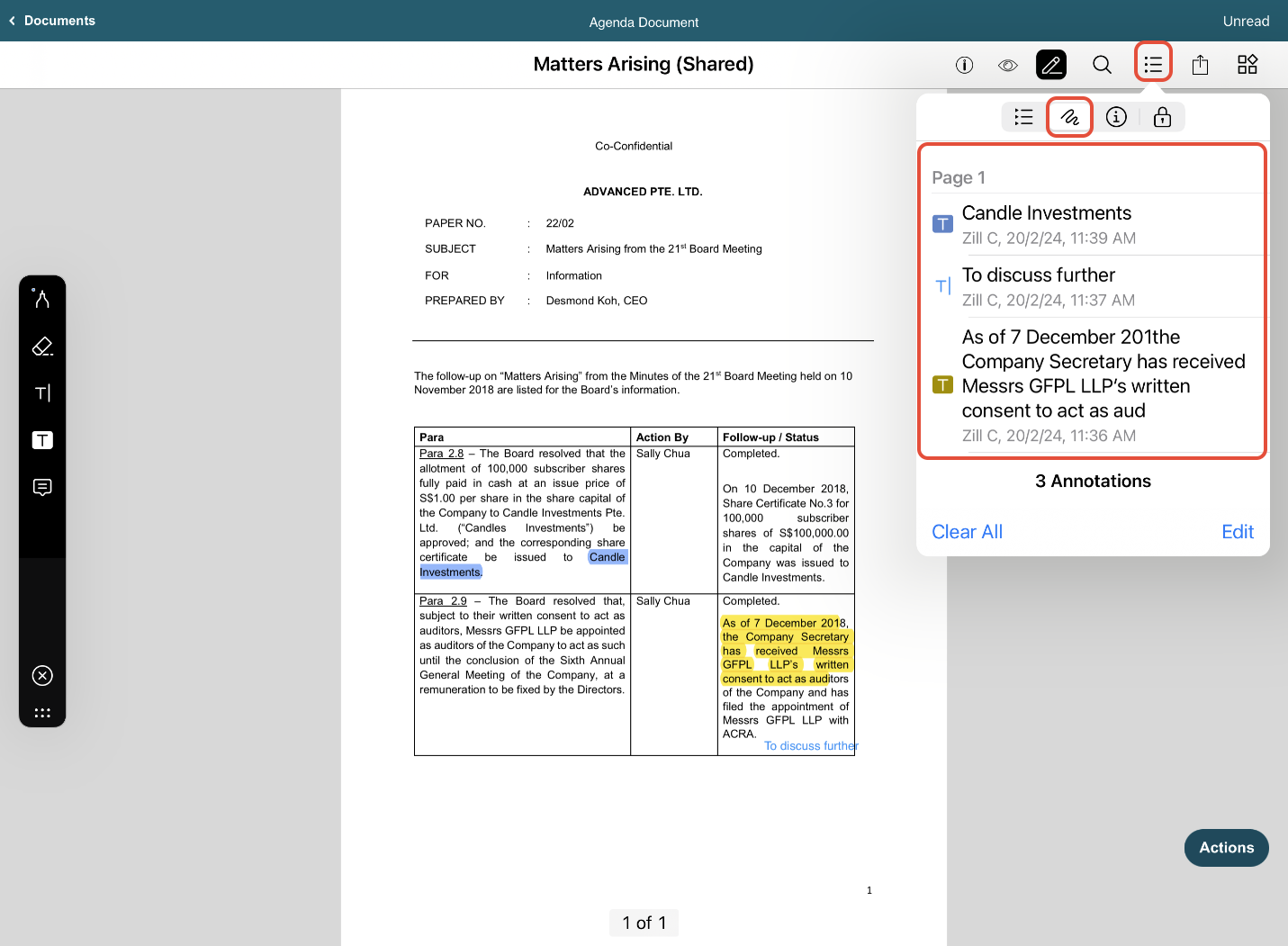
5) To view who has made the annotations on the shared document. Tap on the Bookmark icon at the top of the screen. Then, select Annotations and you will be able to view all the Business Users' and Administrators' annotation records.
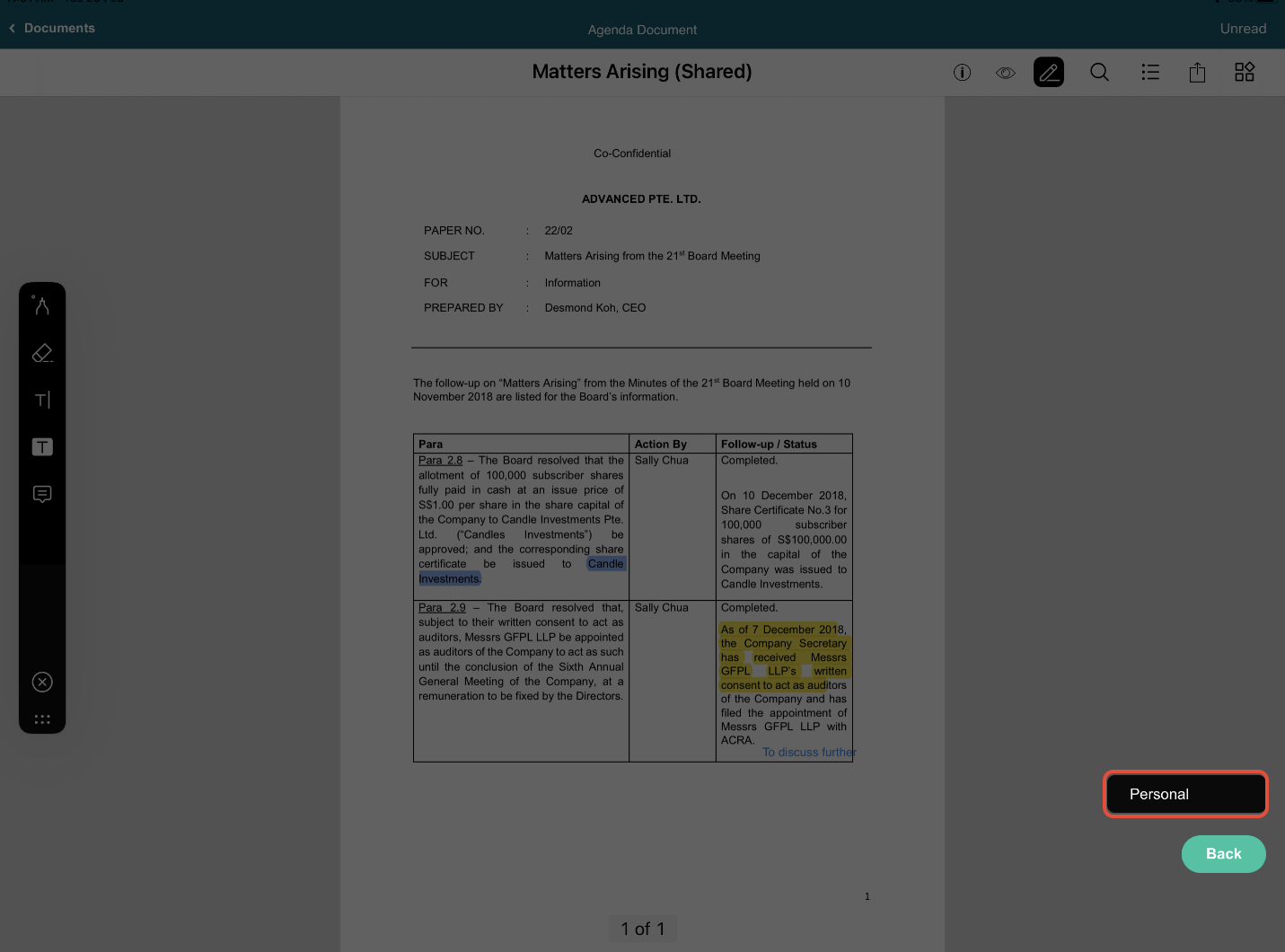
6) If you wish to annotate on your personal copy, tap on the Actions button at the bottom right again. Then, tap on Personal.
Important Note:
• In Personal mode, your annotations are private and cannot be seen by other users.
• In Collaboration mode, your annotations are shared and visible to other Business Users and Administrators.
You have completed the tutorial on how to share your annotations with other Business Users And Administrators.
Was this article helpful?
That’s Great!
Thank you for your feedback
Sorry! We couldn't be helpful
Thank you for your feedback
Feedback sent
We appreciate your effort and will try to fix the article