Welcome to Board.Vision Tutorials!
In this tutorial, we will walk you through the steps to change your 4-digit PIN from your profile settings.
Note:
- This article applies to Board.Vision iPad app version 3.5.1 (Legacy UI). To experience the new iPad UI, we encourage users to update their iPadOS to 17.0 or later to ensure continued access to future Board.Vision app updates, new features, and enhancements.
- This feature may be enabled or disabled by your company’s Administrator, depending on your organisation’s security policies.
To change your 4-Digit PIN:
1) Log in to your Board.Vision account using your registered email address and password.
2) Tap on the arrow-down icon next to your profile name and select Settings from the dropdown menu.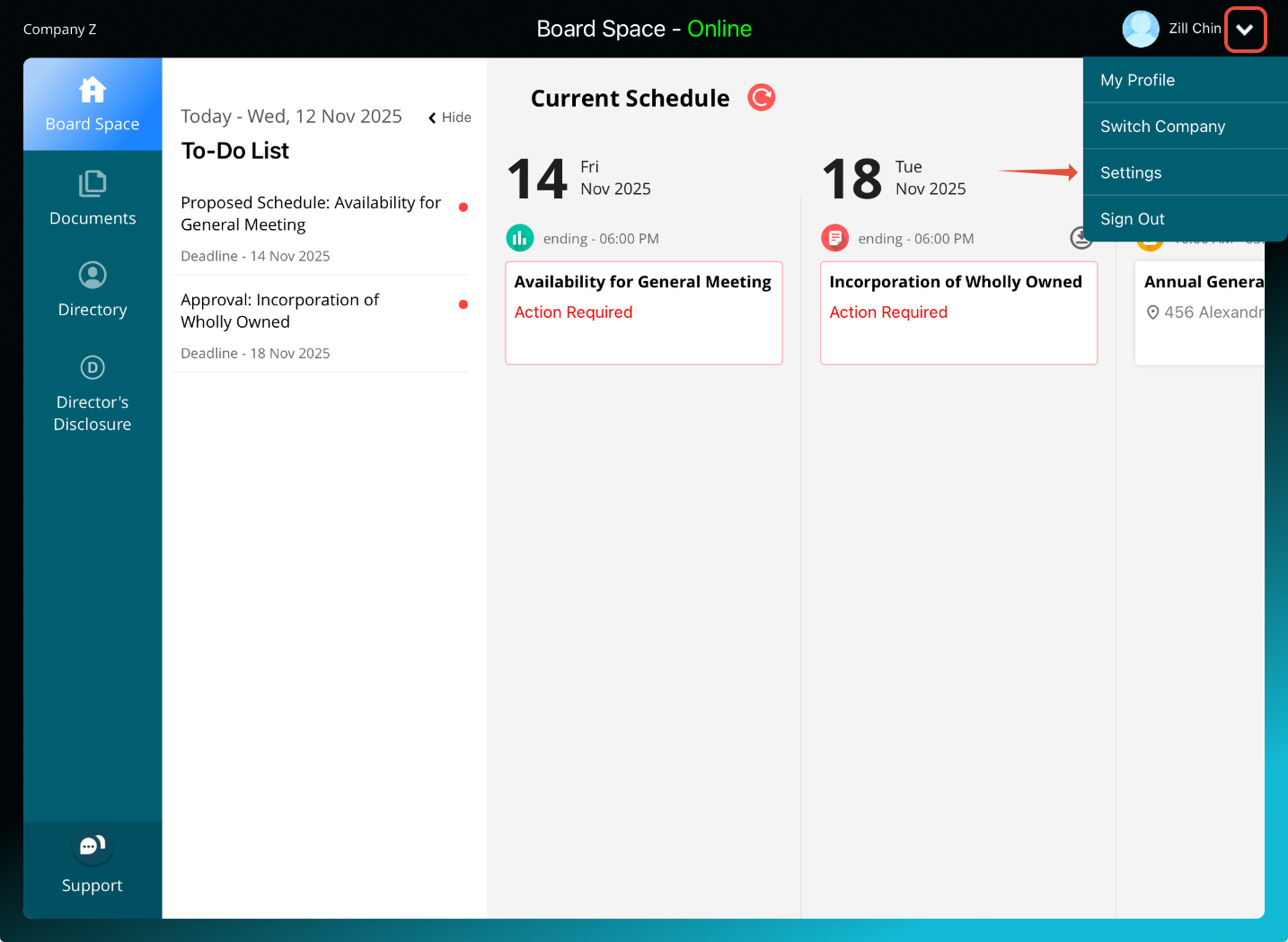
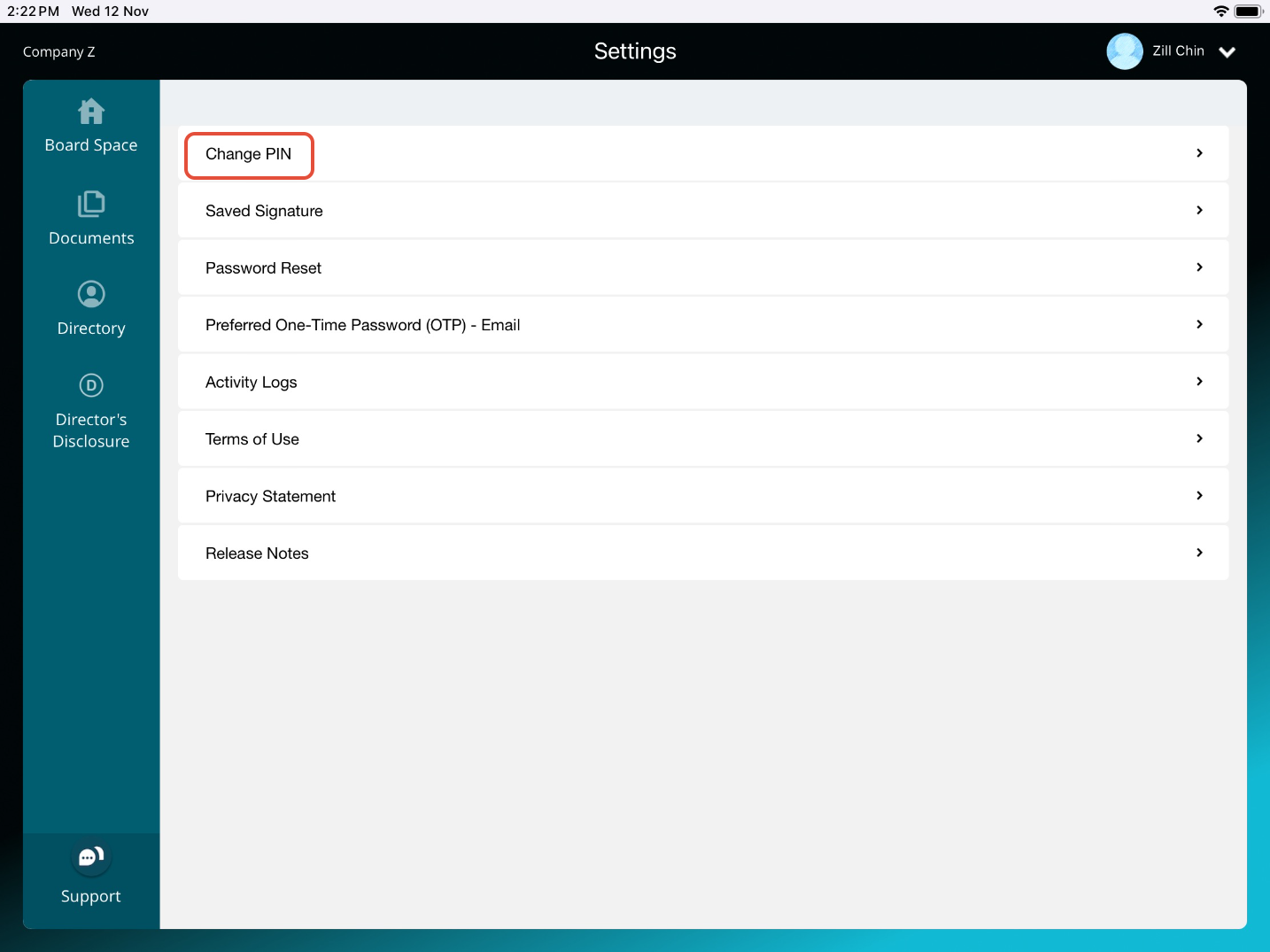
3) Tap on Change PIN.
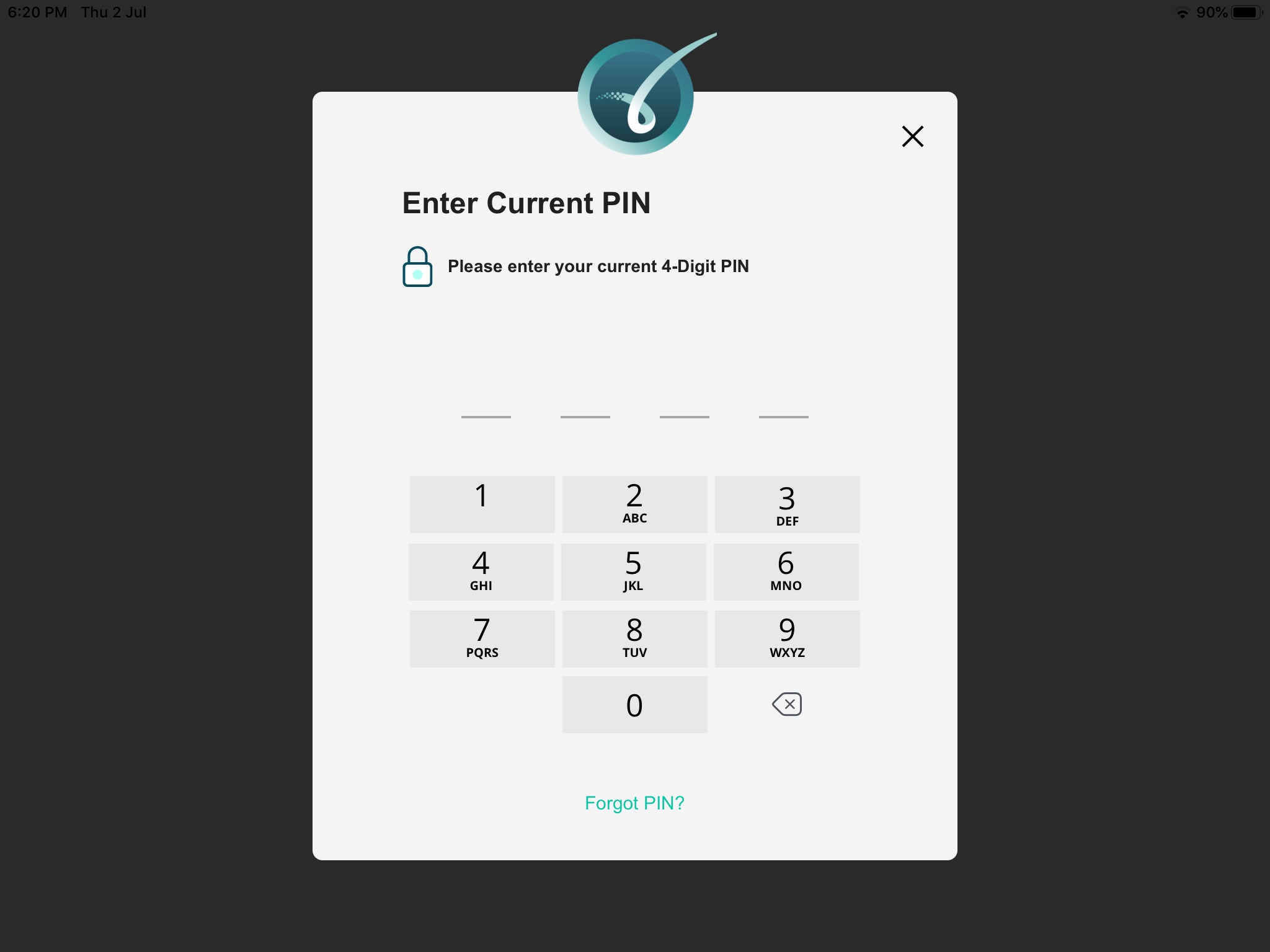
4) You will be required to enter your current 4-Digit PIN.
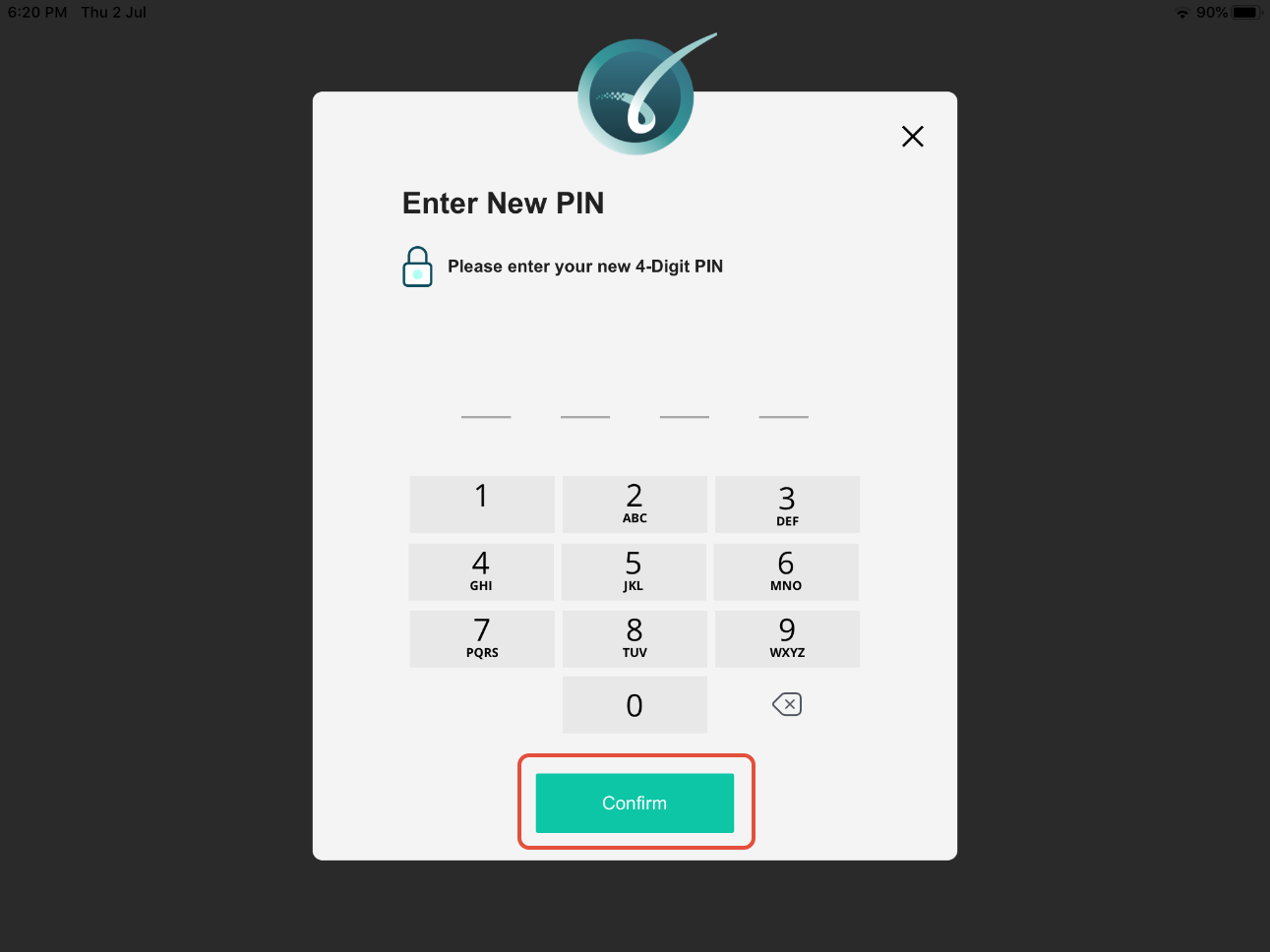
5) Next, enter your new 4-digit PIN and tap on Confirm.
Setting a PIN adds an extra layer of security to your Board.Vision account, especially when accessing it on mobile devices. Once a PIN is set, you will be prompted to re-enter your 4-digit PIN after 5 minutes of inactivity on your device.
Was this article helpful?
That’s Great!
Thank you for your feedback
Sorry! We couldn't be helpful
Thank you for your feedback
Feedback sent
We appreciate your effort and will try to fix the article