1. Overview
The Board.Vision Director’s Disclosure module enables Directors and CEOs to manage, declare, and circulate statutory disclosures under the Singapore Companies Act:
Section 156: Disclosure of Directorship Appointments.
Section 165: Disclosure of shareholdings, debentures, rights, and interests in related corporations (including year-end audit disclosures).
2. Section 156 Disclosures
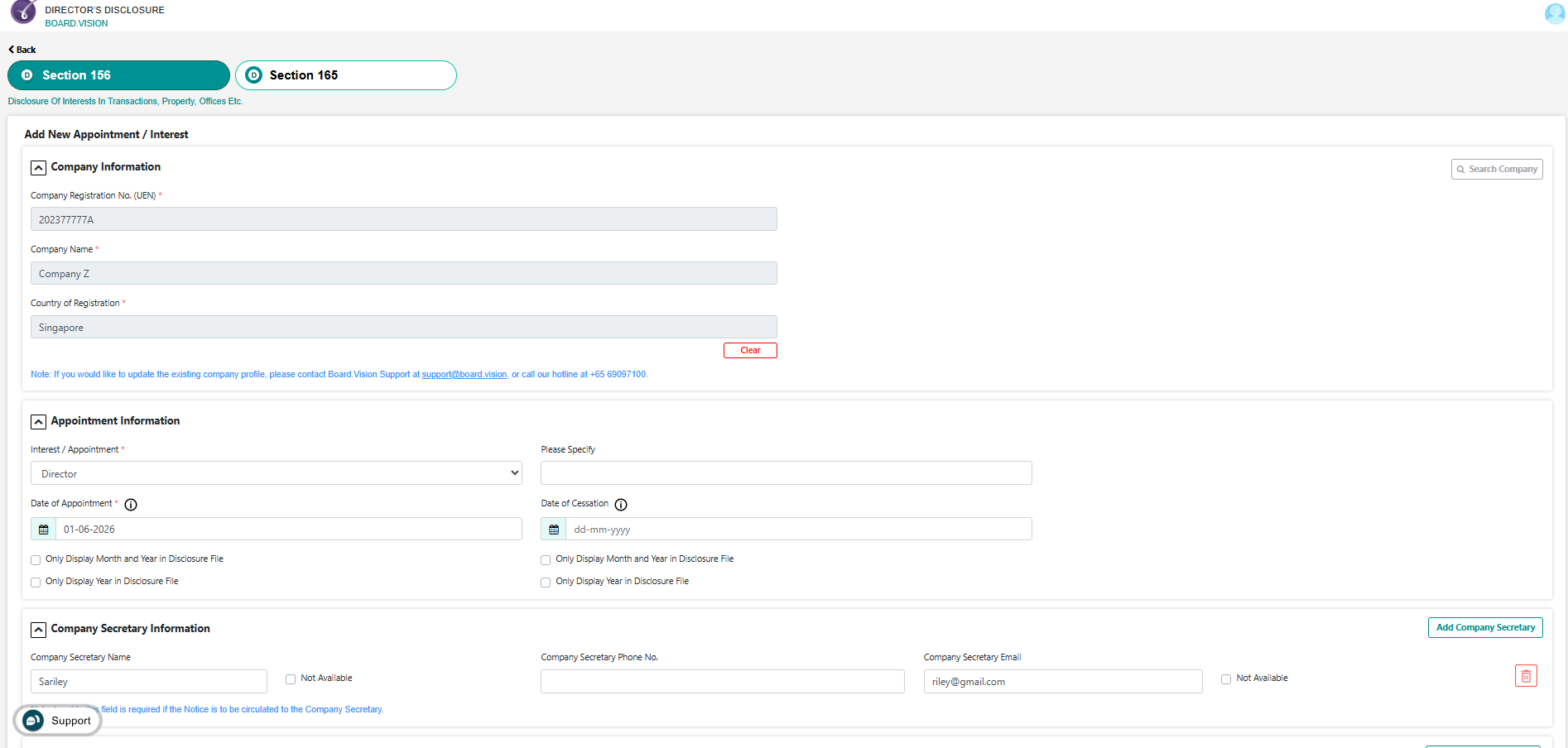
Step A: Adding a New Directorship Appointment or Interest
Log in to https://dd.board.vision/.
Under Section 156, click + Add Interest.
Enter the details:
Company UEN & Name
Designation / Nature of Office (e.g., Director, CEO, Deputy Chairman)
Date of Appointment
Enter Company Secretary Information.
Attach supporting documents or appointment letters if required.
Click Confirm Appointment / Interest.
Choose whether it requires circulation and click Confirm.
Step B: Circulating & Updating Section 156 Disclosures
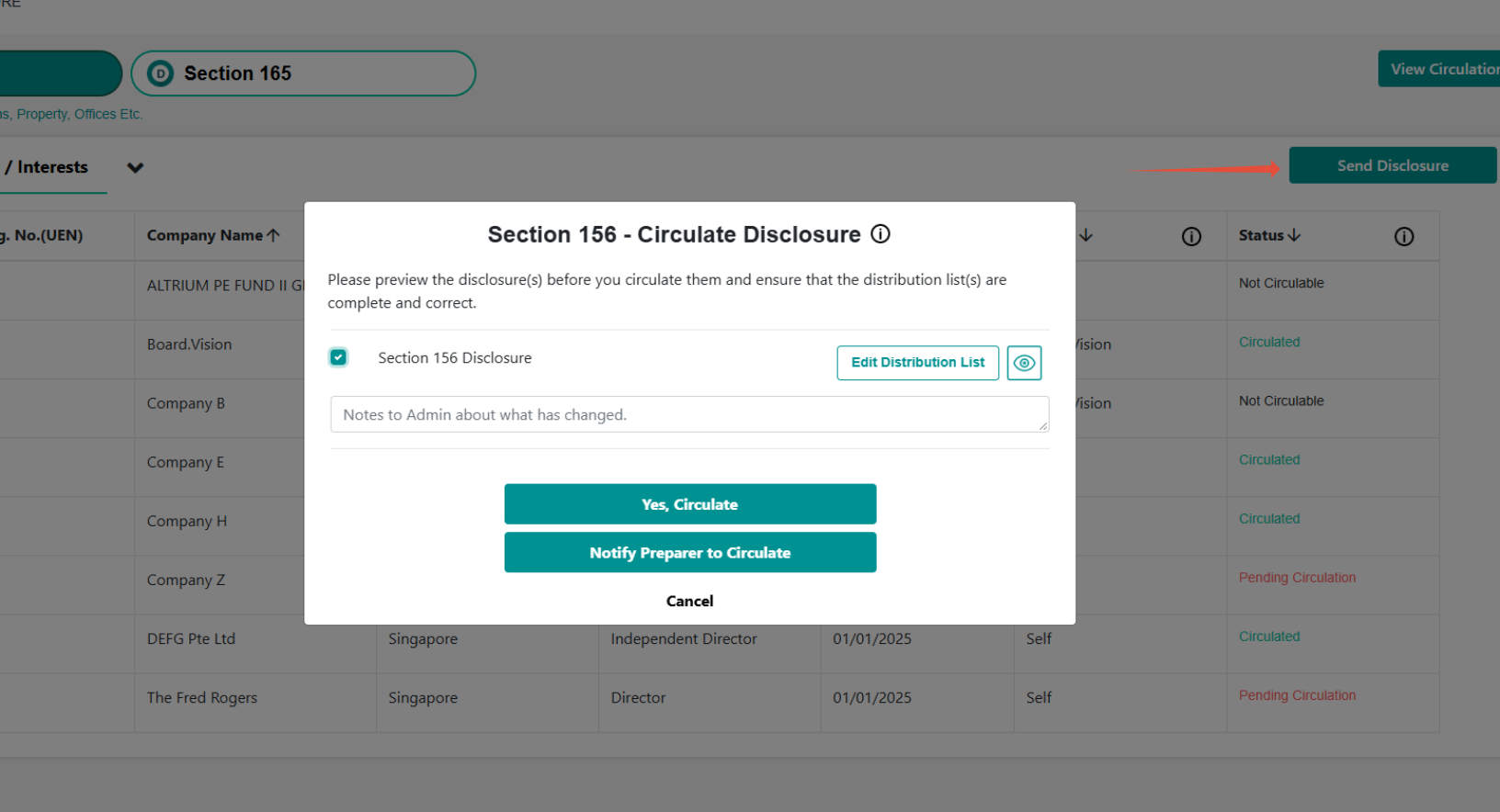
Click Send Disclosure.
Select the Section 156 Disclosure checkbox to preview.
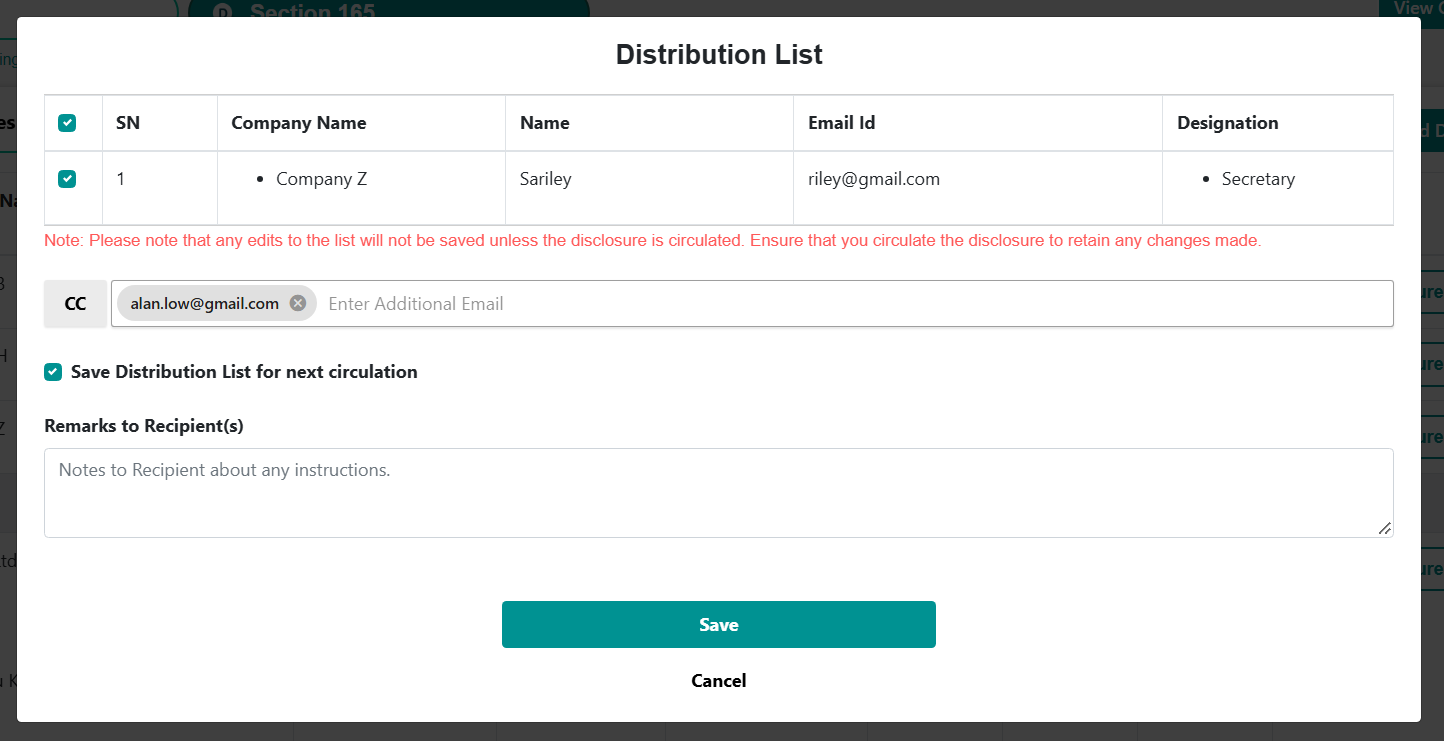
Click Edit Distribution List to review and manage the recipients.
Click Yes, Circulate.
3. Section 165 Disclosures (Shareholdings & Related Companies)
Step A: Managing Shareholdings & Interest
Under Director’s Disclosure, go to Section 165.
Click + Add Shareholdings and enter the company UEN, name, and country of registration.
Click Add Interest.
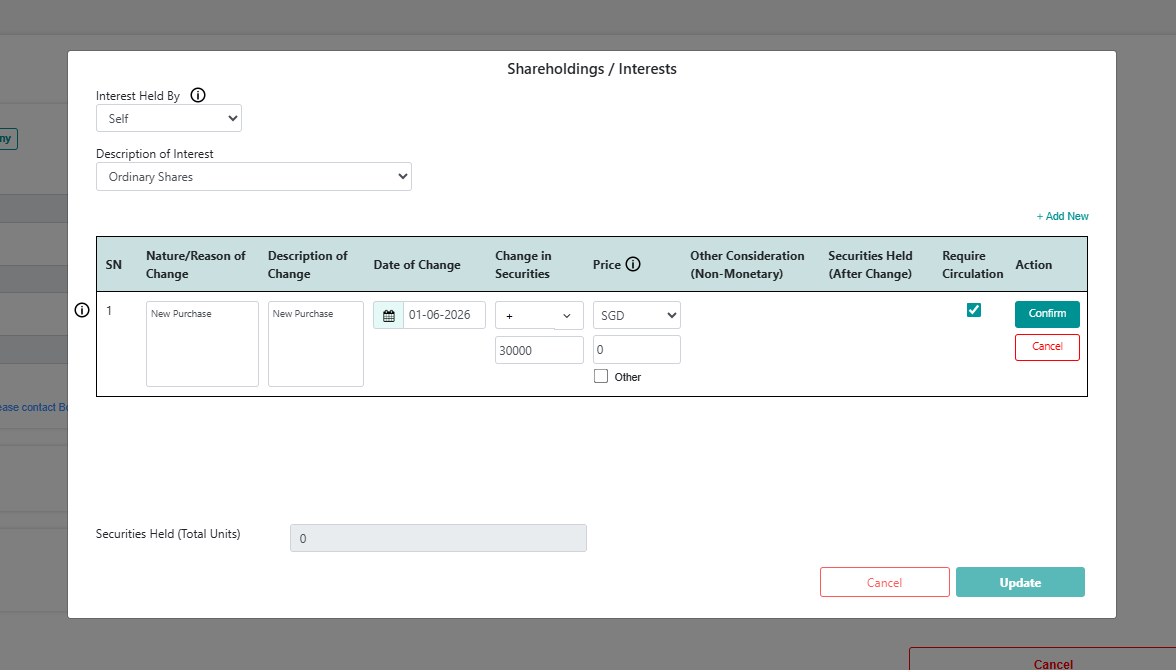
State whether securities are held in own name or in trust by nominee or family member.
Choose security type (e.g., Ordinary Shares or Bonds).
Click +Add New / Add New Interest.
Enter the security information as required and if it requires circulation. Then click Confirm and Update.
Step B: Grouping Related Companies
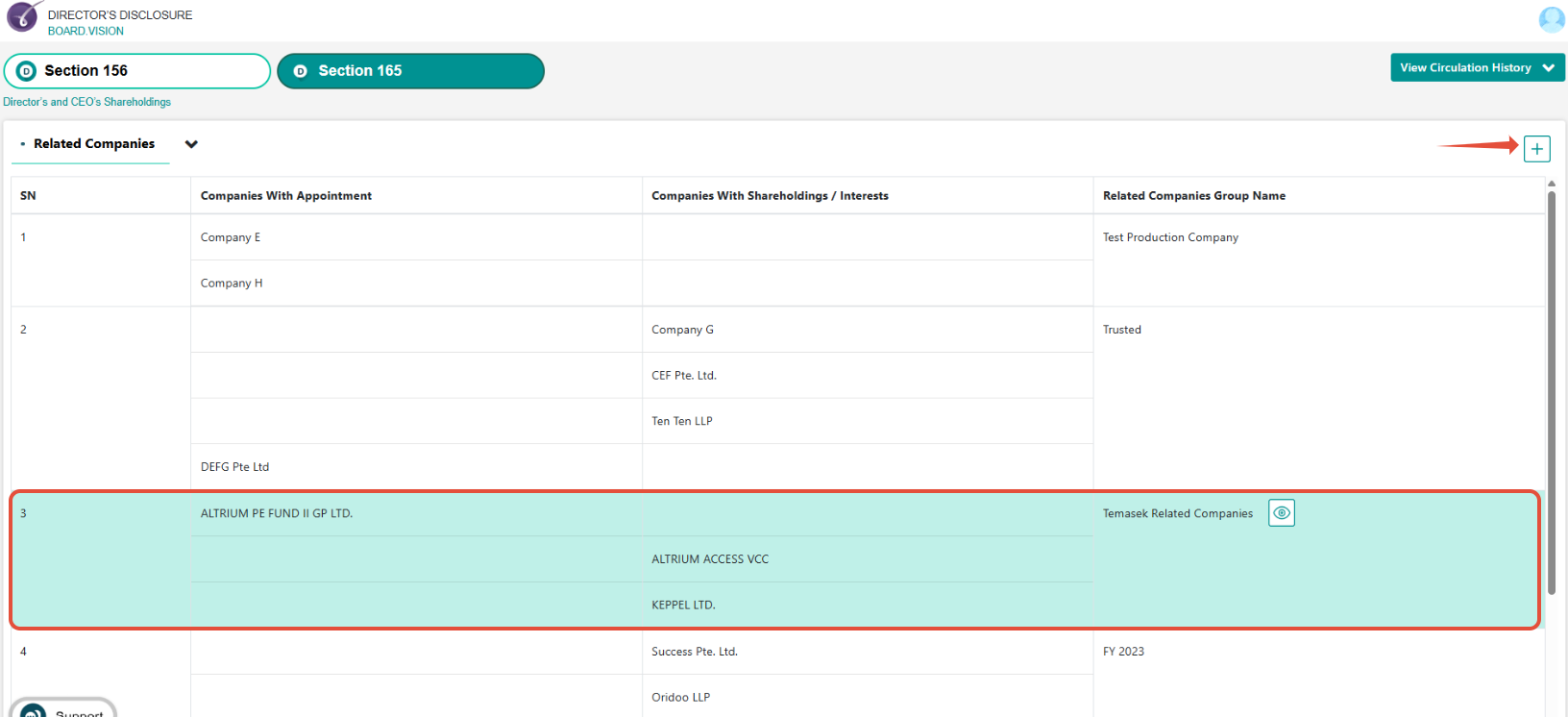
Under Director’s Disclosure Section 165, go to Related Companies.
To add a company to existing grouping: Mouse-over the the group (as shown highlighted in green) > select company > click Save Changes.
To create a new group (e.g., SMRT Related Companies Group): Click Add Related Companies > create a group name > select companies > click Create Group.
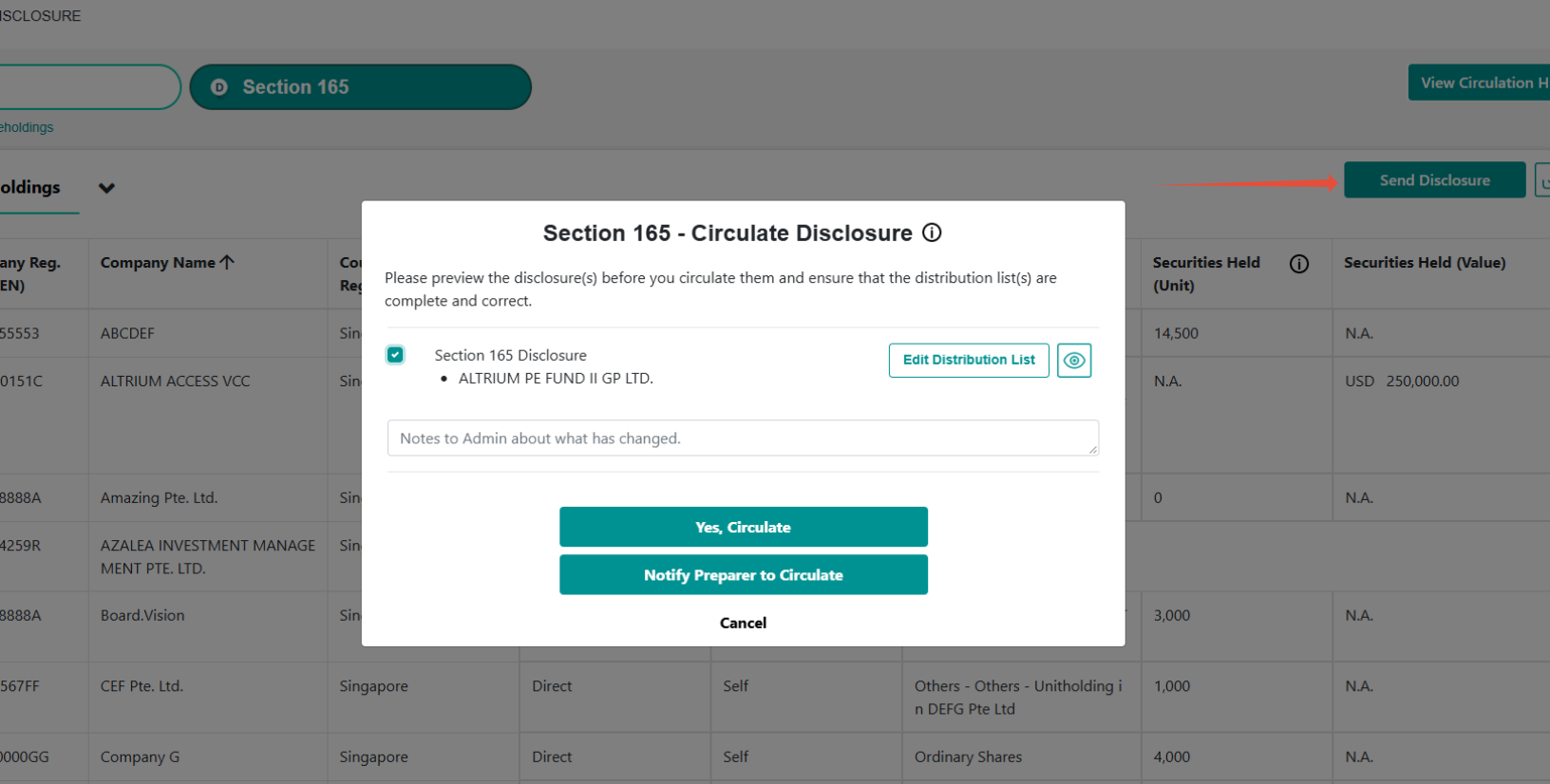
Step C: Circulating & Updating Section 165 Disclosures
Click Send Disclosure.
Select the Section 165 Disclosure checkbox to preview.
Click Edit Distribution List to review and manage the recipients.
Click Yes, Circulate.
Step D: Disclosures Upon Appointment
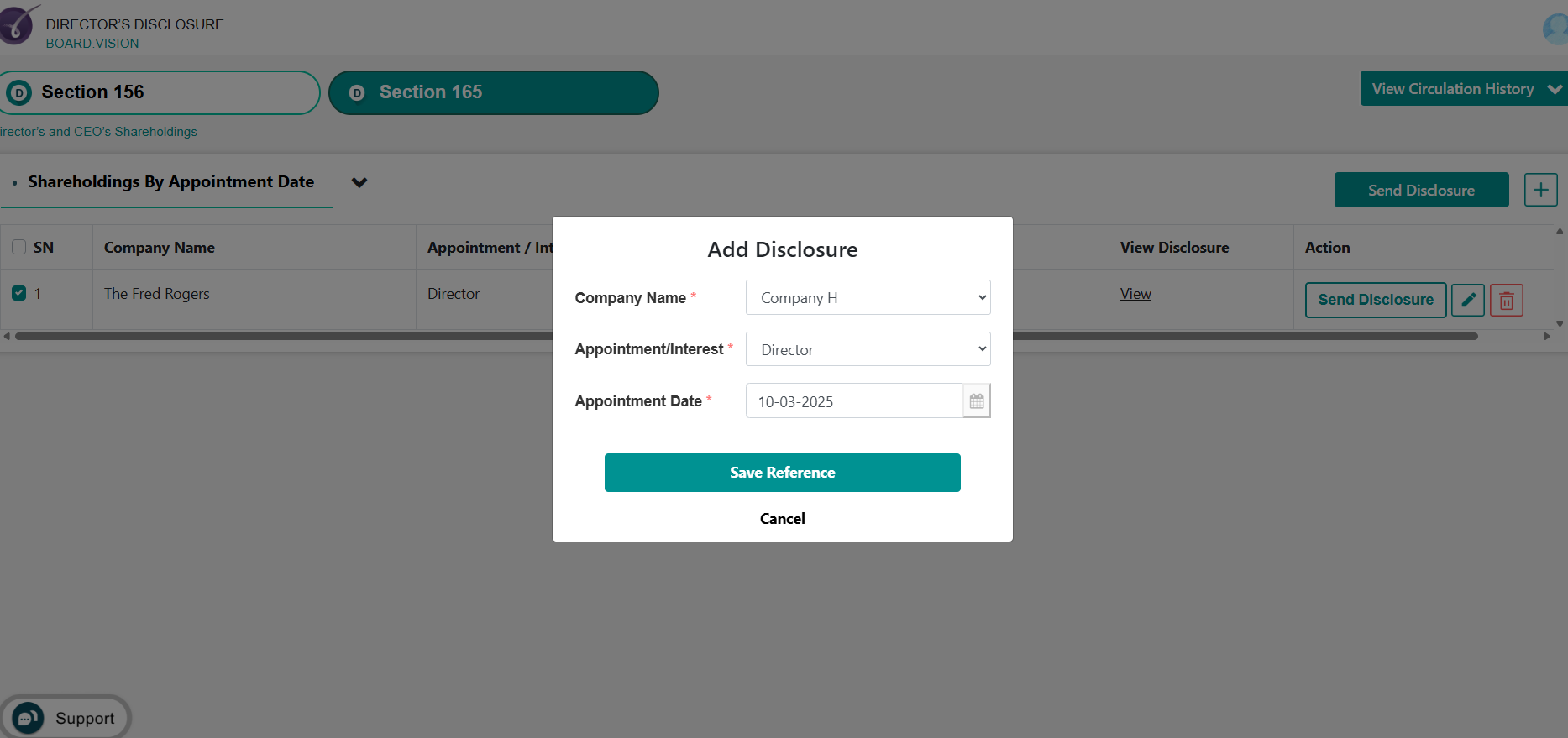
To declare existing shareholdings in related companies when joining a new board.
- Go to Section 165.
- Select Shareholdings by Appointment Date.
- Click Add Disclosure.
- Enter Company Name, Appointment and Appointment Date.
- Click Send Disclosure.
- Select the Section 165 Disclosure checkbox to preview.
Click Edit Distribution List to review and manage the recipients.
Click Yes, Send.
4. Year-End Disclosures (Annual Audit Preparation)
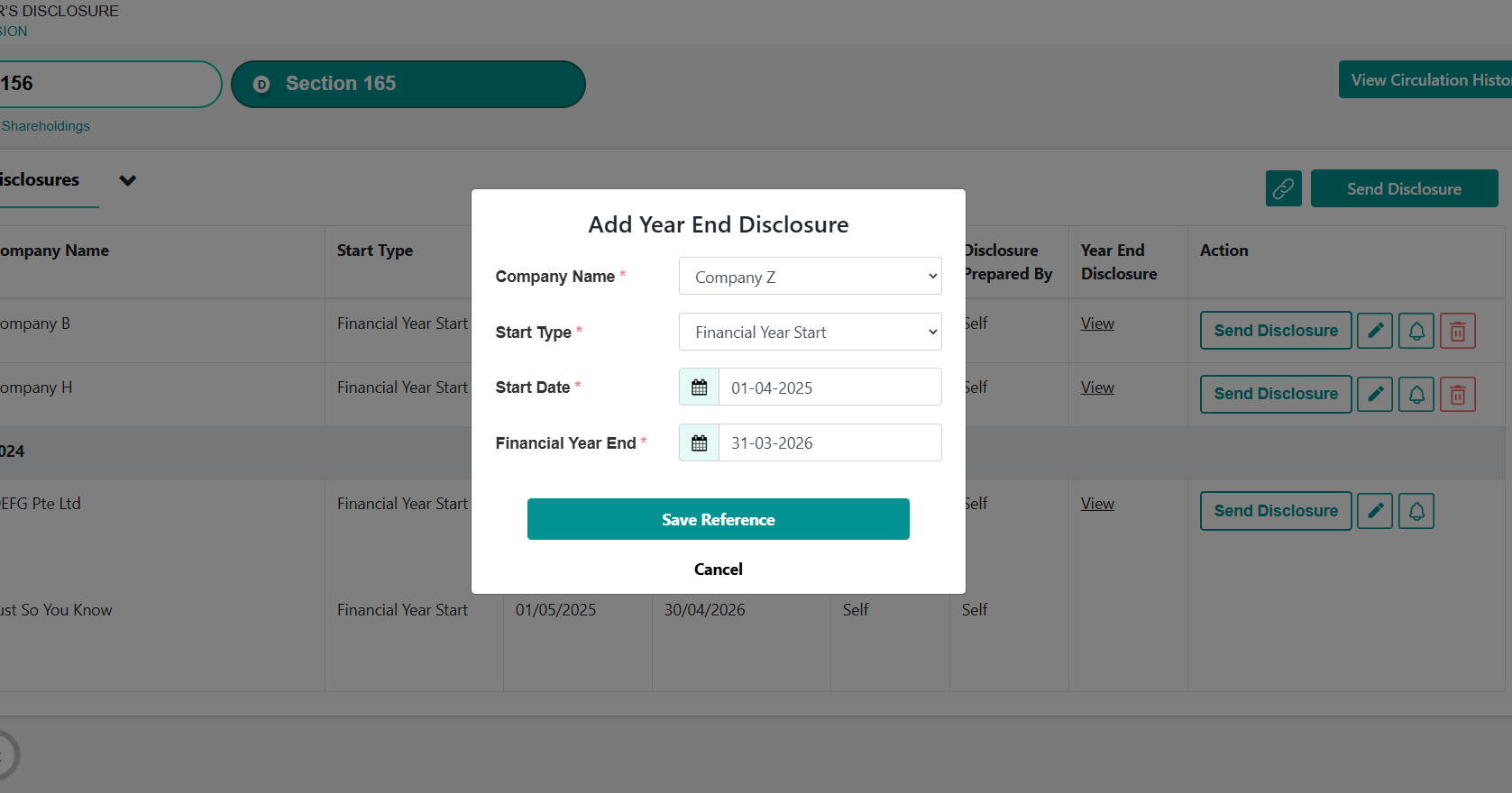
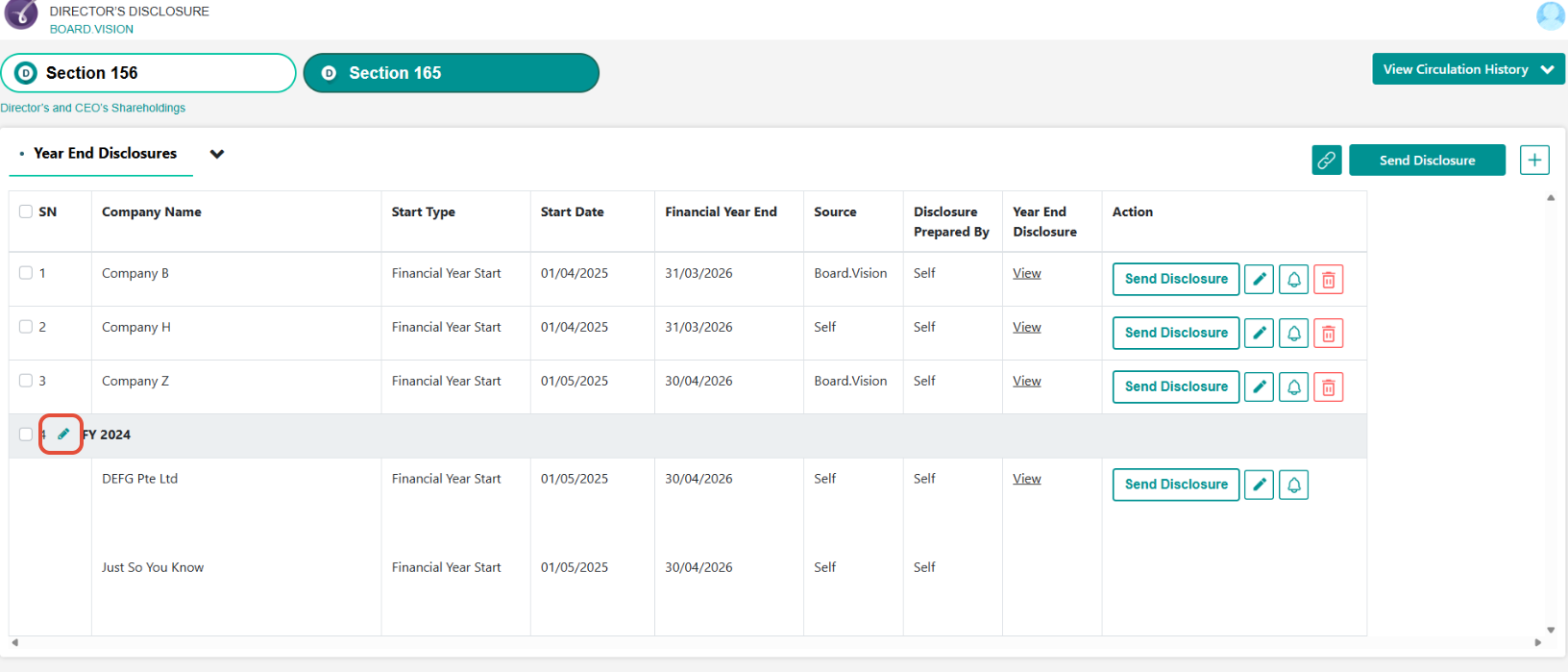
4.1 Prepare Year-End Disclosure
Navigate to Section 165 and select Year-End Disclosure.
Click on Add Year End Disclosure.
- Enter Company Name, Start Type, Start Date and Financial Year End date.
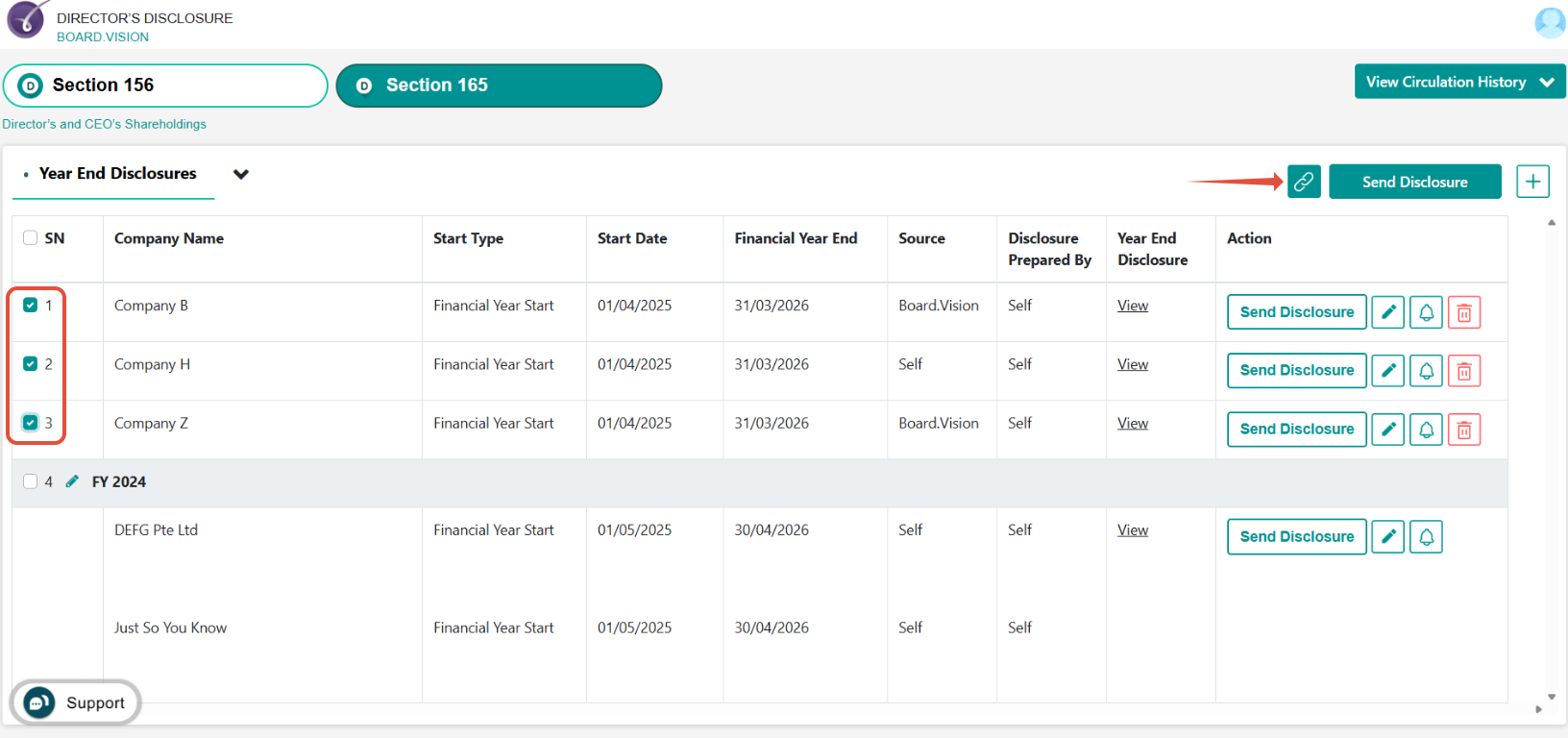
4.2 Grouping Companies (to consolidate the year-end disclosure for related companies)
- Select SN of all related companies.
- Click Add Group icon.
- Enter Group Name.
To add new companies to existing grouping:
- Click Pen icon (next to grouping name).
- Select companies you would like to add.
4.3 Send Year-End Disclosure
Select SN and click Send Disclosure.
- Select the Section 165 Disclosure checkbox to preview.
Click Edit Distribution List to review and manage the recipients.
Click Yes, Send.
Summary Matrix
| Disclosure Type | Statutory Provision | Key Action / Workflow | Default Distribution |
| Appointments/Interests | Section 156 | Add Appointments/Interests > Circulate | Board of Directors & Company Secretary |
| Notice of Change in Shareholdings | Section 165 | Notice of Change > Update Units > Circulate | Board of Directors & Company Secretary |
| Shareholdings by Appointment Date | Section 165 | Shareholdings in Related Companies as at Date of New Appointment > Circulate | Board of Directors & Company Secretary |
| Year-End Audit | Section 165 | Prepare Year-End > Confirm > Send | Company Secretary & cc External Auditors (if required) |
Frequently Asked Questions (FAQs)
1. Who is notified when a Director or Authorised Preparer circulates a Section 156 / 165 disclosure?
a. When a Section 156 or Section 165 disclosure is circulated, email notifications are automatically sent to:
All Directors listed on the company board (to fulfill general statutory disclosure obligations).
The Company Secretary (to update statutory registers and file ACRA records where applicable).
Email 1 - To Directors and Cc named cosec of companies that had subscribed Board.Vision ICD module.
- 'To' field: Chairman and Director(s) who had been selected in the distribution list.
- 'CC' field:
- Named Company Secretary(ies) who had been selected in the Distribution List;
- Additional Recipient(s) who had been added to the CC field in the
Distribution List; and
- Authorised Preparer
Image of an 'Email 1'
| Circulation for Section 156 | 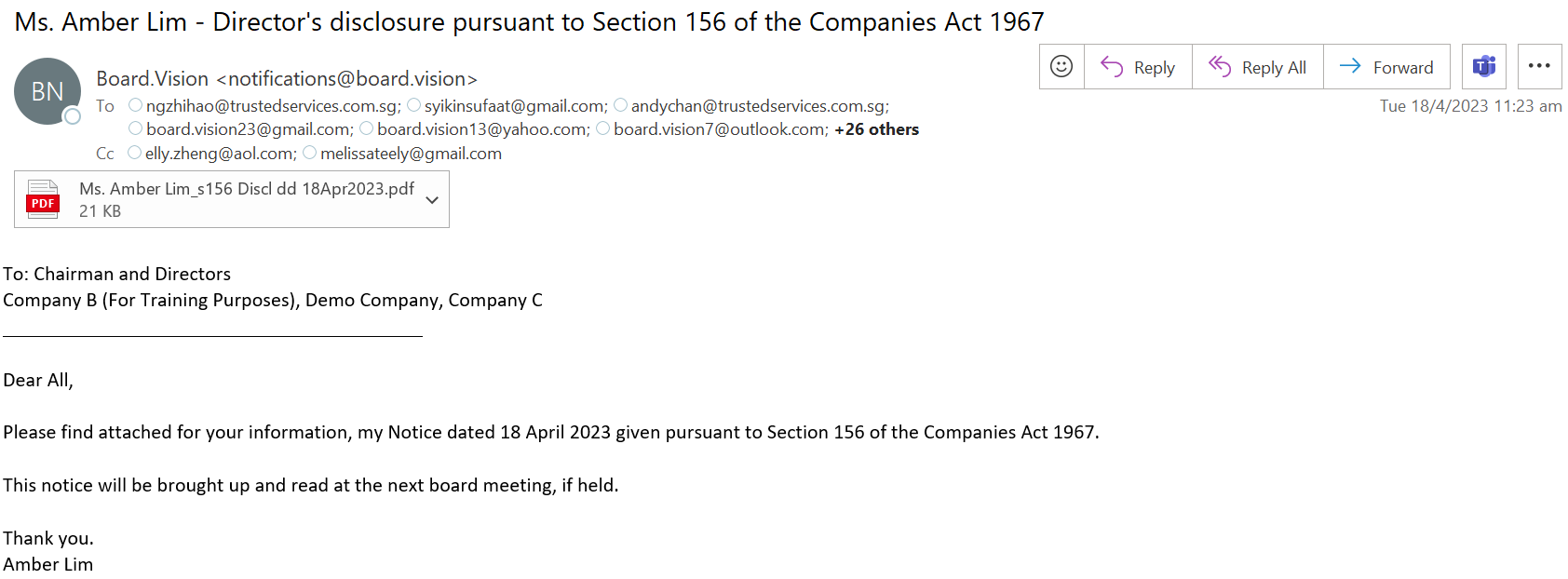 |
Circulation for Section 165 | 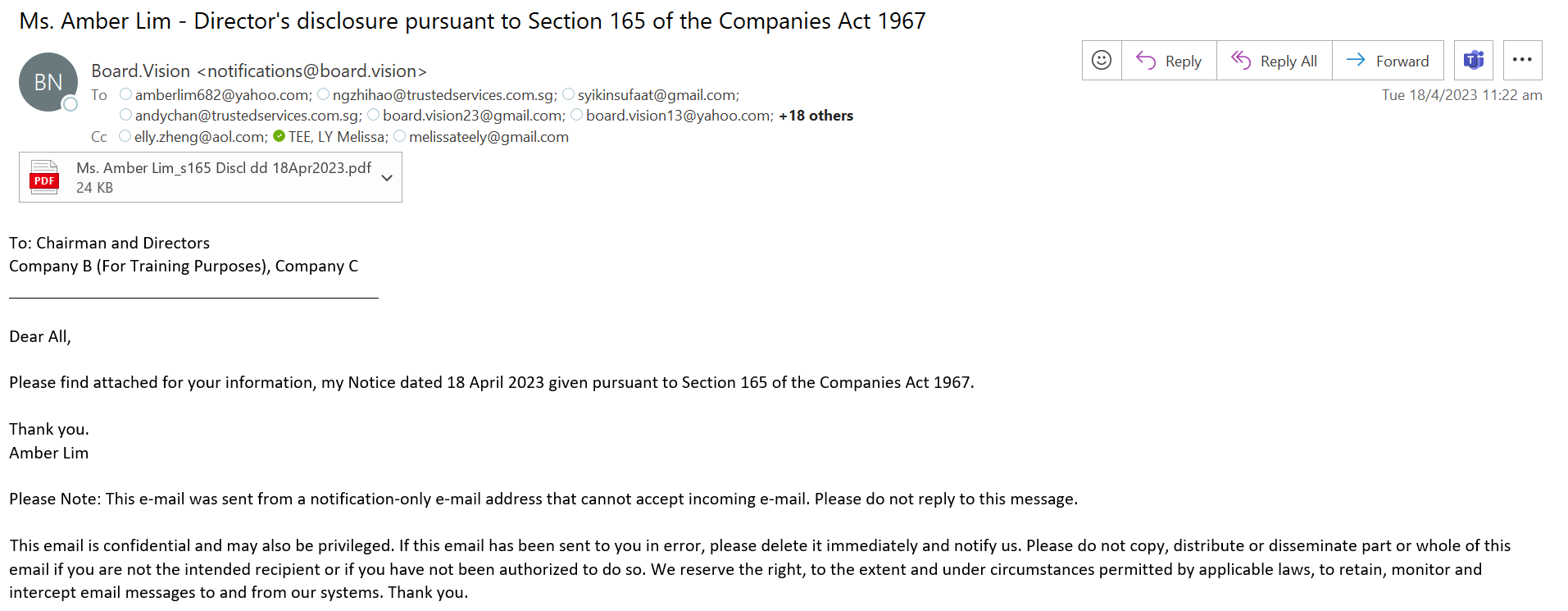 |
Email 2 - To named cosec of companies that are not subscribed Board.Vision ICD module. And, Cc the Director who made the disclosure.
- 'To' field: Non-Board.Vision Company Secretary(ies) who had been selected in the Distribution List;
- 'Cc' field:
- The Director who had triggered the circulation; and
- Authorised Preparer
Image of an 'Email 2'
| Circulation for Section 156 | 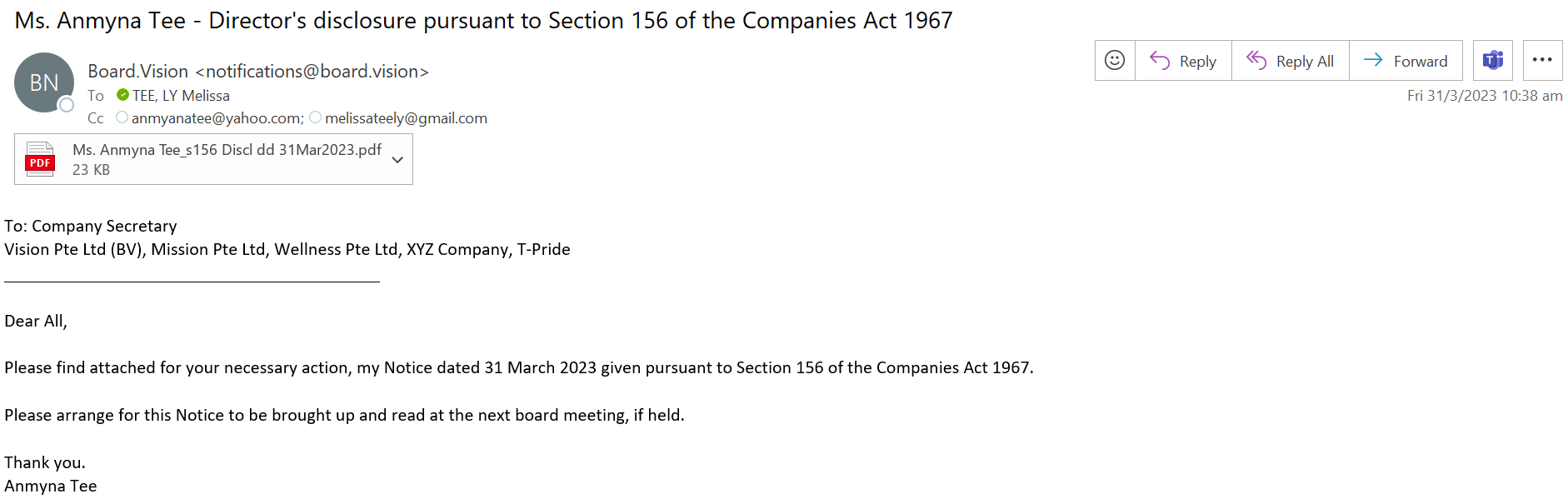 |
Circulation for Section 165 | 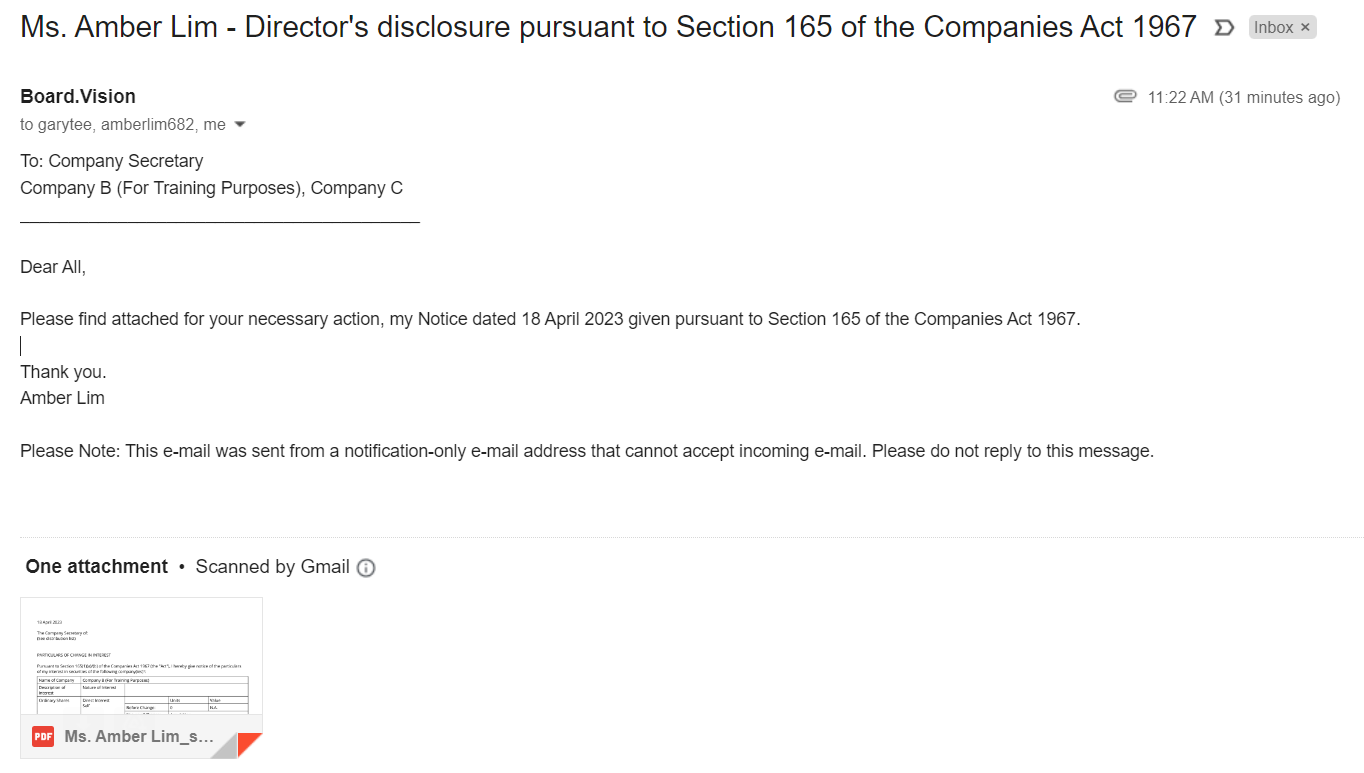 |
b. Year-End Disclosure notifications are automatically routed directly to the Company Secretaries for statutory review and record updates. To cc any other recipients, add the email to the 'CC' text field on the Distribution List pop-up.
2. Why does the Company Secretary's name not appear in the Disclosure Distribution List?
a. For Board.Vision companies
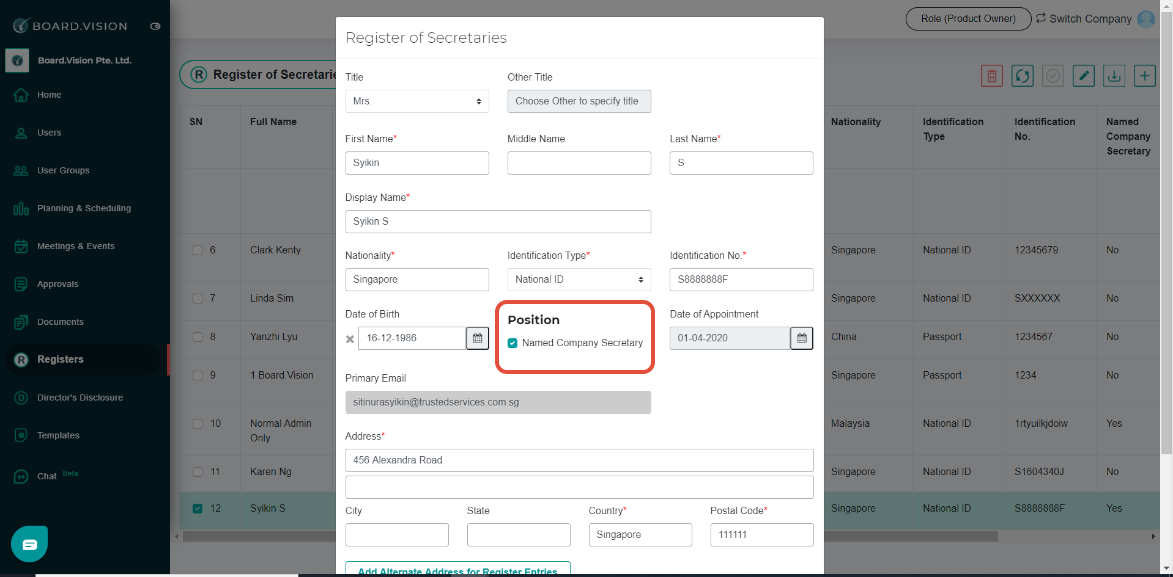
The Company Secretary’s details are automatically pulled from the Register of Secretaries into the Director’s Disclosure Section 156 and the Distribution List.
If the Company Secretary’s name does not appear, please ensure that the company Administrator has:
- Confirmed the Date of Appointment, and
- Selected the ‘Named Company Secretary’ checkbox in the Register of Secretaries.
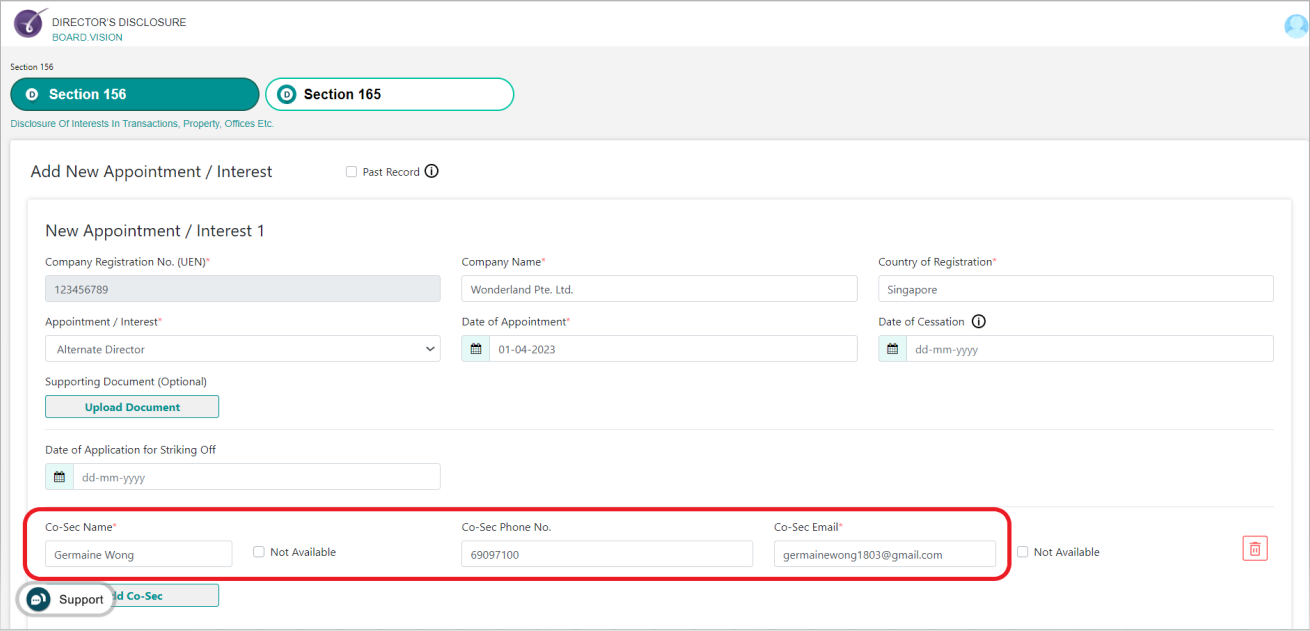
b. For non-Board.Vision companies
Directors or Authorised Preparers are required to manually enter the Company Secretary’s details when adding a new Appointment or Interest. The Company Secretary’s name will then appear in the Distribution List.
If you face any issues, please reach out to our Board.Vision Customer Success Team at support@board.vision or +65 6909 7100 and we will be happy to help.
Our hotline operating hours are from Mondays to Fridays 9:00 AM to 6:00 PM SGT (excluding public holidays).
Was this article helpful?
That’s Great!
Thank you for your feedback
Sorry! We couldn't be helpful
Thank you for your feedback
Feedback sent
We appreciate your effort and will try to fix the article