The Approvals module allows Administrators to circulate circular resolutions, configure automated response reminders, upload offline director votes, and generate completion reports for governance archiving.
Section 1: System Customisation & Approval Setup
Administrators can configure circular resolutions, assign required signatories, and attach supporting documentation prior to circulation.
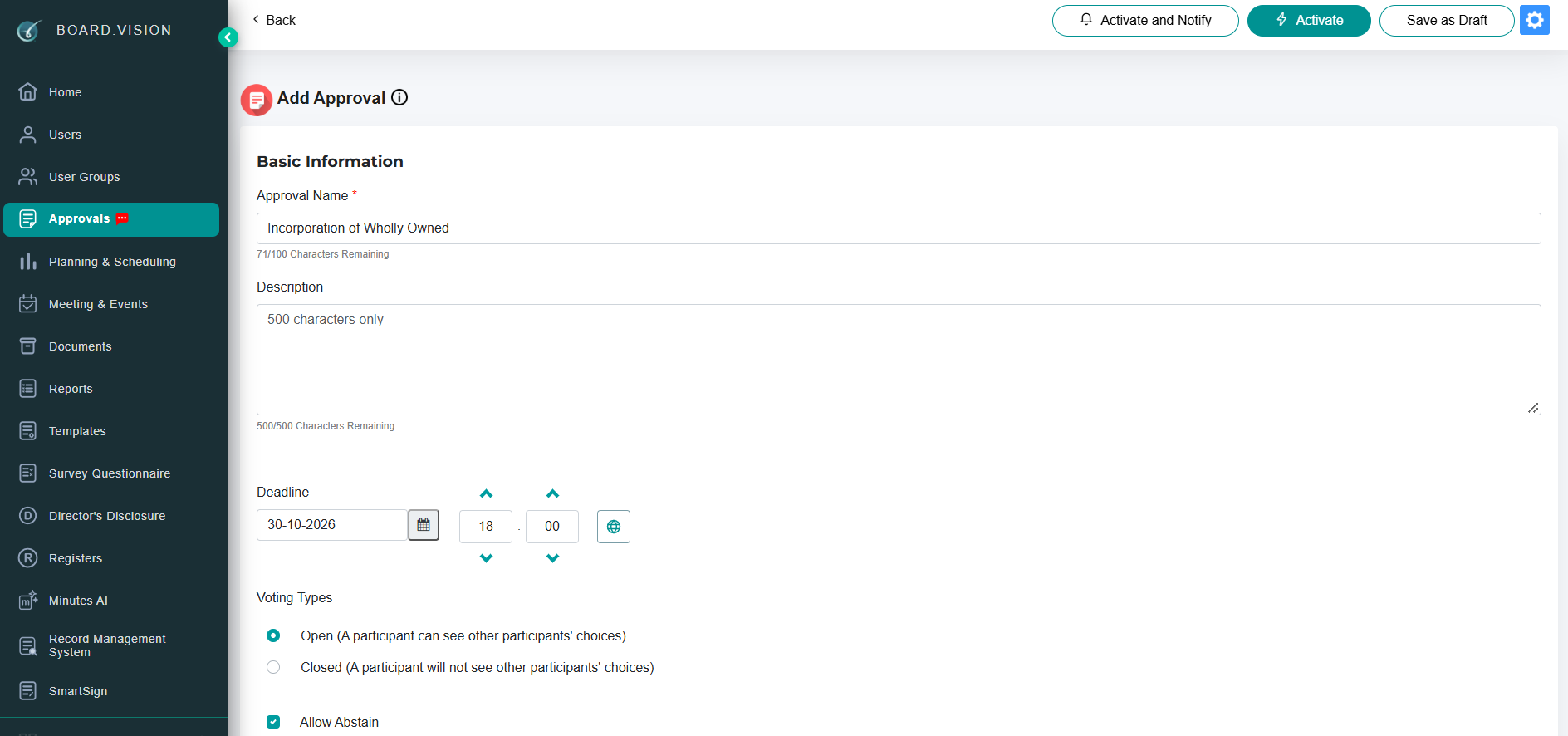
1.1 Create and Circulate an Approval
Navigate to Approvals on the left navigation panel.
Click + Add Approval.
Input the Approval Title, Description, and set the Deadline Date & Time.
Select Voting Types.
Add additional Administrators (optional) to manage the Approval.
Select the required signatories under Participants. You may add individual users or choose a pre-configured User Group (e.g., Board of Directors, Audit Committee).
Upload Approval and supporting documents in the Documents section by dragging and dropping files or clicking Browse.
Click Save as Draft to review, or click Circulate to immediately send notifications to participants.
1.2 Set Automated Reminders
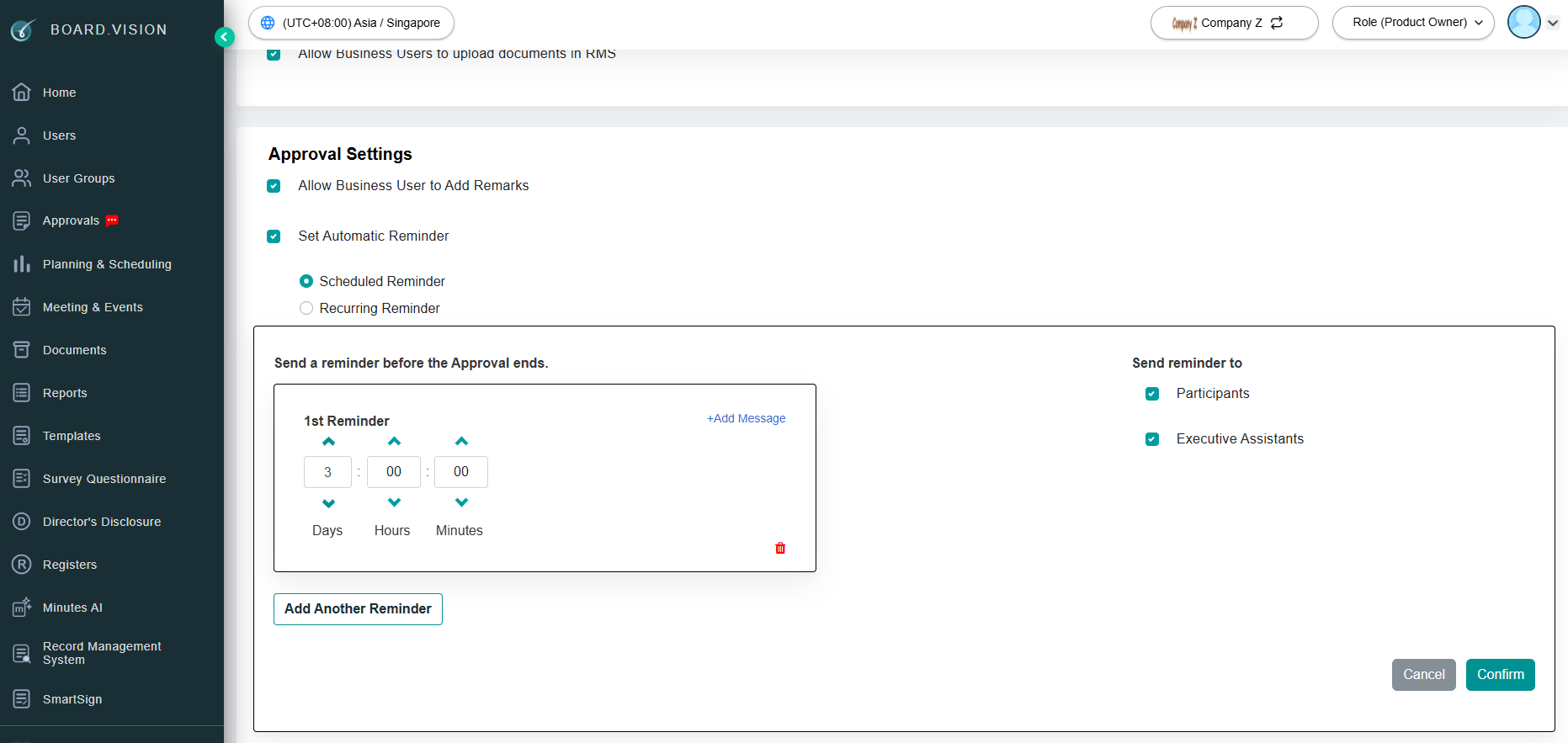
Set automatic follow-up notifications to prompt pending participants before the voting deadline expires.
Before creating an Approval, navigate to the Auto Reminder section via Global Settings.
Toggle Enable Auto Reminder to ON.
Set the Frequency (e.g., Daily or X days before deadline).
Click Confirm. The system will automatically dispatch email and push notifications to participants who have not yet submitted their vote.
Section 2: Managing Responses and Finalising Approval
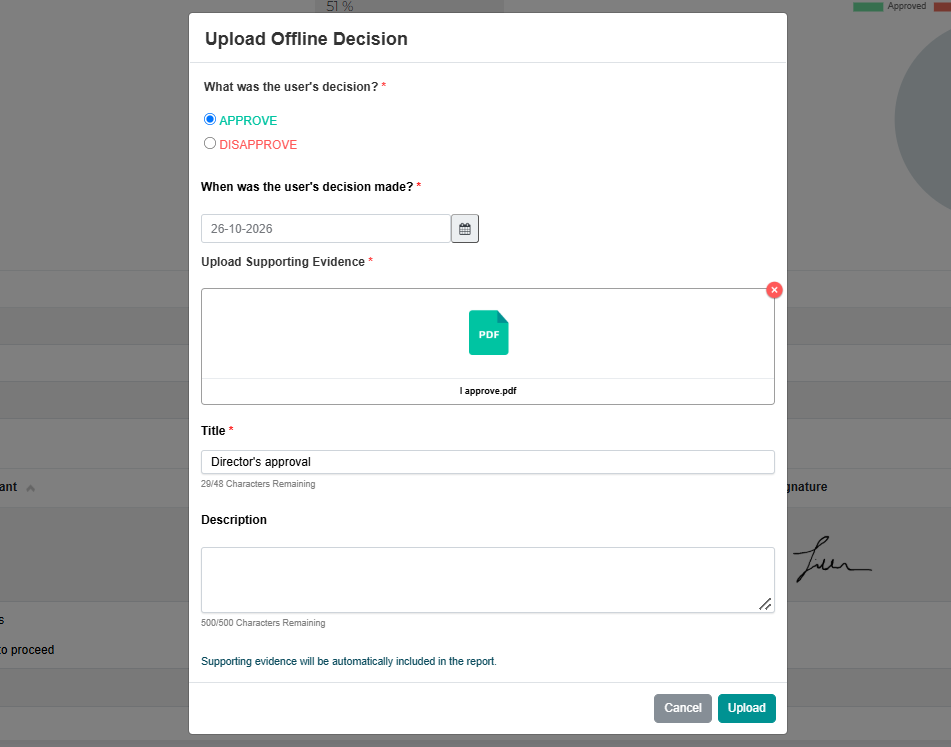
2.1 Upload an Offline Decision on Behalf of a Director
If a board member submits their decision outside the portal (e.g., physical signed paper or email confirmation), administrators can record the decision on their behalf.
Open the active Approval from the Approvals Dashboard.
Go to the Individual Responses.
Locate the target Director and click Action Required.
Choose the decision type (Approved, Disapproved, or Abstained).
Upload the supporting document.
Click Upload.
Enter the OTP sent to your mobile or email.
Note: Uploading an offline decision records the vote under the administrator's audit trail while attributing the decision to the selected director.
2.2 Finalising the Approval & Download COC Report.
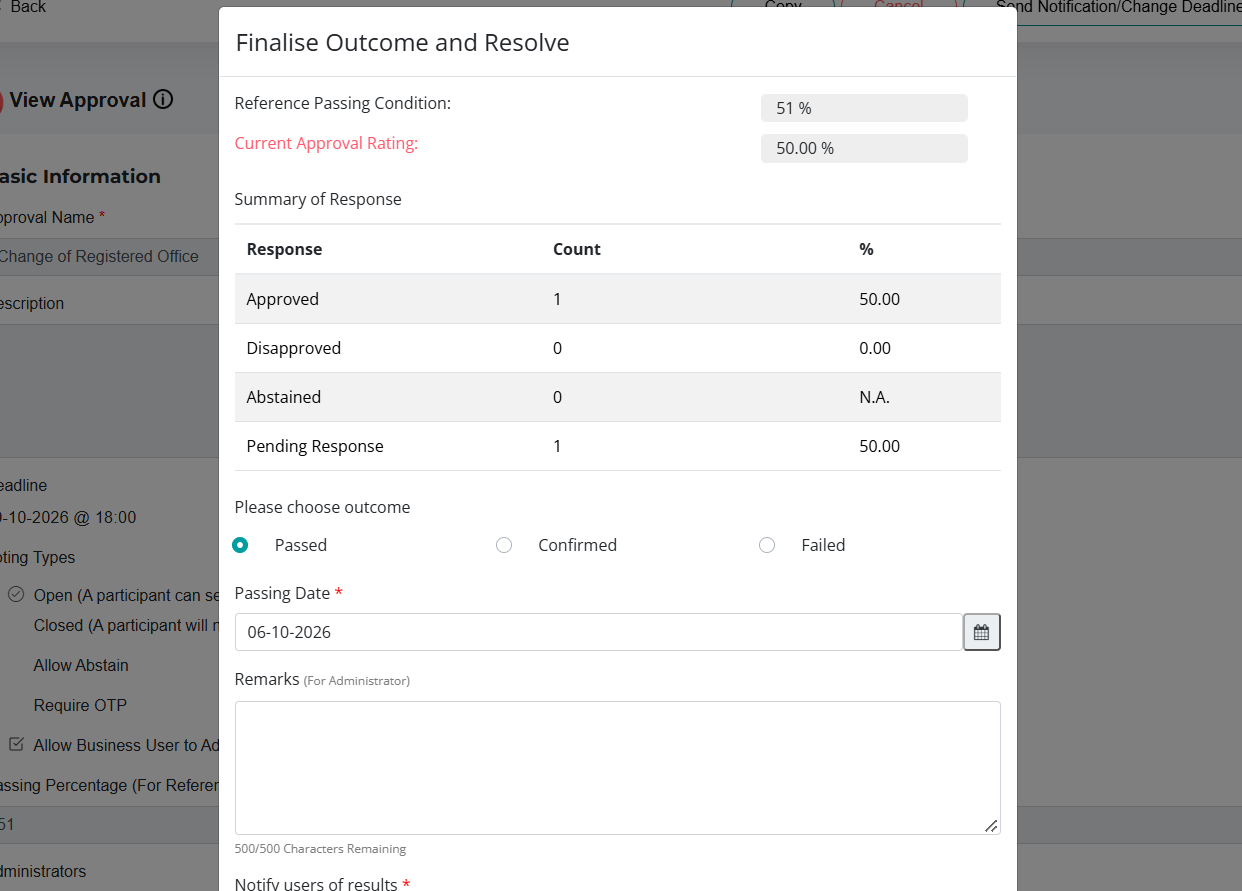
Once all votes are recorded, Administrators can finalise the Approval.
1. From the Approvals main view, locate the completed resolution.
2. Click Close and Resolve.
3. Select the outcome and date.
4. Choose to notify participants, EAs, and Observers (if any).
5. Click Confirm.
6. Click COC to view the Certificate of Completion report.
Section 3: Archiving & Compliance Reporting
3.1 Archive an Approval
Administrators can archive past approvals.
From Approvals, locate the resolution with Passed, Failed, Confirmed, or Cancelled status.
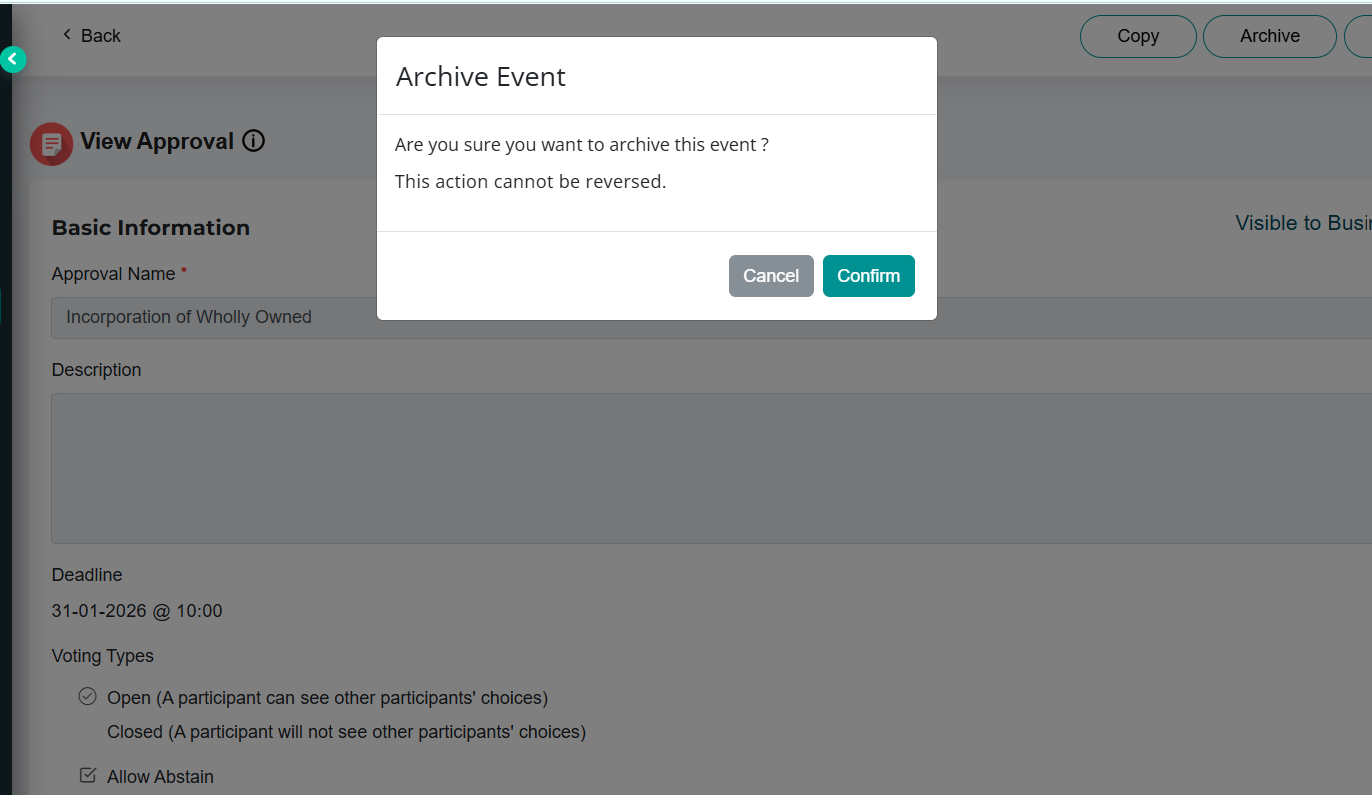
Click Archive.
Confirm the action when prompted, and it will move to Documents > Archived Items.
3.2 Download the Approval Archive Report
Generate a complete compliance package containing vote tallies, individual signatures, and audit logs.
Navigate to the Documents > Archived Items tab.
Click Download.
If you face any issues, please reach out to our Board.Vision Customer Success Team at support@board.vision or +65 6909 7100 and we will be happy to help.
Our hotline operating hours are from Mondays to Fridays 9:00 AM to 6:00 PM SGT (excluding public holidays).
Was this article helpful?
That’s Great!
Thank you for your feedback
Sorry! We couldn't be helpful
Thank you for your feedback
Feedback sent
We appreciate your effort and will try to fix the article