Welcome to Board.Vision Tutorials!
In this tutorial, we will walk you through the steps to act on an Approval with a Face / Touch ID.
Important Note: For Approvals that do not require a one-time password (OTP), you will be able to use Face / Touch ID.
To act on an Approval with a Face / Touch ID:
1) Log in to the Board.Vision App with your registered email address and password.
2) Tap on the approval under Upcoming Items.
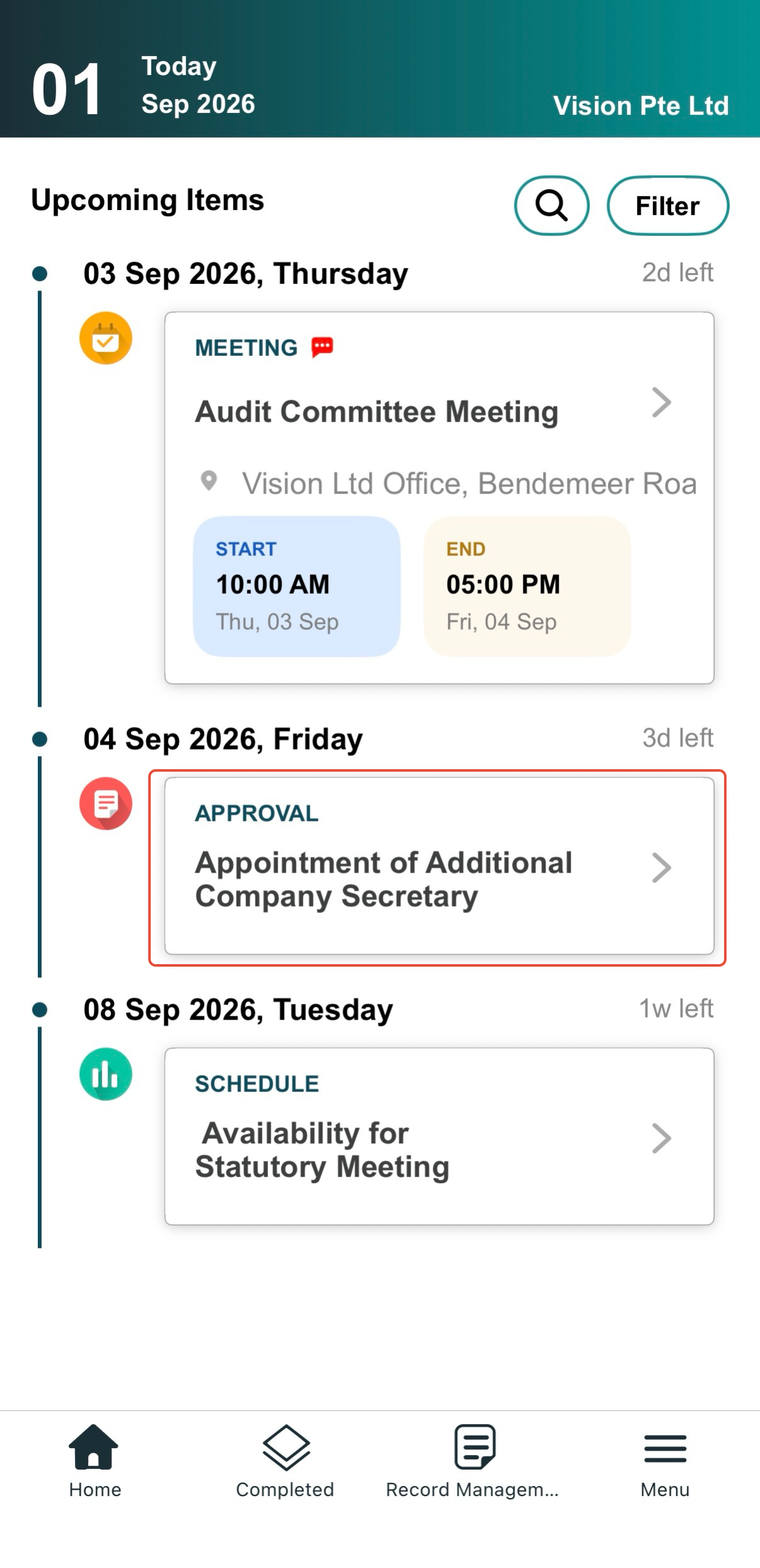
3) Review & Act on Document:
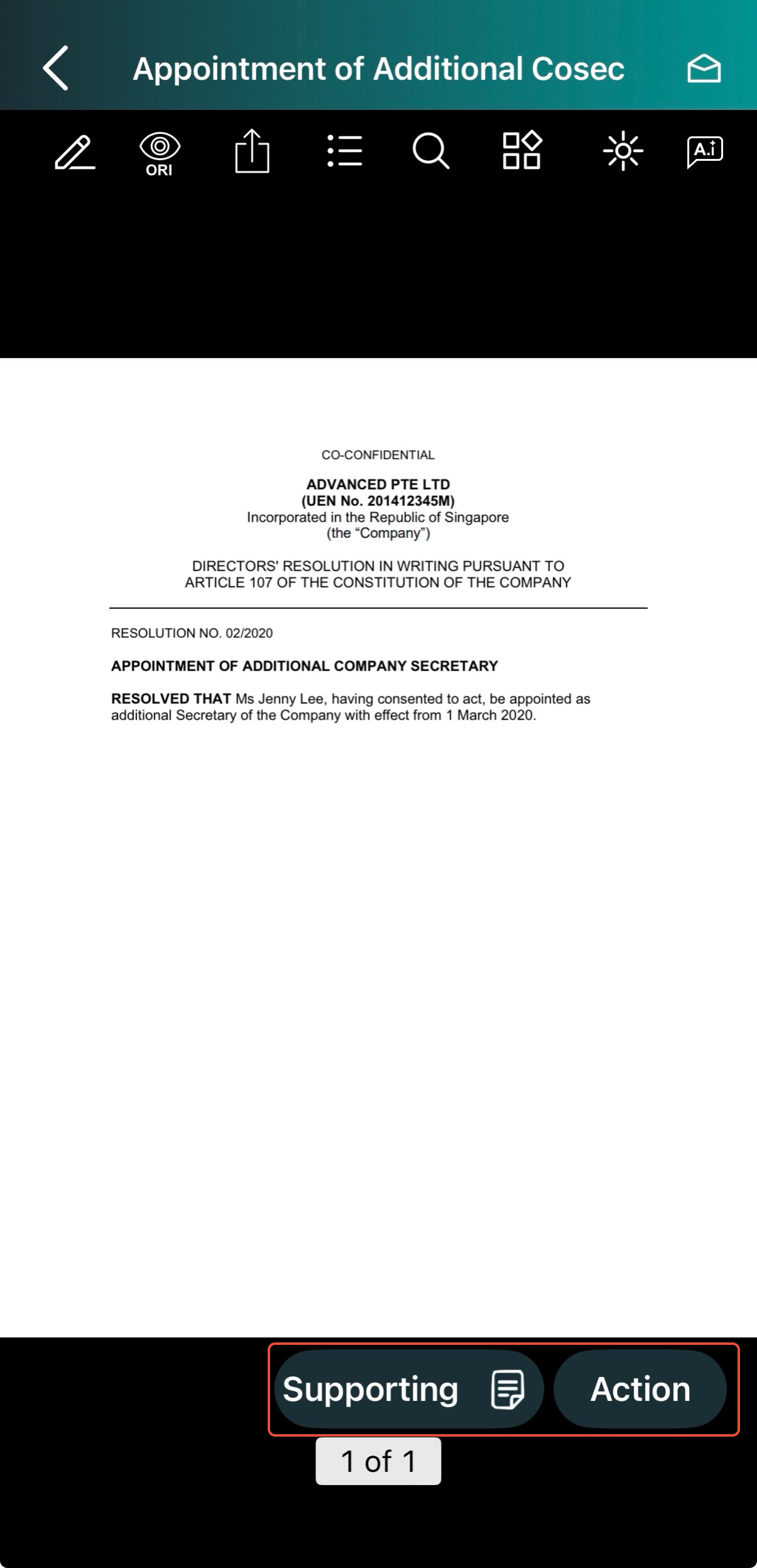
View Supporting Documents: Tap the Supporting button to review attached files.
Take Action: Tap the Action button.
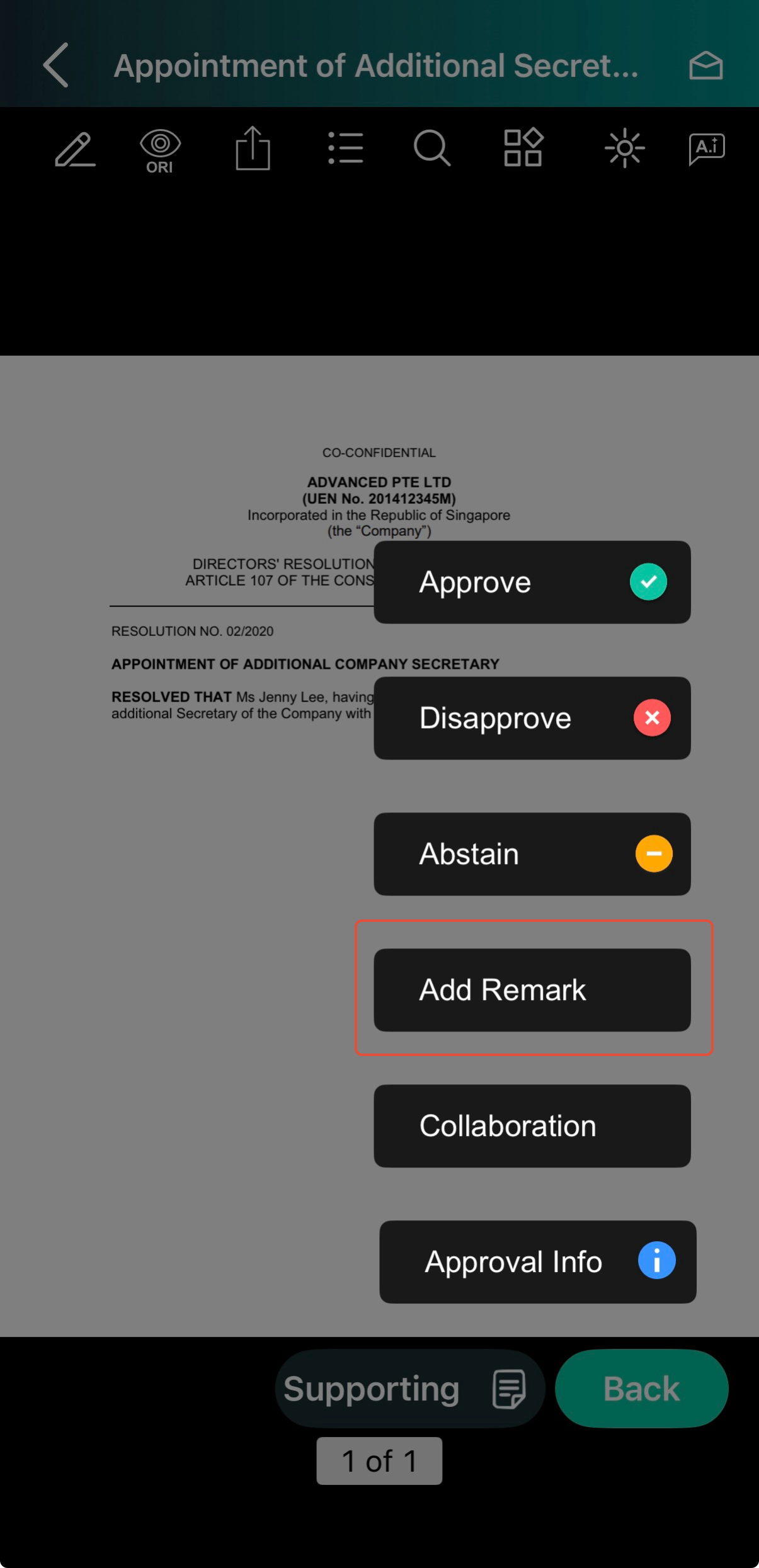
4) Tap Add Remark to leave a comment if enabled by your Administrator.
Note: Remarks are visible to Administrators and Participants. Once your vote is submitted, remarks cannot be added or edited.
5) Tap Approve, Disapprove, or Abstain (if applicable).
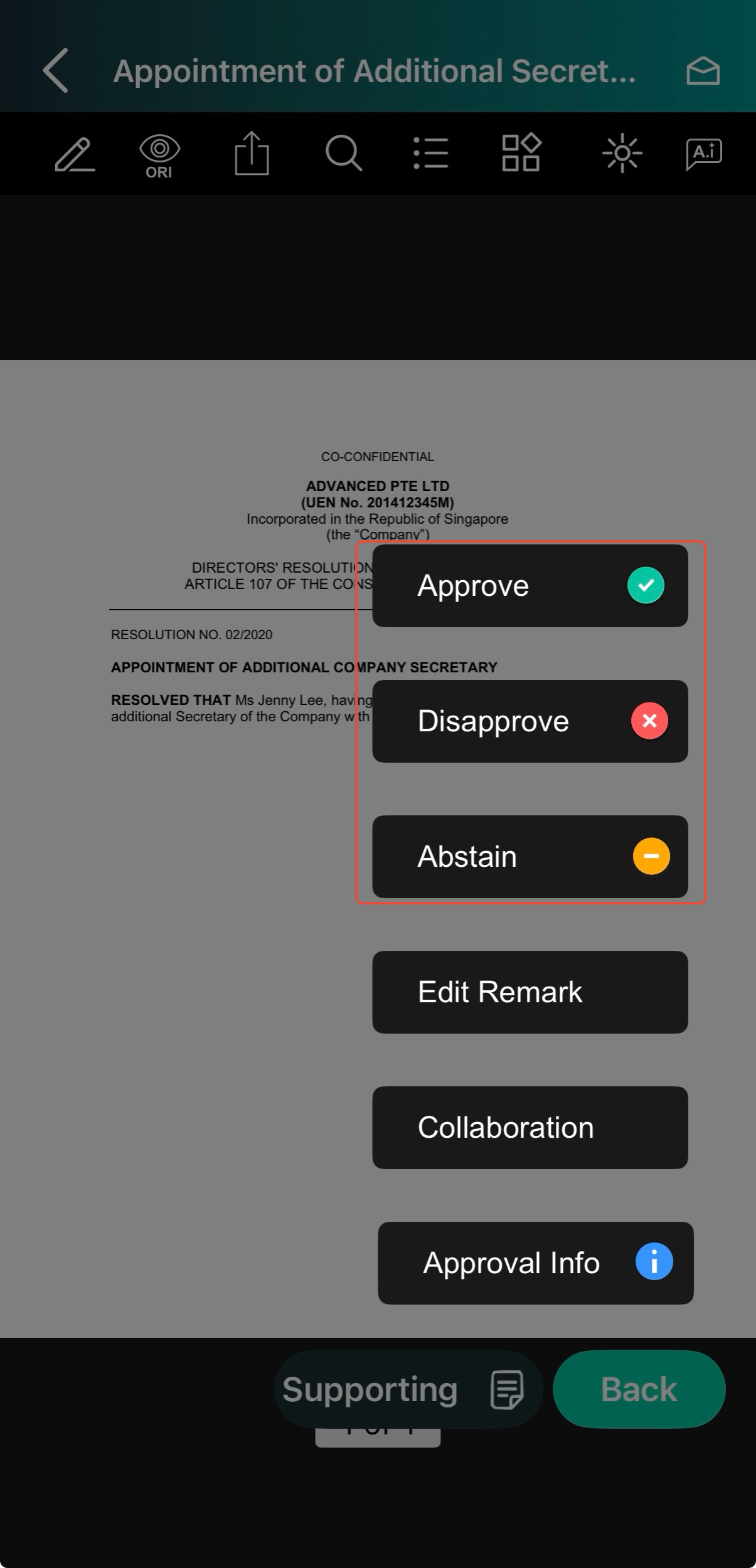
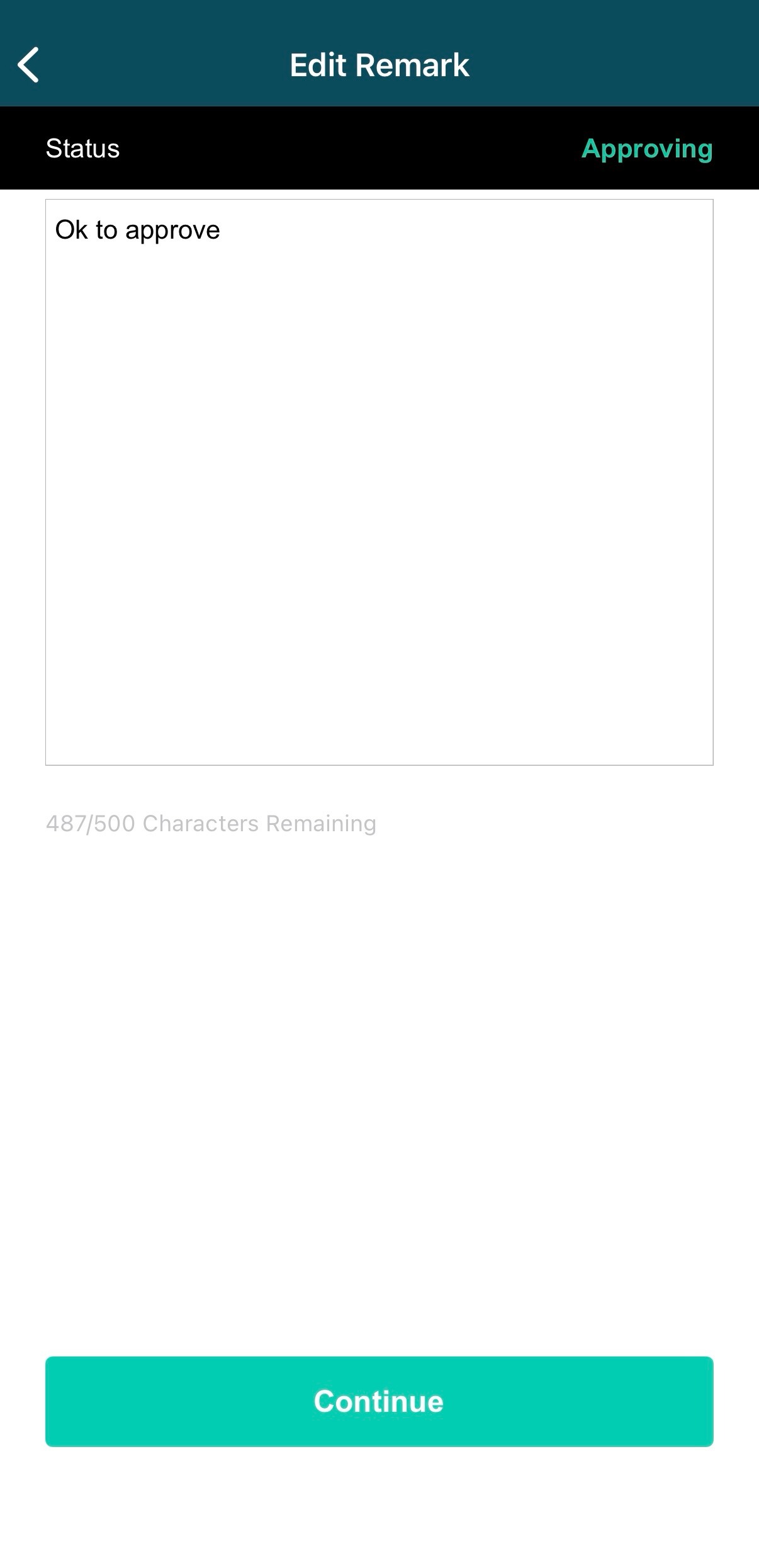
6) If you entered remarks earlier, the Edit Remark window will appear. Make any adjustments and tap Continue.
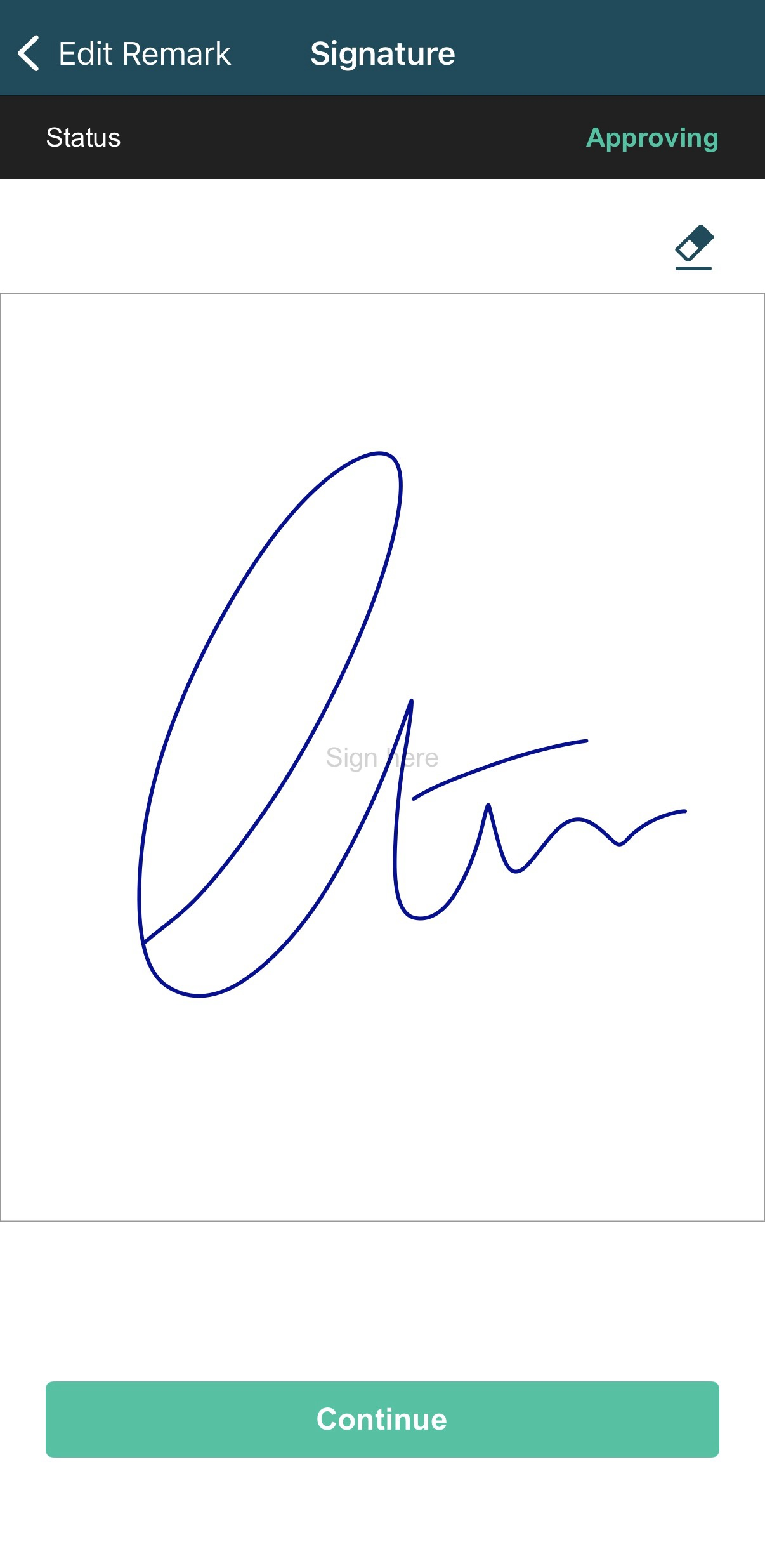
7) On the signature screen, tap Continue.
8) Then, you will be required to use your Face or Touch ID to proceed with your action.
 |  |
9) Once authentication is successful, your response will be recorded and visible on the document. Administrators will be notified immediately.
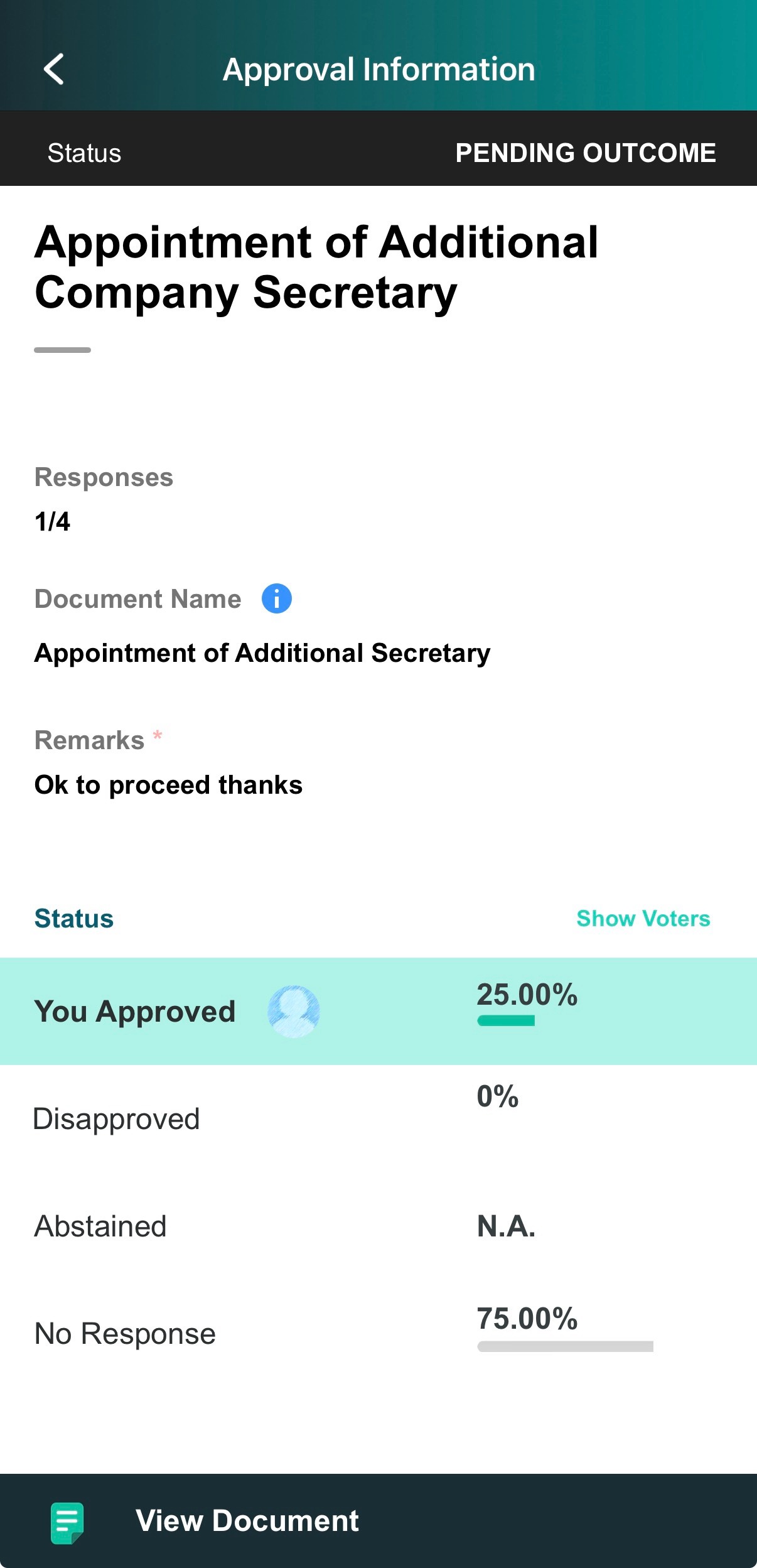
You have completed the tutorial on how to act on an Approval with a face/touch ID.
If you face any issues, please reach out to our Board.Vision Customer Success Team at support@board.vision or +65 6909 7100 and we will be happy to help.
Was this article helpful?
That’s Great!
Thank you for your feedback
Sorry! We couldn't be helpful
Thank you for your feedback
Feedback sent
We appreciate your effort and will try to fix the article