Welcome to Board.Vision Tutorials!
In this tutorial, we will walk you through the steps to view meeting information and documents.
Please note: Meeting agenda documents will only be visible to you if access is granted by the Meeting Administrator.
To view meeting information and agenda documents:
1) Log in to your Board.Vision account using your registered email address and password.
2) Once you have logged in, you will be directed to your Upcoming Items. Your Director's name will be displayed at the top of the screen.
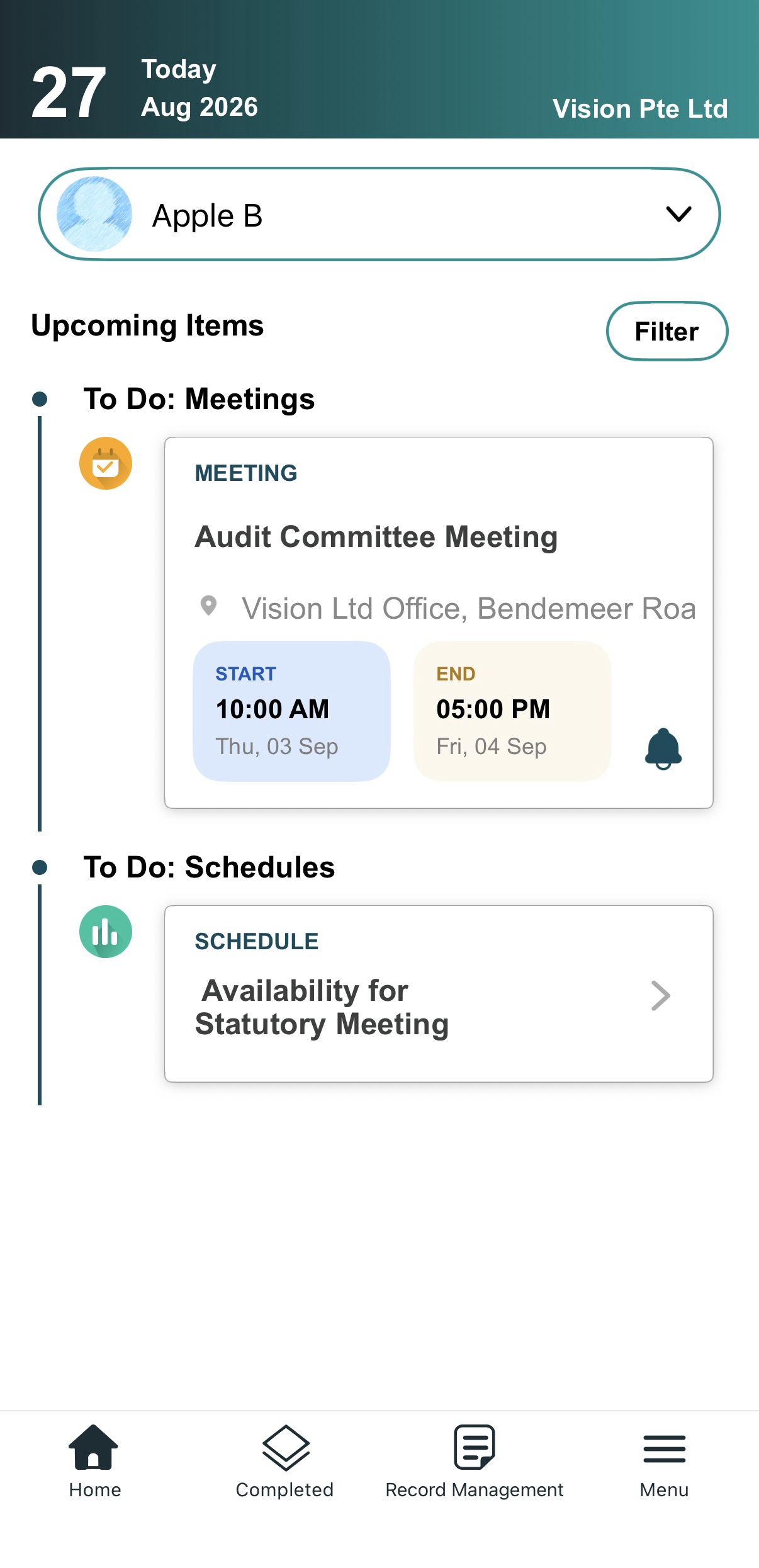
3) Switch Directors (if applicable)
If you wish to act on behalf of another Director:
a) Tap the Director's name.
b) Select the Director you wish to act for from the list.
c) Tap Done to confirm.
4) Tap on the meeting name.
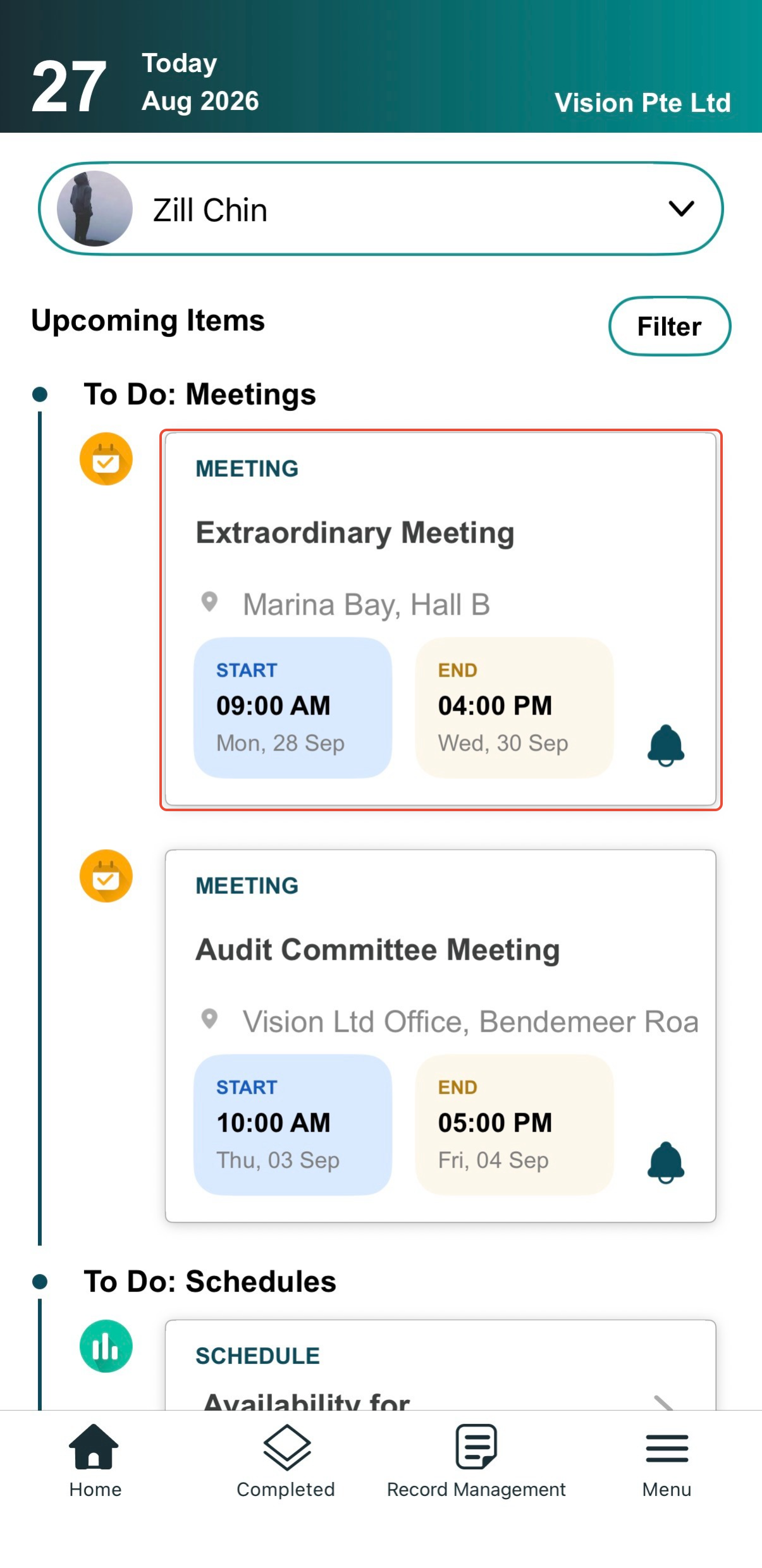
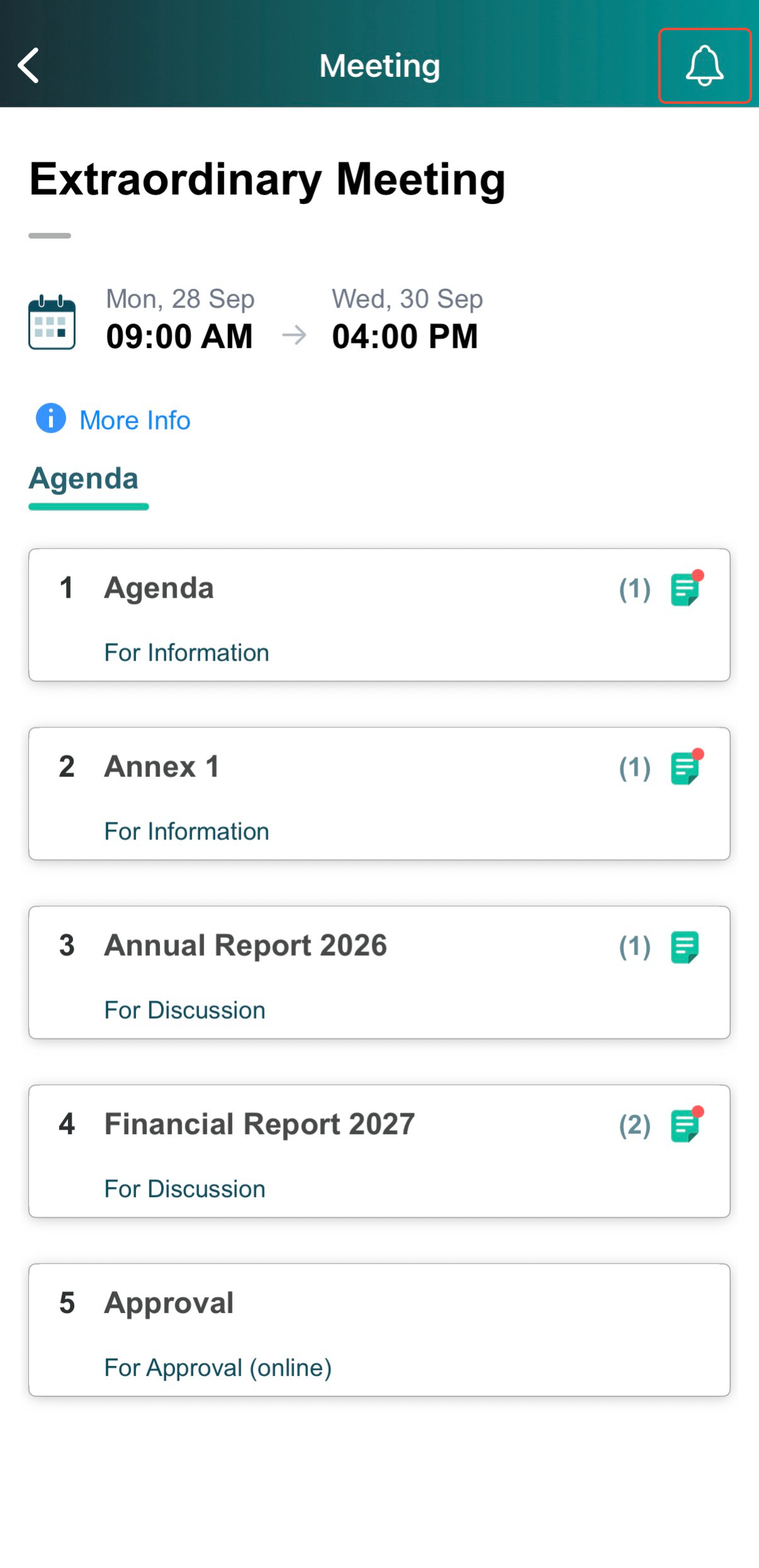
5) On the view Meeting page, you can view the meeting's basic information, including the date and time.
Tap More Info to view additional details, including the venue, meeting link (if any), and participants.
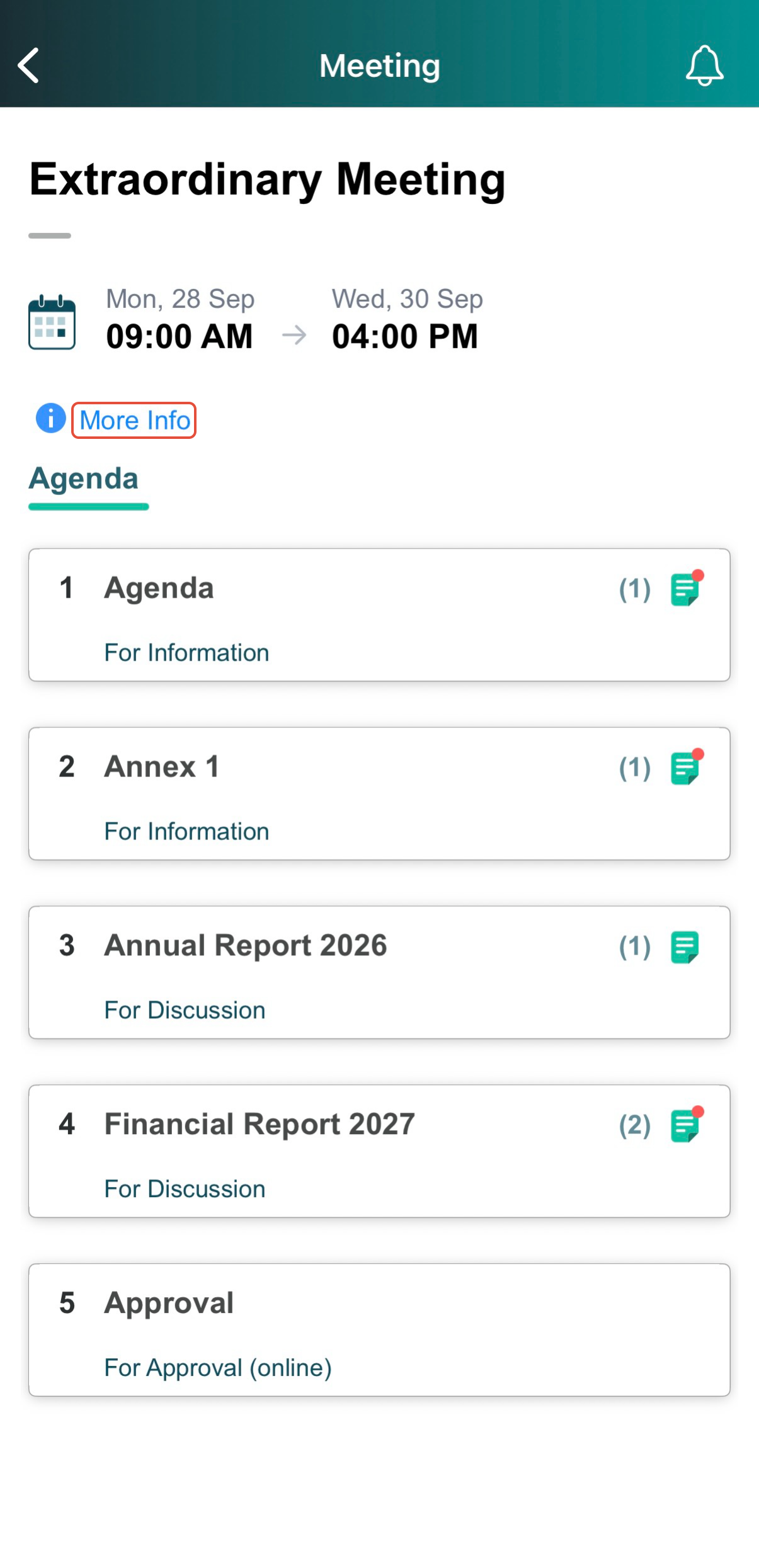
6) Tap the Agenda Title to view the agenda-related documents.
A red dot displayed on the document icon indicates that the document has not yet been read.
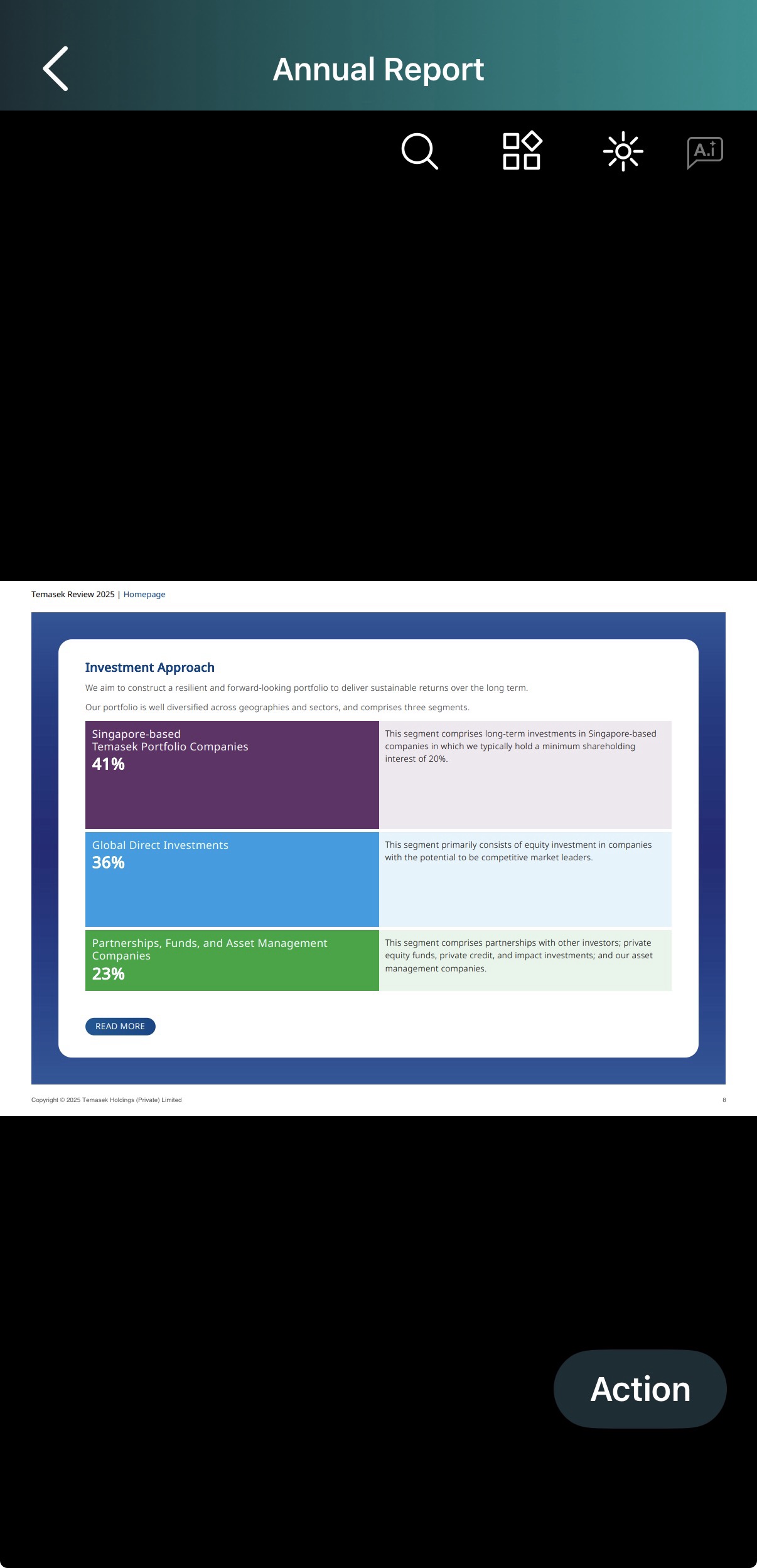
7) Then, tap Open to view it.
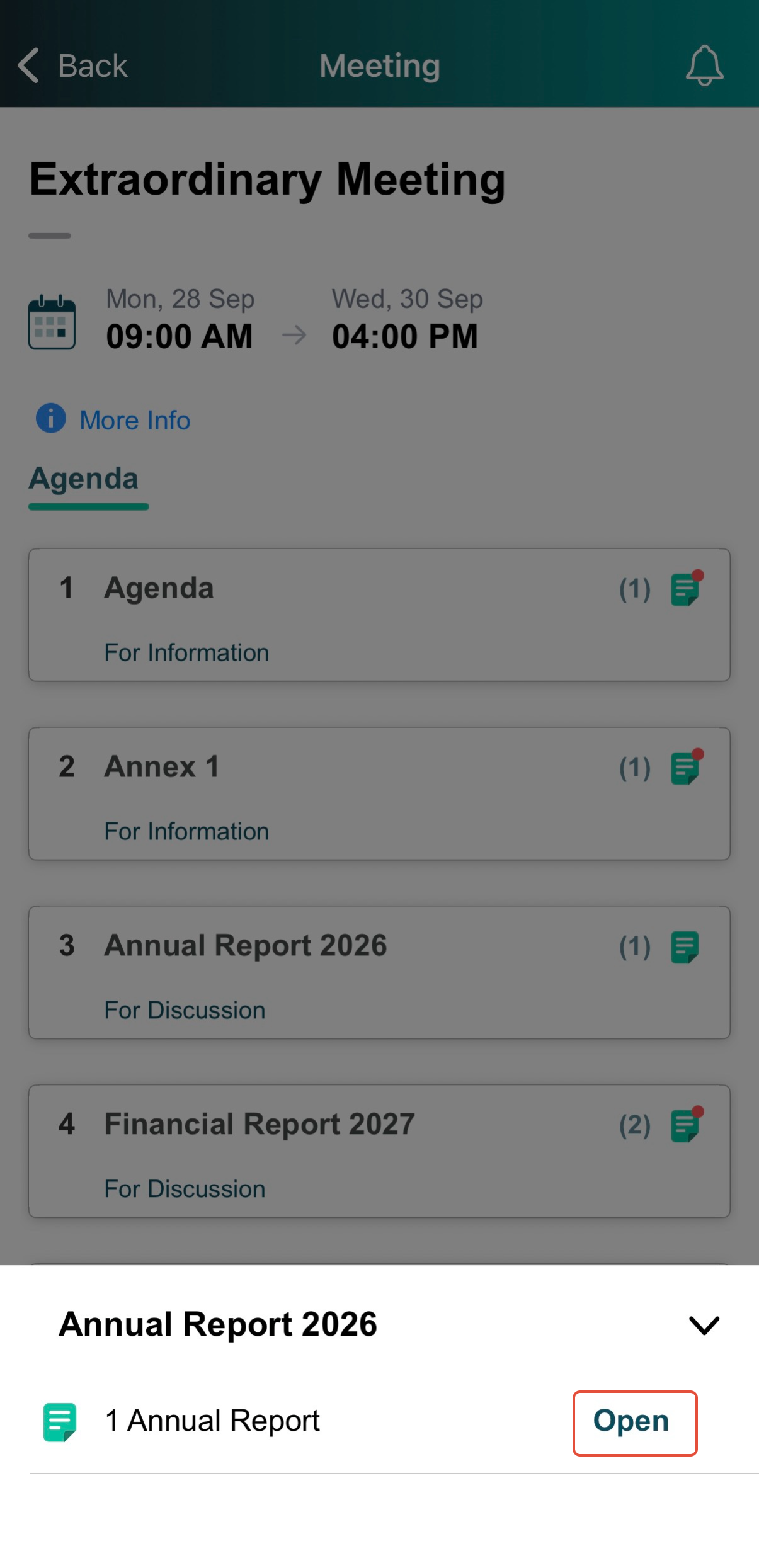
8) To go back to the Agenda page, tap on the less than < button at the top left corner.
To notify your Director of an upcoming meeting:
1) Tap the Send Reminder icon located at the top right corner of the screen.
You have completed the tutorial on how to view meeting information and agenda documents.
If you face any issues in completing the steps shown in this tutorial, please reach out to our Board.Vision Customer Success Team at support@board.vision or +65 6909 7100 and we will be happy to help.
Our hotline operating hours are from Mondays to Fridays 9:00 AM to 6:00 PM SGT (excluding public holidays).
Was this article helpful?
That’s Great!
Thank you for your feedback
Sorry! We couldn't be helpful
Thank you for your feedback
Feedback sent
We appreciate your effort and will try to fix the article