Welcome to Board.Vision Tutorials!
In this tutorial, we will walk you through the steps to create an Approval from the Admin Dashboard.
Important Note: The Board.Vision web app is optimised and supported for desktop use on Google Chrome (version 65.0 and later) and Microsoft Edge (version 87.0 and later).
To create an Approval from the Admin Dashboard:
1) Log in to your Board.Vision account using your registered email address and password.
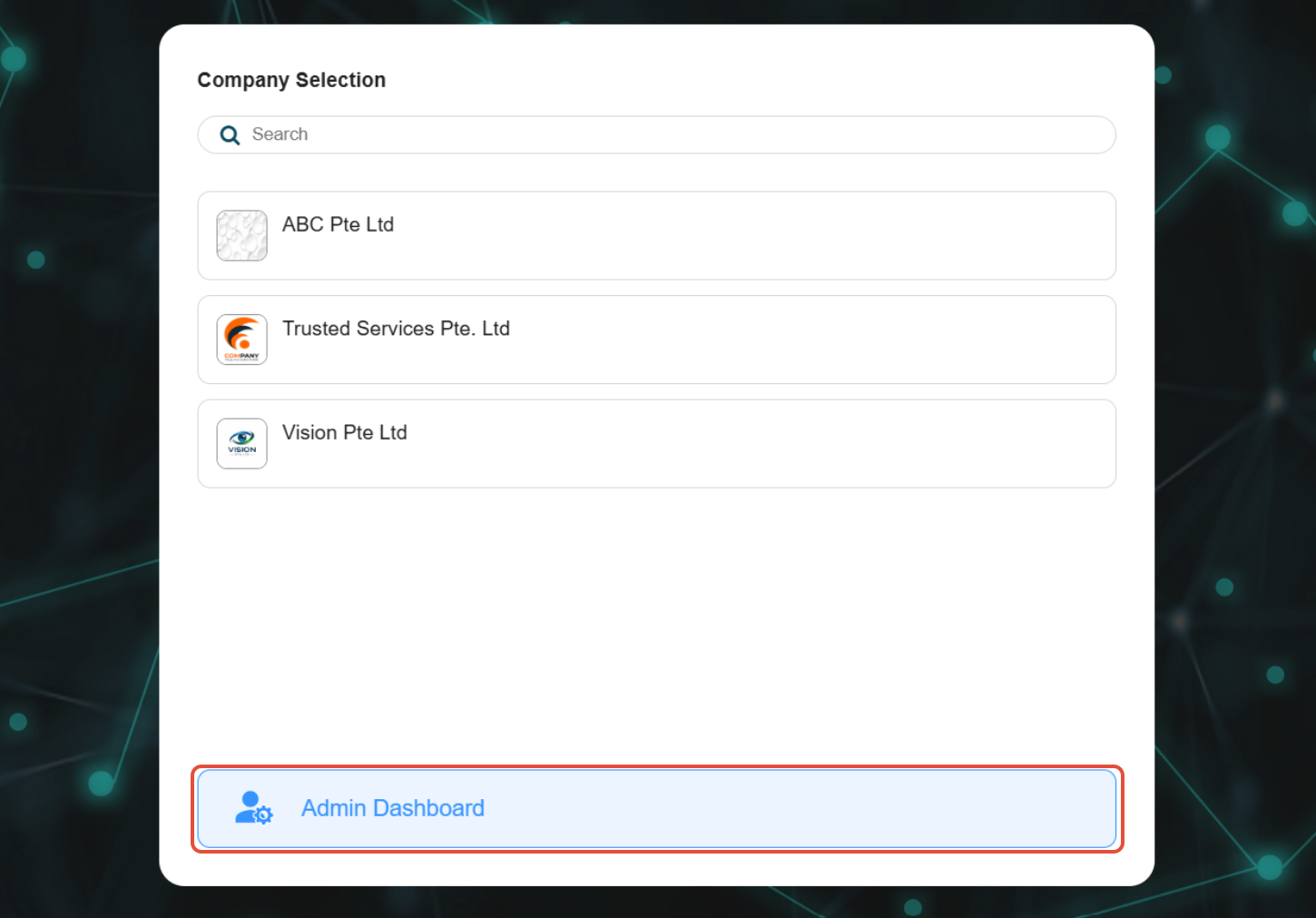
2) Click on Admin Dashboard on the 'Company Selection' screen.
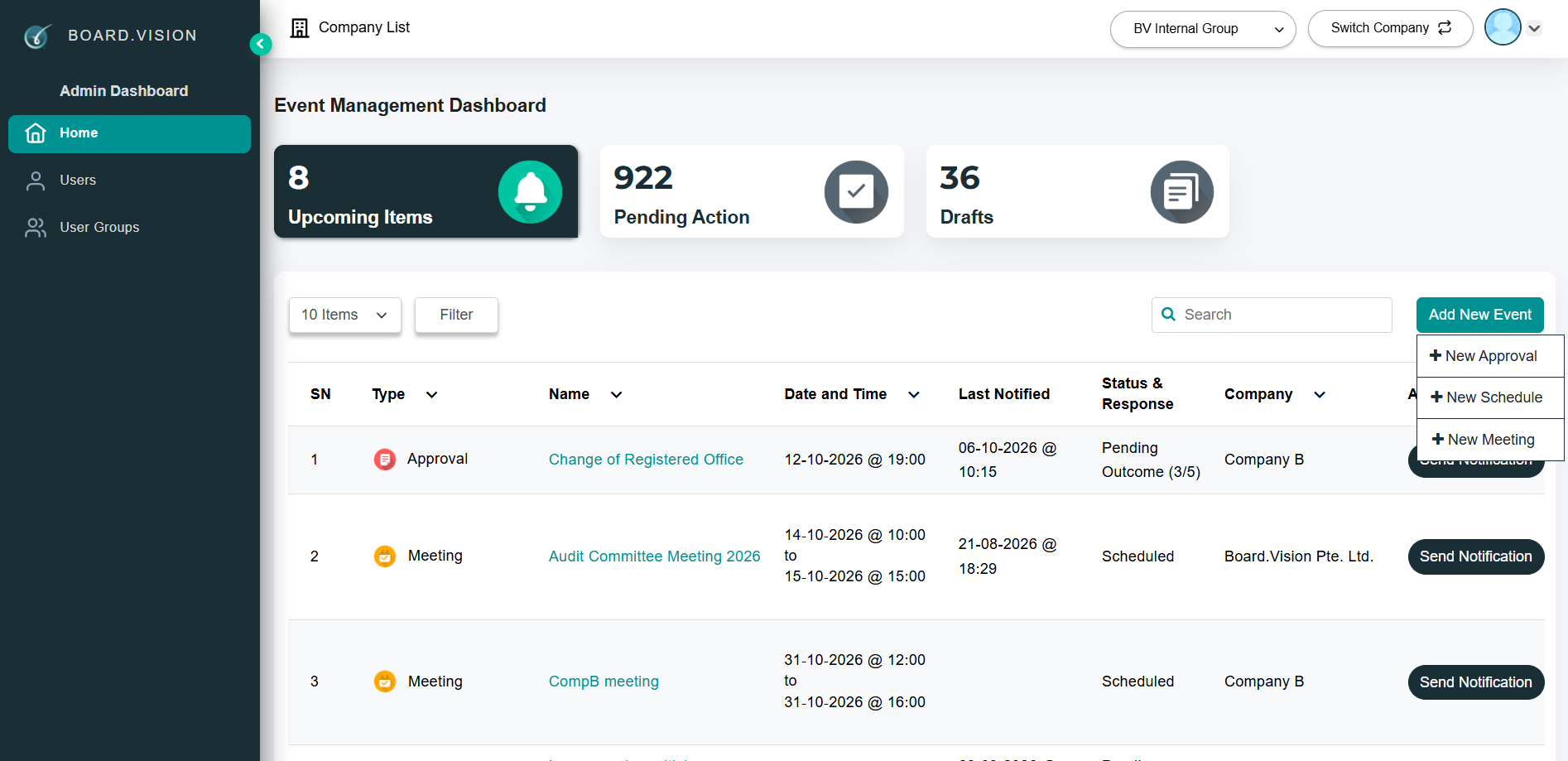
3) Click on the Add New Event button and select New Approval from the dropdown.
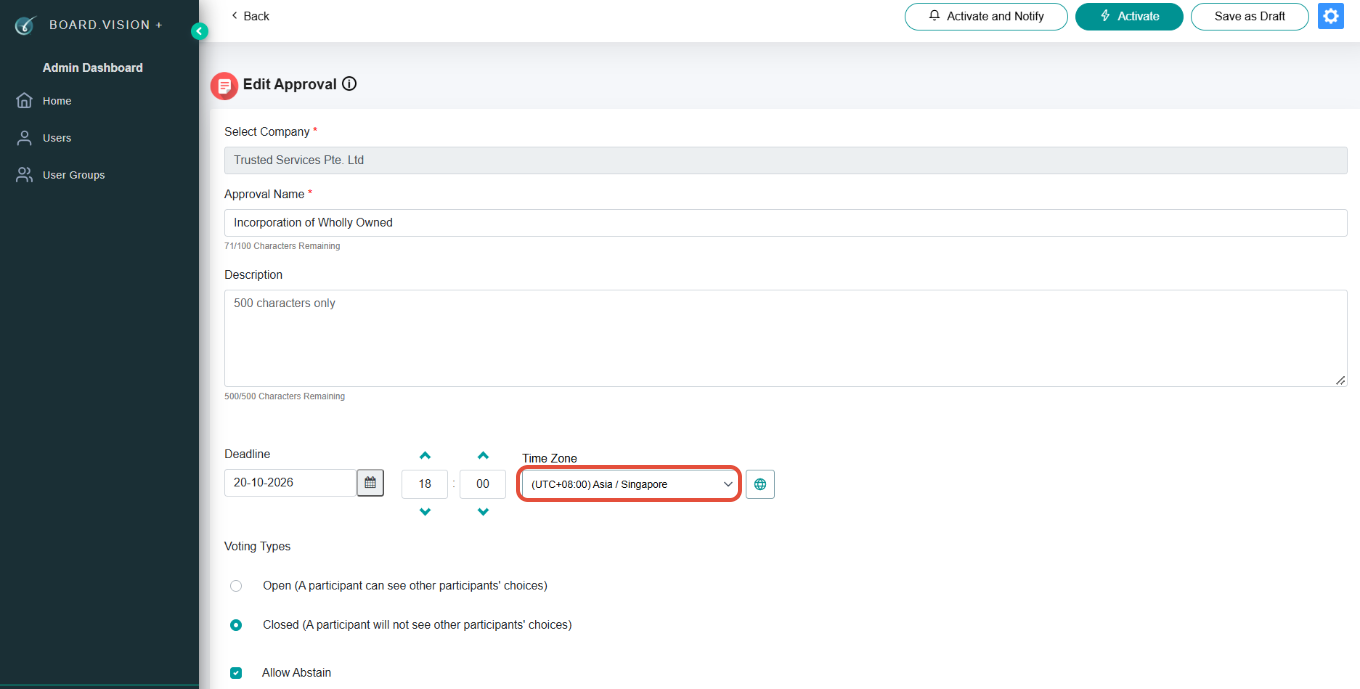
4) Select the company from the Select Company dropdown, then enter the Approval Name, Description (if any), and Deadline.
Note: While Administrators configure the event time zone during setup, Business Users will see the relevant dates and deadlines based on their device's time zone.
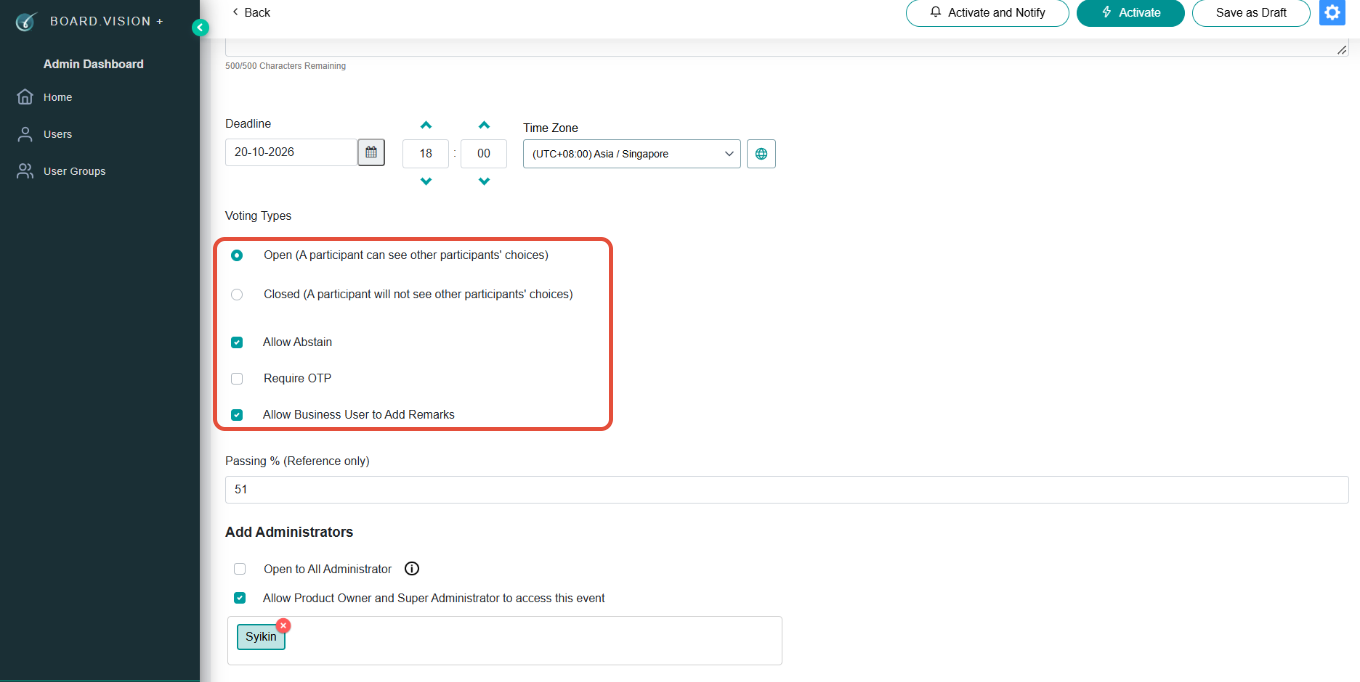
5) Select your preferred voting settings:
Open: All participants can see each other's votes.
Closed: Participants cannot see each other's votes.
To Allow Abstain: Enables participants to submit an abstention.
Require OTP: Requires two-factor authentication upon vote submission.
Allow Business User to Add Remarks: Lets voters include comments with their response.
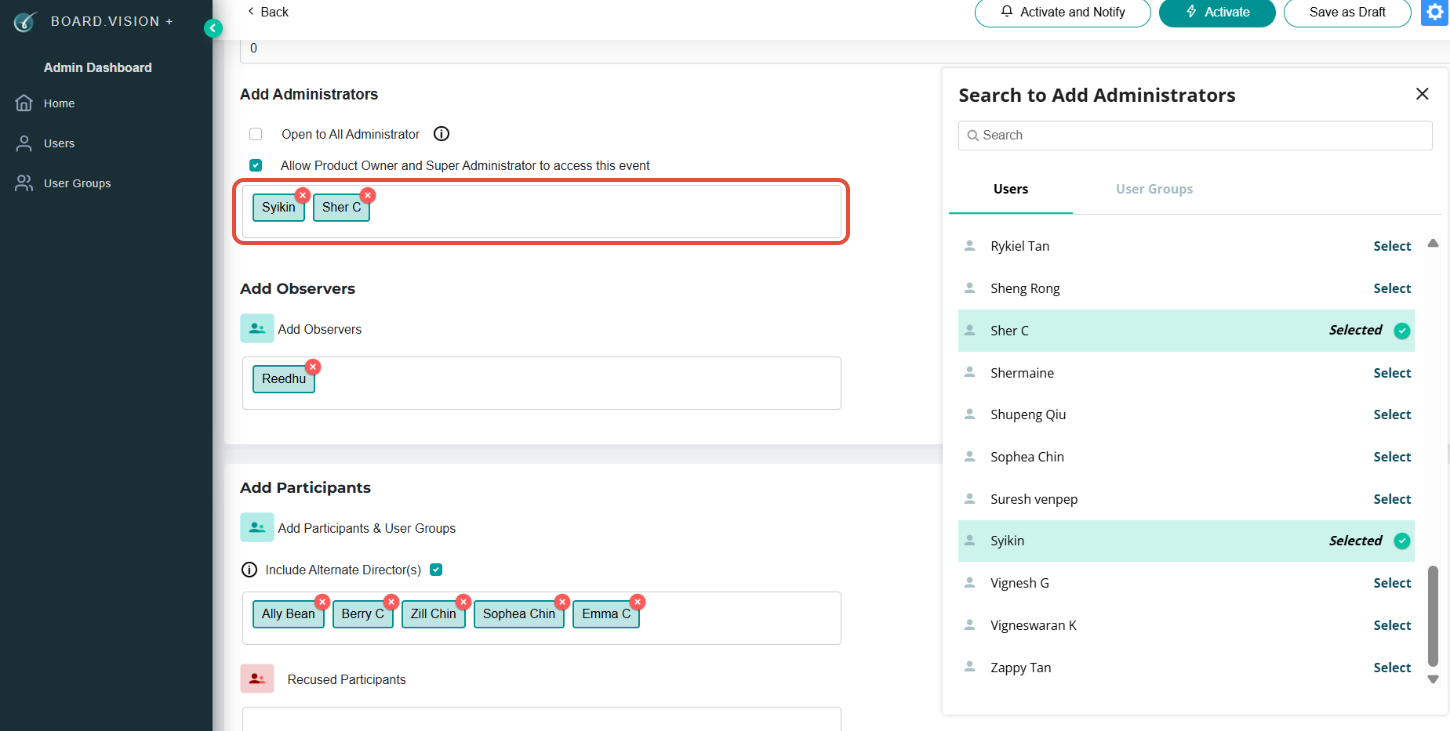
6) Click on the white box under the Add Administrators section, then choose the Administrators you wish to add from the Search to Add Administrators pop-up window.
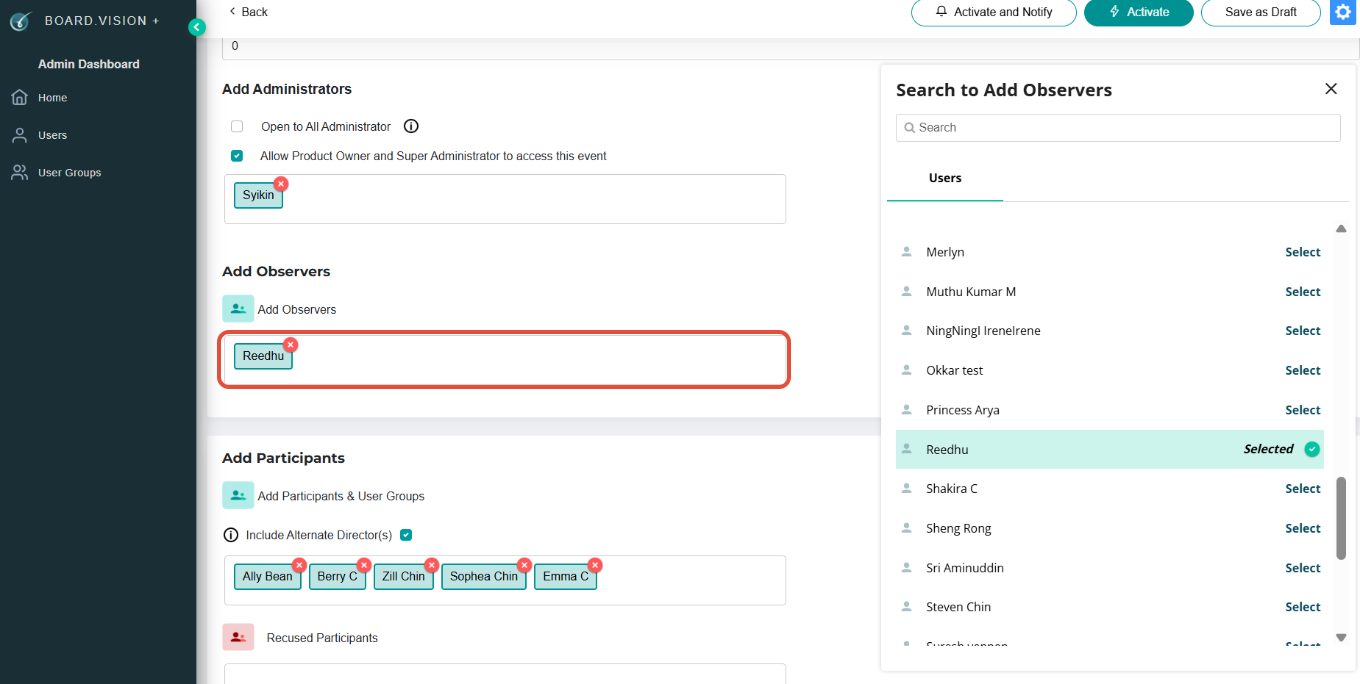
7) Click on the white box under the Add Observers section, then select the Business Users you wish to add from the Search to Add Observers pop-up window.
Note: Observers can view Approval details and documents, but cannot vote or act on the Approval.
8) Click on the white box under the Add Participants section, then select the Business Users you wish to add from the Search to Add Participants pop-up window.
Note: You are required to select a minimum of 2 Business Users as Participants.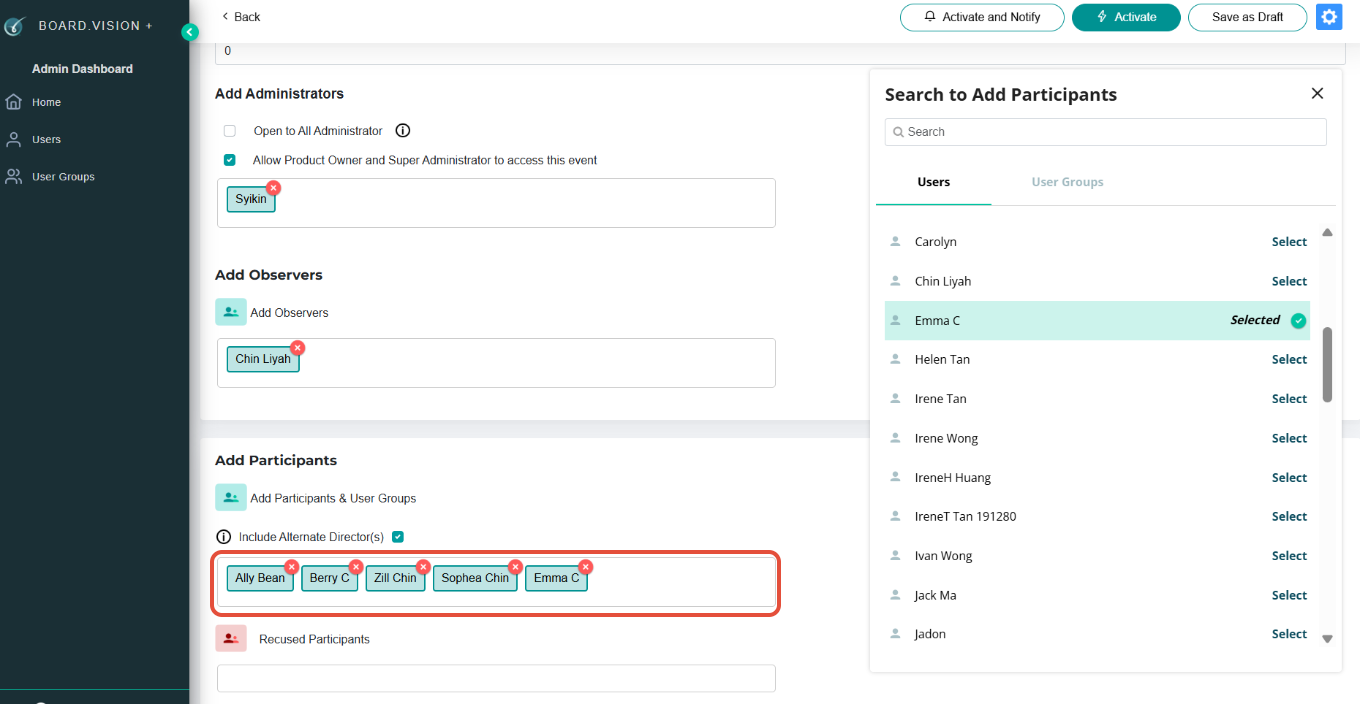
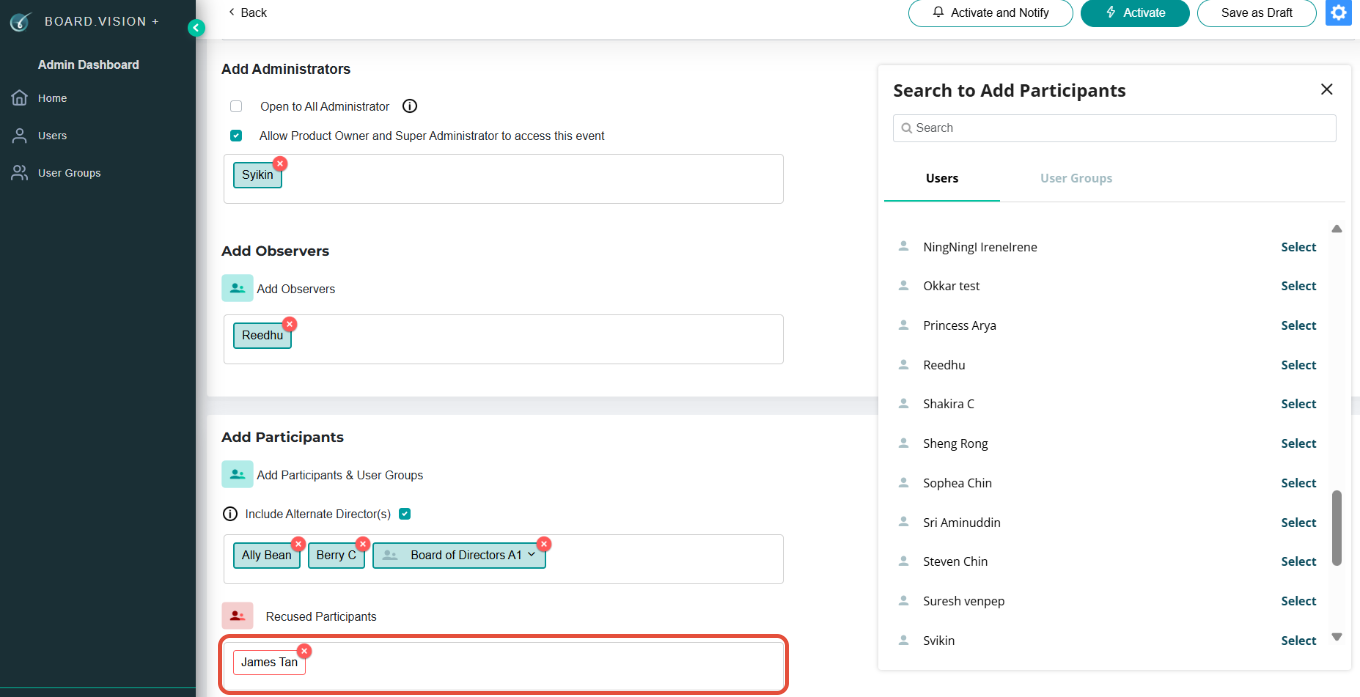
9) Click on the white box under the Recused Participants section, then select any Business Users who should be recused.
Note: Once recused, the Business User will NOT be able to view the Approval details or documents.
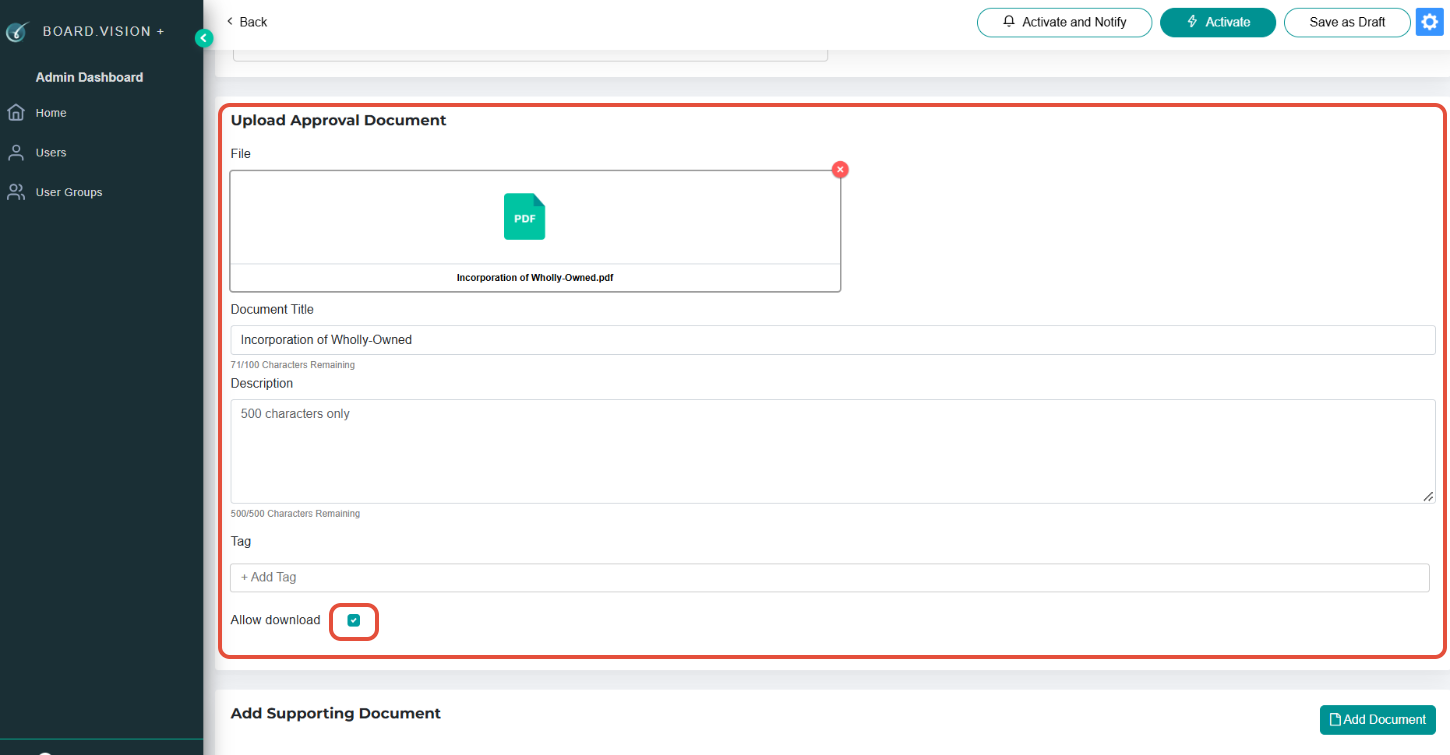
10) Under Upload Approval Document, drop the file or import from your device, then enter the mandatory Title and optional Description.
If you wish to prevent Business Users from downloading the document, uncheck the Allow download checkbox.
11) Under the Supporting Document section, click on Add Document to upload supplementary files. Uncheck Allow download to restrict downloads, then click Upload.
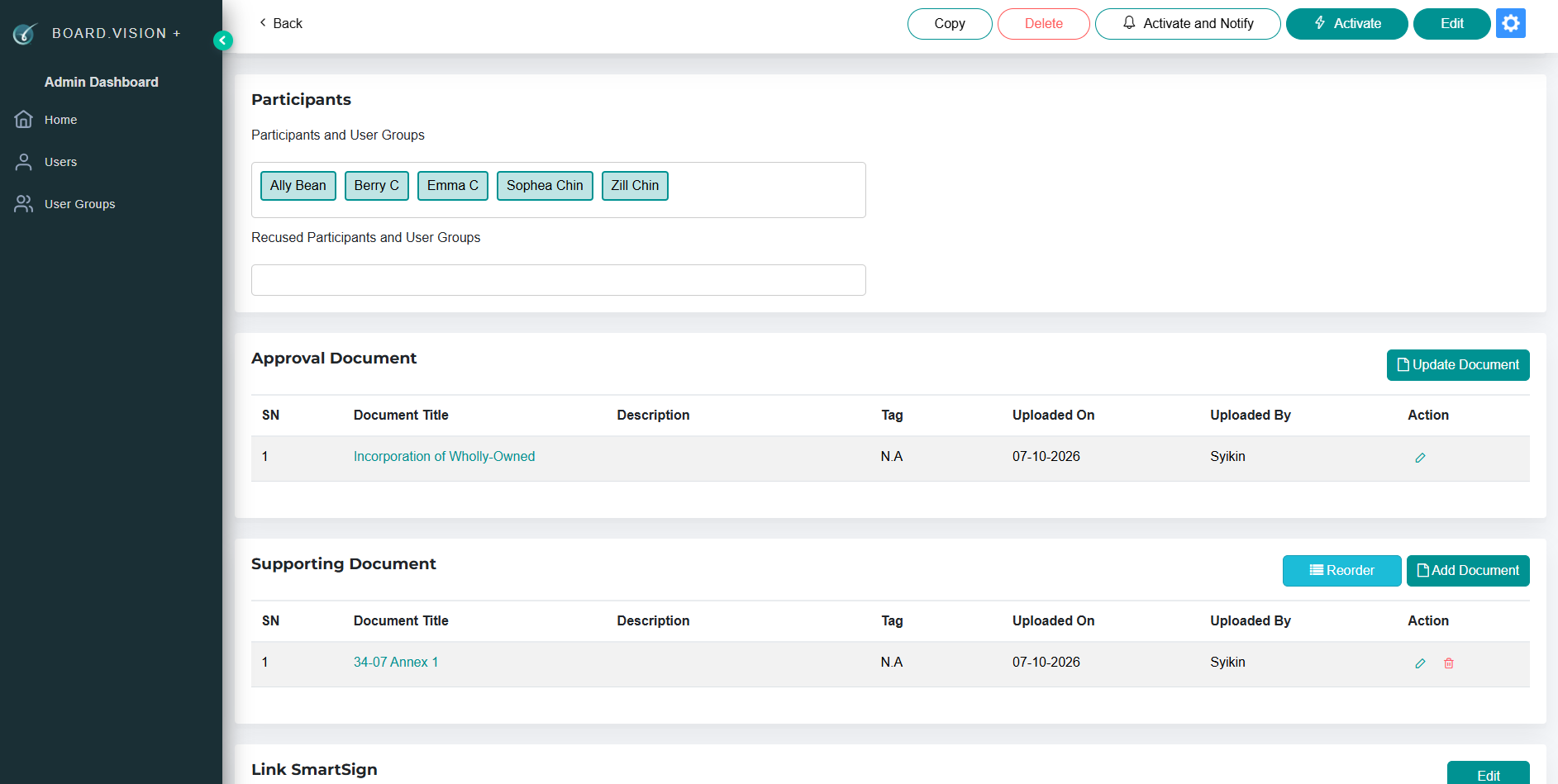
12) Click on Save as Draft. You will be redirected to the draft View Approval Page. 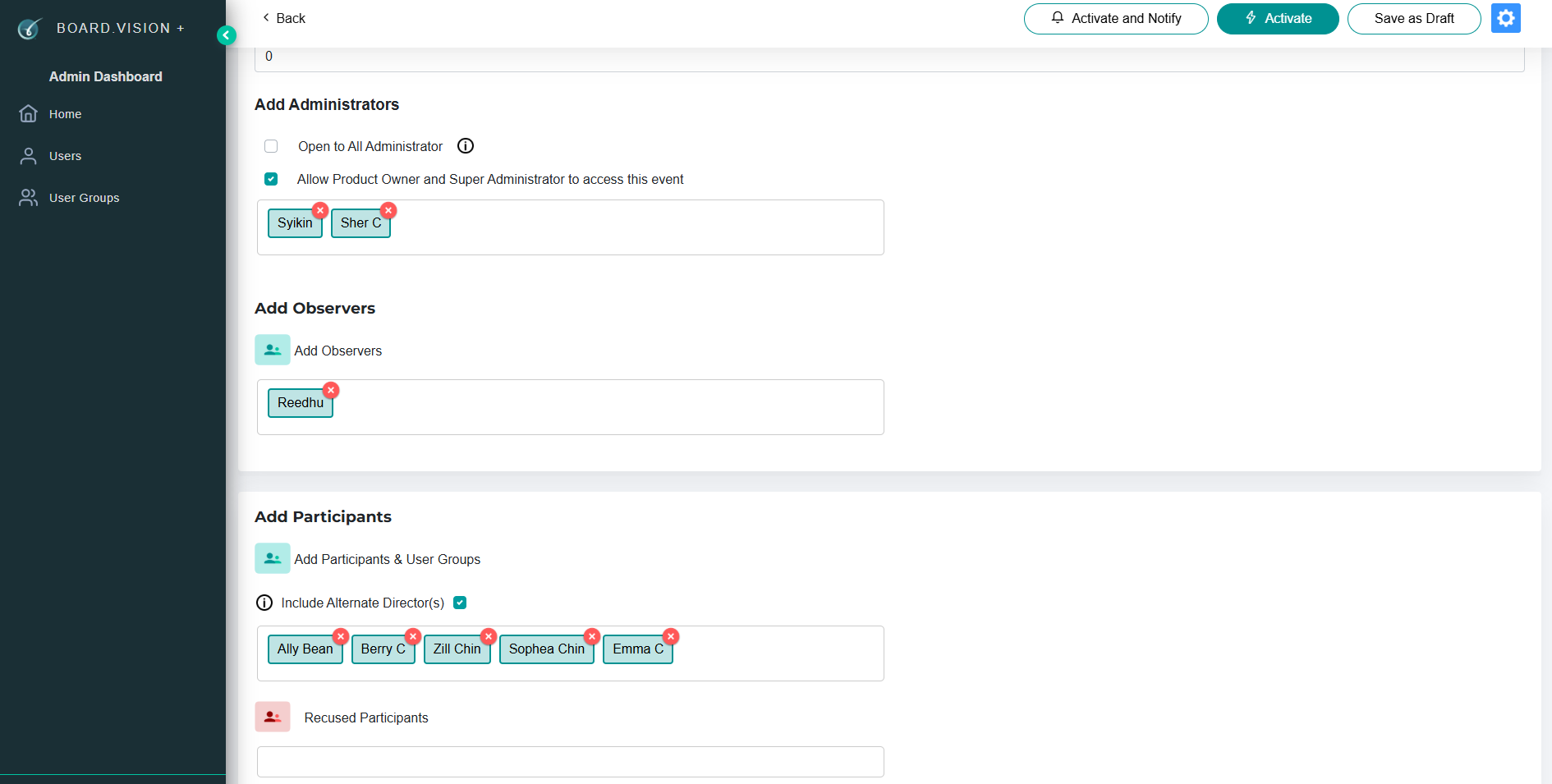
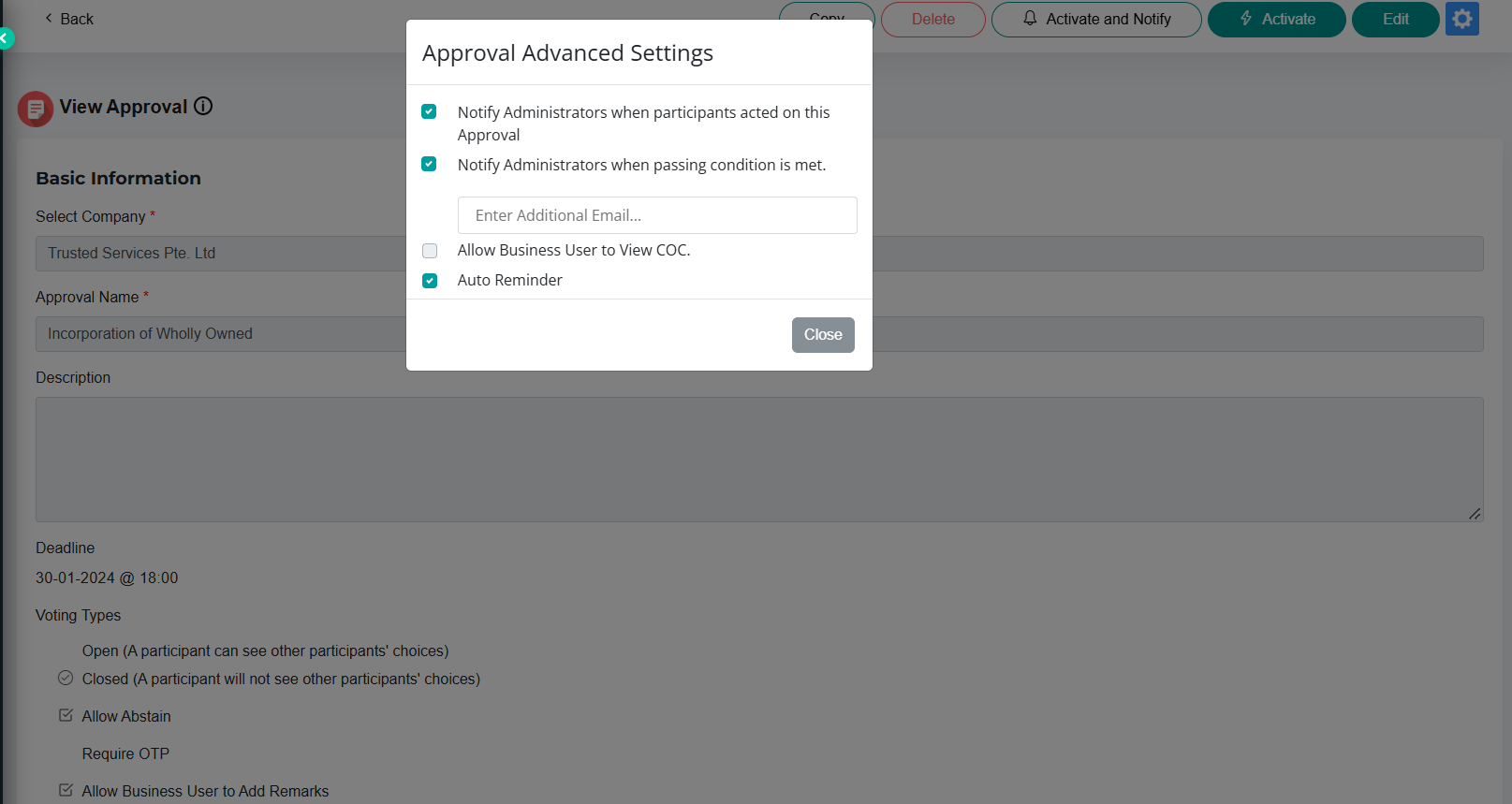
Click on the Settings (gear) icon at the top right. In the Approval Advanced Settings pop-up window, select your preferences:
Notify Administrators when participants act on this Approval.
Notify Administrators when the passing condition is met (you may add additional recipient email addresses in the field provided).
Allow Business Users to view COC (the Certificate of Completion report will be available once the Administrator finalizes the outcome).
Set Auto Reminder (sends automated email and push notifications to pending voters and their PAs before the deadline; requires company Global Settings to be enabled).
Click Update to save your settings.
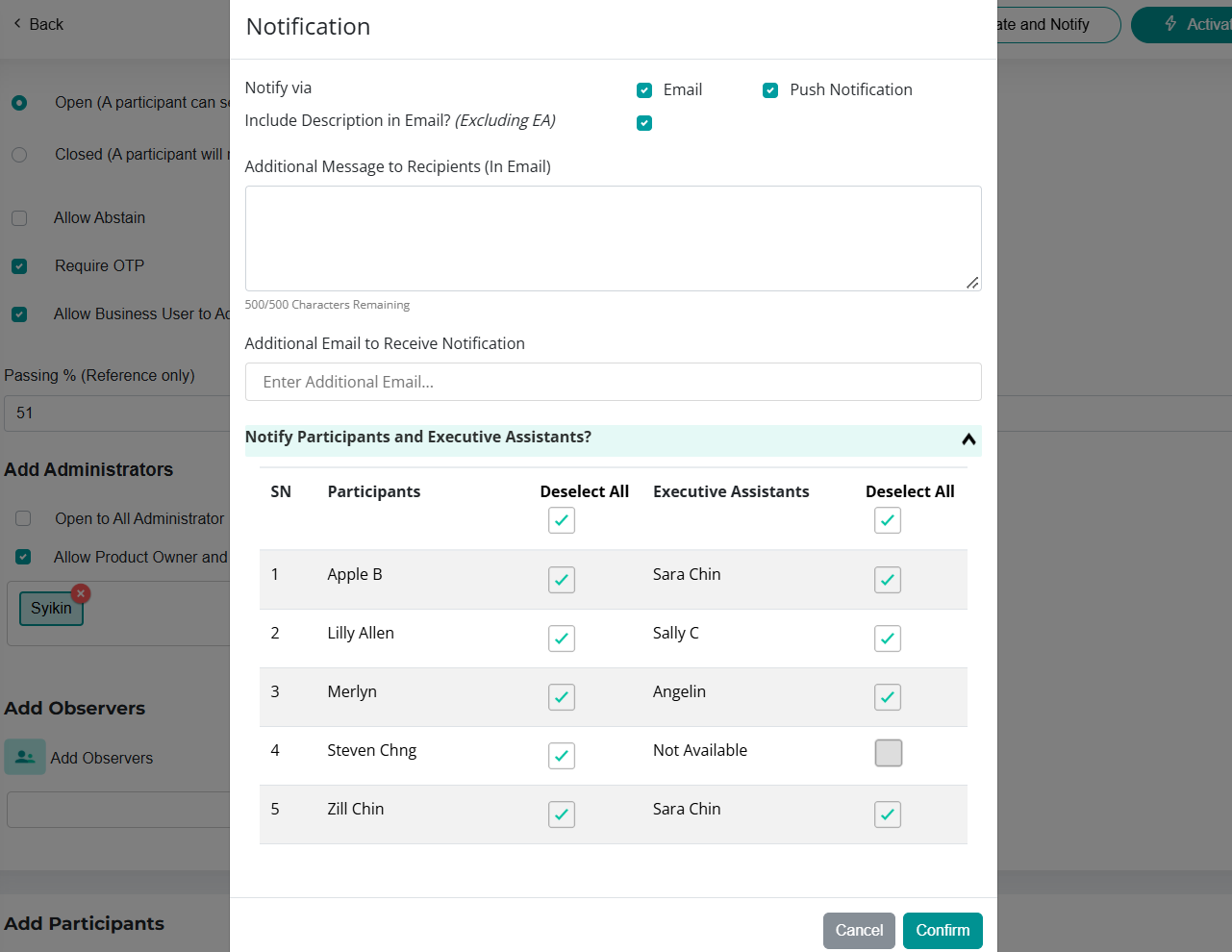
14) Click on Activate and Notify. In the Notification pop-up window:
a) Select notification channels (Email and/or Push Notification).
b) Under Notify Participants and Executive Assistants, select the users and PAs to notify.
c) Under Notify Observers, select the Observers to notify.
d) Click Confirm.
You have completed the tutorial on how to create an approval from the Admin Dashboard.
If you face any issues in completing the steps shown in this tutorial, please reach out to our Board.Vision Customer Success Team at support@board.vision or +65 6909 7100 and we will be happy to help.
Our hotline operating hours are from Mondays to Fridays 9:00 AM to 6:00 PM SGT (excluding public holidays).
Was this article helpful?
That’s Great!
Thank you for your feedback
Sorry! We couldn't be helpful
Thank you for your feedback
Feedback sent
We appreciate your effort and will try to fix the article