Welcome to Board.Vision Tutorials!
In this tutorial, we will walk you through the steps to save your signature.
Important Note: The Board.Vision web app is optimised and supported for desktop use on Google Chrome (version 65.0 and later) and Microsoft Edge (version 87.0 and later).
To save your signature:
1) Log in to your Board.Vision account using your registered email address and password.
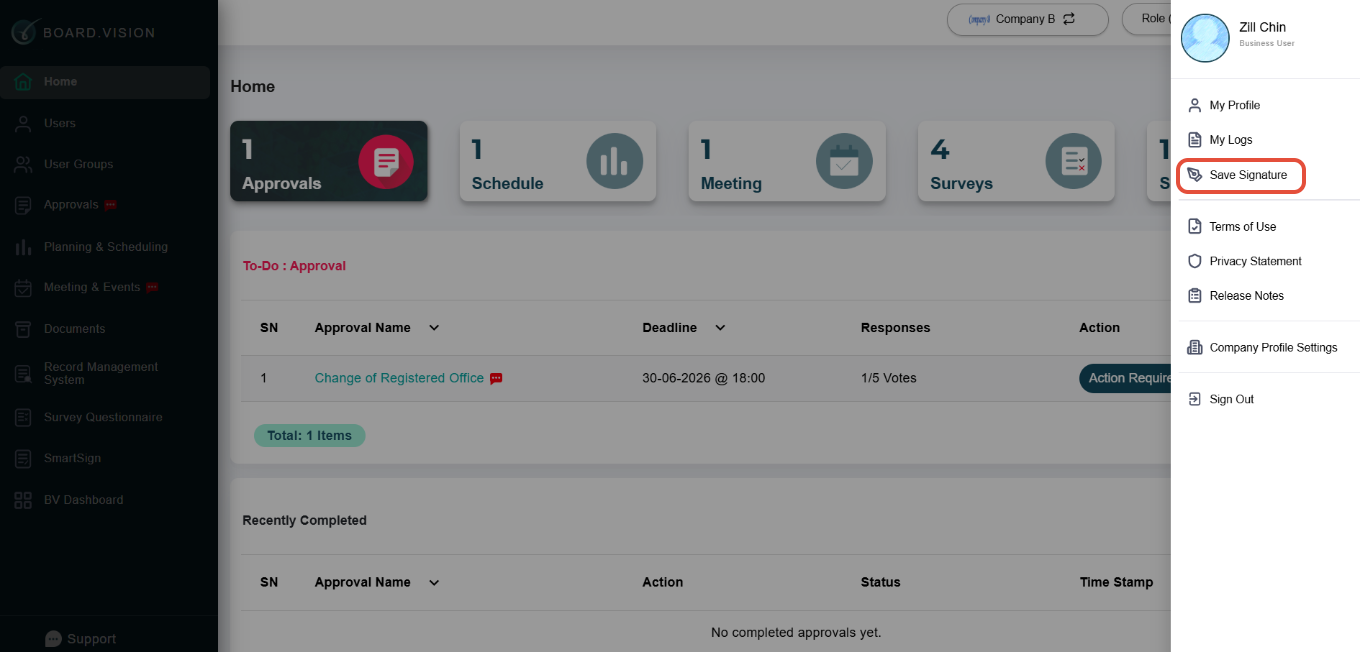
2) Click on Your Profile Picture at the top right of your screen and select Save Signature from the menu.
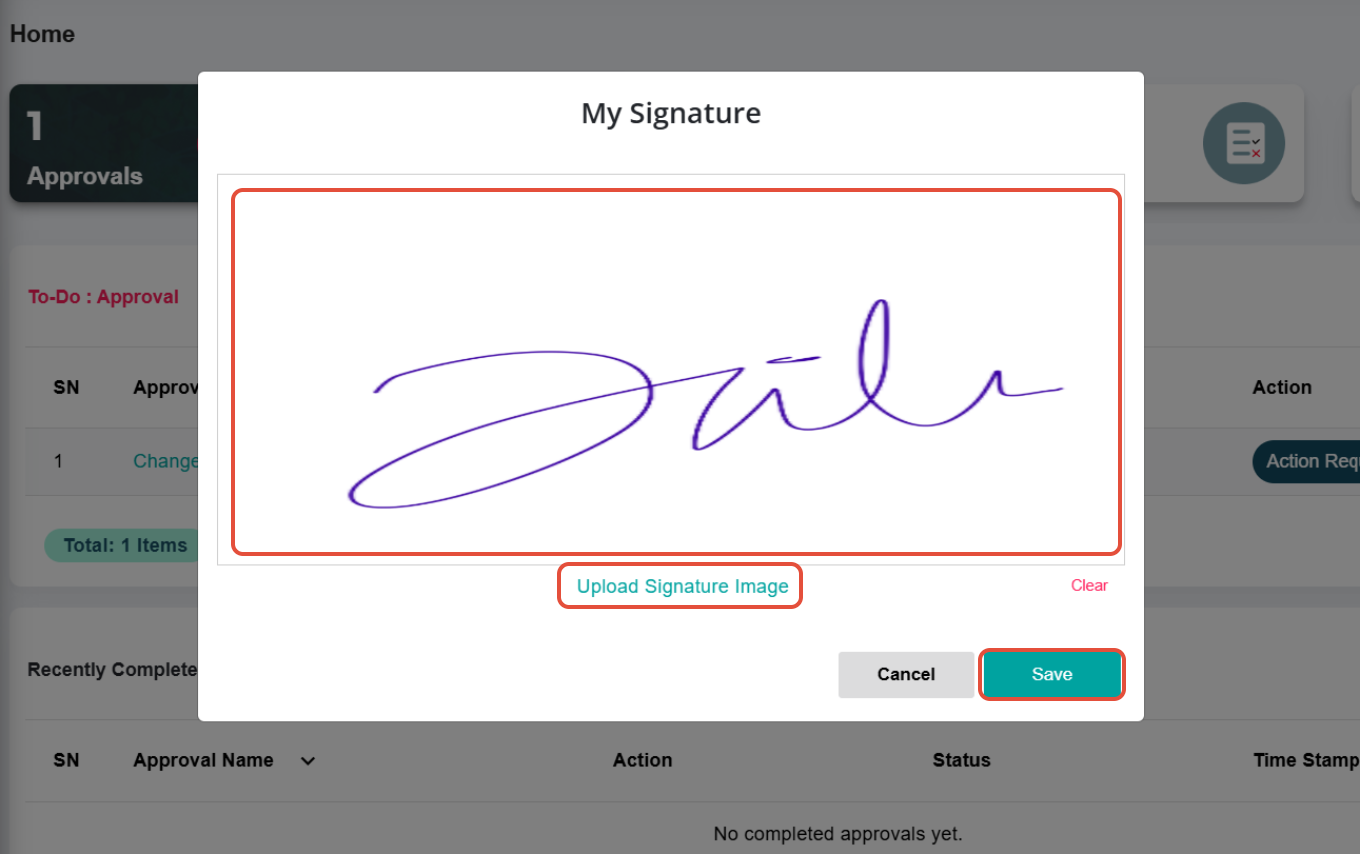
3) You may choose to upload a signature image that you have saved on your desktop/laptop, or sign within the white box.
Then, click on Save.
If you face any issues, please reach out to our Board.Vision Customer Success Team at support@board.vision or +65 6909 7100 and we will be happy to help.
Was this article helpful?
That’s Great!
Thank you for your feedback
Sorry! We couldn't be helpful
Thank you for your feedback
Feedback sent
We appreciate your effort and will try to fix the article