Users can now remove their saved signature from the Saved Signature page in Settings. Once removed, the signature will no longer be available for use when signing documents until a new one is added.
Below is a comparison of the previous and current designs for your reference.
Previous Design - On the Signature screen, if a user cleared their signature and tapped Update, the system would display the message "Please add a signature" and would not allow the changes to be saved. | 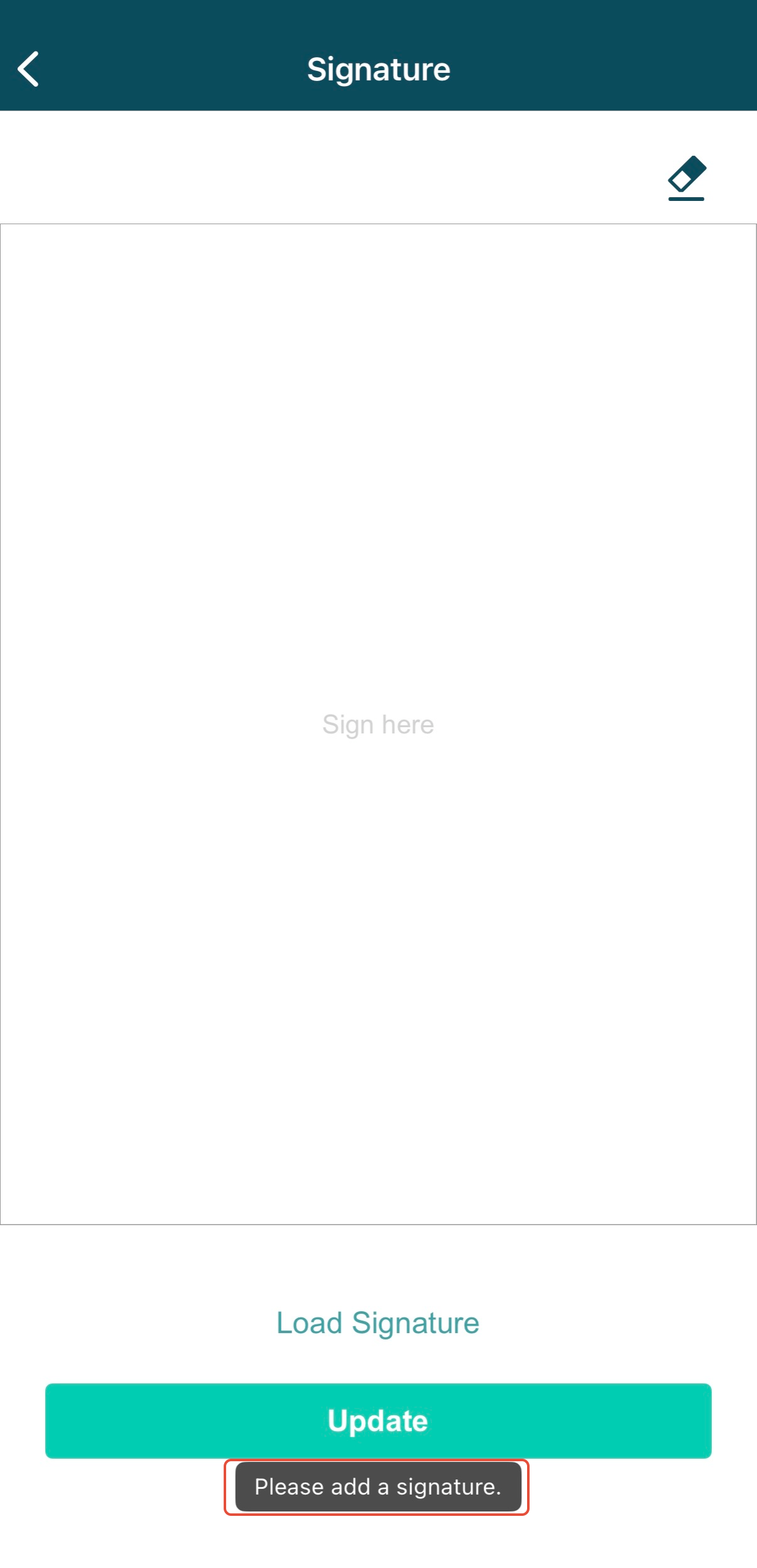 |
New Design - Users can now remove their saved signature from the Signature screen and tap Update to save the changes successfully. Once removed, no signature will be stored in the user's profile until a new signature is added. This allows users to manage their saved signatures more conveniently. | 1) Tap the Update button.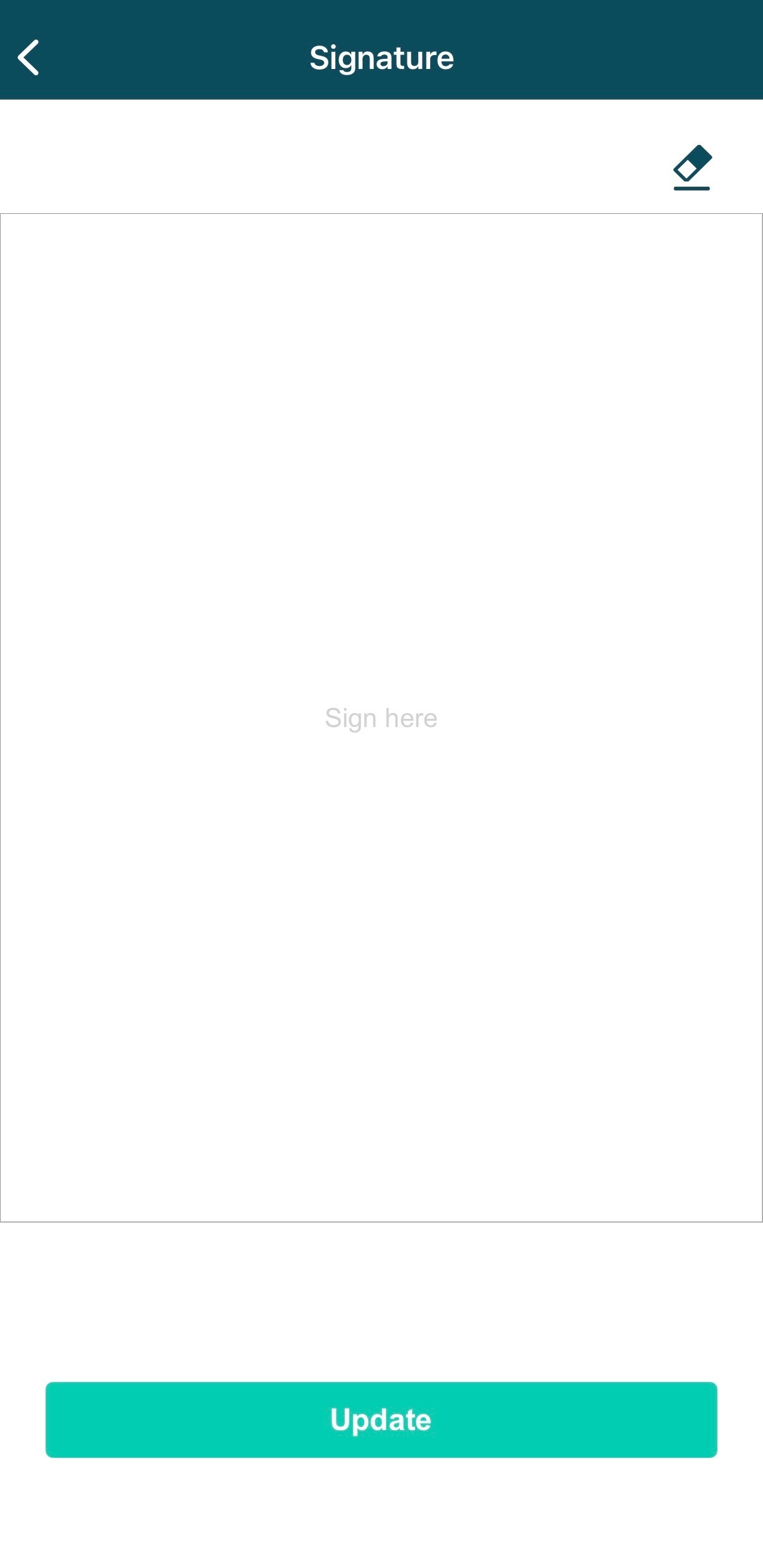 2) The user will be redirected to the Settings page, and a confirmation message, "Signature Removed Successfully", will be displayed. 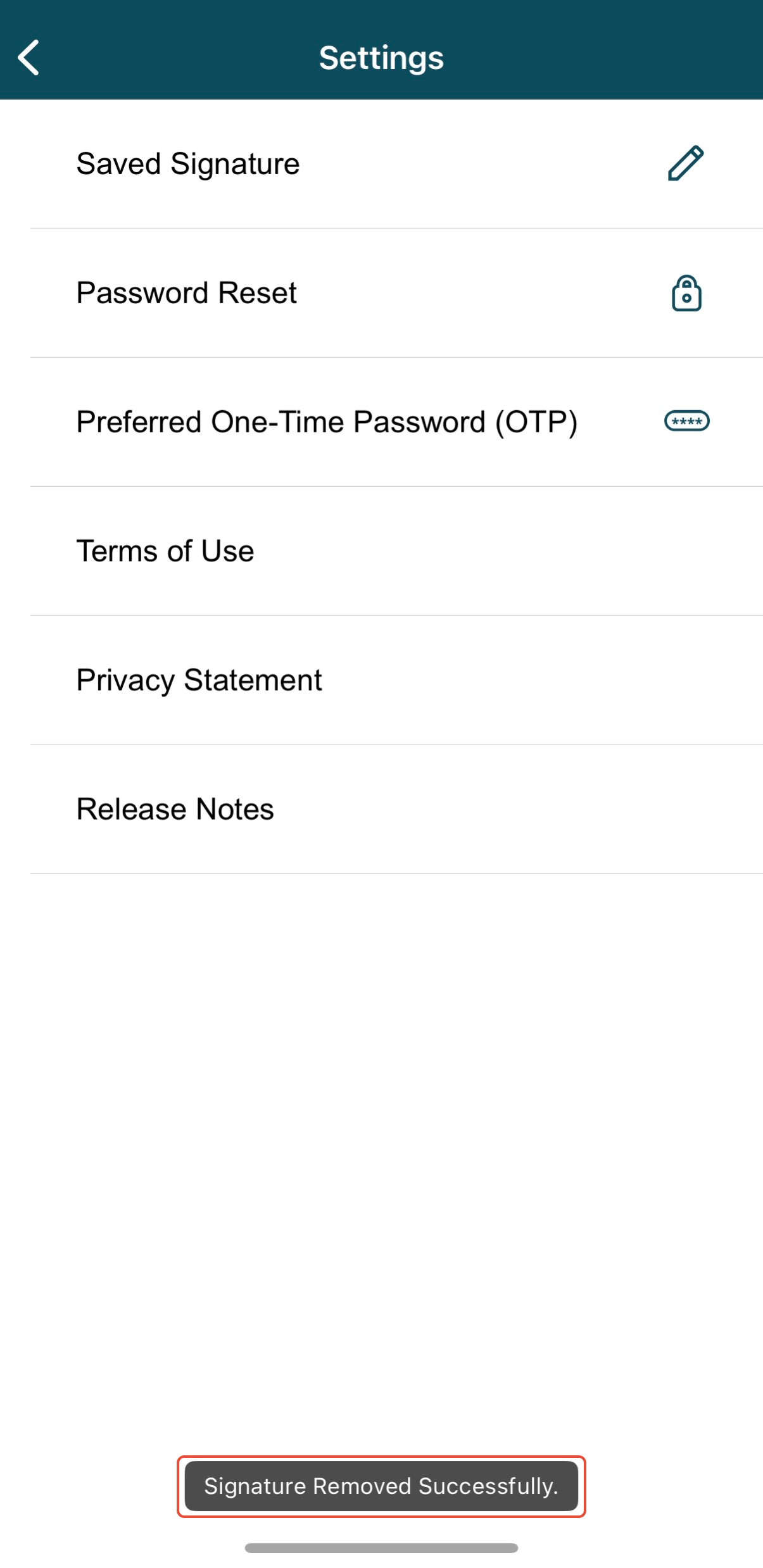 |
If you face any issues, please reach out to our Board.Vision Customer Success Team at support@board.vision or +65 6909 7100 and we will be happy to help.
Our hotline operating hours are from Mondays to Fridays 9:00 AM to 6:00 PM SGT (excluding public holidays).
Was this article helpful?
That’s Great!
Thank you for your feedback
Sorry! We couldn't be helpful
Thank you for your feedback
Feedback sent
We appreciate your effort and will try to fix the article