Welcome to Board.Vision Tutorials!
In this tutorial, we will walk you through the steps to annotate on a personal copy of a document.
To annotate on a personal copy of a document:
1) Log in to your Board.Vision account using your registered email address and password.
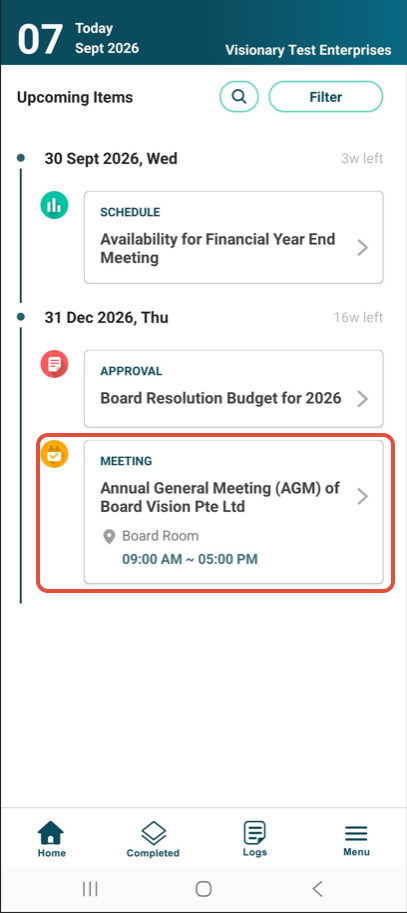
2) Tap on the meeting name to access the agenda related documents.
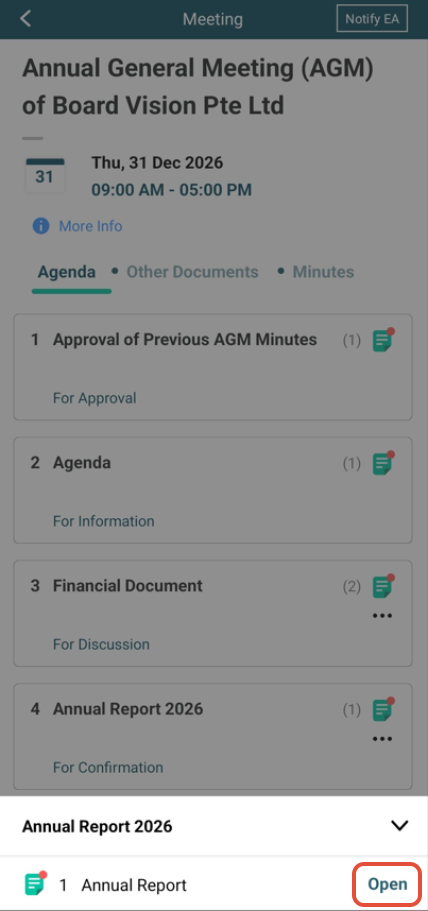
3) Tap Open to view the document.
4) Tap the Pen icon at the top of the screen to activate the toolbar. Choose from Pen, Insert Text, Highlighter, or Notes. 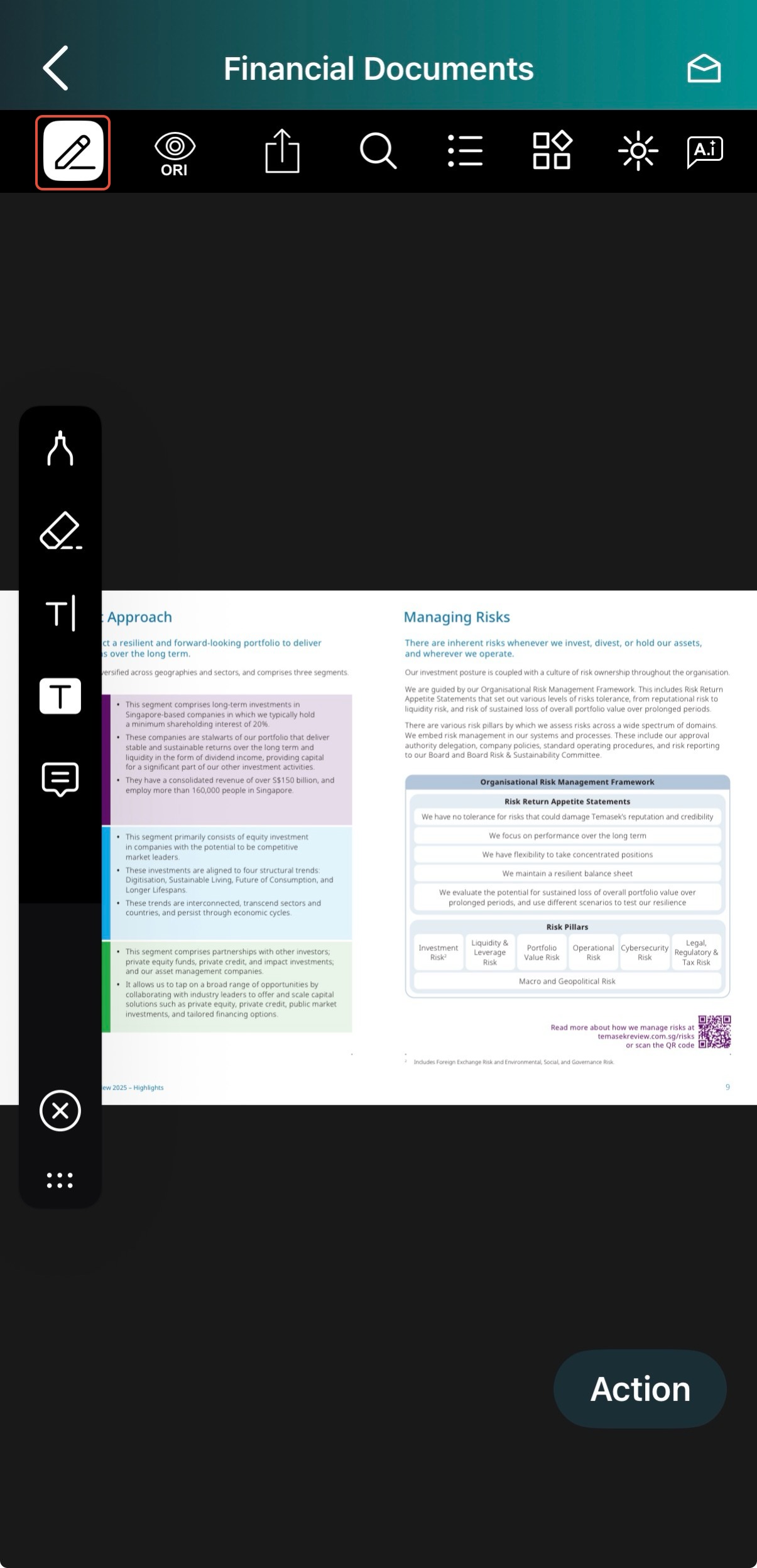
5) Remove Annotations:
Drawings: Select the Eraser tool to erase drawn lines.
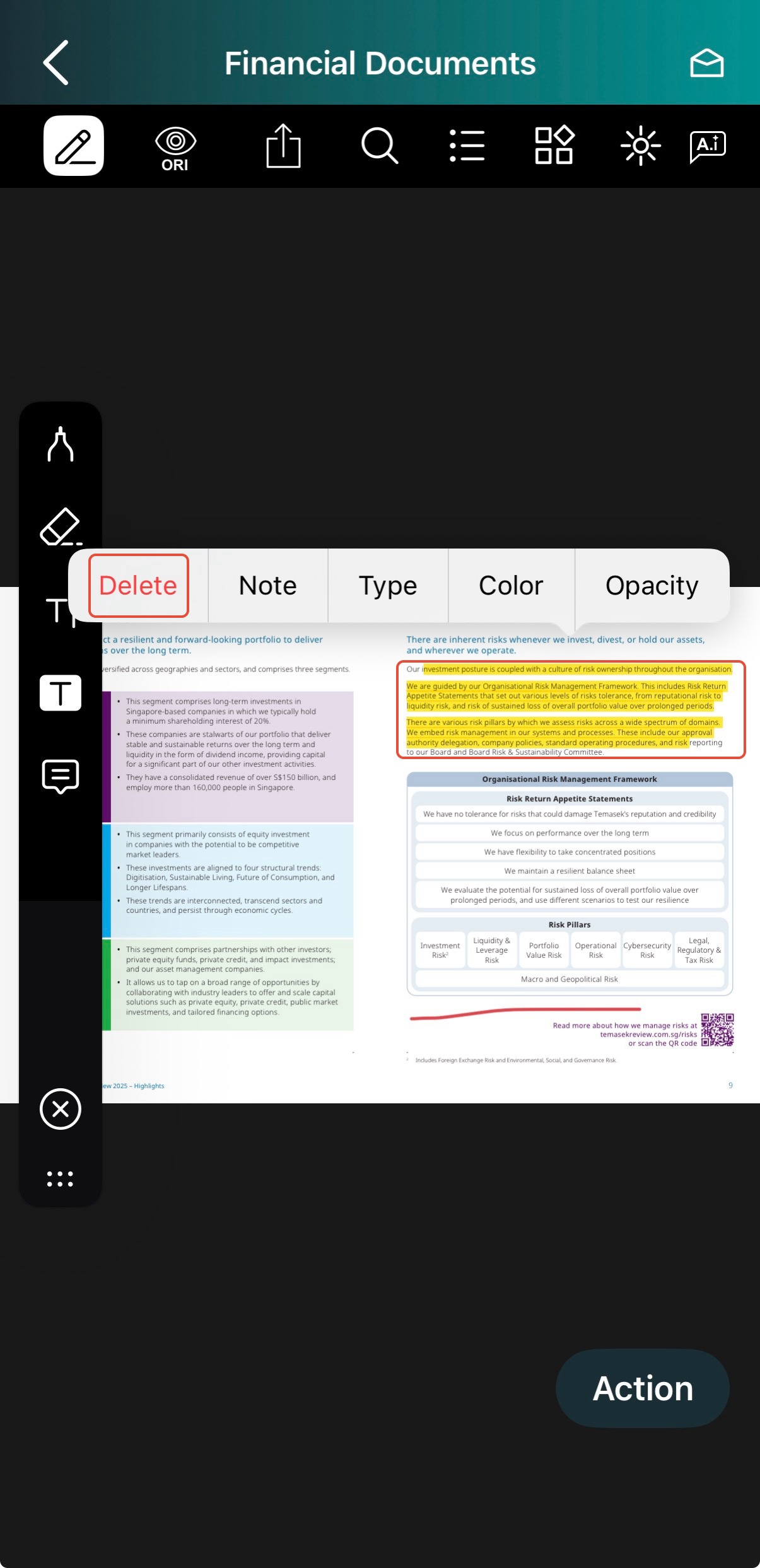
Highlights, Text, or Notes: Deselect any active tool on the side toolbar, tap the specific annotation you want to remove, and tap the Delete icon.
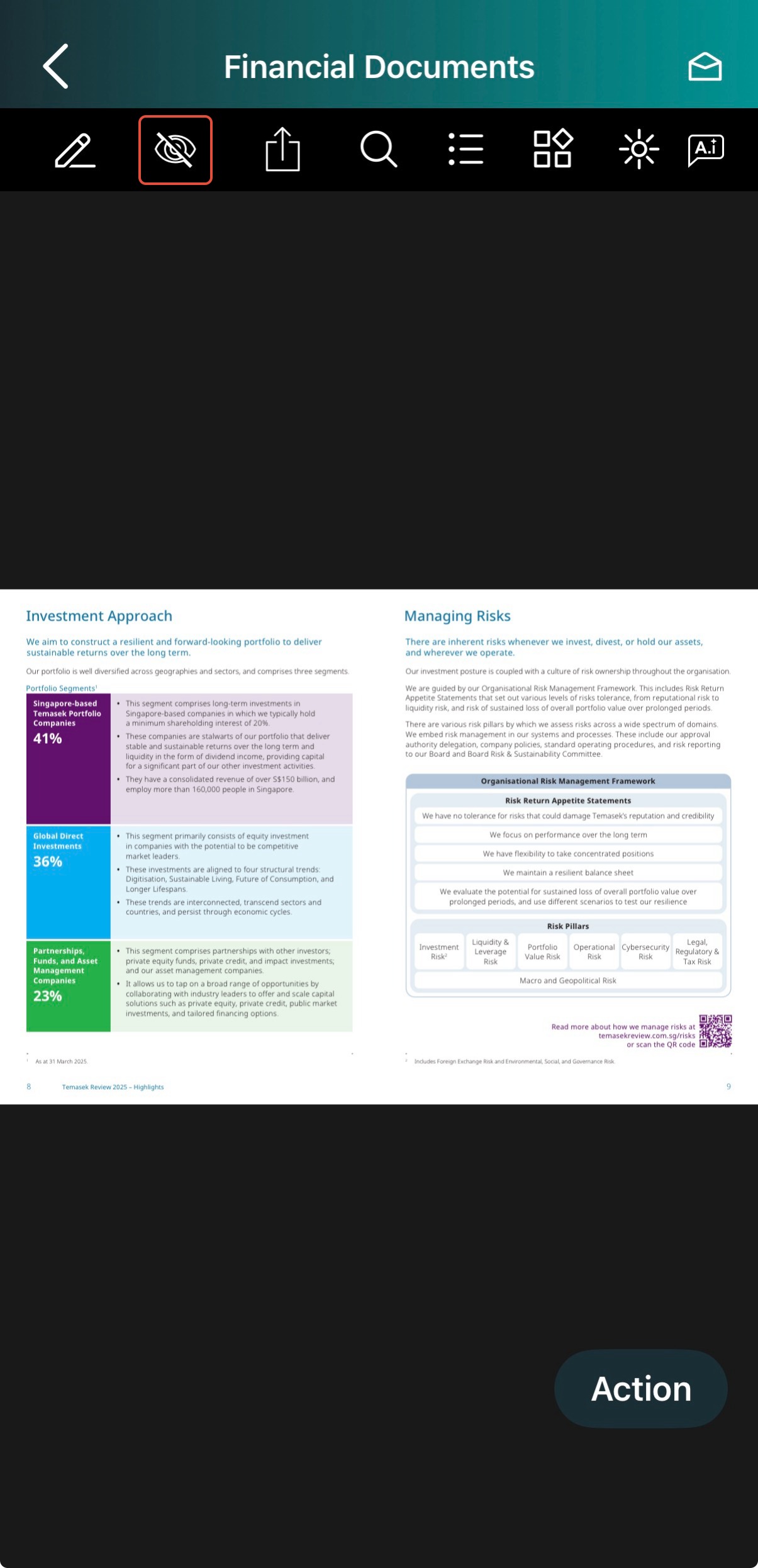
6) Tap the Eye icon to switch views. When displayed with a slash, you are viewing the original document without annotations.
You have completed the tutorial on how to annotate documents.
If you face any issues, please reach out to our Board.Vision Customer Success Team at support@board.vision or +65 6909 7100 and we will be happy to help.
Our hotline operating hours are from Mondays to Fridays 9:00 AM to 6:00 PM SGT (excluding public holidays).
Was this article helpful?
That’s Great!
Thank you for your feedback
Sorry! We couldn't be helpful
Thank you for your feedback
Feedback sent
We appreciate your effort and will try to fix the article