This article provides administrators with flexible options to initiate board meetings: Manual Creation, AI-Assisted Setup, or Pre-designed Templates.
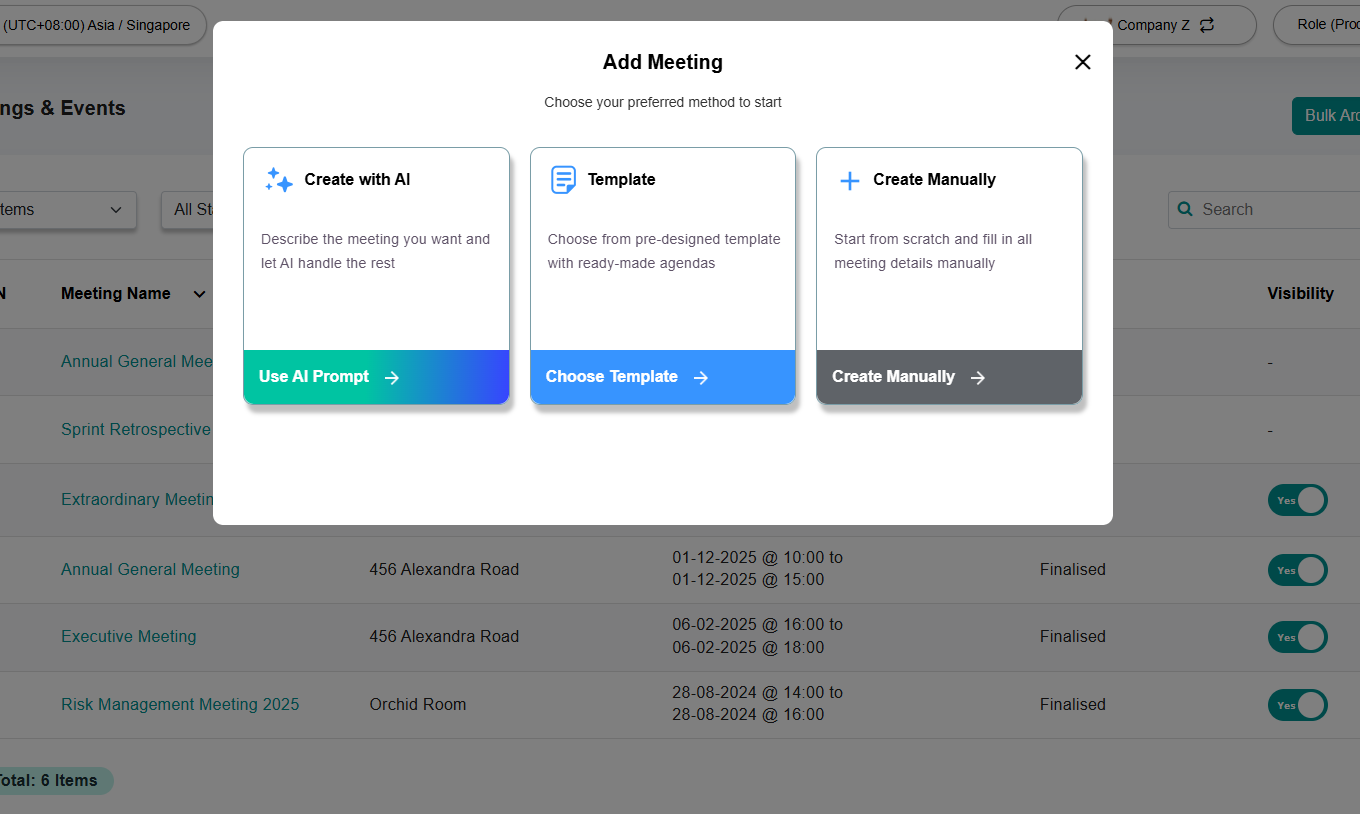
Section 1: Customisation & Meeting Creation Options
Administrators can choose the setup method that best suits their workflow complexity and preparation speed.
1.1 Create a Meeting Manually
Use this method for custom meeting structures requiring tailored agendas and participant permissions.
Navigate to Meetings & Events on the left navigation panel.
Click + Add Meeting and select Create Manually.
Fill in the meeting parameters:
Basic Info: Meeting Title, Date, Time, and Venue or Meeting link.
Meeting Settings: Configure the meeting settings.
Participants: Select individual users or pre-configured User Groups.
Build the Agenda:
Click Save as Draft and go to the Agenda tab.
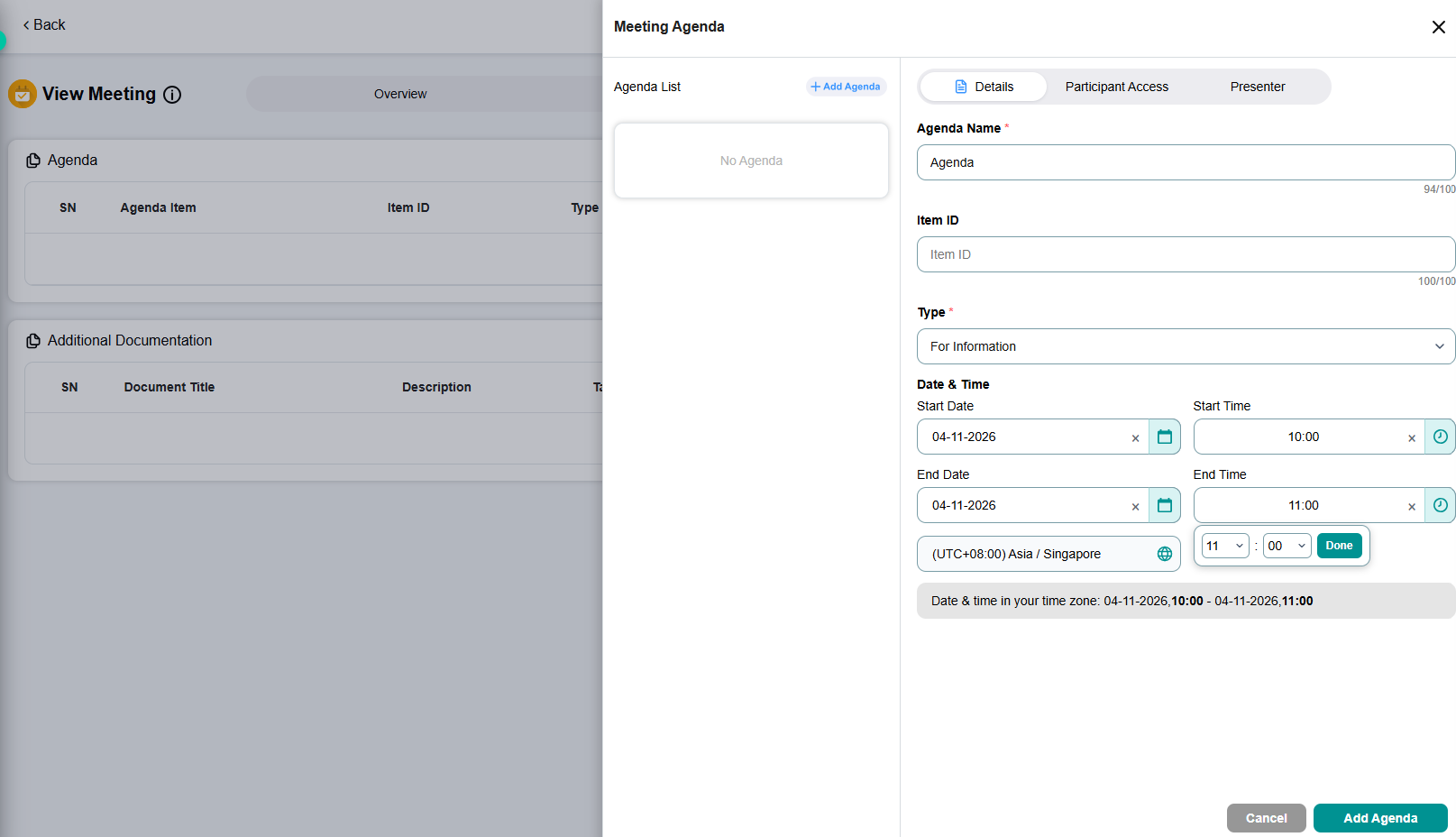
Click + Edit Agenda.
Define item details: Agenda Name, Item Type (For Decision, For Discussion, For Information), Duration, Participant Access, and Presenter.
Click Add Agenda.
Upload board papers by dragging and dropping PDF files into corresponding agenda slots.
Add Documents:
Go to the Agenda listing under the Agenda tab.
Click the Upload icon.
Drag and drop or browse a document from your device.
1.2 Method 2: Create a Meeting Using AI
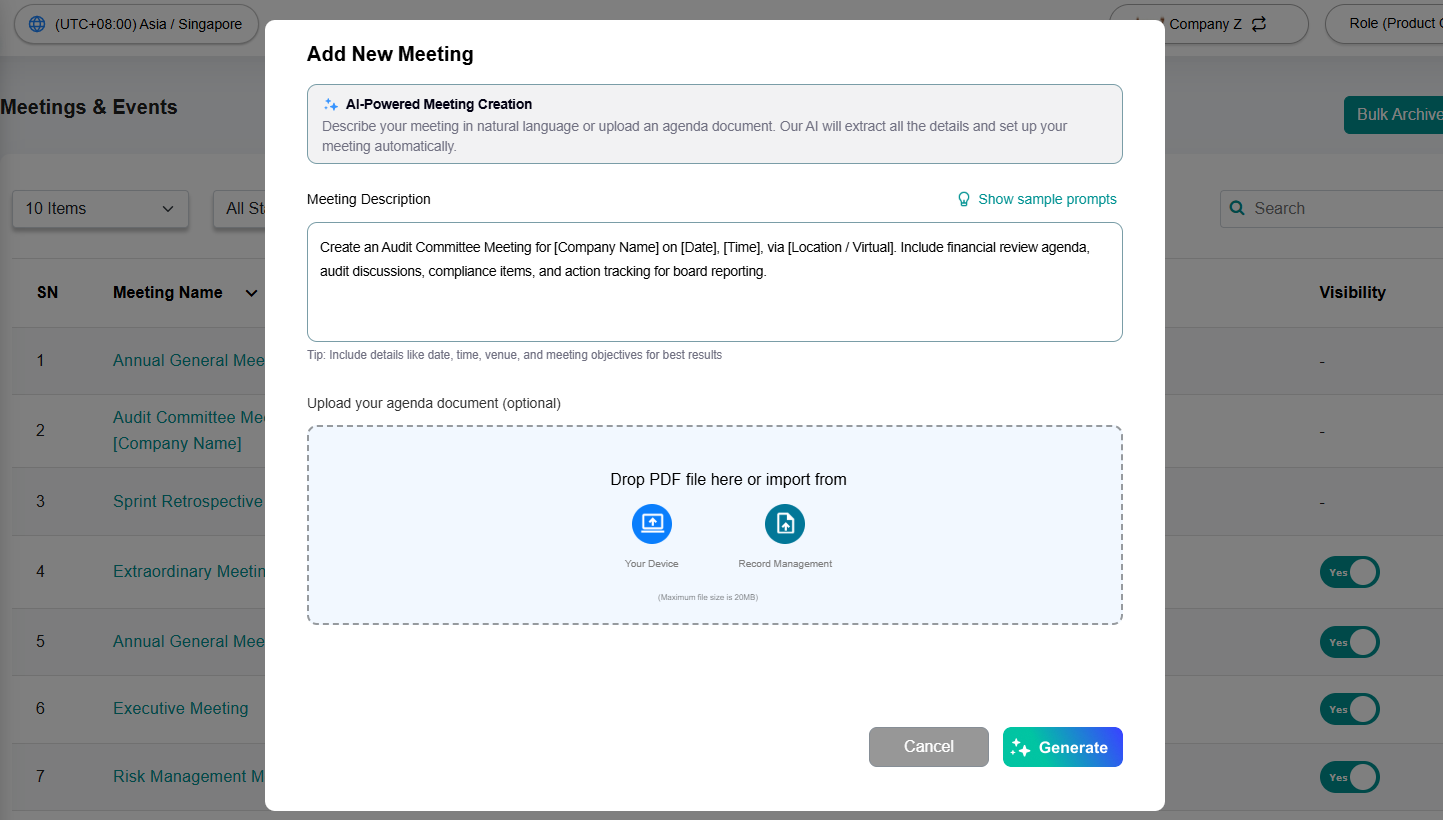
Accelerate setup by using AI to parse draft agenda files or natural language prompts to auto-generate meeting details.
- Navigate to Meetings & Events on the left navigation panel.
- Click + Add Meeting and select Create with AI.
Choose your input source:
Text Prompt: Input a descriptive summary of the meeting topics, presenters, and time allocations or use sample prompts.
Upload Draft Document: Upload an unformatted Word or PDF outline (e.g., draft notice or preliminary agenda).
Click Generate.
Update the meeting parameters:
Basic Info: Meeting Title, Date, Time, and Venue or Meeting link.
Meeting Settings: Configure the meeting settings.
Participants: Select individual users or pre-configured User Groups.
The system will pre-populate default agenda items. Proceed to update as required and add documents to each agenda item.
1.3 Method 3: Create a Meeting Using Pre-Designed Templates
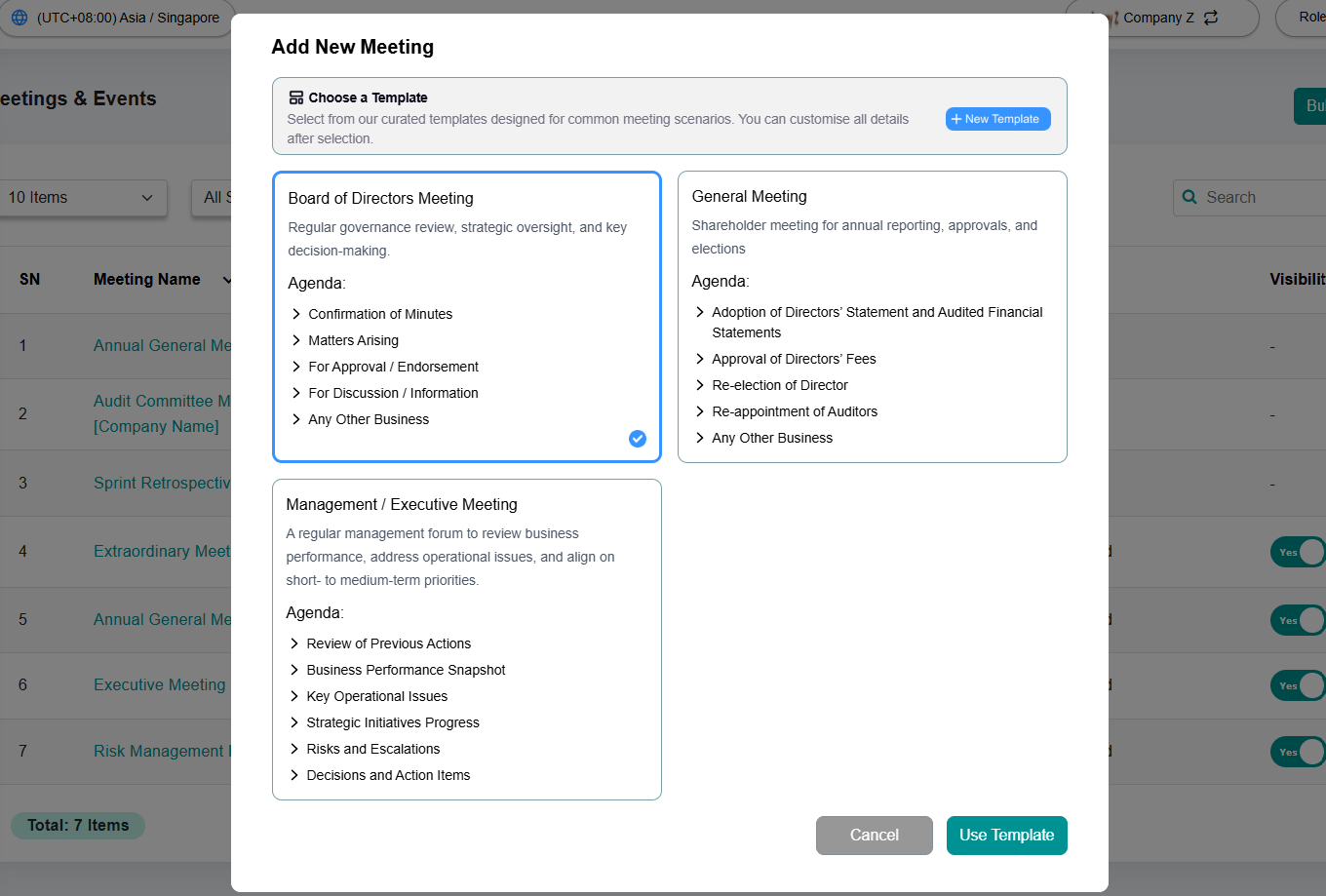
Standardise recurring meeting structures (e.g., Quarterly Board Meeting, AGM, ExCo Meeting) using pre-built templates.
- Navigate to Meetings & Events on the left navigation panel.
- Click + Add Meeting and select Create with Template.
Browse and select a template.
Update the meeting parameters:
Basic Info: Meeting Title, Date, Time, and Venue or Meeting link.
Meeting Settings: Configure the meeting settings.
Participants: Select individual users or pre-configured User Groups.
5. The system will pre-populate default agenda items. Proceed to update as required and add documents to each agenda item.
Section 2: Publishing & Final Steps
Once your meeting structure is created via any of the three methods, click Activate & Notify to distribute the meeting pack to participants.
Was this article helpful?
That’s Great!
Thank you for your feedback
Sorry! We couldn't be helpful
Thank you for your feedback
Feedback sent
We appreciate your effort and will try to fix the article