In this article, we will walk you through creating a new user, setting up admin permissions, organising committees, managing board meeting workflows, and circulating approvals as well as schedule.
Once you have been added to Board.Vision as a user, you can access it via Google Chrome (version 65.0 and later) and Microsoft Edge (version 87.0 and later) from https://app.board.vision.
1. Account Activation & Login
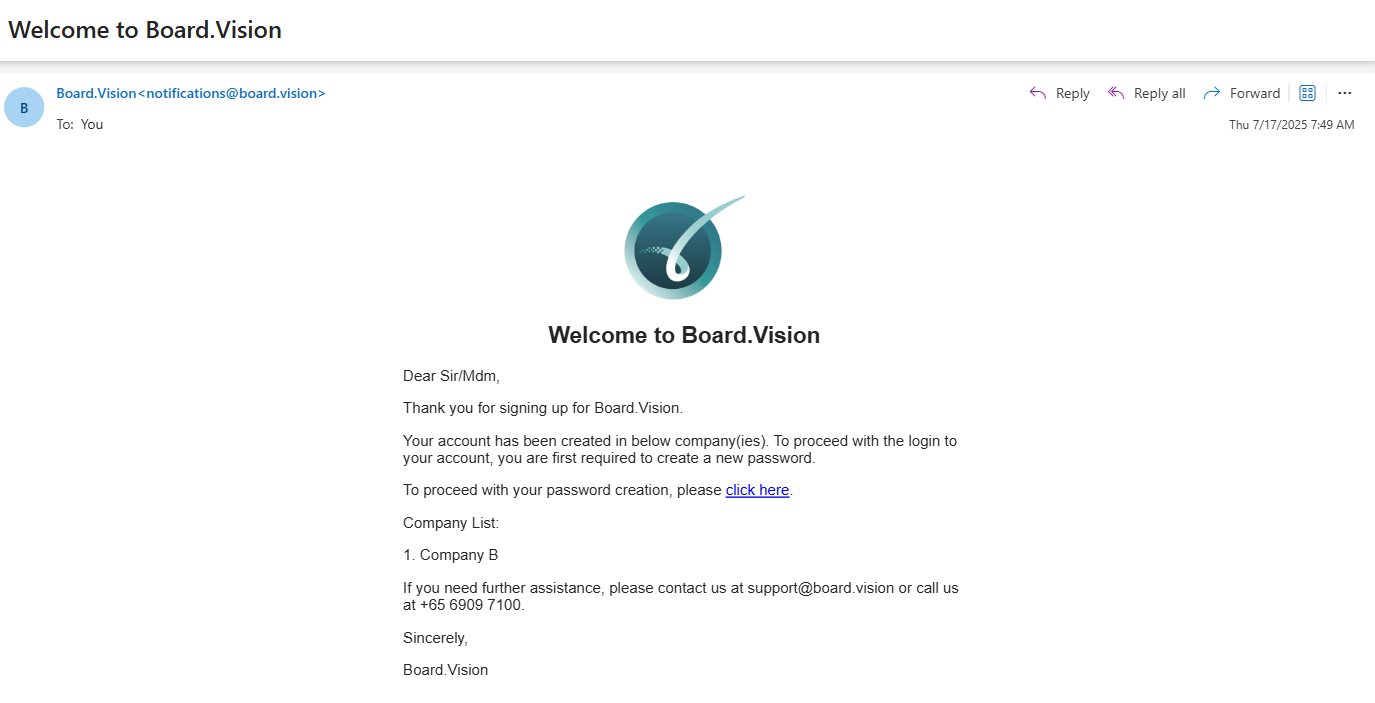
- Locate the email sent from Board.Vision <notifications@board.vision> and click the activation link.
- Create a secure password.
- Read and accept the Terms of Use.
- If your account is registered under multiple companies, select the entity you wish to access.
- Enter the 6-digit One-Time Password (OTP) sent to your registered mobile number or email.
For detailed instructions on activating your Board.Vision account using a desktop or laptop, please click the links below:
- For Normal users: Activating your Board.Vision Account via Desktop or Laptop
- For Single Sign-On (SSO) users: Activating your Board.Vision Account via Desktop or Laptop (For Single-Sign On Users)
Daily Login Procedure
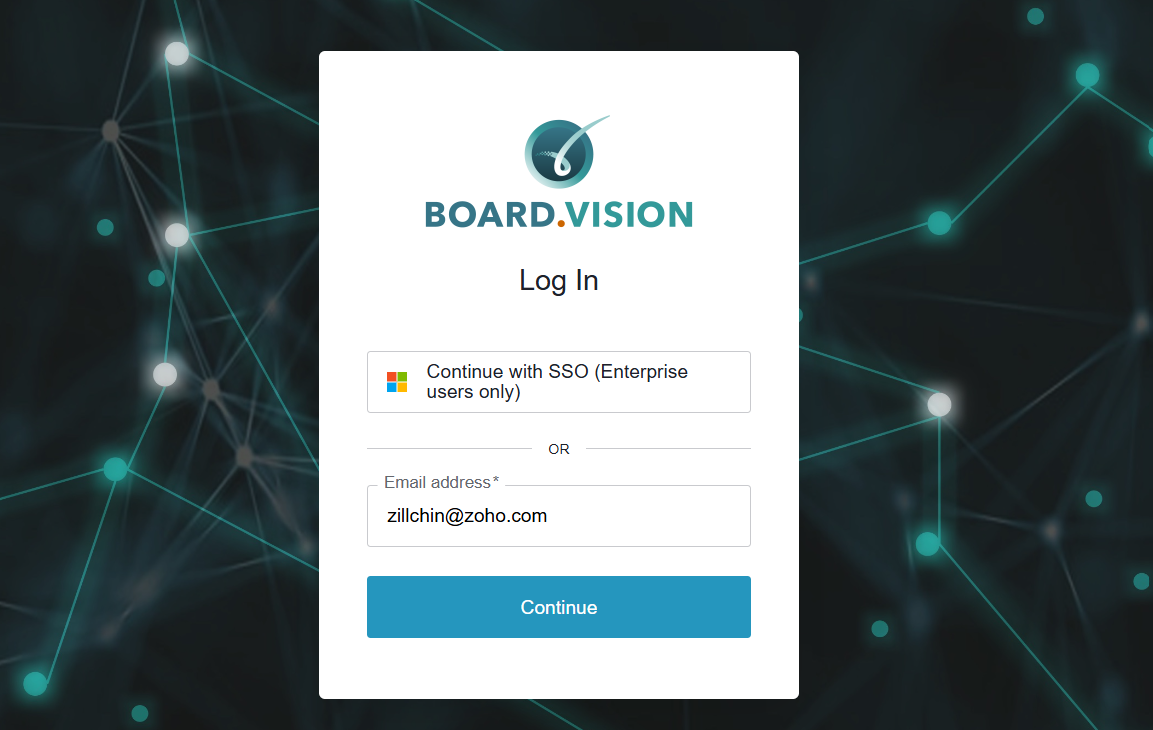
Go to Board.Vision.
Enter your registered email address and click Continue.
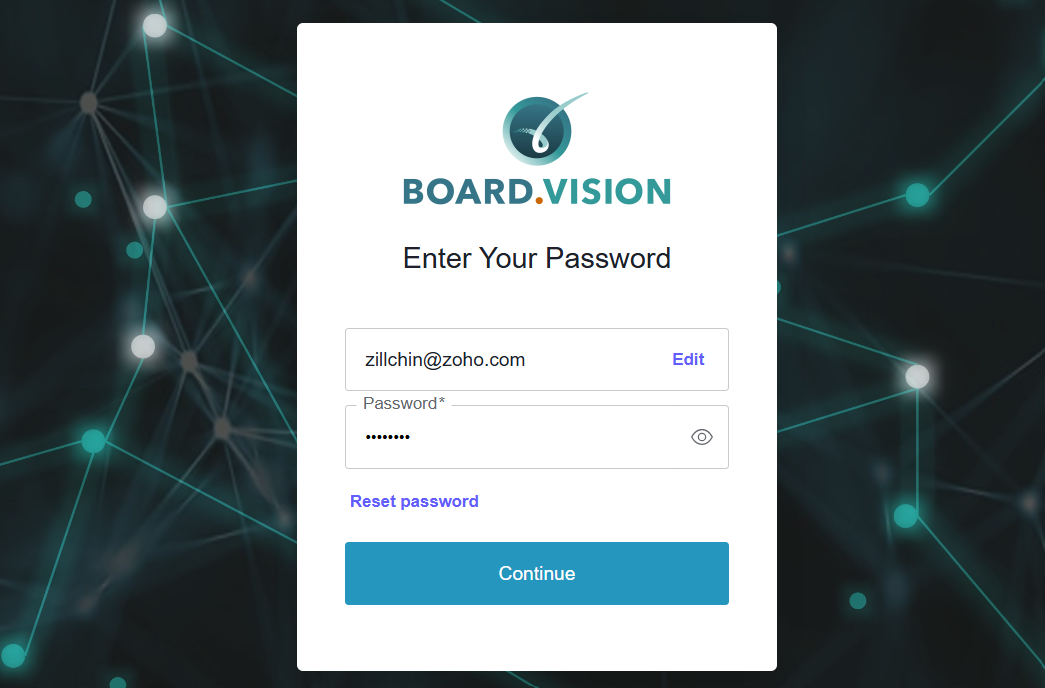
On the following screen, enter your password and select Continue. If your organisation utilises single sign-on (SSO), you are only required to enter your email address.
2. Administrator Management Lifecycle
Once logged in as an Administrator, use the following workflows to create users, manage meetings, circulate approvals and schedule.
2.1 User Management & Permissions
- Add New Users: Navigate to Users-> + Add User. Input the user's details, assign system role, and click Activate and Send Invite.
- Assign Administrator Roles
Decide which Admin should be Super or Elevated Administrator.
- Create User Groups
Organise users into groups for your board and committees to easily add them to Meetings, Approvals and Scheduling.
2.2. Meeting Creation
- Using AI: Navigate to Meetings & Events -> +Add Meeting. Select Create with AI
- Using Pre-designed Meeting Templates: Navigate to Meetings & Events -> +Add Meeting. Select Template.
- Manage Participants & Recusals
Add Participants: Select individual users or pre-configured User Groups.
Recuse Participants: Use the Recused Participants field to restrict members from viewing specific confidential agendas or documents.
2.3 Circulate Approval
- Create Approval: Navigate to Approvals -> + Add Approval. Set resolution parameters, voting deadline, and select required signatories.
- Track Status: Monitor status and responses directly from the admin dashboard.
2.4 Circulate Schedule
- Create Schedule: Navigate to Planning & Scheduling-> + Add Schedule. Set parameters, voting deadline, select required voters and put up a few proposed dates.
- Track Status: Monitor status and responses directly from the admin dashboard.
If you face any issues, please reach out to our Board.Vision Customer Success Team at support@board.vision or +65 6909 7100 and we will be happy to help.
Our hotline operating hours are from Mondays to Fridays 9:00 AM to 6:00 PM SGT (excluding public holidays).
Was this article helpful?
That’s Great!
Thank you for your feedback
Sorry! We couldn't be helpful
Thank you for your feedback
Feedback sent
We appreciate your effort and will try to fix the article