In this article, we will walk you through activating your user account, reviewing agenda packs, and assisting with availability scheduling on behalf of your Director
Once you have been added to Board.Vision as a user, you can access it via Google Chrome (version 65.0 and later) and Microsoft Edge (version 87.0 and later) from https://app.board.vision.
1. Account Activation & Login
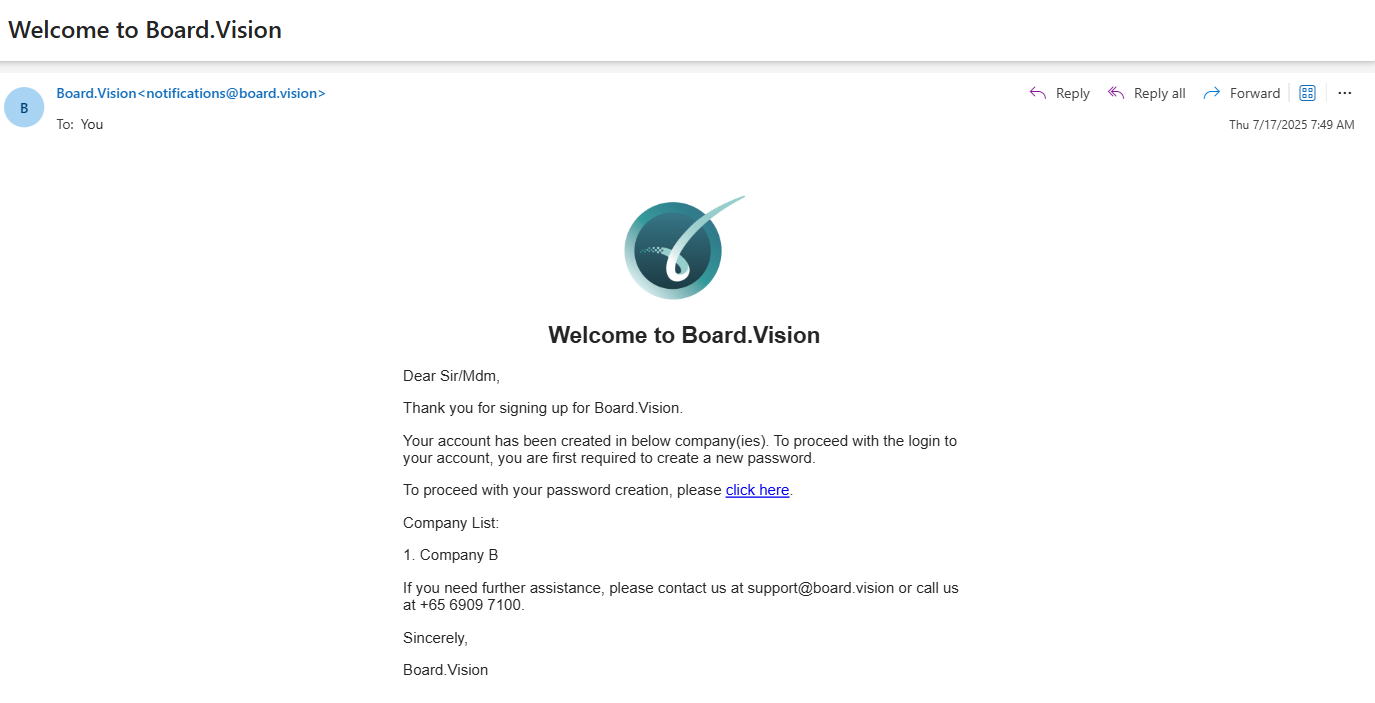
- Locate the email sent from Board.Vision <notifications@board.vision> and click the activation link.
- Create a secure password.
- Read and accept the Terms of Use.
- If your account is registered under multiple companies, select the entity you wish to access.
- Enter the 6-digit One-Time Password (OTP) sent to your registered mobile number or email.
For detailed instructions on activating your Board.Vision account using a desktop or laptop, please click the links below:
- For Normal users: Activating your Board.Vision Account via Desktop or Laptop
- For Single Sign-On (SSO) users: Activating your Board.Vision Account via Desktop or Laptop (For Single-Sign On Users)
Daily Login Procedure
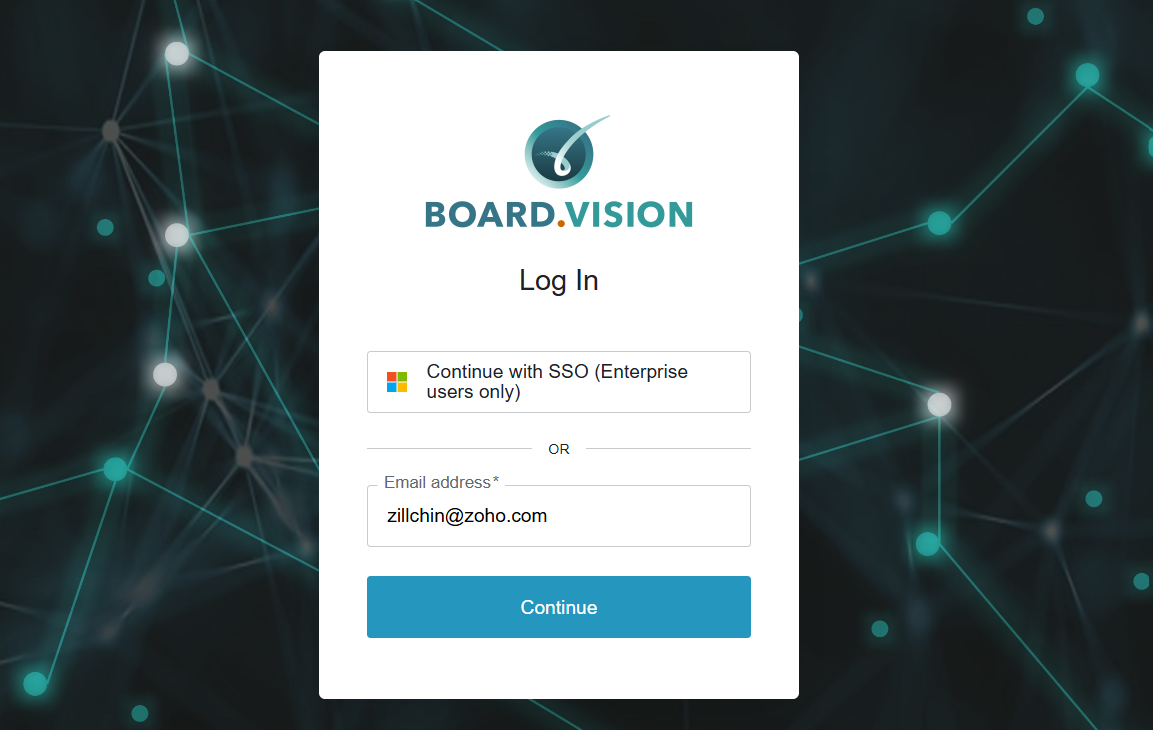
Go to Board.Vision.
Enter your registered email address and click Continue.
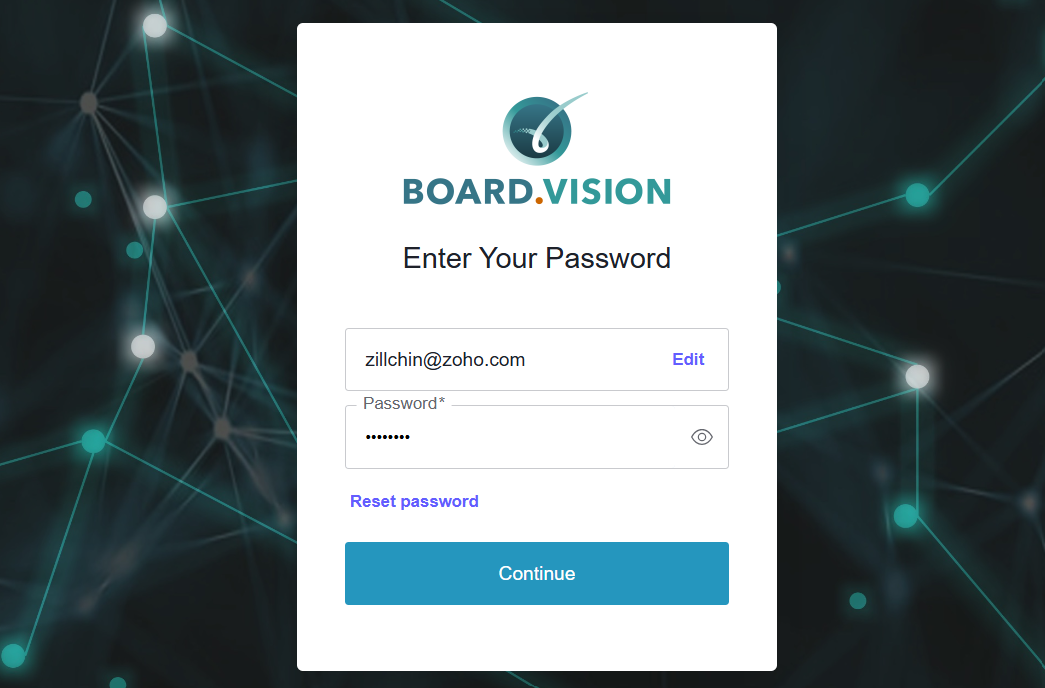
On the following screen, enter your password and select Continue. If your organisation utilises single sign-on (SSO), you are only required to enter your email address.
2. Viewing Meetings & Sending a Reminder to Your Director
Review meeting documents and alert your Director about upcoming sessions.
- Navigate to your Home dashboard or the Meetings module from the main left menu, and select the relevant meeting title.
- Click the Agenda tab to view the meeting agenda and documents.
- Click the Send Reminder button at the top right to send an instant email or push notification directly to your Director's iPad/iPhone app reminding them to review the papers.
3. Respond to Schedule Polls & Propose Alternate Dates
Assist your Director in responding to meeting availability requests.
- Navigate to your Home dashboard > click Action Required under 'To-Do: Schedule' > go to Proposed Dates.
- Vote on Options: Mark preferred time slots as Yes or No.
- Propose Alternate Dates: If none of the proposed slots work, click + Propose Alternate Date, add suitable dates/times, and click Confirm.
4. Send a Reminder for Director to Respond Approval
- Navigate to your Home dashboard > click Send Reminder under 'To-Do: Approval'
If you face any issues, please reach out to our Board.Vision Customer Success Team at support@board.vision or +65 6909 7100 and we will be happy to help.
Our hotline operating hours are from Mondays to Fridays 9:00 AM to 6:00 PM SGT (excluding public holidays).
Was this article helpful?
That’s Great!
Thank you for your feedback
Sorry! We couldn't be helpful
Thank you for your feedback
Feedback sent
We appreciate your effort and will try to fix the article