1. Overview
The Business User Dashboard allows directors to review, approve, or disapprove multiple pending approvals simultaneously instead of acting on each item individually. Depending on your device, follow the corresponding section below:
Section 2: Desktop / Laptop (Web Portal)
Section 3: iPad App
2. Bulk Approvals on Desktop / Laptop (Web Portal)
- Log in to app.board.vision.
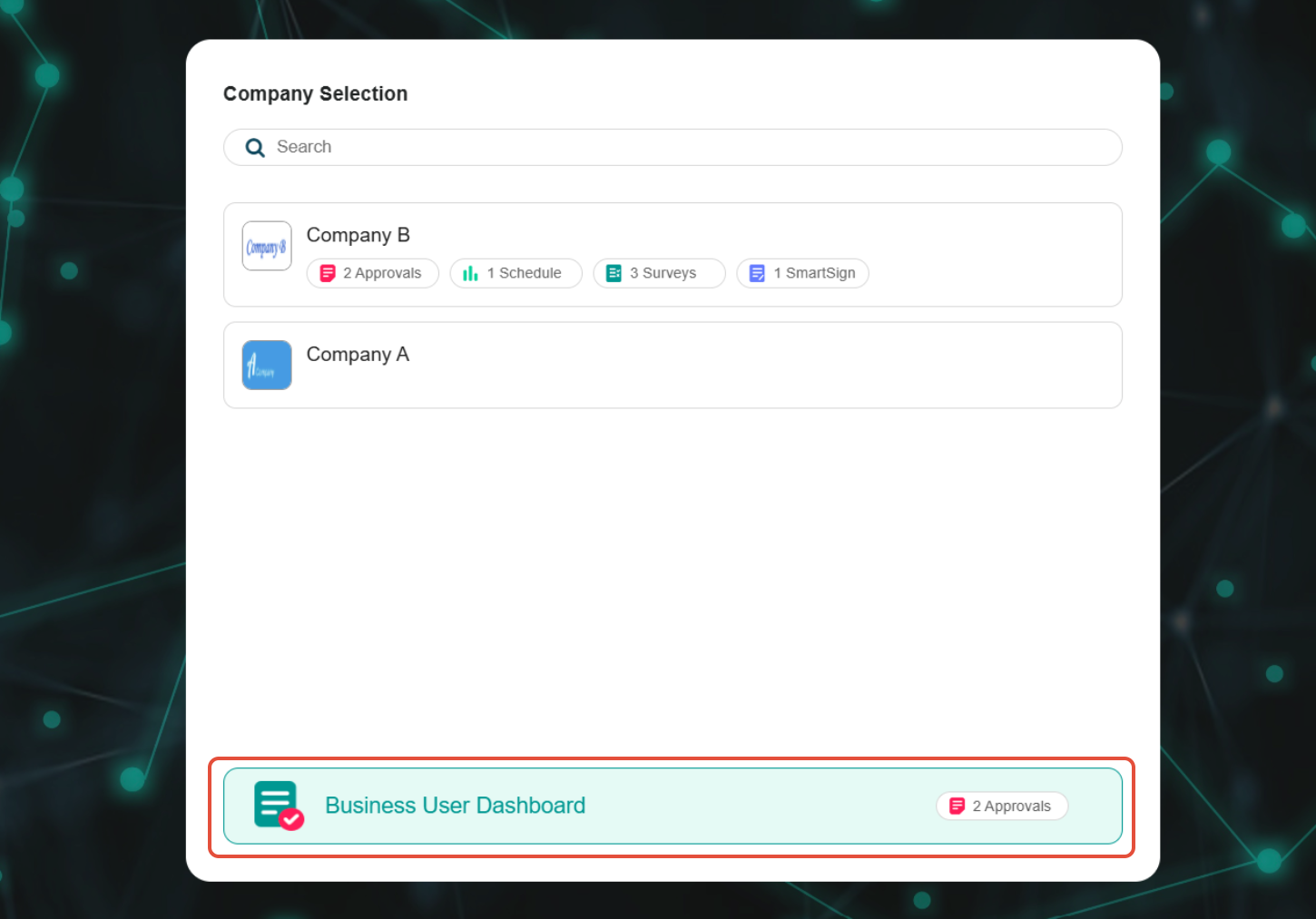
- On your Company Selection screen, go to the Business User Dashboard.
- Review the document.
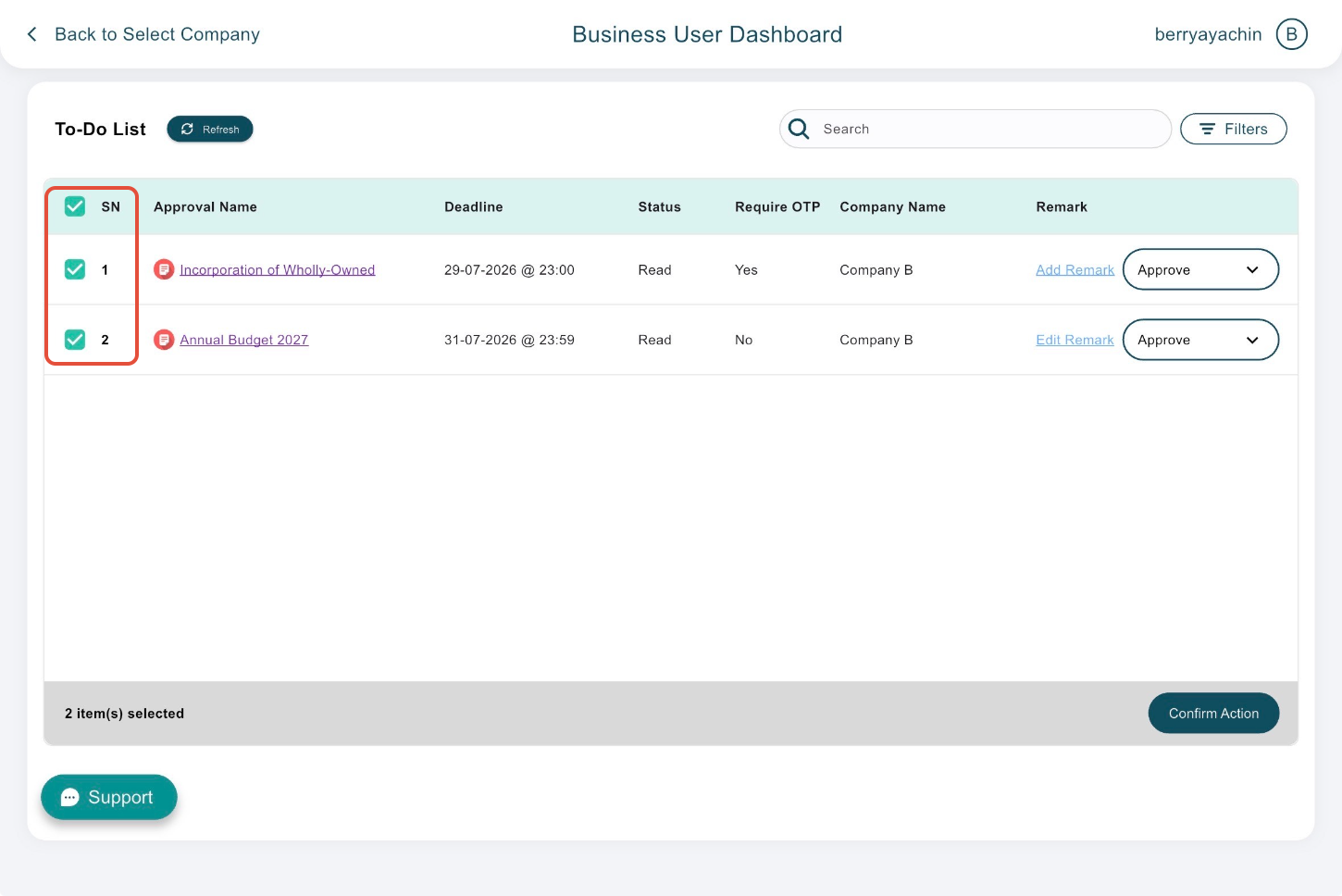
- After reviewing, add comments under "Add Remark" if required and select your action: Approve or Disapprove.
- Select the checkboxes next to the documents/approvals you wish to execute.
- Click Confirm Action.
- Upload a signature or sign within the white box.
- Complete OTP verification if prompted, then click Submit.
3. Bulk Approvals on iPad App
- Open and log in to the Board.Vision iPad App.
- On your Company Selection screen, go to the Business User Dashboard.
- Review the document.
- After reviewing, add comments under "Add Remark" if required and select your action: Approve or Disapprove.
- Select the checkboxes next to the documents/approvals you wish to execute.
- Tap Confirm Action.
- Upload a signature or sign within the white box.
- Complete OTP verification if prompted, then tap Submit.
If you face any issues in completing the steps shown in this tutorial, please reach out to our Board.Vision Customer Success Team at support@board.vision or +65 6909 7100 and we will be happy to help.
Our hotline operating hours are from Mondays to Fridays 9:00 AM to 6:00 PM SGT (excluding public holidays).
Was this article helpful?
That’s Great!
Thank you for your feedback
Sorry! We couldn't be helpful
Thank you for your feedback
Feedback sent
We appreciate your effort and will try to fix the article