The Record Management System (RMS) provides administrators with a centralised repository to organise, classify, upload, and track board documents across all modules. This guide covers system configuration, document ingestion and searching.
Section 1: Customisation & Configuration
Before uploading documents into RMS, administrators must define document structures, mandatory data fields, and table views to maintain data integrity.
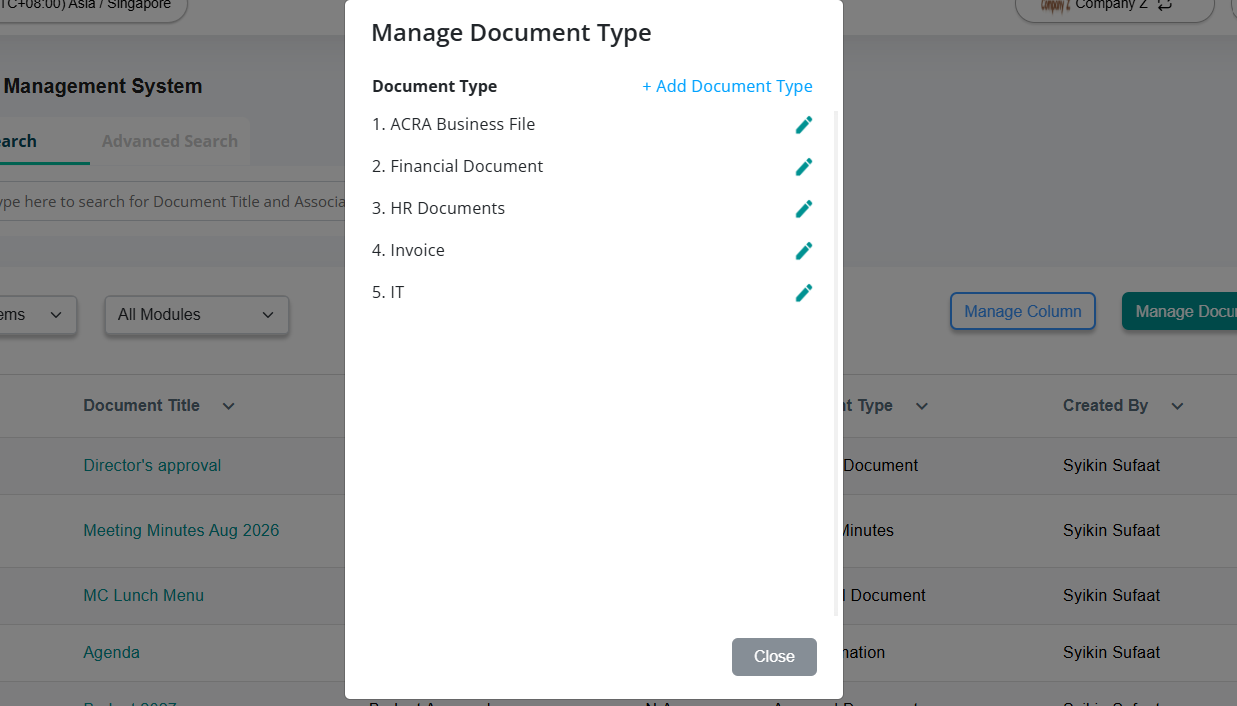
1.1 Create a Document Type
Document Types categorise stored files (e.g., Financial Statements, Board Minutes, Regulatory Filings).
Navigate to Record Management System (RMS) on the left navigation panel.
Click on Manage Document Type.
Click + Add Document Type.
Enter a Document Type Name and optional more fields. If the fields are mandatory, select the Required checkbox.
Click Confirm.
1.2 Customise Table Columns
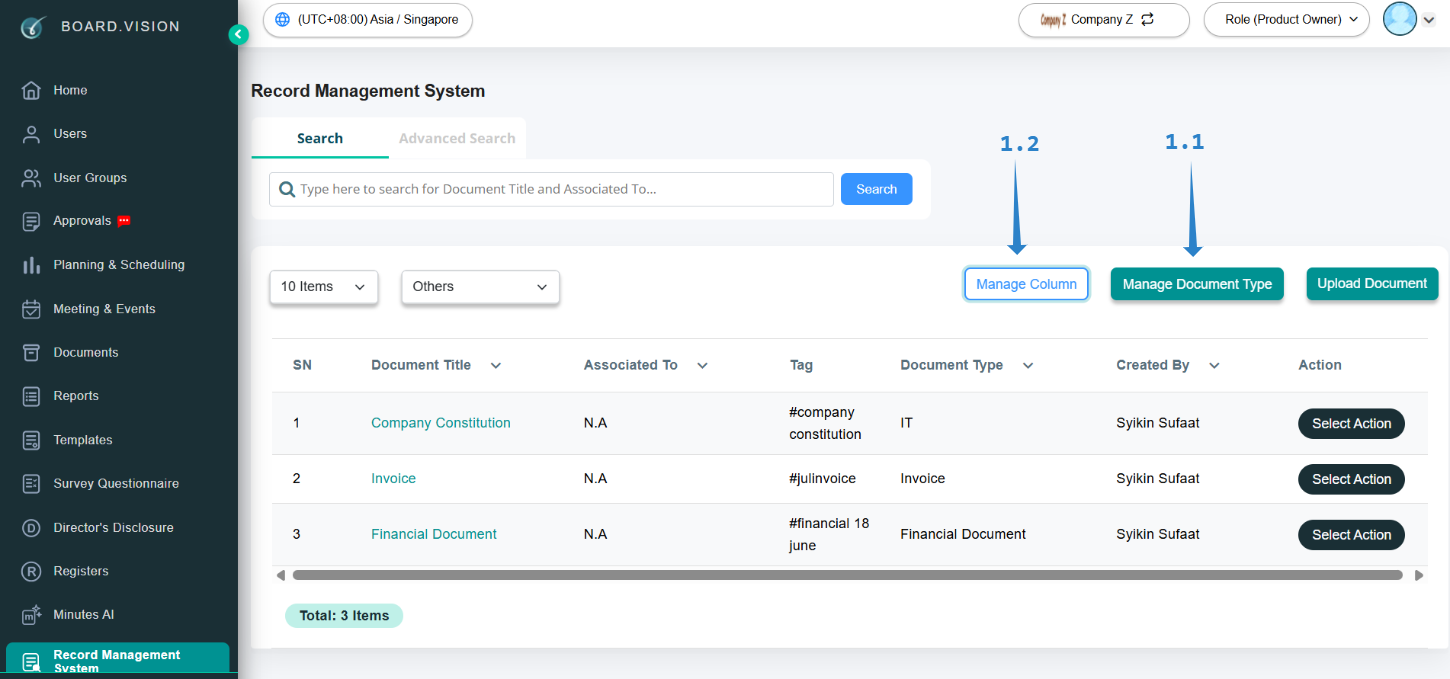
Administrators can customise their primary RMS view.
On the main RMS Dashboard, click Manage Column.
Check or uncheck columns to adjust visibility (e.g., Created By, Upload Date, Document Venue etc.).
Drag items vertically to reorder column sequences.
Click Save.
Section 2: Upload, Tagging & Linking Documents
2.1 Bulk Upload Documents
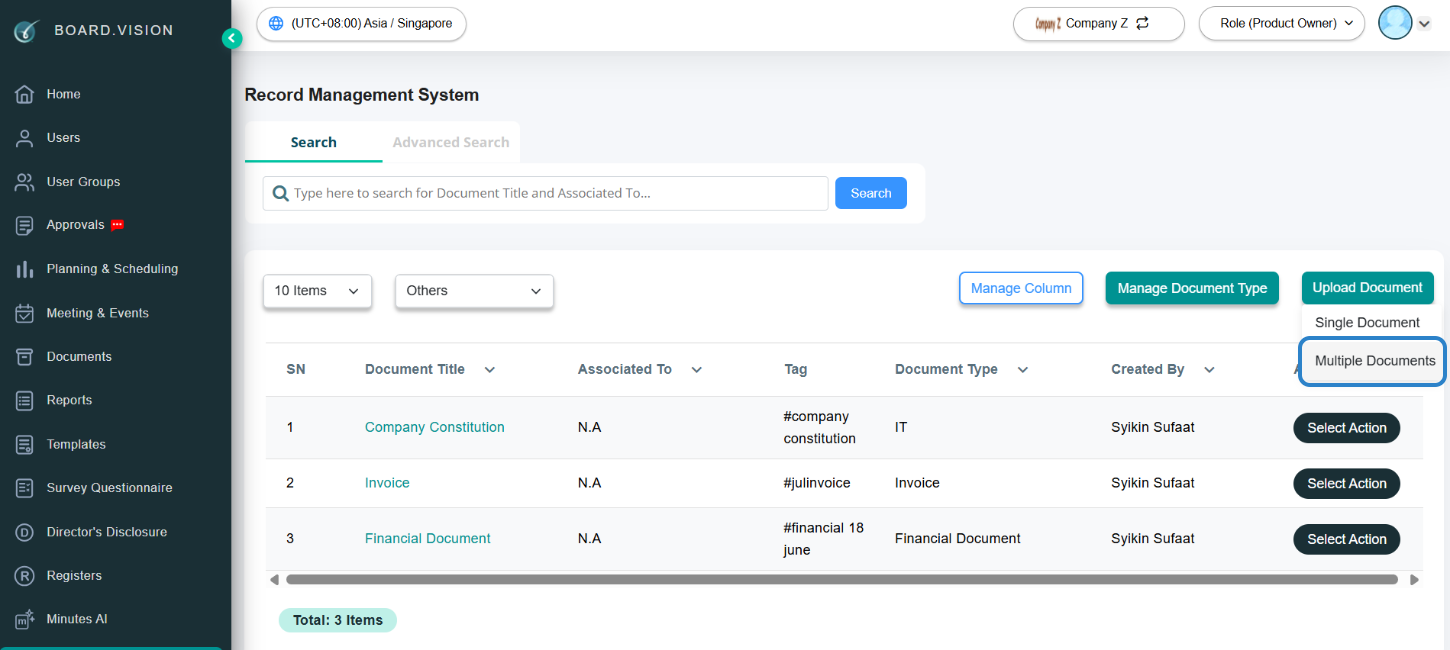
Upload multiple files simultaneously.
Click Upload Document and select Multiple Documents.
Drag and drop files into the drop zone, or click Browse to select documents from your local device,
Select the applicable Document Type from the dropdown menu.
Click Import.
2.2 Add Tags for Classification
Tags allow granular, cross-module document retrieval beyond standard folder structures.
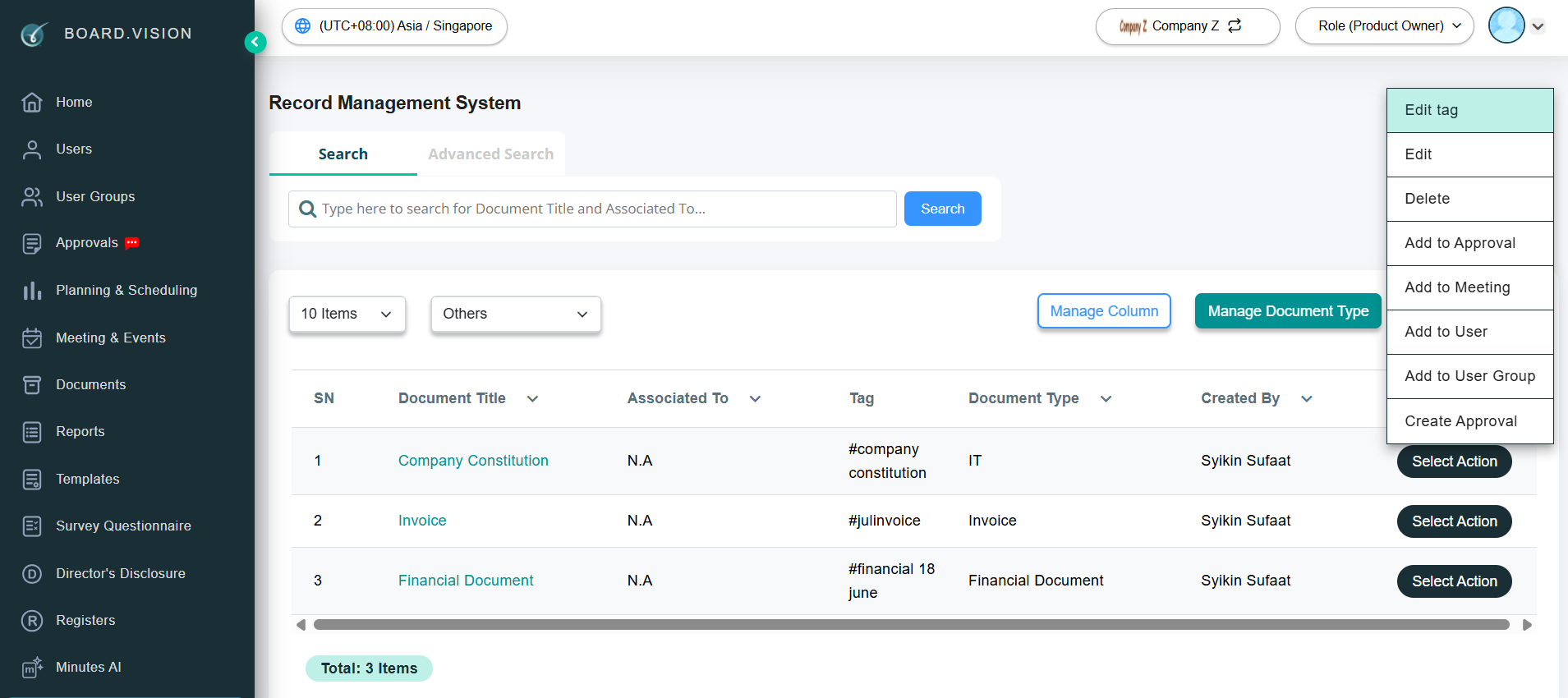
During document upload (or by selecting Select Action for an existing file and clicking Edit tag), navigate to the Tags field.
Type the desired tag keyword (e.g.,
#Audit2026,#HR-Policy,#Q3-Results) and click Confirm.
2.3 Link Uploaded Documents to Existing Records
Establish cross-references between standalone RMS documents and active board items.
Select the uploaded document from the RMS list.
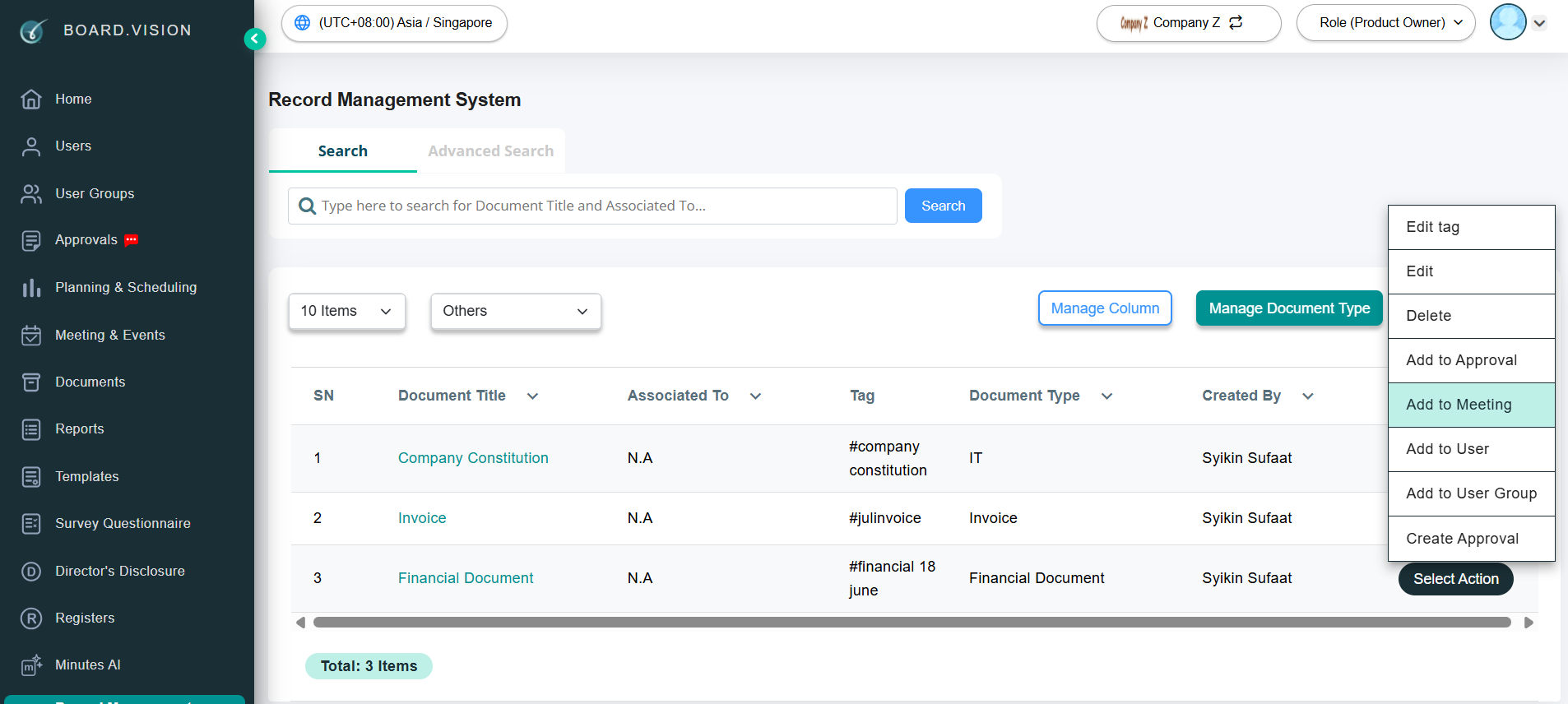
Click Select Action for an uploaded file and choose Add to Approval/Meeting/User/User Group.
Search and select the corresponding item (e.g., Q3 Board Meeting Agenda Item 4.1).
Click Confirm.
Section 3: Search & Navigation
3.1 Search for Documents
Locate specific files using global keyword parameters.
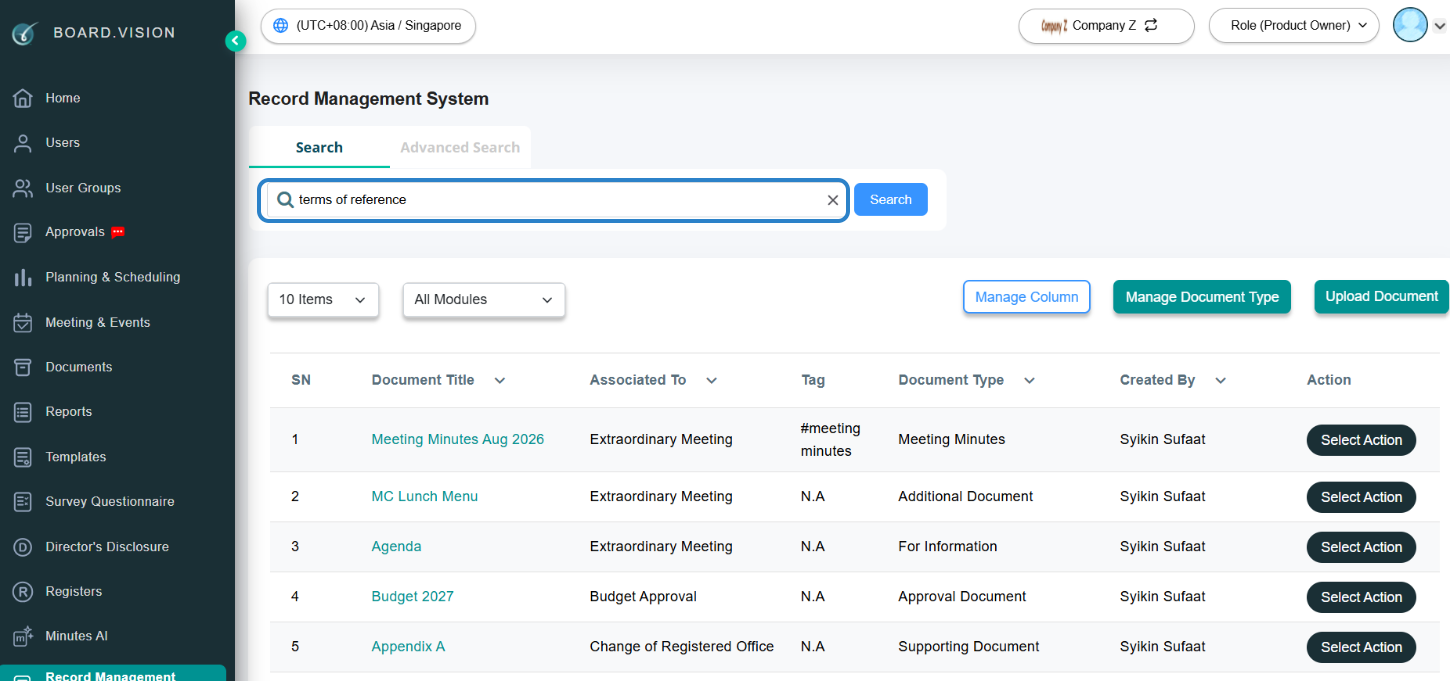
Enter your search query into the top RMS Search Bar.
Search by Document Title and Associated To.
3.2 Advanced Search
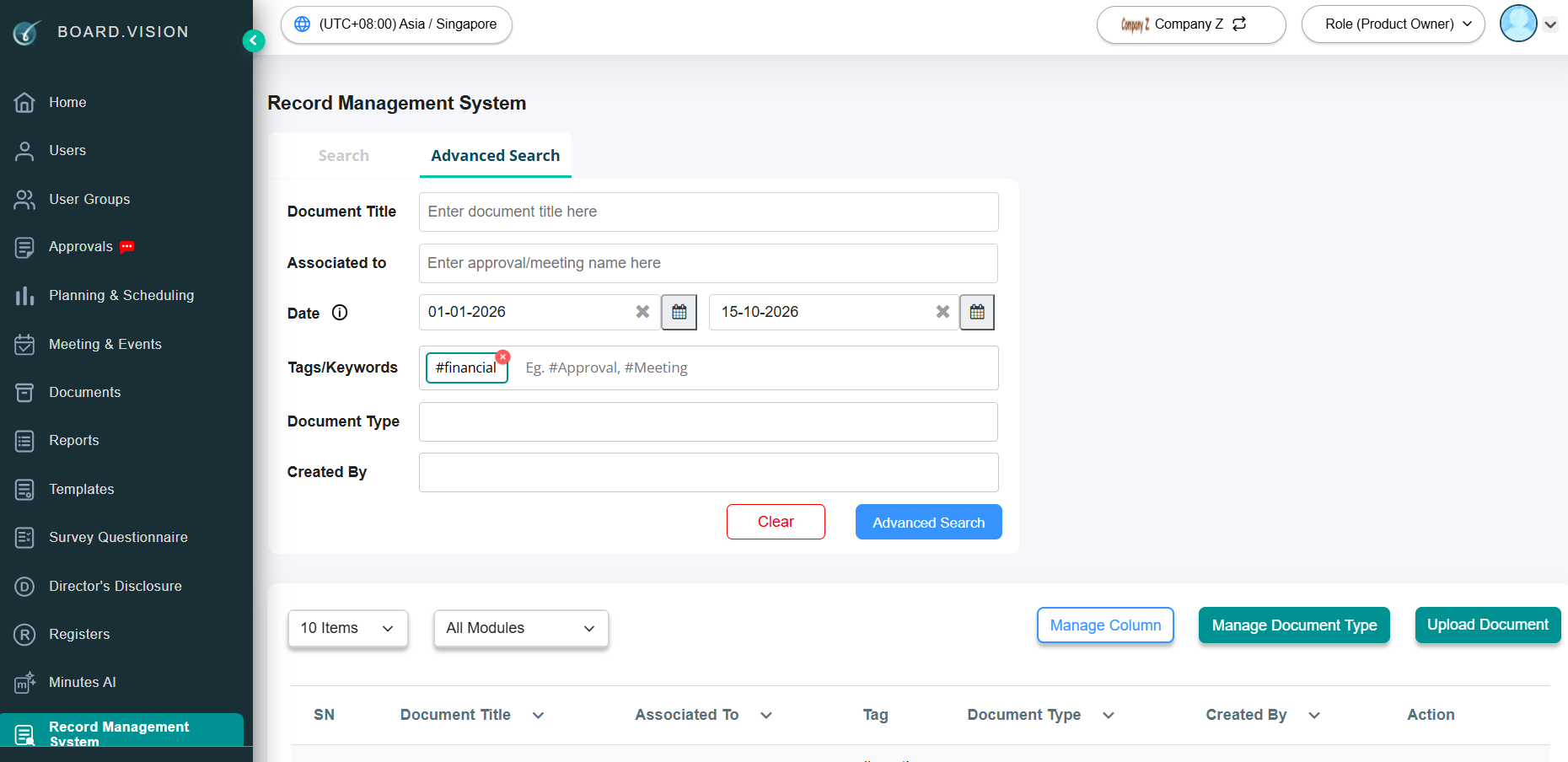
For a more detailed search across specific parameters, use the Advanced Search tool.
Click Advanced Search.
Refine your query by specifying additional criteria, such as Document Type, Date Range, Uploaded By, or specific Tags.
Click Advanced Search to view the filtered list of documents.
3.3 Filter Documents by Module
Narrow search parameters by source system origin.
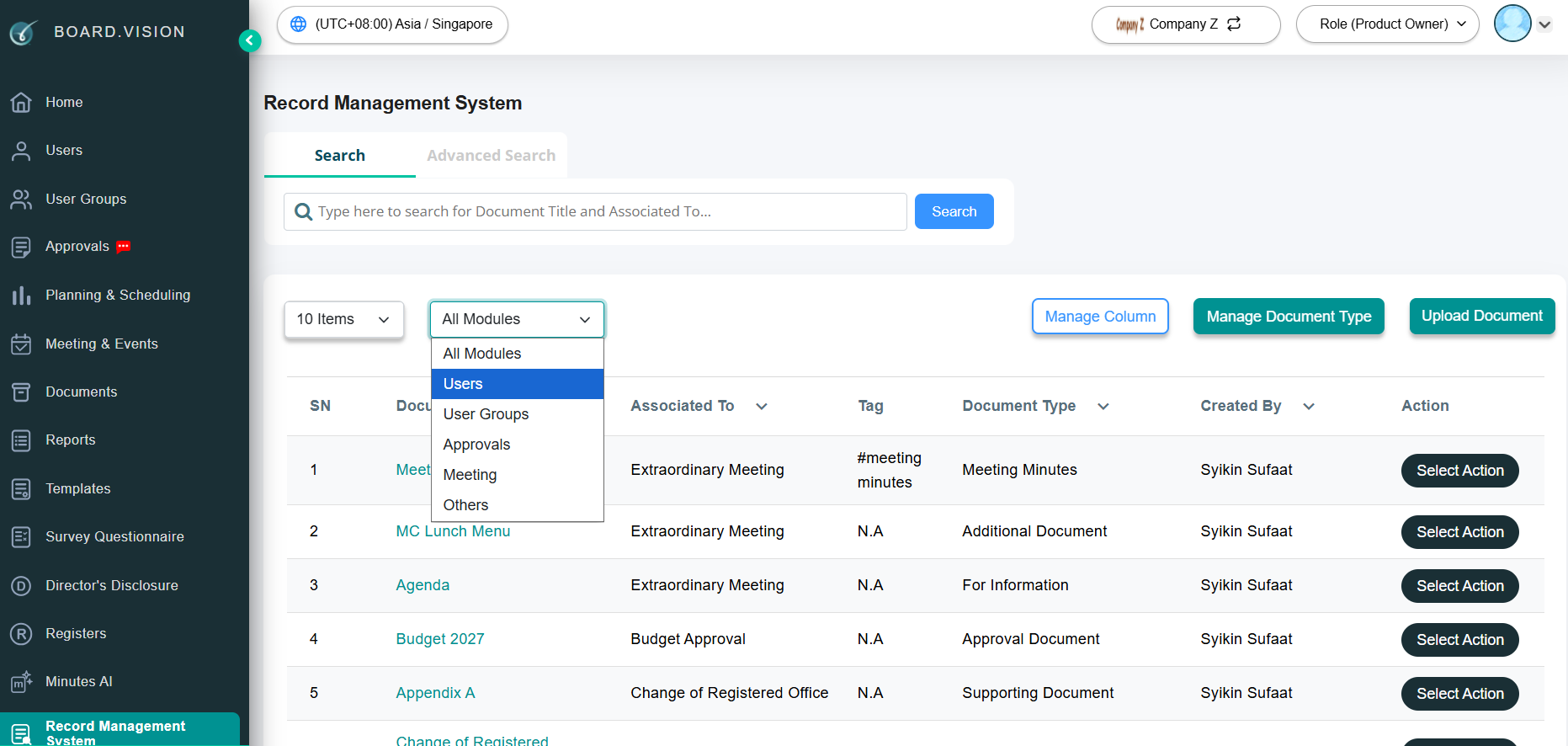
On the RMS main view, click Filter By Module toolbar.
Select target origins (e.g. Users, User Groups, Approvals, Meetings and Others).
If you face any issues, please reach out to our Board.Vision Customer Success Team at support@board.vision or +65 6909 7100 and we will be happy to help.
Our hotline operating hours are from Mondays to Fridays 9:00 AM to 6:00 PM SGT (excluding public holidays).
Was this article helpful?
That’s Great!
Thank you for your feedback
Sorry! We couldn't be helpful
Thank you for your feedback
Feedback sent
We appreciate your effort and will try to fix the article