Templates in Board.Vision allow Administrators to standardise frequently circulated files and reuse pre-configured fields —such as standard board resolutions, or consent forms
Section 1: Set Up a Document Template
Create and configure the master file in the Templates Library:
1.1 Access the Template Library:
Navigate to Templates on the left menu, and select + Add Template.
1.2 Select Base & Upload File:
Choose the following options:
- Upload a custom Word document from your local drive.
- Draft with AI and generate a prompt or use a predefined system template.
1.3 Update Fields & Save:
Update the pre-populated fields or wordings and click Save Template.
Section 2: Create Module Items Using Your Template
Once saved, you can instantly apply your template across three primary Board.Vision workflows:
┌──> 1. Documents (Repository & Distribution)
[ Saved Template ] ───┼──> 2. Approvals (Board Resolutions)
└──> 3. SmartSign (E-Signatures & Execution)
Option A: Create a Document via Templates
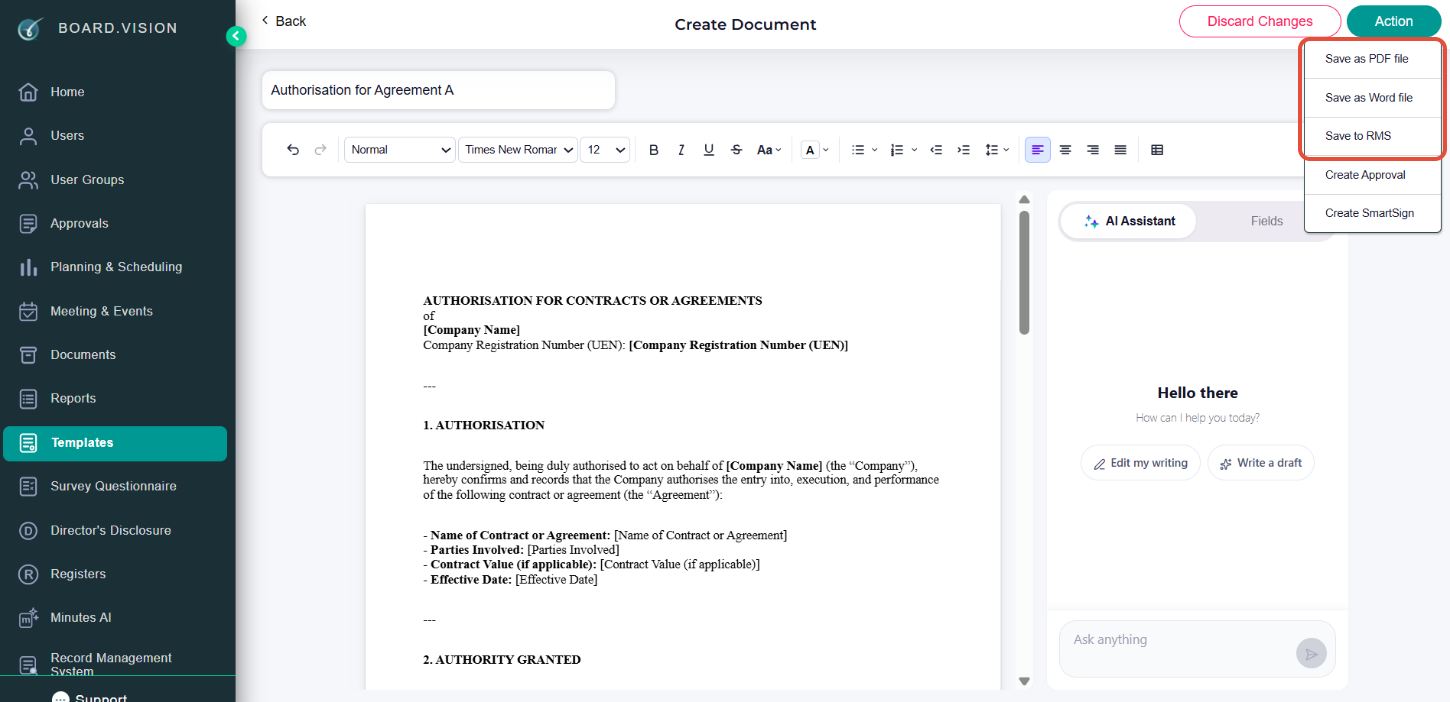
- Go to Templates > click Select Action > click Create Document.
- Name your document.
- Update the pre-populated fields.
- Click Action and select Save as PDF or Word document or Save to RMS for repository.
Option B: Create an Approval via Templates
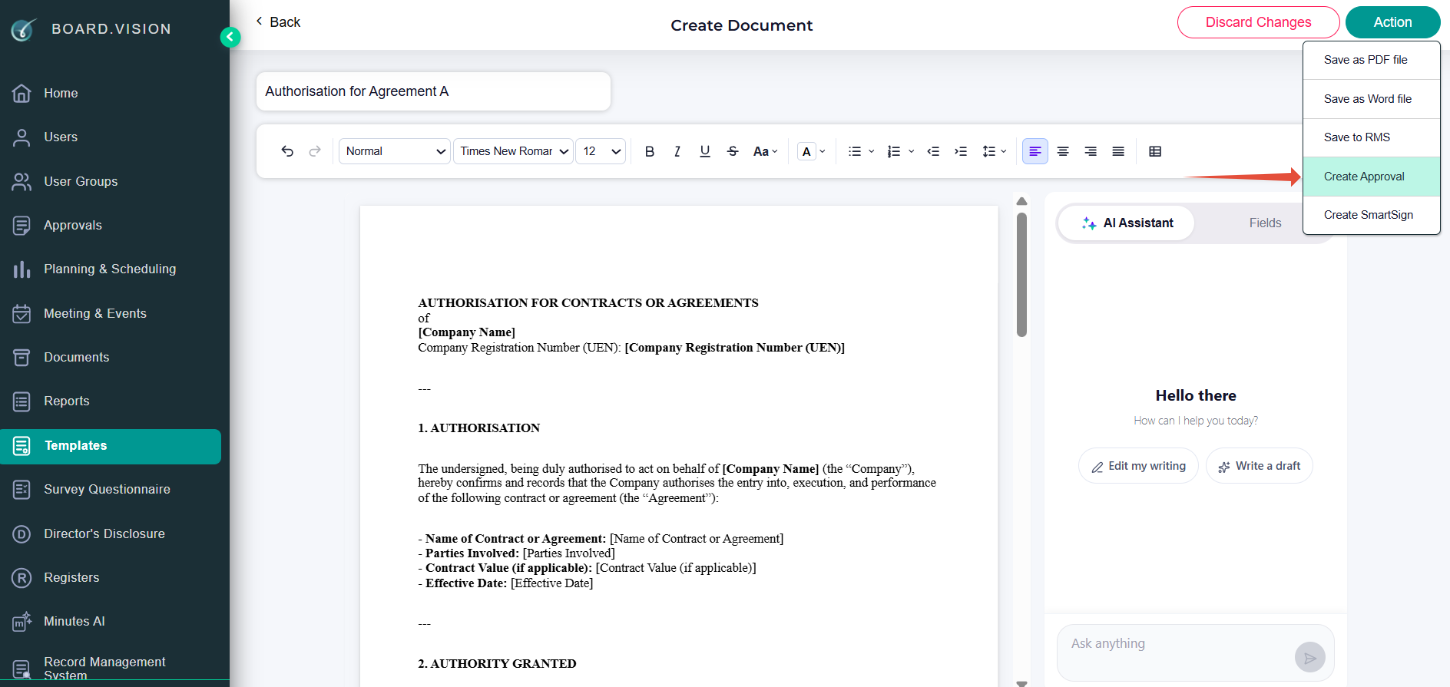
- Go to Templates > click Select Action > click Create Document.
- Name your document.
- Update the pre-populated fields.
- Click Action and select Create Approval.
Option C: Create a SmartSign Document via Templates
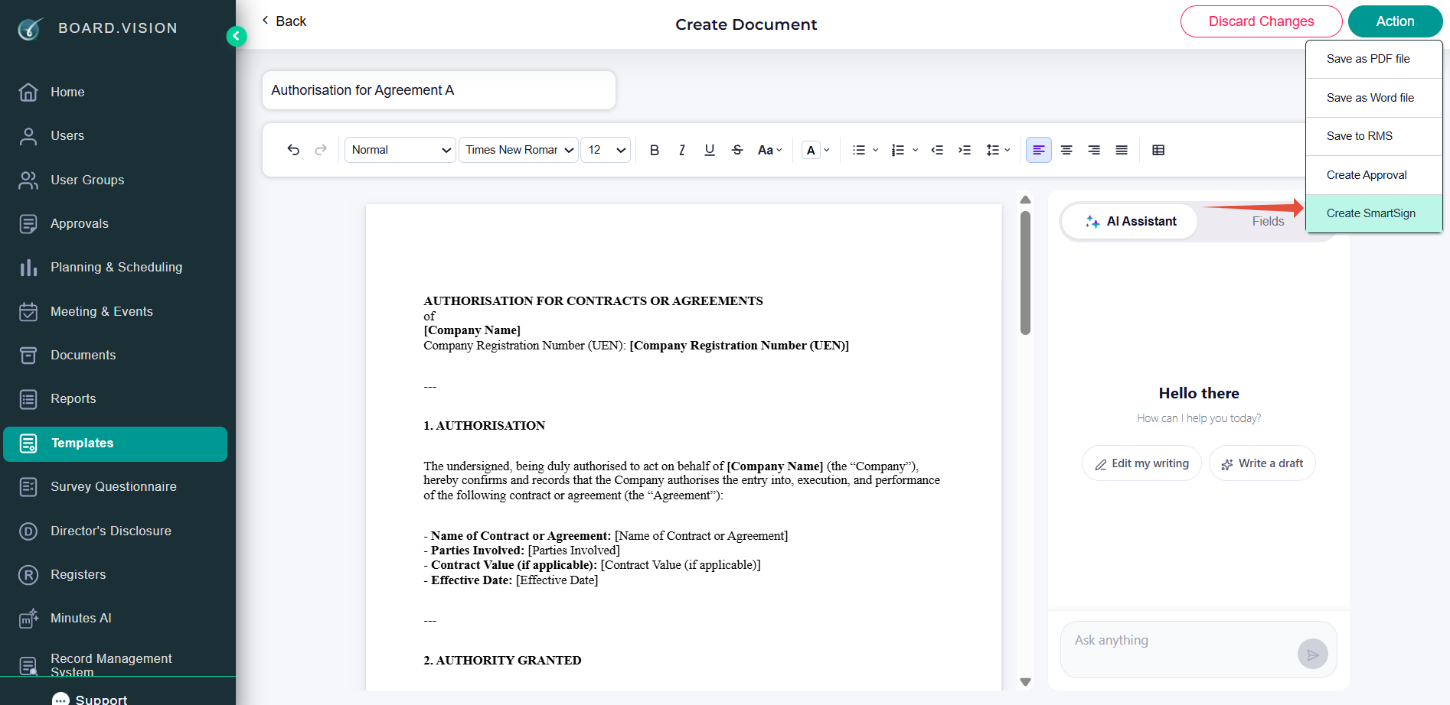
- Go to Templates > click Select Action > click Create Document.
- Name your document.
- Update the pre-populated fields.
- Click Action and select Create SmartSign.
If you face any issues, please reach out to our Board.Vision Customer Success Team at support@board.vision or +65 6909 7100 and we will be happy to help.
Our hotline operating hours are from Mondays to Fridays 9:00 AM to 6:00 PM SGT (excluding public holidays).
Was this article helpful?
That’s Great!
Thank you for your feedback
Sorry! We couldn't be helpful
Thank you for your feedback
Feedback sent
We appreciate your effort and will try to fix the article