We have introduced a new License Settings Dashboard in Board.Vision Web, allowing designated Contract License Managers to monitor usage and manage user access for Minutes AI and SmartSign across companies under the same contract.
Who Can Access the License Settings Dashboard?
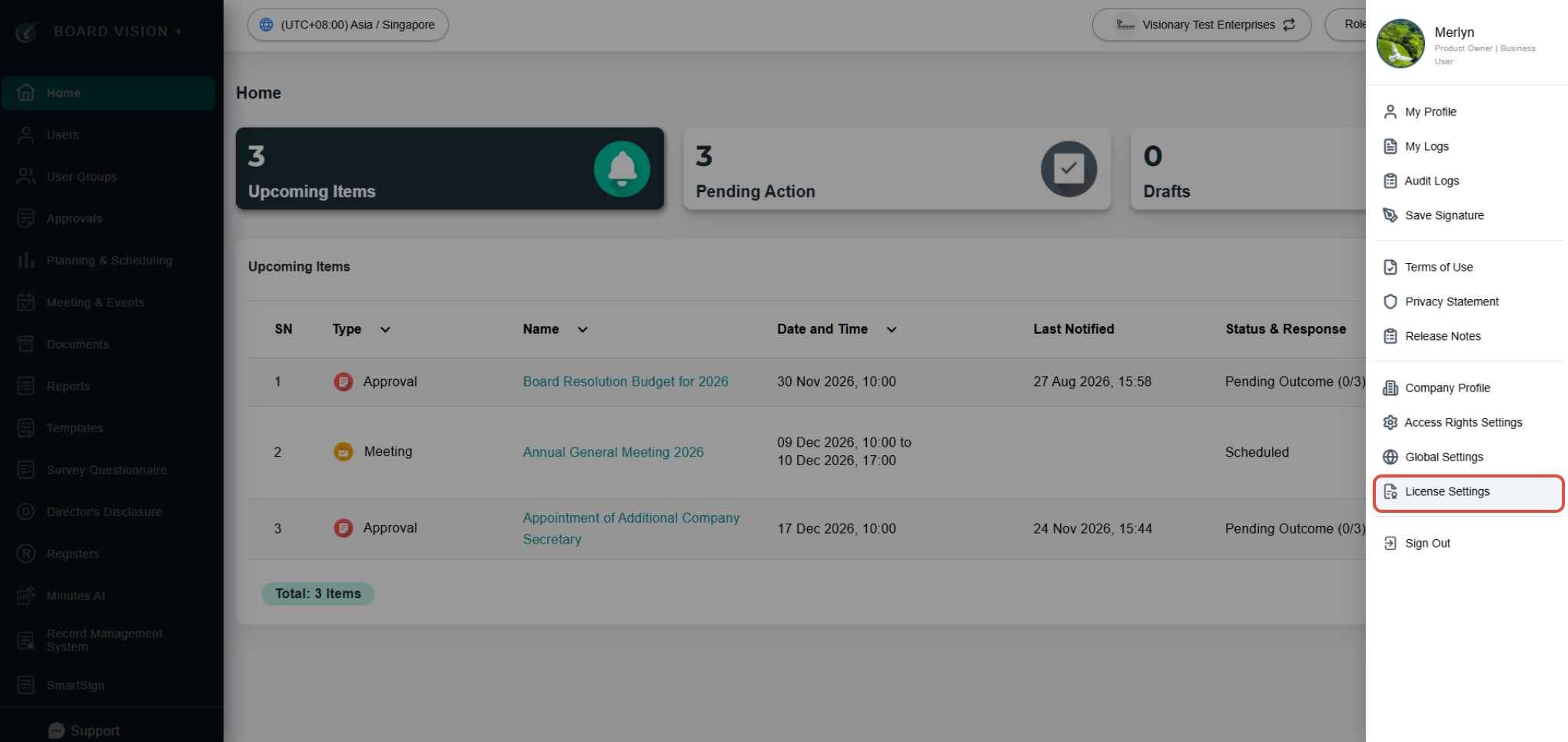
Designated Contract License Managers can access the License Settings option from their profile in Board.Vision Web to view and manage the dashboard.
Note: Initial Contract License Manager roles are assigned by the Board.Vision Customer Success Team upon request from your organisation's authorised representative. To nominate or update a Contract License Manager, please reach out to us at support@board.vision.
Key Features and Enhancements
1. Dedicated Settings for Minutes AI and SmartSign
Designated Contract License Managers can access the dashboard by clicking License Settings from their profile menu.
Toggle between separate configuration tabs for Minutes AI and SmartSign within the License Dashboard.
2. Monitor Minutes AI Usage
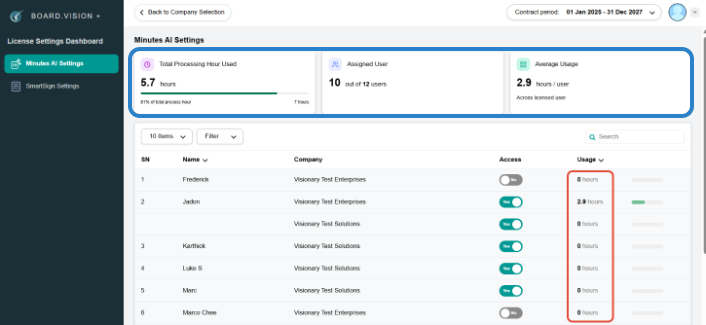
View individual user processing-hour usage in the list below, alongside summary cards at the top showing total allocated hours, overall hours used (with percentage), assigned user counts, and average usage per user across companies under the same contract.
3. Monitor SmartSign Usage
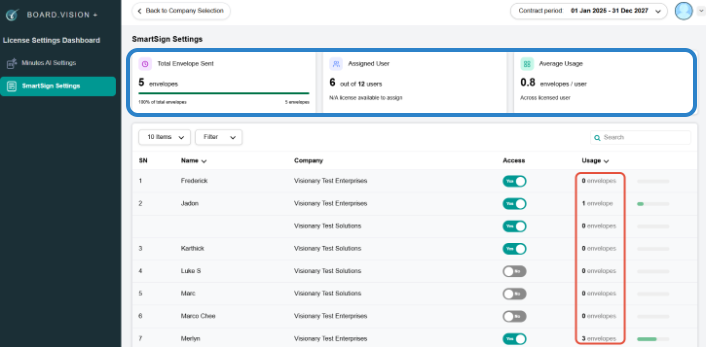
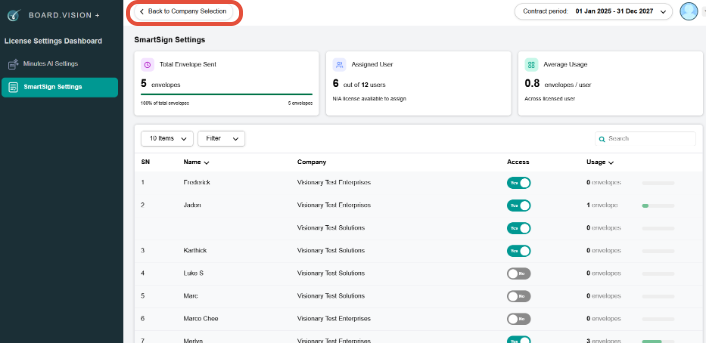
View individual user envelope usage in the list below, alongside summary cards at the top showing total and remaining allocated envelopes (with percentage), assigned user counts, and average usage per user across companies under the same contract.
4. Manage User Access
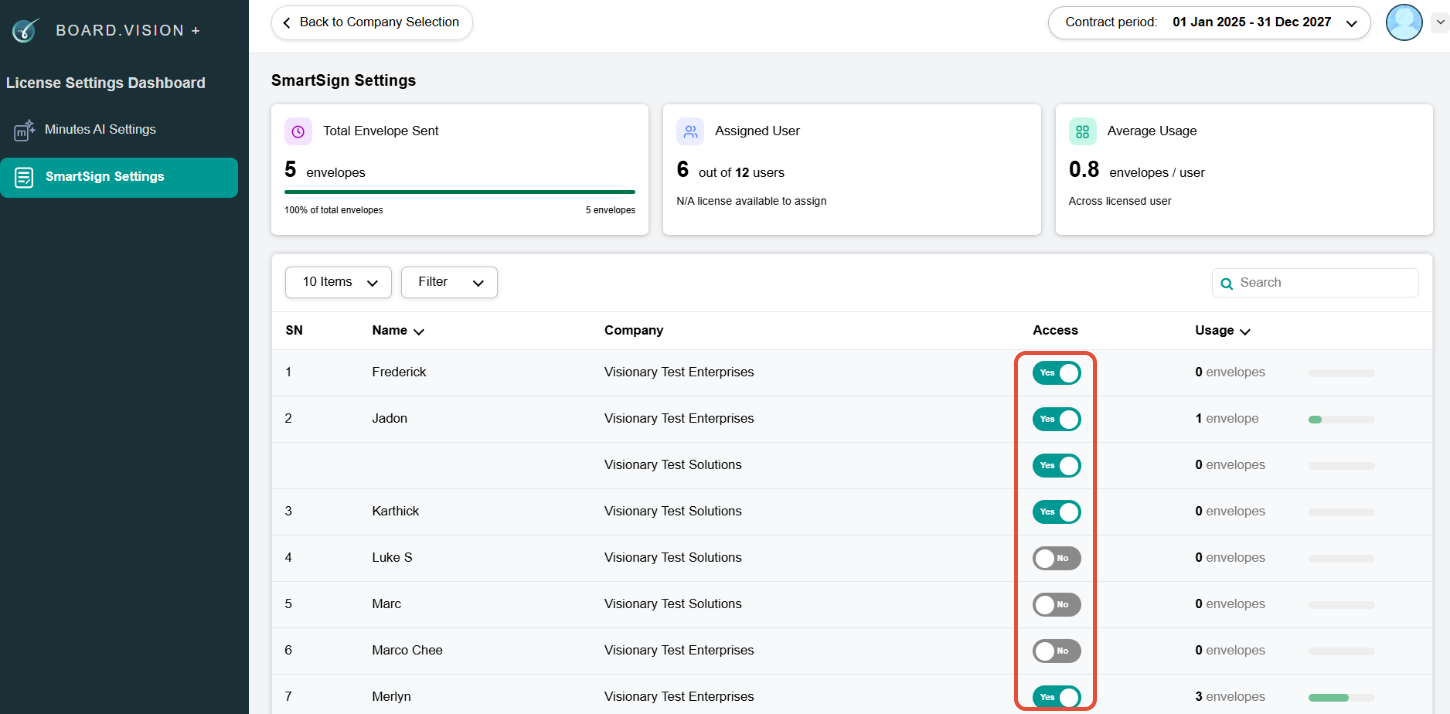
Enable or disable access to Minutes AI or SmartSign for individual users within a specific company, or across all companies under the same contract.
5. Consolidated Multi-Company User Tracking
Users belonging to multiple companies under the same contract are grouped under a single entry with separate rows for each company—allowing access and usage to be tracked per entity while counting the user as one consolidated license across the contract.
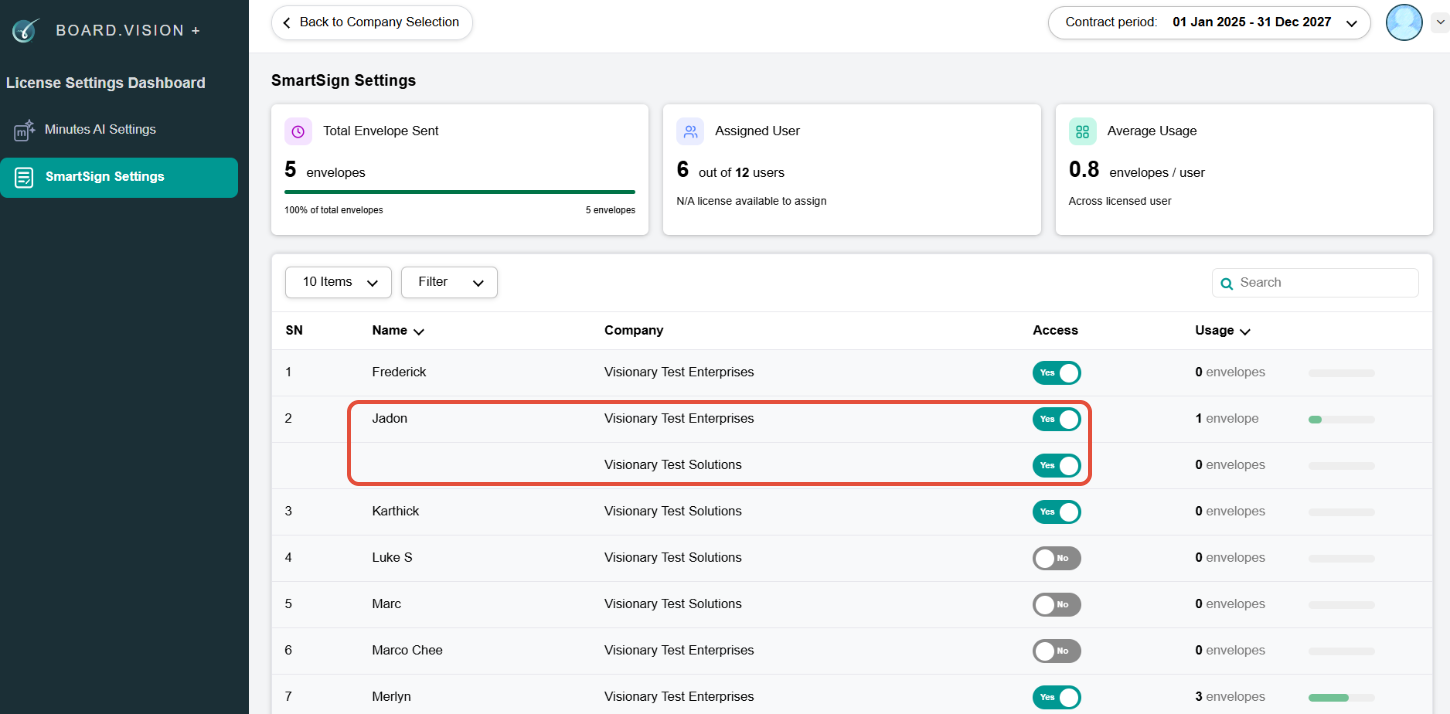
6. Filter, Sort & Switch Records
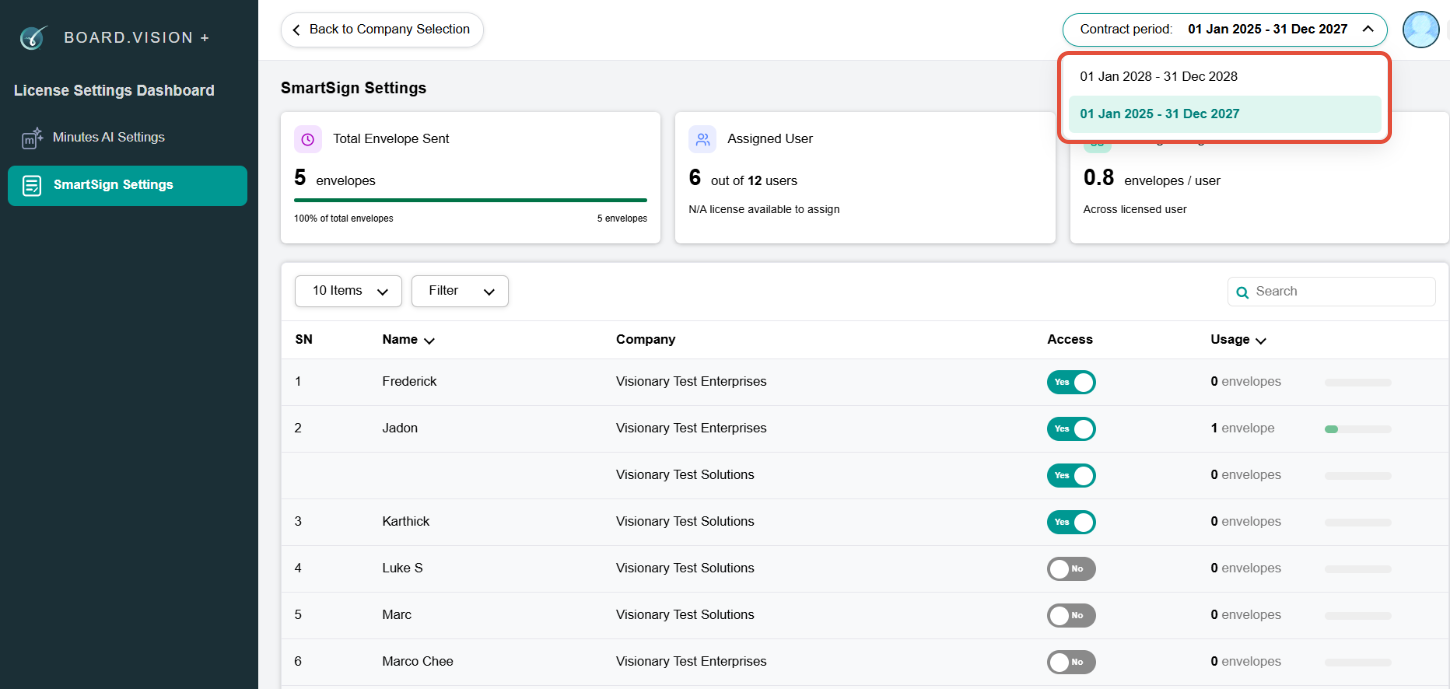
a. Contract Period Switcher: Use the Contract Period dropdown to view license settings and usage for different contract periods.
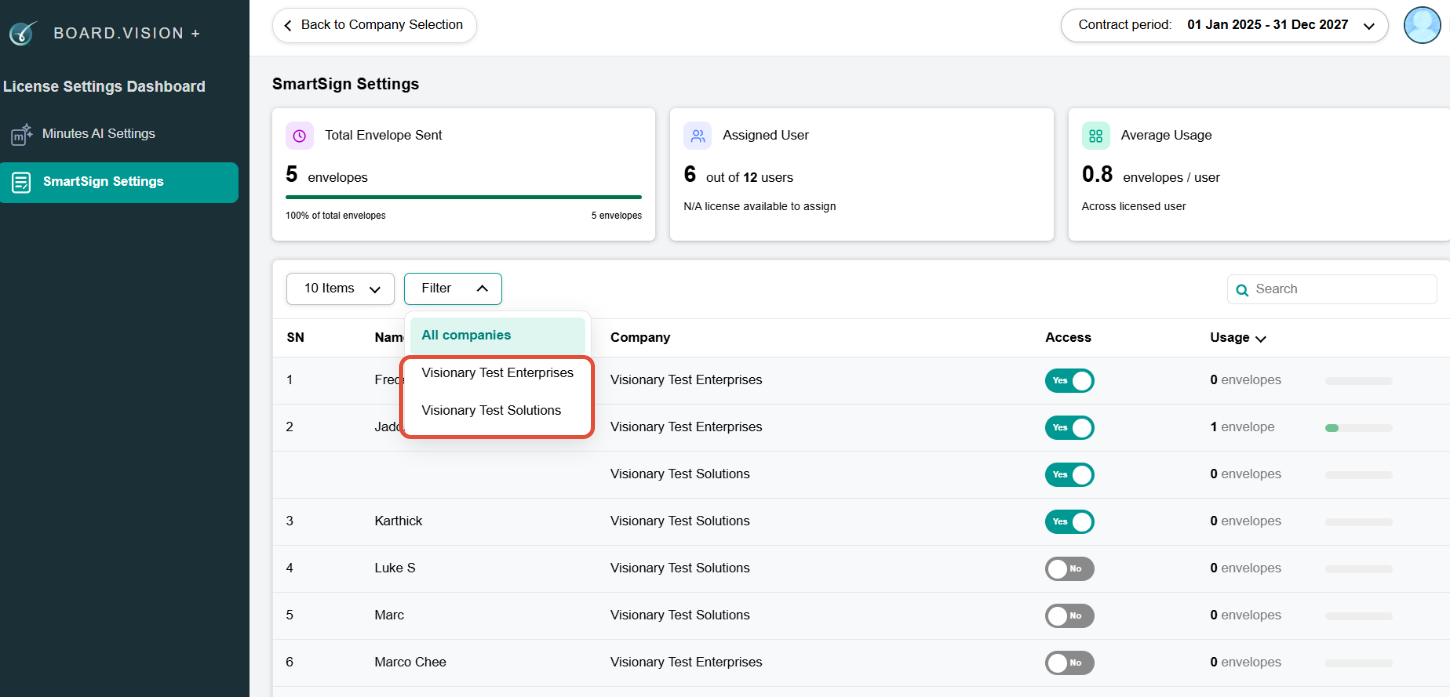
b. Filter by Company: Narrow down user records to a specific company under the contract.
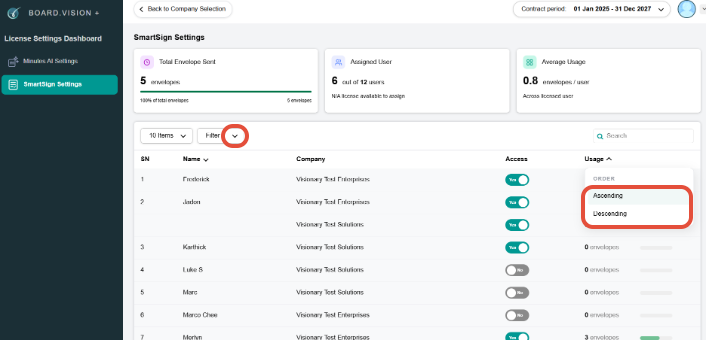
c. Sort User Records: Sort by Name alphabetically or Usage to quickly identify high-usage users.
d. Quick Navigation: Click Back to Company Selection anytime to return to the company selection screen.
If you face any issues in completing the steps shown in this tutorial, please reach out to our Board.Vision Customer Success Team at support@board.vision or +65 6909 7100 and we will be happy to help.
Our hotline operating hours are from Mondays to Fridays 9:00 AM to 6:00 PM SGT (excluding public holidays).
Was this article helpful?
That’s Great!
Thank you for your feedback
Sorry! We couldn't be helpful
Thank you for your feedback
Feedback sent
We appreciate your effort and will try to fix the article