Welcome to Board.Vision Tutorials!
In this tutorial, we will walk you through the steps to change your Director's availability.
To change your Director's availability:
1) Log in to your Board.Vision account using your registered email address and password.
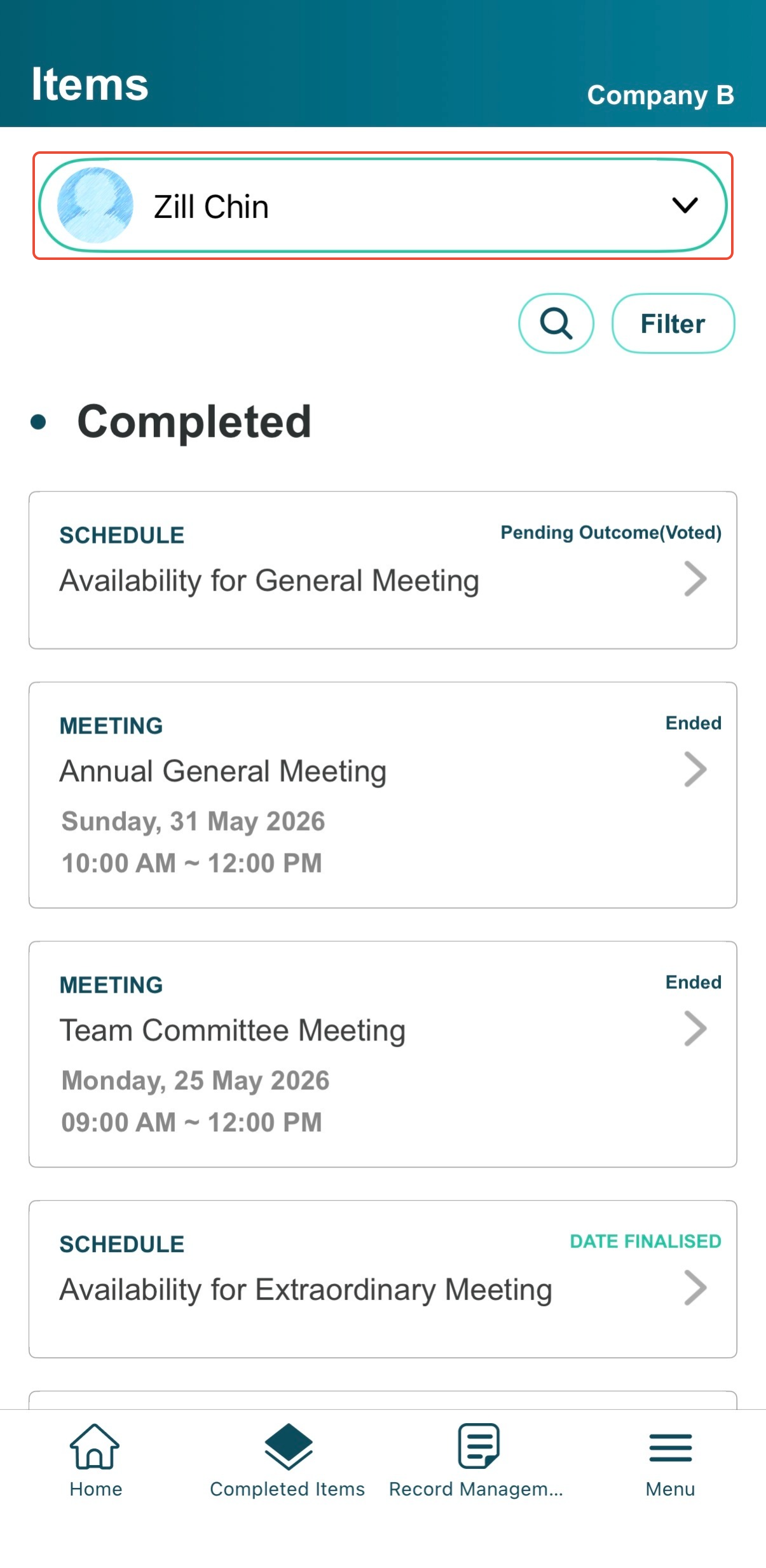
2) Once you have logged in, go to Completed items. Your Director's name will be displayed at the top of the screen.
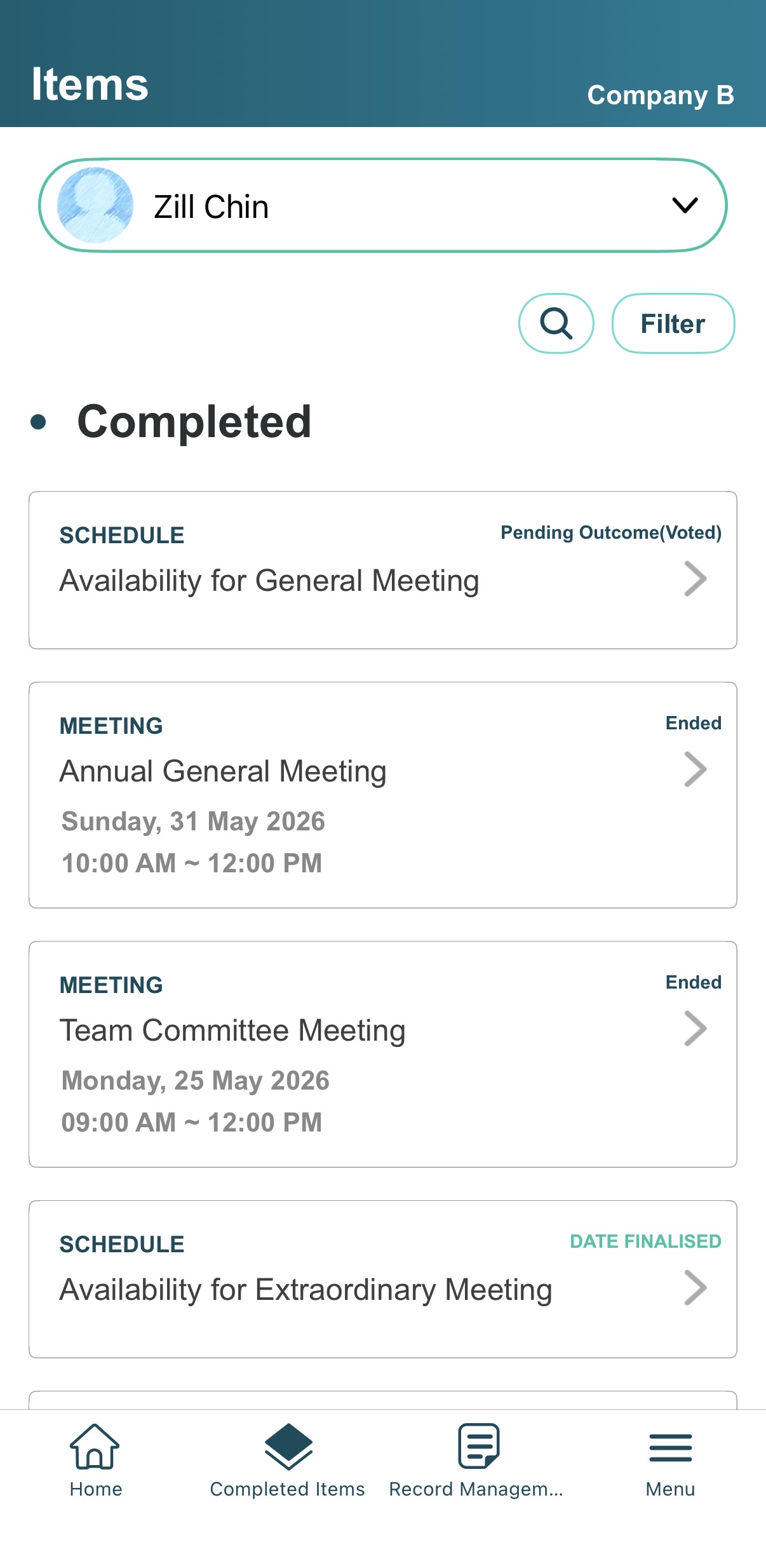
3) Switch Directors (if applicable)
If you wish to act on behalf of another Director:
a) Tap the Director's name.
b) Select the Director you wish to act for from the list.
c) Tap Done to confirm.
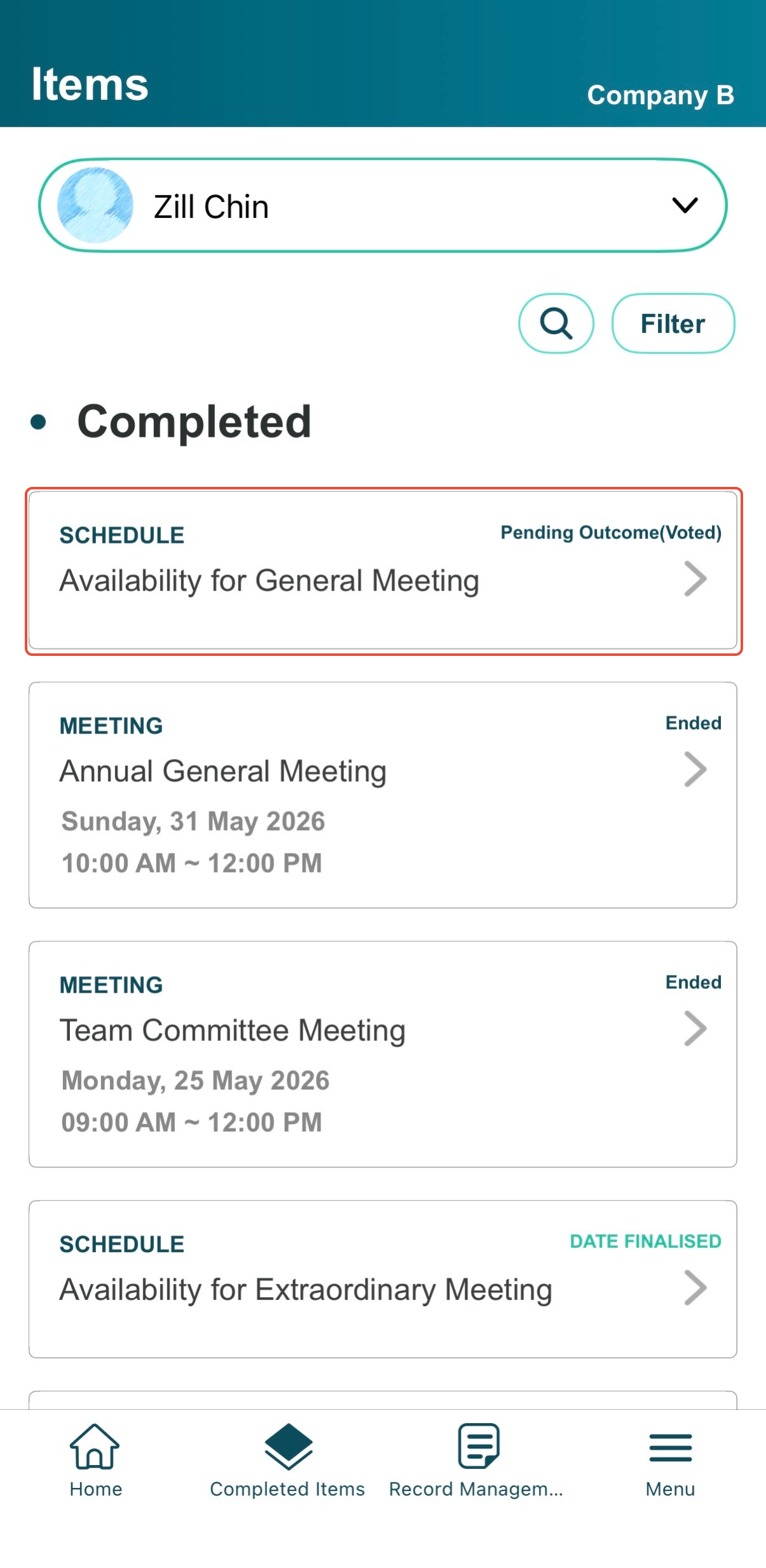
4) Then, tap on the Schedule.
5) Mark your new date(s) and tap on Update.
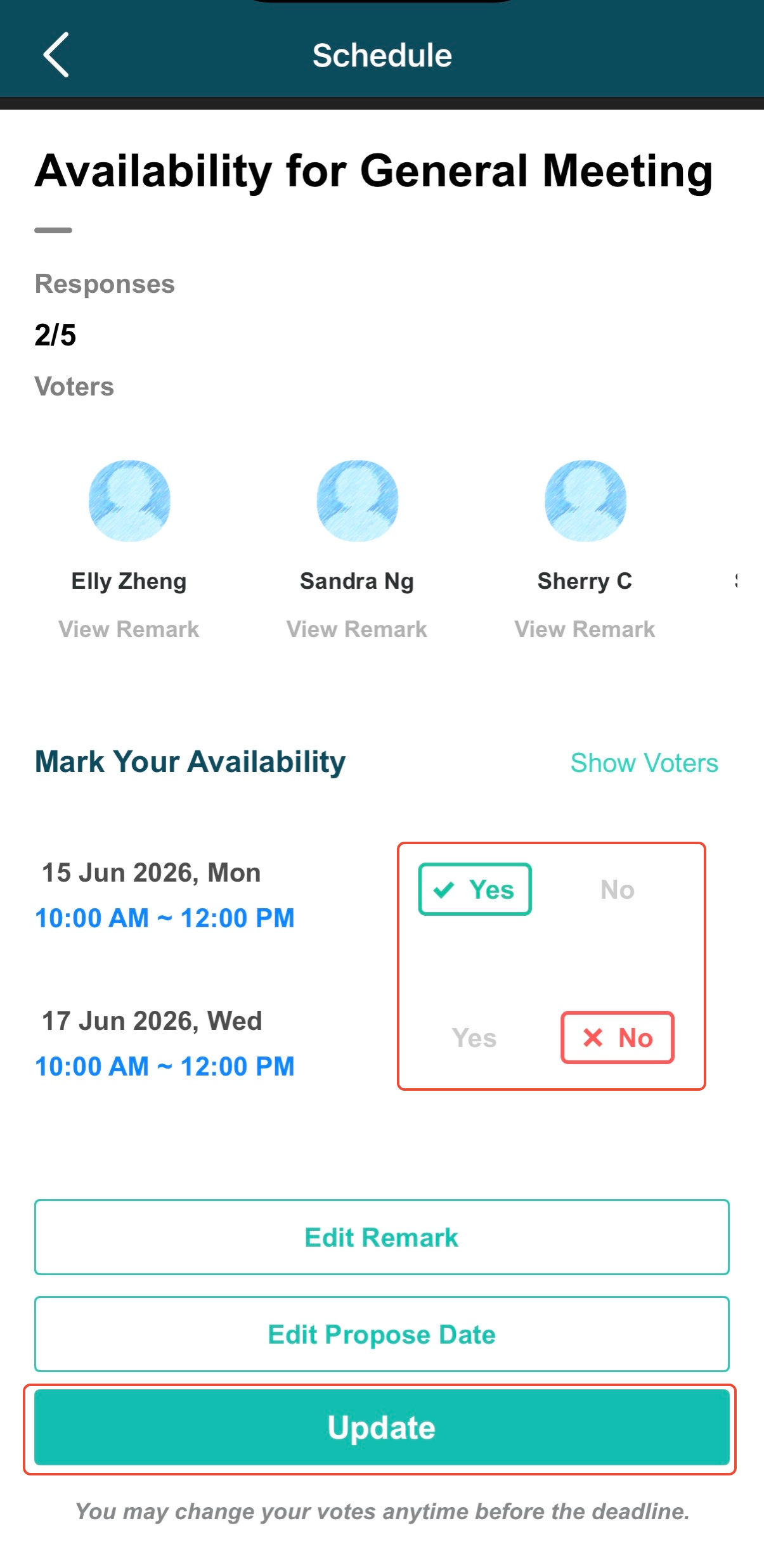
Important note: You may change your votes anytime before deadline.
You have completed the tutorial on how to change your Director's availability.
If you face any issues in completing the steps shown in this tutorial, please reach out to our Board.Vision Customer Success Team at support@board.vision or +65 6909 7100 and we will be happy to help.
Our hotline operating hours are from Mondays to Fridays 9:00 AM to 6:00 PM SGT (excluding weekends and public holidays).
Was this article helpful?
That’s Great!
Thank you for your feedback
Sorry! We couldn't be helpful
Thank you for your feedback
Feedback sent
We appreciate your effort and will try to fix the article