Business Users on iPhone can now be prompted to sign a SmartSign document immediately after approving a related approval document
A new pop-up notification will now appear after the user successfully approves a document if there are pending related SmartSign documents requiring signature.
Important Notes
The SmartSign pop-up is triggered only when “Approve” is selected.
Disapprove and Abstain actions will NOT trigger the SmartSign pop-up.
How to Approve a SmartSign Document Linked to an Approval
1) Open an Approval document and tap on Actions.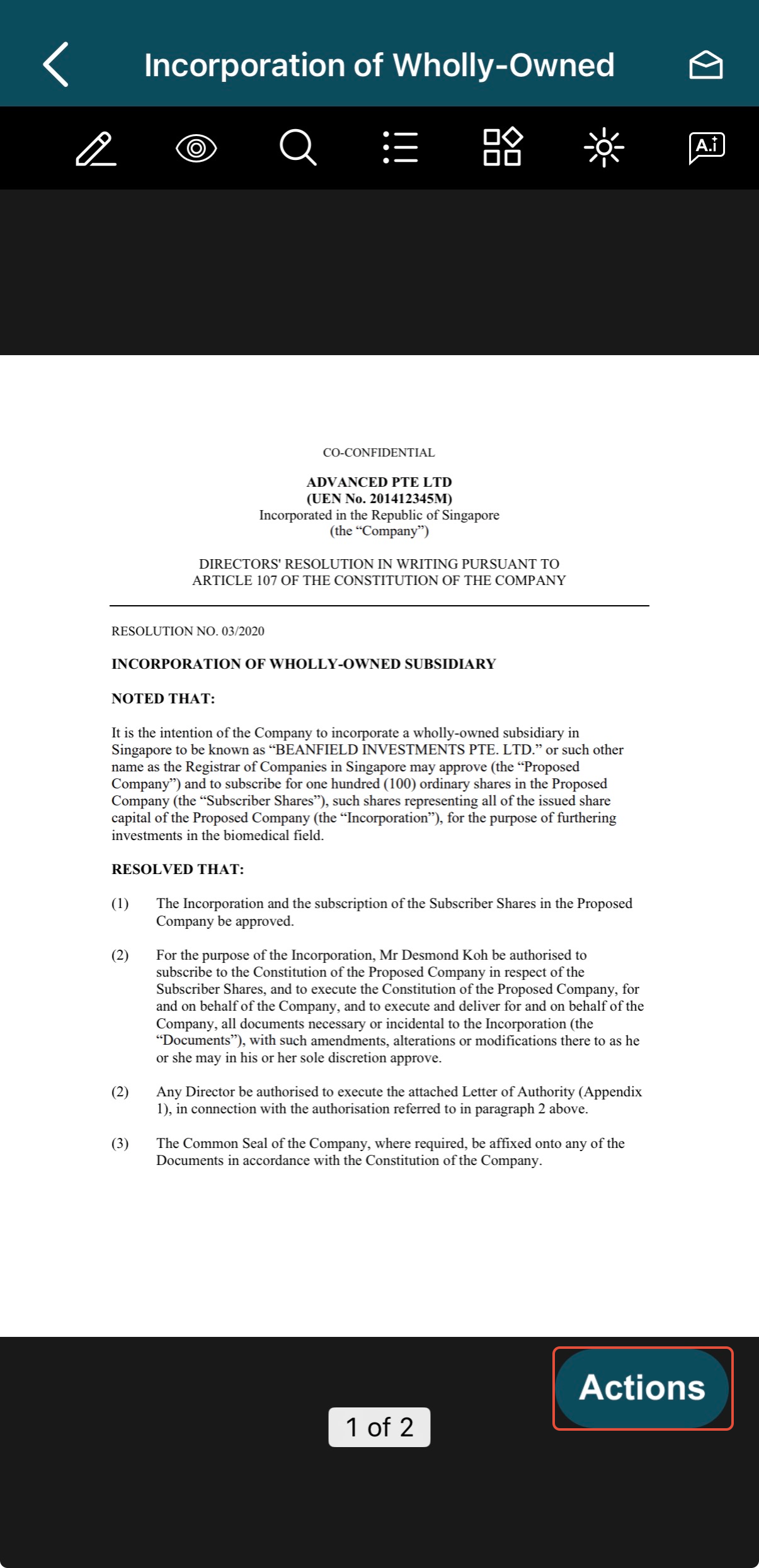
2) Select Approve. 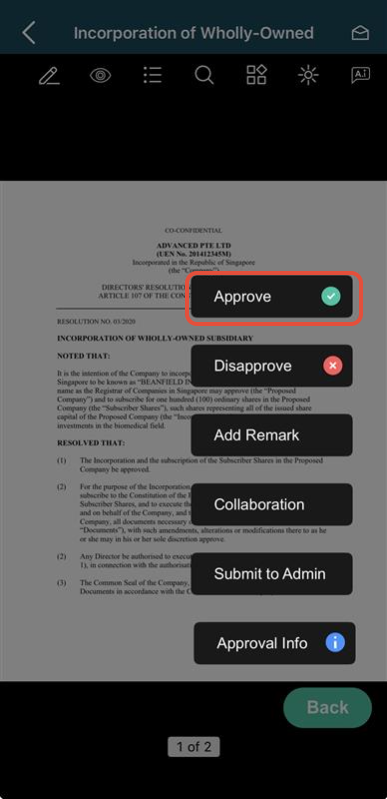
3) Sign on the Signature screen and tap on Continue.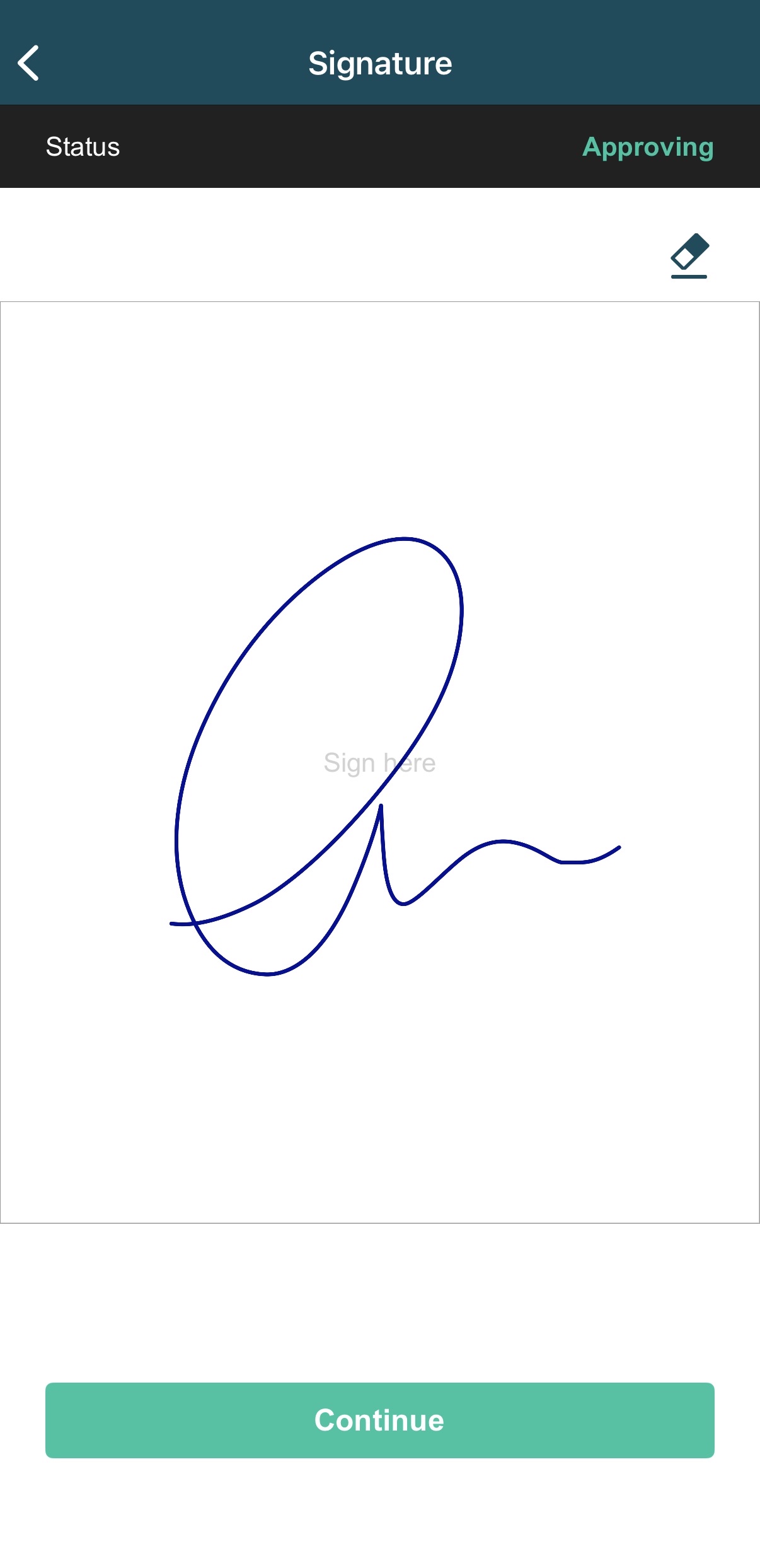
4) Enter the One-time password (OTP) sent to your registered mobile or email (if enabled).
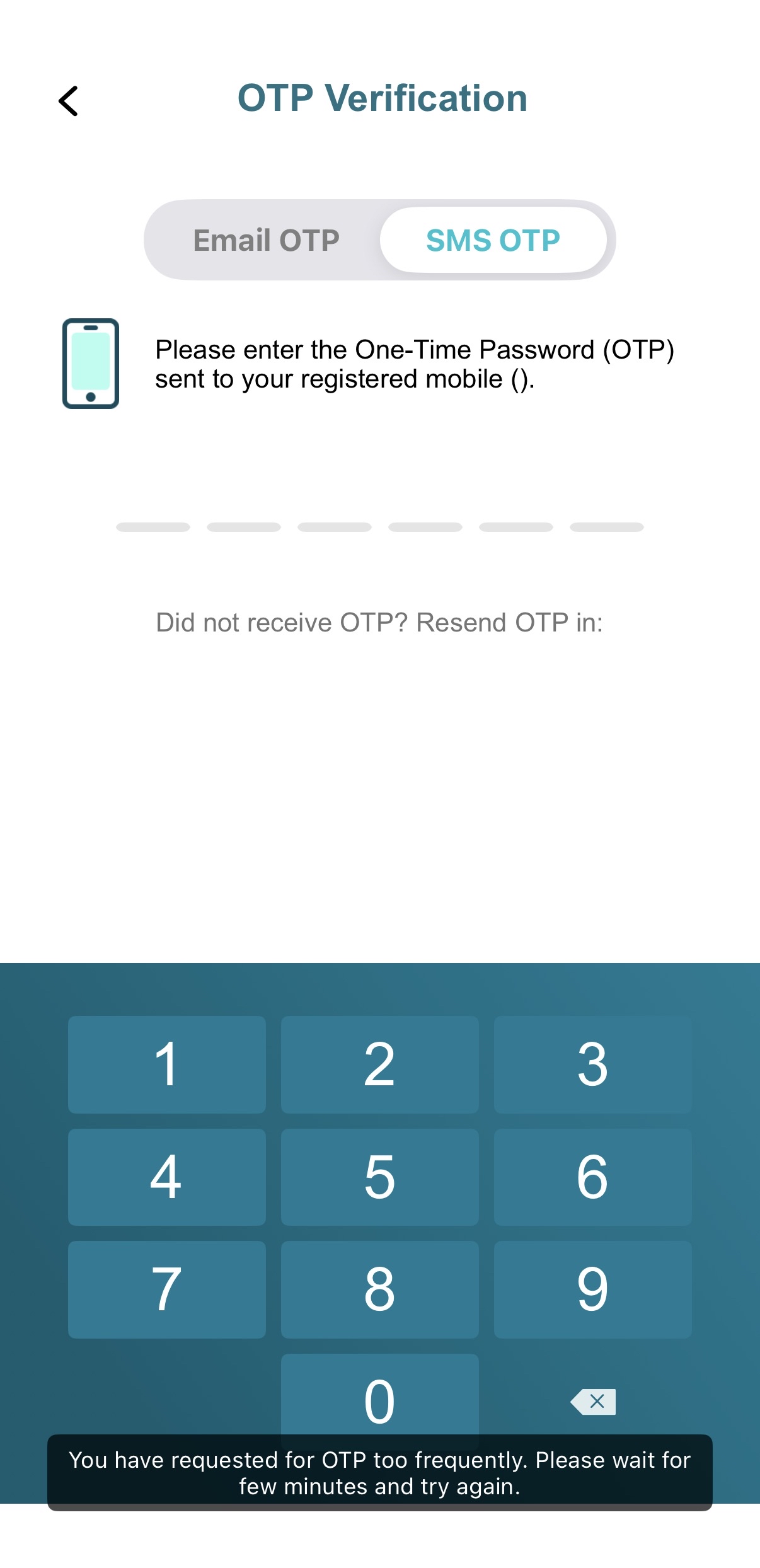
After authentication is completed:
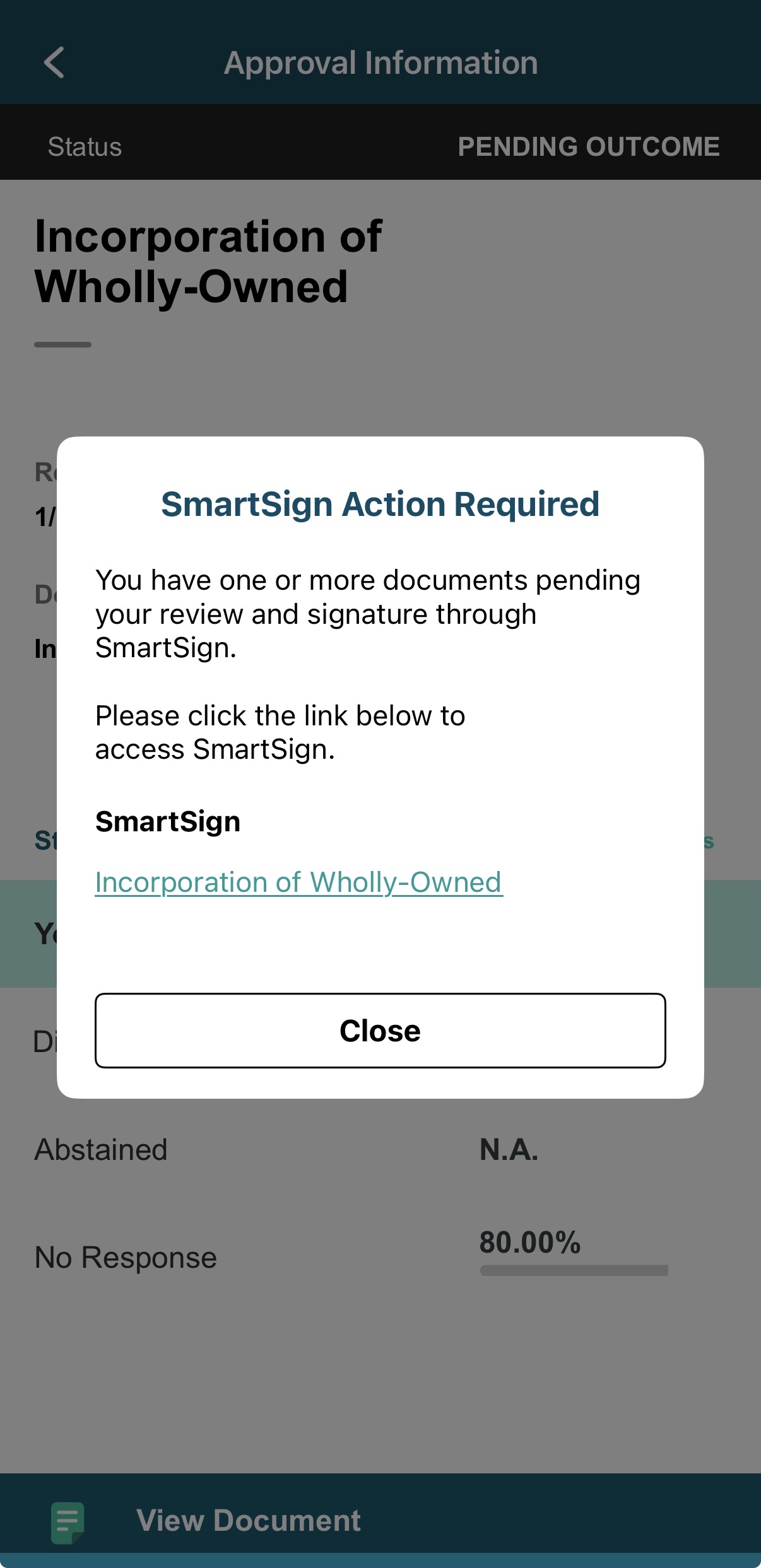
5) If a SmartSign document is linked and requires your signature, a pop-up will appear with a SmartSign link.
6) Tap the link to open the document in a new window.
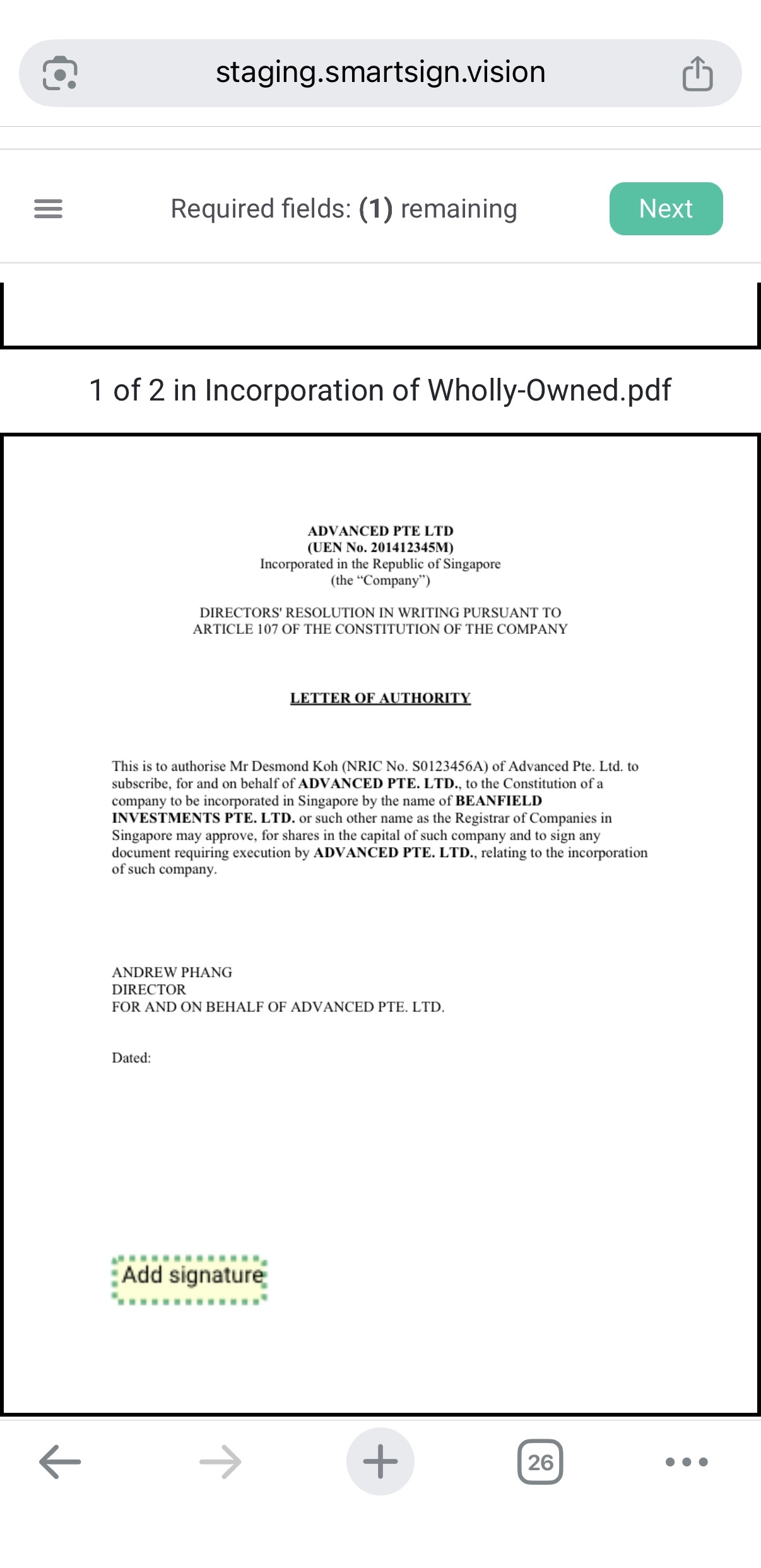
6) Once you have clicked on the link, you will be directed to the document in a new window.
Proceed to sign the document on the signature field provided.
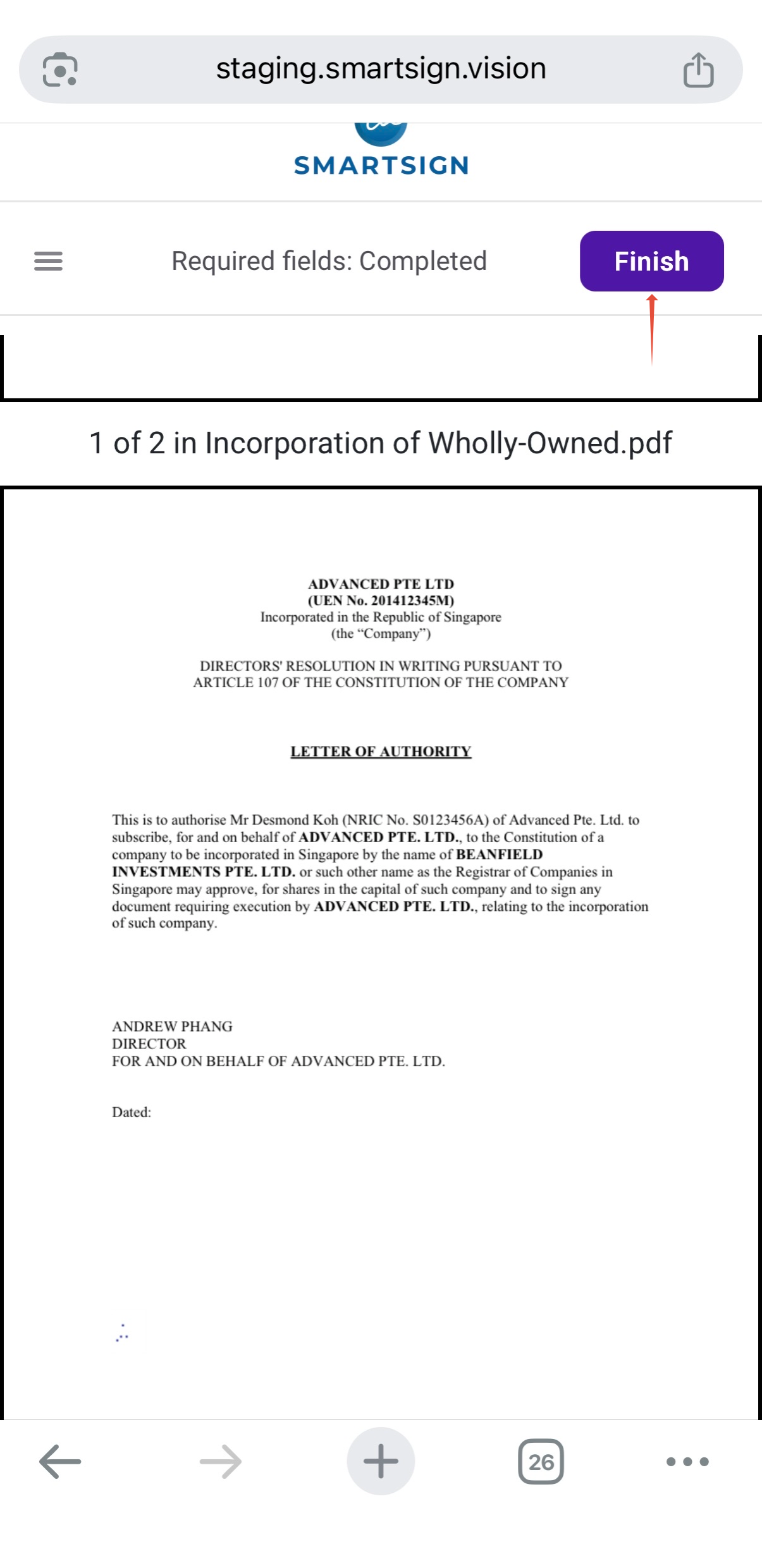
7) Tap on Finish to complete.
If you face any issues in completing the steps shown in this tutorial, please reach out to our Board.Vision Customer Success Team at support@board.vision or +65 6909 7100 and we will be happy to help.
Our hotline operating hours are from Mondays to Fridays 9:00 AM to 6:00 PM SGT (excluding public holidays).
Was this article helpful?
That’s Great!
Thank you for your feedback
Sorry! We couldn't be helpful
Thank you for your feedback
Feedback sent
We appreciate your effort and will try to fix the article