We have enhanced the workflow for adding Signatories in the SmartSign module.
Previously, Preparers were required to click “Add Signatory” and manually enter the signatory details each time a SmartSign document was created.
With this enhancement, Preparers can now view both Board.Vision users and non-BV users on the same page. They can also add non-BV users and save their details to the Signatory List, where the profiles can be edited or deleted for future use.
Below is a comparison of the previous and current designs for your reference.
Previous Design - When adding signatories, Preparers selected BV users separately and then clicked “Add Signatory” to manually add non-BV users for each SmartSign document created. | 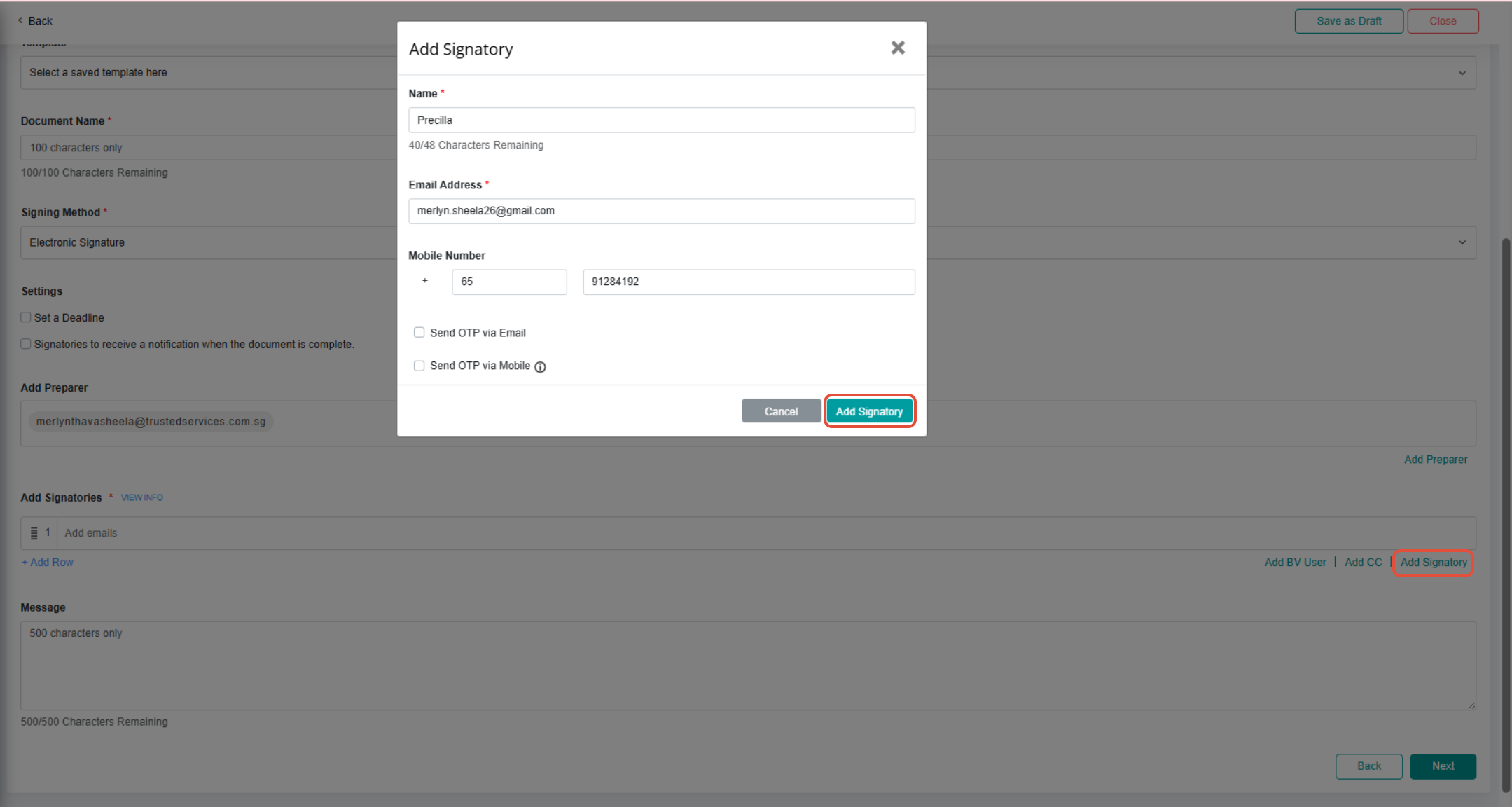 |
Current Design - Preparers can now view both BV users and non-BV users on the same page. They can also add non-BV users and save their details to the Signatory List, where the profiles can be edited or deleted as needed. | 1) Click “Select Signatory” on the Add Document page, then select “Add Signatory.”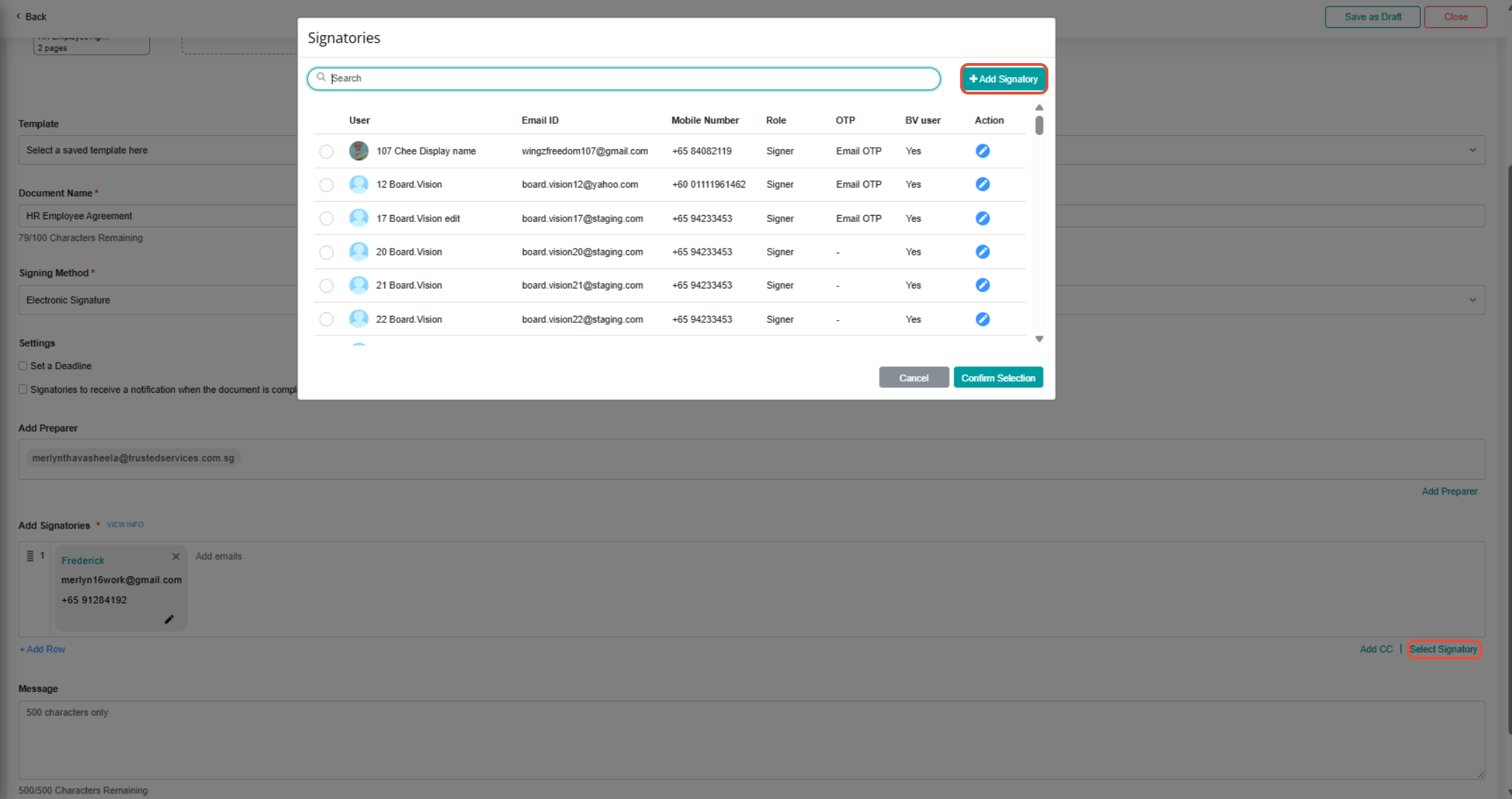 2) Enter the signatory’s details, select the role as Signer, Viewer, or Others (with the option to specify the exact role), and click “Add Signatory” to proceed. 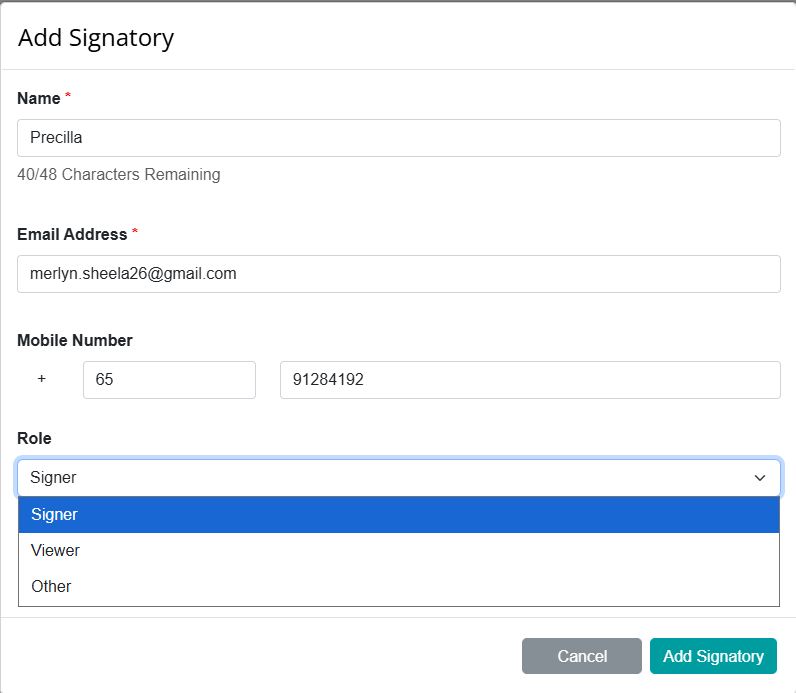 3) The newly created signatory will appear in the Signatories list, where the profile can be edited or deleted. The signatory will also be indicated as “No” under the BV User column. 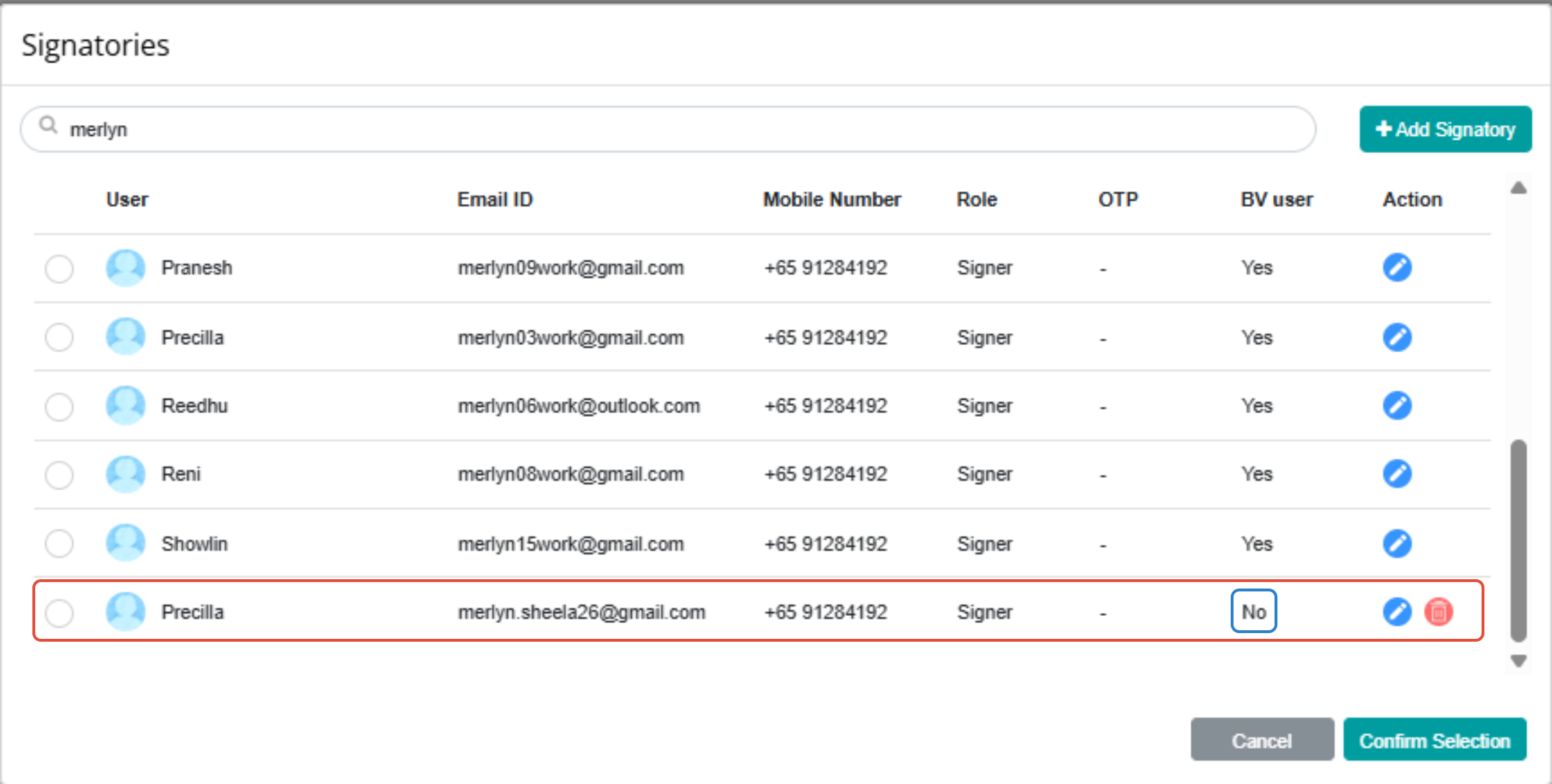 |
If you face any issues in completing the steps shown in this tutorial, please reach out to our Board.Vision Customer Success Team at support@board.vision or +65 6909 7100 and we will be happy to help.
Our hotline operating hours are from Mondays to Fridays 9:00 AM to 6:00 PM SGT (excluding public holidays).
Was this article helpful?
That’s Great!
Thank you for your feedback
Sorry! We couldn't be helpful
Thank you for your feedback
Feedback sent
We appreciate your effort and will try to fix the article