We have introduced a new enhancement that allows Administrators to control AI feature access at the user level.
Previously, AI functionality was enabled at the company level only. With this enhancement, Administrators can now choose to enable or disable AI access for specific users based on the module.
This provides greater flexibility and tighter governance over AI usage within your organisation.
To disable/enable the AI Feature for a User:
1) Go to Users and select the user's name.
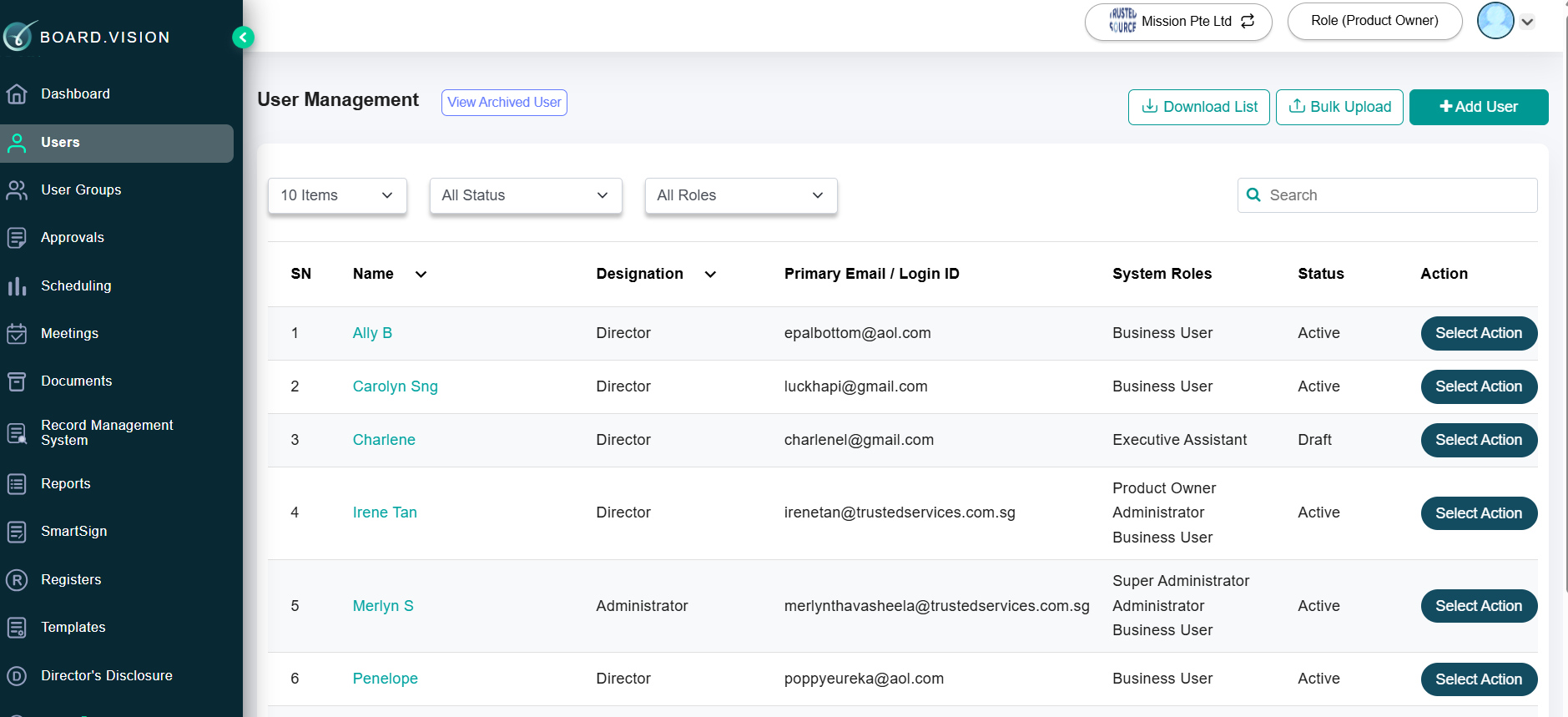
2) Navigate to the AI Features section.
Toggle the AI switch on or off as required for All Users and for Administrators only.
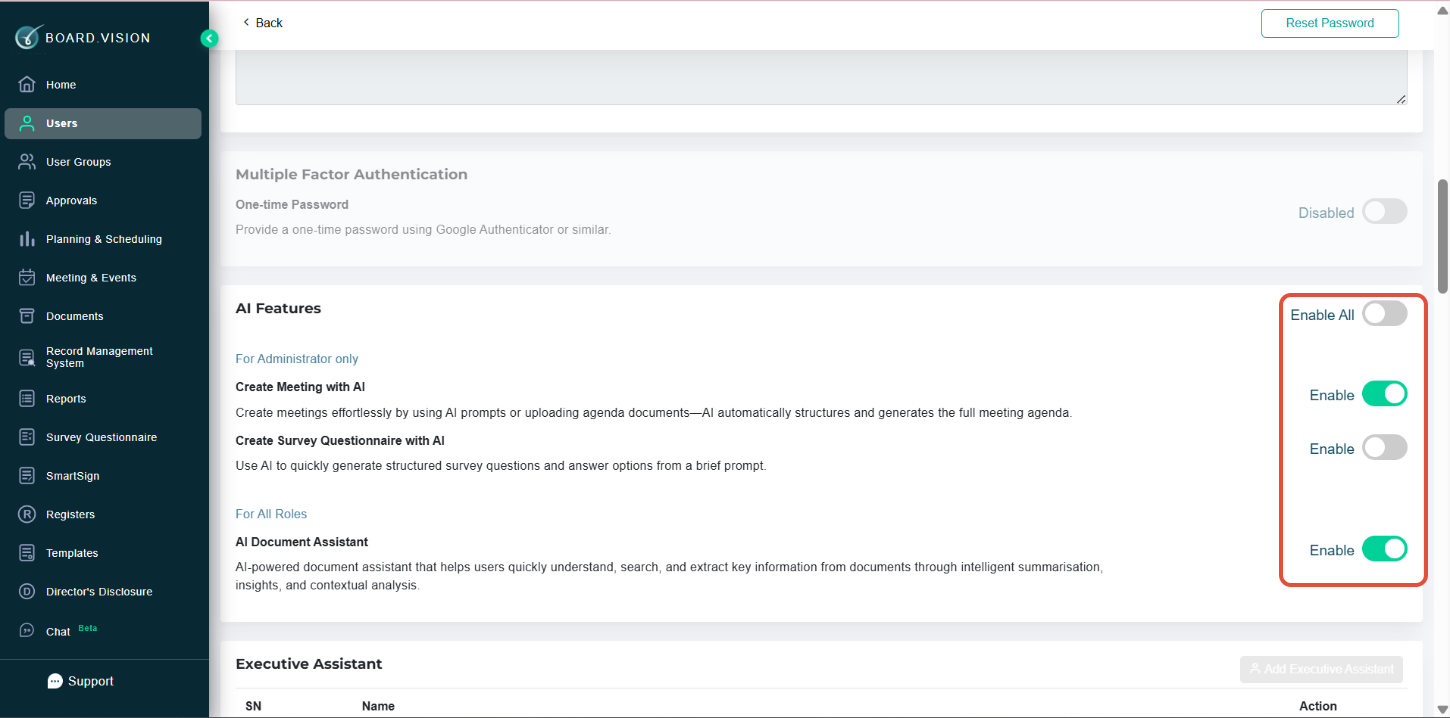
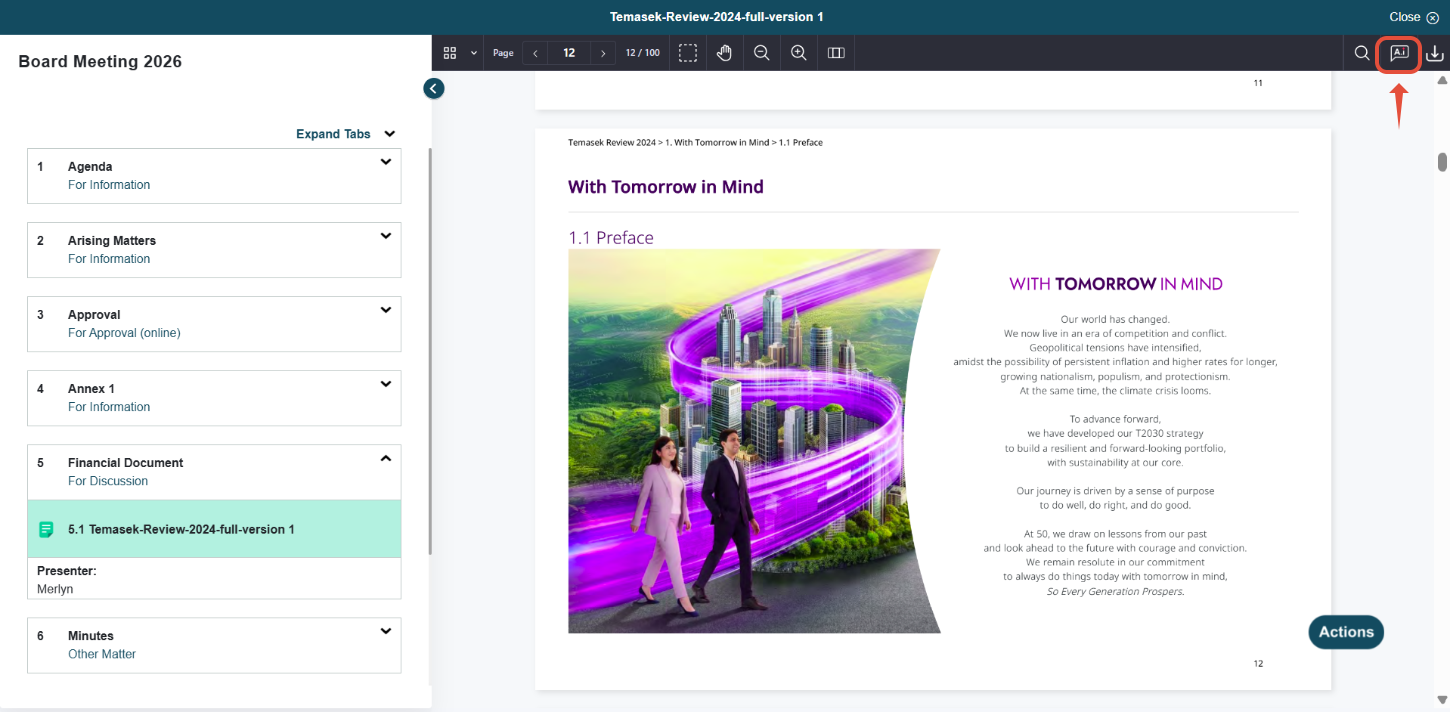
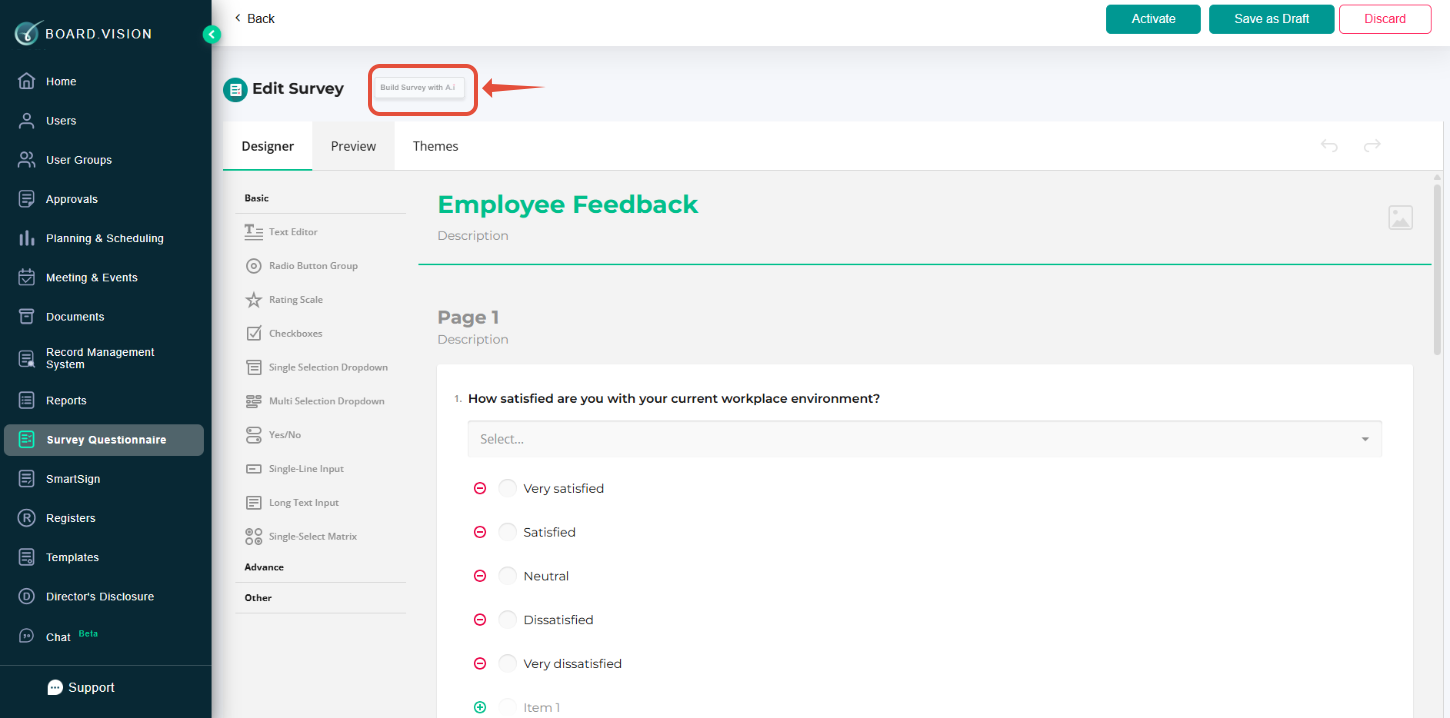
3) The AI option is enabled and clickable when AI access is granted. When AI access is not enabled, the option will appear greyed out and remain inaccessible.
Documents
Survey Questionnaire
If you face any issues in completing the steps shown in this tutorial, please reach out to our Board.Vision Customer Success Team at support@board.vision or +65 6909 7100 and we will be happy to help.
Our hotline operating hours are from Mondays to Fridays 9:00 AM to 6:00 PM SGT (excluding public holidays).
Was this article helpful?
That’s Great!
Thank you for your feedback
Sorry! We couldn't be helpful
Thank you for your feedback
Feedback sent
We appreciate your effort and will try to fix the article